Your printer hums, the paper feeds, and what comes out is a clean white sheet with nothing on it. Blank pages are one of the most frustrating printer faults because the hardware looks like it is working perfectly; the problem hides in a stuck queue, a wrong default, a dried-out cartridge, or a setting you never knew was there. The good news is that most blank-page issues on a Windows PC clear up with a short, ordered checklist that starts with the safest moves and only escalates if you need it to. Work through the fixes below in order, testing a print after each one, and you can stop the moment your pages come out right.
Let Windows Diagnose It First
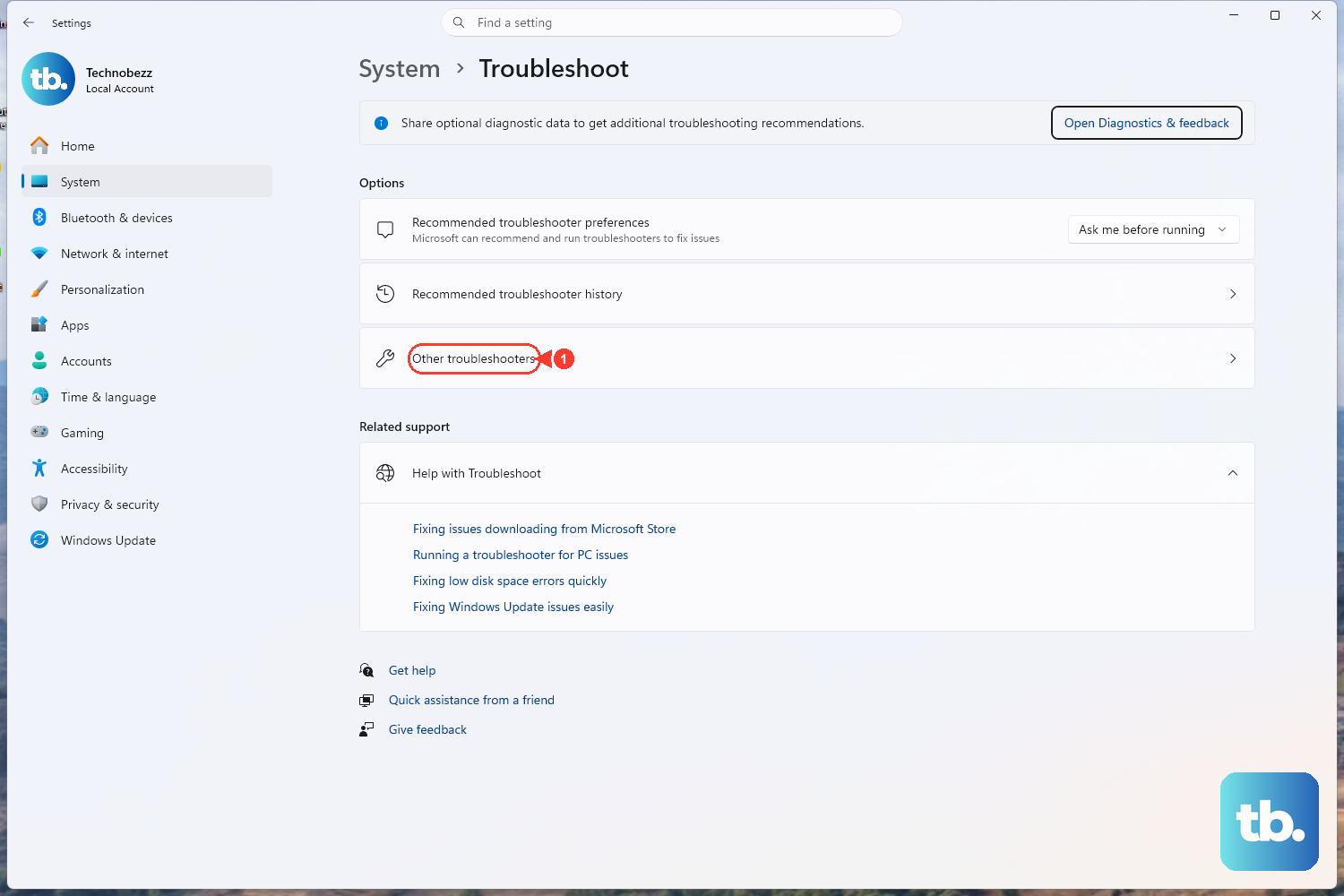
Microsoft builds an automated printer troubleshooter into the Get Help app, and on both Windows 11 and Windows 10 it is the recommended starting point. Open the Microsoft Support page titled "Fix printer connection and printing problems in Windows" and select "Run the troubleshooter in Get Help." Microsoft also points to the shortcut aka.ms/PrinterConnection for the same flow.
Once it launches, the app runs diagnostics on its own and attempts to fix common printer problems automatically. This costs you nothing and changes no hardware, so it is worth letting it finish before you touch anything else. If it reports a fix, print a test document and see whether the blank pages are gone.
Power Cycle the Printer the Right Way
A full power cycle clears the printer's internal memory and resets the print engine, which can resolve a job that stalled mid-print and dumped a blank sheet. It is one of Microsoft's basic recommended fixes.
- 1.Turn off your printer and unplug it.
- 2.Wait about half a minute.
- 3.Plug your printer back in.
- 4.Turn the printer back on.
Give the printer a moment to finish its startup routine, then send a test print. If it still produces a blank page, the issue is more likely in Windows or in the cartridges, so keep going.
Confirm the Right Printer Is Set as Default
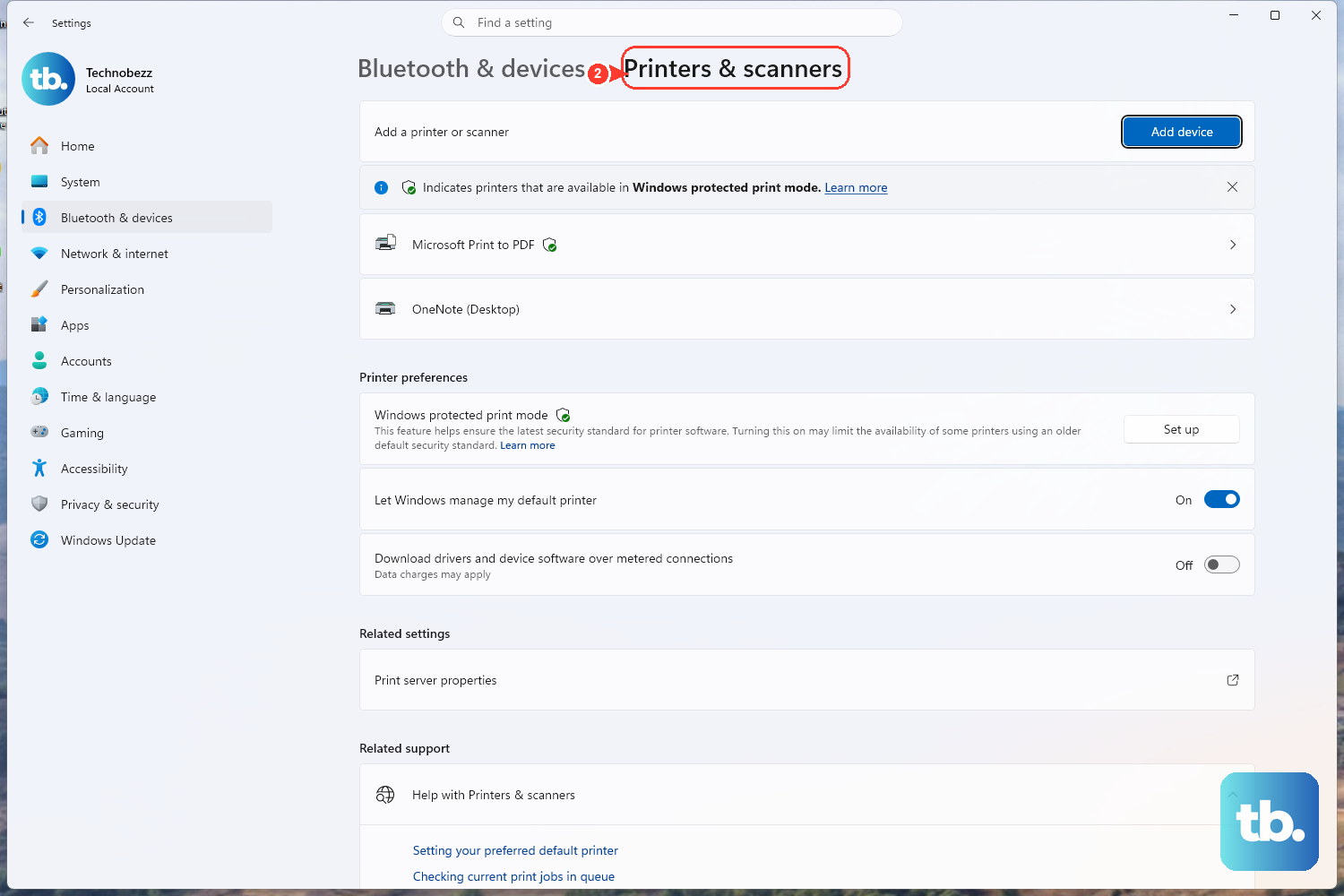
If Windows is routing your job to a virtual printer or the wrong device, a real sheet can come out blank. Setting the correct printer as default removes that variable.
On Windows 11, go to Start > Settings > Bluetooth & devices > Printers & scanners, turn off "Let Windows manage my default printer," select your printer, and choose "Set as default."
On Windows 10, go to Start > Settings > Devices > Printers & scanners, clear "Let Windows manage my default printer," select the printer, choose "Manage," then "Set as default." Print again once the correct printer shows the default label.
Take the Printer Out of Offline and Pause Mode
Two queue settings, "Use Printer Offline" and "Pause Printing," can hold or misroute jobs so the output looks wrong or empty. Both live in the printer's own queue window.
Open the printer's queue, then under the Printer menu clear "Pause Printing" and "Use Printer Offline" if either is selected, and select "Set As Default Printer." These explicit steps come from Microsoft's offline-printer guidance for Windows 10; on Windows 11 the same status is handled through the same queue and Printer menu. Send a test print after both options are cleared.
Cancel Stuck Jobs in the Print Queue
A jammed or corrupted job sitting at the front of the queue can block everything behind it or print as blank. Clearing the queue gives you a clean slate.
On Windows 11, open Settings > Bluetooth & devices > Printers & scanners, select your printer, choose "Open print queue," click the "..." (ellipsis), and select "Cancel all."
On Windows 10, select the printer, choose "Open queue," then under Document Name select the listed documents, choose "Document," and select "Cancel." With the queue empty, resend your document and check the output.
Restart the Print Spooler Service
The Print Spooler is the Windows service that manages everything waiting to print. When it gets stuck, jobs can fail silently or emerge blank, and restarting it is a reliable reset.
- 1.Press Windows key + R, type
services.msc, and press Enter. - 2.Scroll down and locate
Print Spooler. - 3.Right-click it and select "Restart" (choose "Start" if Restart is unavailable).
If a single restart does not help, you can clear stuck jobs manually. Stop the Print Spooler service first, then delete the files inside %WINDIR%\system32\spool\PRINTERS, then start the service again.
Warning: only delete the files once the Print Spooler service is stopped, so nothing is mid-write when you clear the folder. Deleting those files only removes pending print jobs; it does not remove your printer or its driver. Once the spooler is running again, try printing.
Update or Reinstall the Printer Driver
A corrupted or outdated driver can produce blank or garbled output even when the hardware is fine. Microsoft recommends using Windows Update to download, install, and update printer drivers, so let it pull the latest driver first.
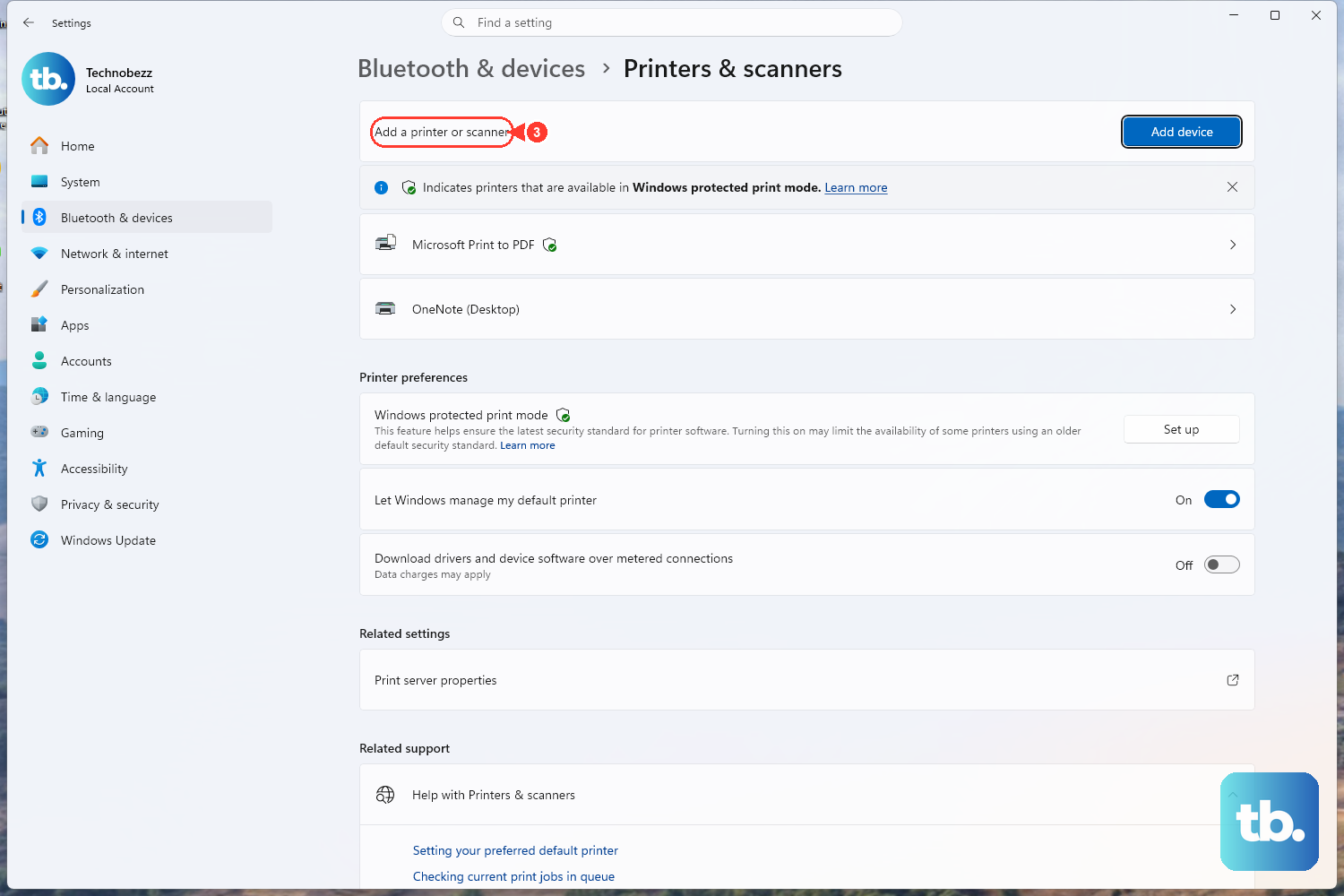
If updating does not fix it, reinstalling the printer gives the driver a fresh start. On Windows 11, remove the printer from Settings > Bluetooth & devices > Printers & scanners; on Windows 10, remove it from Settings > Devices > Printers & scanners. Then re-add it with "Add a printer or scanner" or "Add device." The shortcut ms-settings:printers opens this page directly. After the printer reinstalls, print a test page to confirm.
Check Ink, Print a Test Page, and Clean the Printhead
For inkjet printers, blank pages very often mean clogged nozzles or an empty cartridge rather than a software fault. Start by confirming the printer actually has ink, then print a test page to see exactly what is missing.
If the test page is blank, run your printer's printhead cleaning utility. HP printers offer printhead or cartridge cleaning from the on-printer maintenance menu or the HP Smart app. Allow a rest period between cleanings, and if the same defects keep returning after several attempts, the cartridges may need replacing.
Epson printers include a nozzle check that shows whether the nozzles are clogged, followed by a Print Head Cleaning utility you can run if the check fails. If quality has not improved after repeating the cycle, let the printer rest before trying again, then replace old or damaged cartridges if needed.
Canon printers offer Print Head Cleaning, with a Deep Cleaning option for stubborn clogs. If there is still no improvement after deep cleaning, give the printer time to rest and try once more; persistent failure can mean the ink is out or the print head is worn.
Verify Paper Size and Print Settings
Sometimes the page is blank because the software told it to be. The wrong paper size, the wrong selected printer, or a skip-blank-page option can all leave you with empty output even when the hardware is perfect.
Make sure you selected the correct paper size in both your printing program and your printer software, and make sure your product is selected as the printer in your printing program. If a genuinely blank page exists inside your document, you can enable the "Skip Blank Page" setting in the printer software, and use paper that meets the product's specifications.
It is also worth confirming the color, paper type, paper size, and quality settings are correct for the job. A quick pass through these settings is the last easy thing to rule out before you assume the printer itself has failed.
Frequently Asked Questions
Why does my printer print a completely blank page?
On inkjet printers, a completely blank page most often means clogged nozzles or an empty cartridge. It can also come from a stuck print job, the wrong printer set as default, or incorrect print settings such as the wrong paper size or selected printer, so it is worth checking both the hardware and the software.
What is the fastest fix to try first?
Run Microsoft's automated printer troubleshooter in the Get Help app, then power cycle the printer by turning it off, unplugging it, waiting about half a minute, plugging it back in, and turning it on. These are the safest first steps because they change no hardware and resolve many common problems automatically.
How do I clear stuck print jobs manually?
Press Windows key + R, type services.msc, press Enter, then right-click Print Spooler and select Restart. To clear jobs by hand, stop the Print Spooler service first, delete the files inside %WINDIR%\system32\spool\PRINTERS, then start the service again. Stopping the service before you delete is important so nothing is mid-write.
Will cleaning the printhead too often cause problems?
Each cleaning cycle uses ink, so it is best to give the printer a rest period between attempts rather than running cleanings back to back. If repeated cleanings do not restore quality, the cartridges or print head may need replacing rather than more cleaning.
Does reinstalling the printer delete anything important?
Removing and re-adding the printer only resets the driver and the device entry; it does not affect your documents or other devices. Use Windows Update for the driver first, and if you reinstall, re-add the printer with "Add a printer or scanner" or "Add device" from the Printers & scanners settings page.