Your printer was working fine, then a Windows update rolled through overnight and now nothing prints. Documents stack up in the queue, the printer shows as offline, or your PC acts like the printer was never there at all. Update-related printing failures are almost always fixable from your own desk, and most fixes take a couple of minutes. Work through the steps below in order, starting with the safest and quickest, and stop as soon as your printer comes back to life.
Start With a Clean Power Cycle and a Connection Check
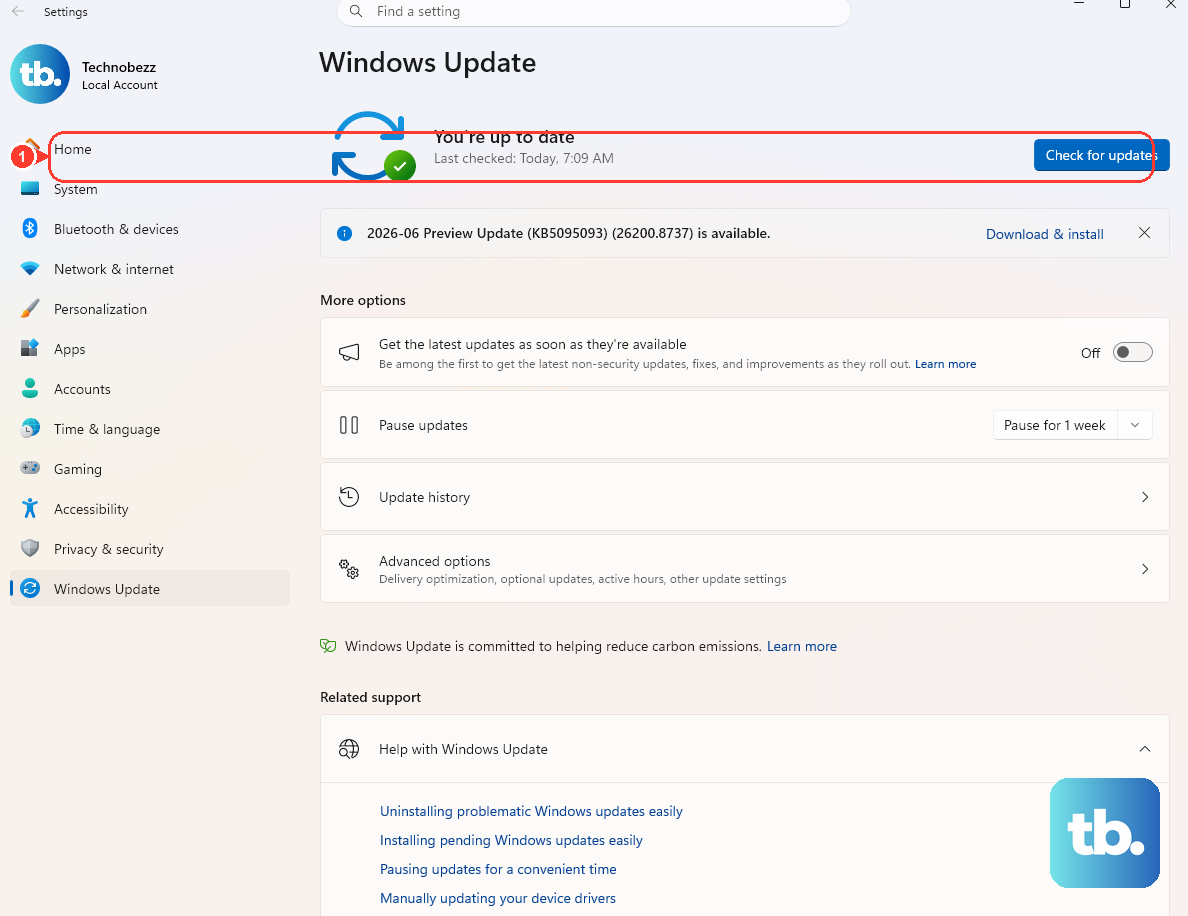
Before you touch any settings, give the printer itself a fresh start. A Windows update can leave temporary glitches in the connection between your PC and the printer, and a simple power cycle clears most of them.
- 1.Turn off your printer and unplug it from power.
- 2.Wait 30 seconds.
- 3.Plug the printer back in and turn it on again.
If you use a wireless printer, also confirm that the printer and your PC are connected to the same network. A printer sitting on a different network simply will not receive your jobs.
Next, open Settings > Windows Update, select Check for updates, and install anything pending. Fixes for problems caused by one update often arrive in a later one. You can also check the Windows release health page, where Microsoft lists known issues for each Windows 11 version.
Let Windows Diagnose the Problem for You
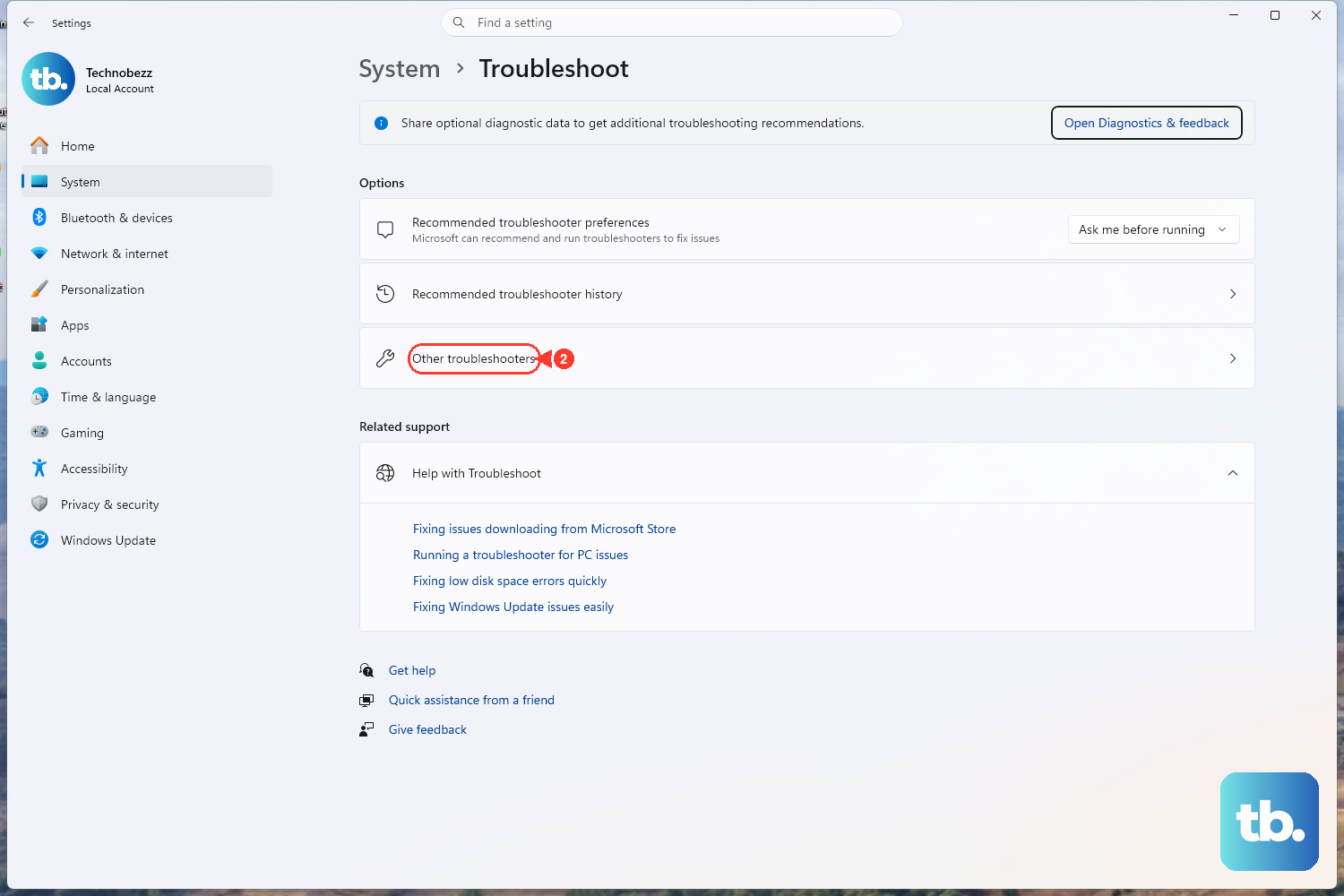
Windows includes an automated printer troubleshooter that runs diagnostics and tries to fix most printer problems on its own. It is the smart second step because it can catch issues you would otherwise have to hunt for manually.
The troubleshooter runs in the Get Help app. On your Windows PC, open the Get Help printer troubleshooter (aka.ms/PrinterConnection), follow the prompts, and let it apply any fixes it recommends. If it resolves the issue, you are done.
Make Sure the Printer Is Not Stuck Offline or Paused
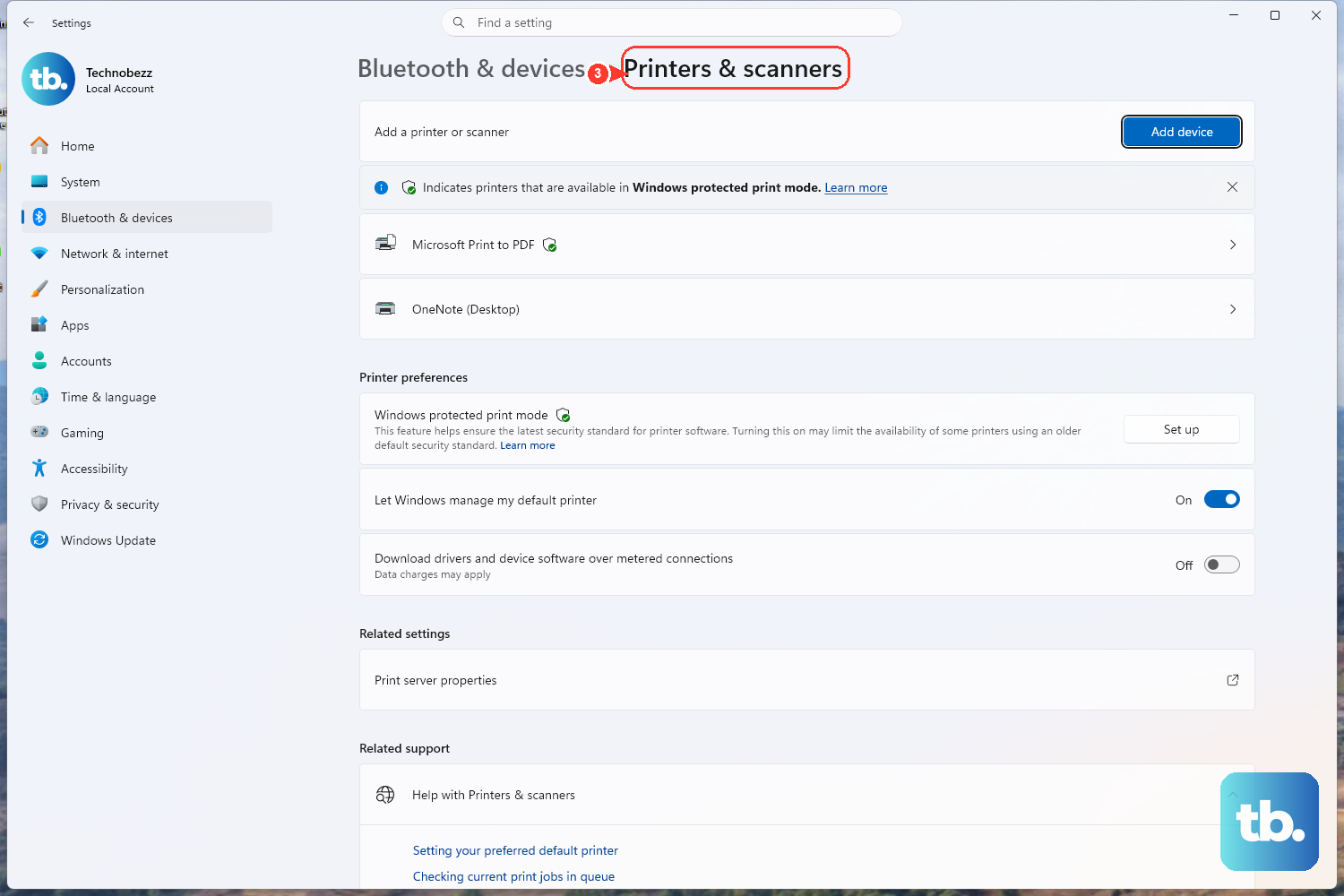
After an update, Windows sometimes flags a perfectly healthy printer as offline, or leaves printing paused. Both settings silently block every job you send, so check them quickly.
On Windows 11, go to Start > Settings > Bluetooth & devices > Printers & scanners, select your printer, then select Open print queue. On Windows 10, go to Start > Settings > Devices > Printers & scanners, select your printer, then select Open queue.
With the queue open, select the Printer menu and clear Pause Printing and Use Printer Offline if either one is selected. Once both are cleared, send a test page.
Confirm the Right Printer Is Set as Default
An update can quietly switch your default printer, so your jobs may be going to the wrong device, or to a virtual one that never produces paper. Setting the correct default is a fast, safe check.
On Windows 11, open Start > Settings > Bluetooth & devices > Printers & scanners. Under Printer preferences, turn Let Windows manage my default printer to Off, select your printer, then select Set as default. If the Set as default button is missing, that automatic management toggle is still on, so switch it off first.
On Windows 10, open Start > Settings > Devices > Printers & scanners. Make sure Let Windows manage my default printer is not selected, select the printer, select Manage, then choose Set as default. With automatic management off, Windows no longer switches your default to the last printer you used.
Clear Out Stuck Print Jobs and Reset the Spooler
If a job jammed in the queue when the update hit, everything behind it stalls. Start by canceling the stuck jobs directly. Open the print queue from Printers & scanners. On Windows 11, select the ... menu and choose Cancel all. On Windows 10, right-click each job and select Cancel.
If the jobs refuse to clear, flush them at the source by stopping the print spooler, deleting the leftover files, and starting it again. Stop the Print Spooler before you delete anything in the folder below. Deleting those files while the spooler is running can fail or leave the queue in a worse state. Follow these steps in order:
- 1.Press Windows key + R, type
services.msc, and press Enter. - 2.Scroll to Print Spooler, right-click it, and select Stop.
- 3.Open File Explorer and go to
C:\Windows\System32\spool\PRINTERS. - 4.Delete all of the files inside that folder. This only removes queued print jobs. It does not delete your saved documents or remove the printer itself.
- 5.Return to Services, right-click Print Spooler, and select Start. Open its properties and confirm Startup type is set to Automatic.
With the queue emptied and the spooler running again, try printing a fresh document.
Give the Print Spooler Service a Restart
The Print Spooler is the Windows service that manages every print job, and an update can leave it in a confused state even when no jobs are stuck. Restarting the service often revives printing immediately.
Press Windows key + R, type services.msc, and press Enter. Scroll down to Print Spooler, right-click it, and select Restart.
If Restart is not available, choose Stop and then Start to accomplish the same thing. Send a test print once the service is back up.
Update, Reinstall, or Roll Back the Printer Driver
This fix targets the most common update-related cause directly: a mismatched or broken driver. A Windows update may install a driver that does not match your printer, and correcting the driver usually restores printing for good.
Microsoft recommends getting printer drivers through Windows Update. On Windows 11, go to Settings > Windows Update > Advanced options, make sure Receive updates for other Microsoft products is on, then select Optional updates under Additional options. If a printer driver is listed, select it, choose Download and install, and restart. Optional drivers do not install automatically.
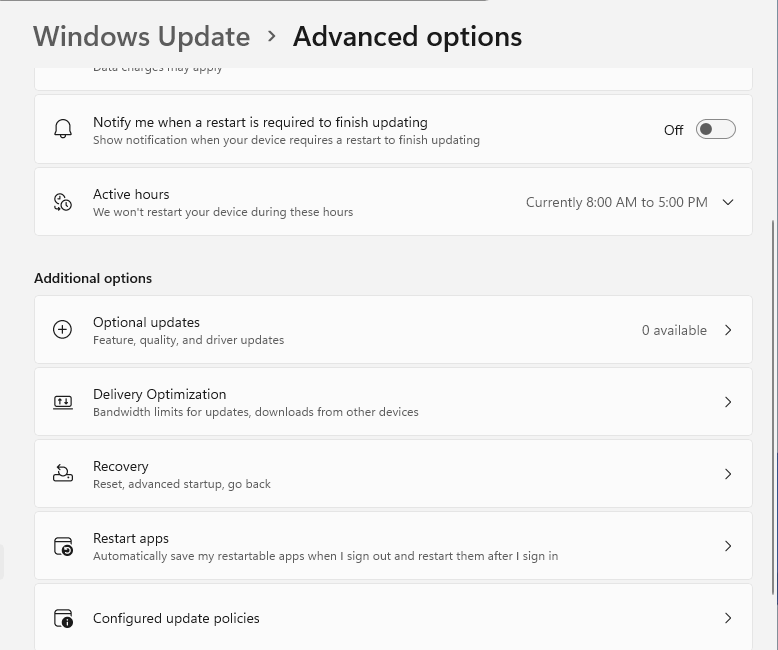
You can also update from Device Manager: right-click Start, select Device Manager, expand Printers, right-click your printer, select Update driver, then Search automatically for drivers.
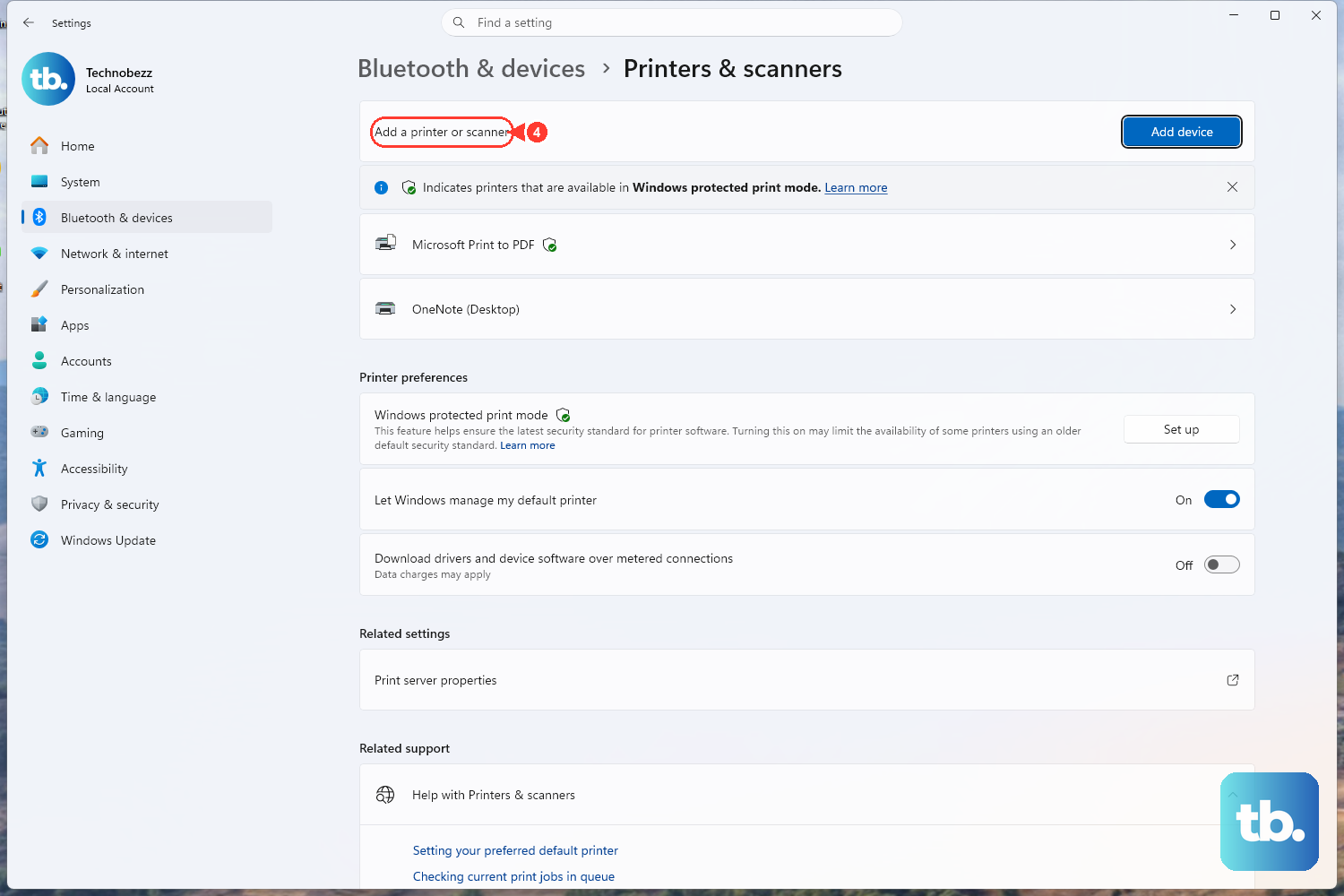
If updating does not help, reinstall the printer. In Printers & scanners, select your printer and choose Remove. Then select Add device next to Add a printer or scanner and let Windows install the recommended driver. If your printer does not appear, select Add manually.
If the trouble began right after a driver change, roll it back. Open Device Manager, expand Printers or Print queues, right-click your printer, and select Properties. On the Driver tab, select Roll Back Driver, then restart your PC. If Roll Back Driver is not available, reinstall the printer instead. You need administrator rights to roll back a driver. You can also download a driver that matches your printer model and Windows version from the printer manufacturer's support website.
Extra Steps for HP Printers
If your printer is an HP, the company offers free repair tools that automate much of the work above. On Windows, download and run HP Print and Scan Doctor from HP's support site, or use the Diagnose & Fix feature in the HP Smart app if it appears for your printer.
HP's offline-fix basics are worth repeating: power cycle the printer by turning it off and disconnecting power, restart both your PC and your router, and confirm that the printer and PC are on the same network. Between the automated HP tools and a full network restart, most HP-specific failures clear up quickly.
Frequently Asked Questions
Why did my printer stop working right after a Windows update?
An update can leave temporary connection glitches, flip your printer to offline, change your default printer, or install a driver that does not match your printer. The fixes above address each of these causes, which is why working through them in order is the fastest path back to printing.
What is the Print Spooler and why does restarting it help?
The Print Spooler is the Windows service that manages all of your print jobs. When it gets stuck after an update, jobs pile up and nothing prints. Restarting it from the Services console (services.msc) often revives printing without any other changes.
How do I clear print jobs that will not cancel?
Stop the Print Spooler in services.msc first, then delete all files inside C:\Windows\System32\spool\PRINTERS, and start the spooler again. Deleting those files only removes the queued jobs. It does not affect your saved documents or remove the printer.
Is there a tool that just fixes printer problems automatically?
Yes. The built-in Windows printer troubleshooter in the Get Help app (aka.ms/PrinterConnection) runs diagnostics and attempts repairs on its own. If you have an HP printer, HP Print and Scan Doctor and the Diagnose & Fix feature in the HP Smart app do the same for HP hardware.
How do I keep Windows from changing my default printer again?
In Printers & scanners, turn off Let Windows manage my default printer, then select your printer and choose Set as default. With automatic management on, Windows sets your default to the last printer you used, so turning it off keeps your choice in place.
Do these steps still work on Windows 10?
Most of them do, and the article includes the Windows 10 menu paths where they differ. Windows 10 support ended on October 14, 2025, so it no longer gets free updates or fixes from Windows Update unless your PC is enrolled in Extended Security Updates. If printing problems keep coming back on Windows 10, consider upgrading to Windows 11.