You hit print, the document slides into the queue, and then nothing happens. No paper, no warm-up hum, just a stalled job and a printer that acts like it never heard you. On Windows 11 this usually traces back to a small handful of culprits: an offline status flag, a clogged print queue, a misbehaving spooler, or a driver that needs attention. The good news is that you can work through each cause in order, starting with the gentlest fixes and only escalating if you have to.
The steps below apply to Windows 11 and Windows 10. Microsoft ended support for Windows 10 on October 14, 2025, but the documented fixes still cover both versions. The main difference is the Settings path: Windows 11 uses Settings > Bluetooth & devices > Printers & scanners, while Windows 10 uses Settings > Devices > Printers & scanners. Keep that distinction in mind as you go.
Let the Built-In Printer Troubleshooter Take a Look First
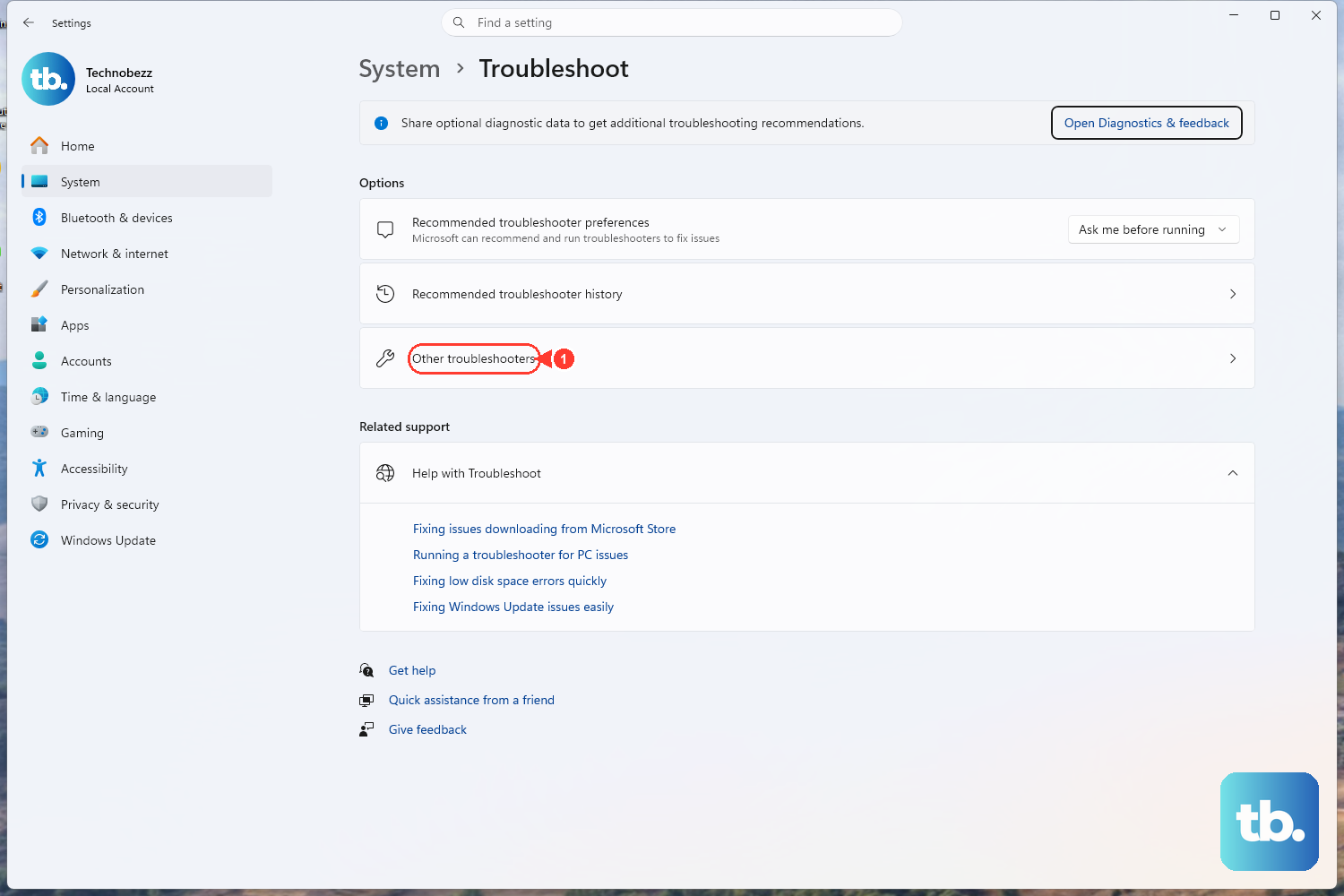
Start with the automated Windows printer troubleshooter, which now lives inside the Get Help app. It runs diagnostics and tries to fix the problem for you, so it is both the easiest and the safest move before you change anything by hand.
The legacy inbox troubleshooters were deprecated, and Windows now routes printer diagnostics through the Get Help platform. You can also start from Settings > System > Troubleshoot > Other troubleshooters, as shown above. Run the printer troubleshooter in Get Help, let it complete, and see whether your printer comes back to life before moving on.
Power Cycle the Printer Before Touching Windows
A surprising number of printing failures are nothing more than a temporary state inside the printer itself. A full power cycle clears those states without changing any of your settings, which is why it is worth doing early.
Turn off your printer and unplug it, wait 30 seconds, plug your printer back in, and then turn the printer back on. Give it a moment to finish its start-up routine, then try your print job again.
Make Sure the Printer Is Not Stuck Offline
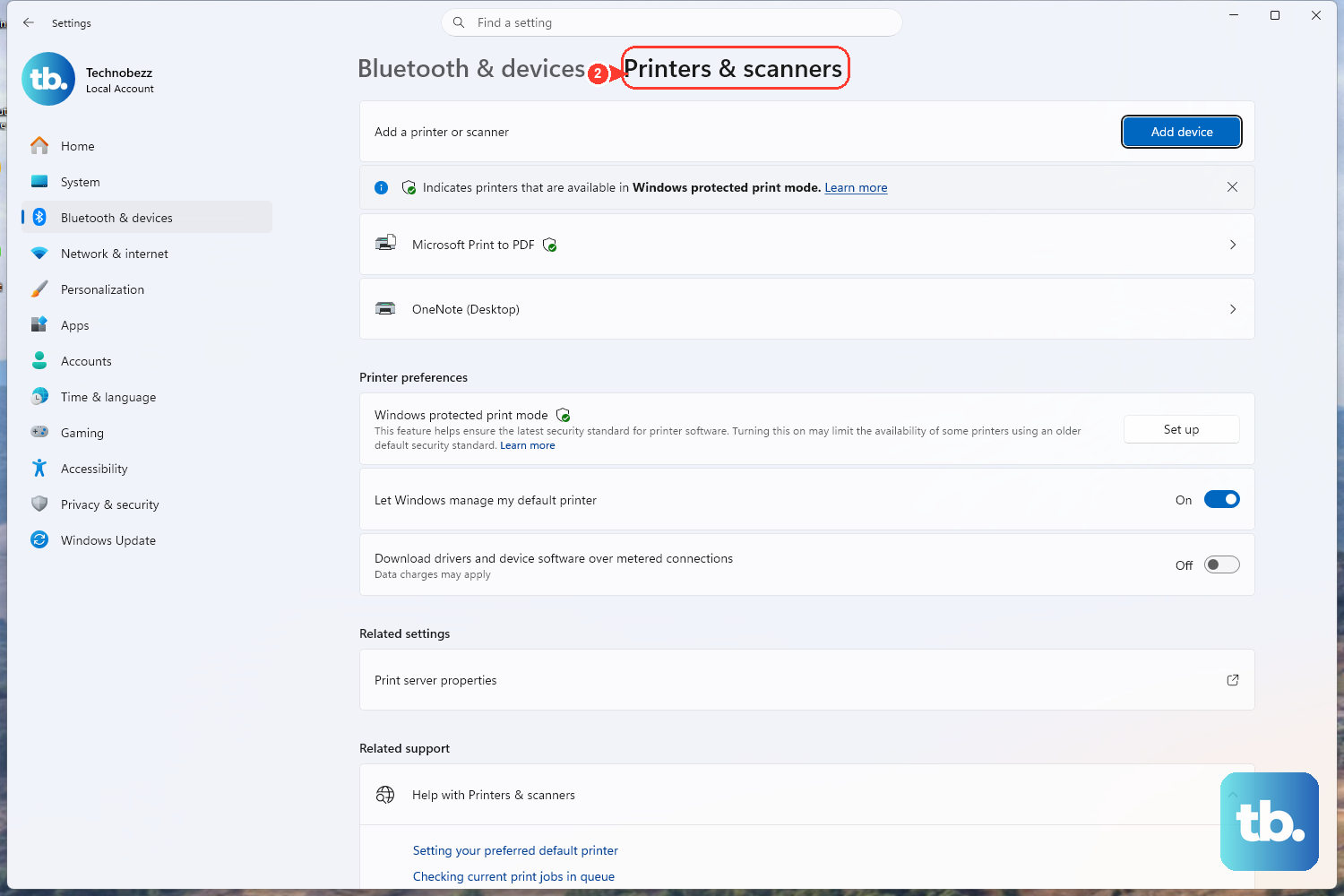
Windows can mark a printer as offline even when it is plugged in and ready, and once that flag is set, every job will just sit in the queue. Clearing it is quick.
- 1.Go to
Start > Settings > Bluetooth & devices > Printers & scannerson Windows 11, orStart > Settings > Devices > Printers & scannerson Windows 10. - 2.Select your printer, then select Open print queue (this is called Open queue on Windows 10).
- 3.On Windows 10, open the Printer menu in the queue window and clear Use Printer Offline and Pause Printing if they are selected. You can also choose Set As Default Printer from this menu.
- 4.For a Wi-Fi printer, check its built-in menu or manual to make sure it is connected to the same Wi-Fi network as your computer.
If the printer still appears offline after these checks, try the default printer, queue, and Print Spooler fixes below. You may also need to remove and reinstall the printer.
Point Windows at the Right Default Printer
If you have more than one printer (including PDF and document-saving "printers"), Windows may be sending your jobs to the wrong one. Setting the correct default fixes that, but there is one toggle you have to handle first.
Go to Settings > Bluetooth & devices > Printers & scanners on Windows 11, or Settings > Devices > Printers & scanners on Windows 10. Make sure "Let Windows manage my default printer" is turned Off on Windows 11, or is not selected on Windows 10. Otherwise Windows keeps reassigning the default to whichever printer you used last.
Once that is off, on Windows 11 select your printer and choose Set as default. On Windows 10 select the printer, select Manage, then under Printer status select Set as default. The printer status should then read Default.
Clear Out a Stuck Print Queue
When one job jams, it can block everything behind it, so the printer appears dead even though the hardware is fine. Cancelling the backlog often gets things moving again.
- 1.Open the print queue: on Windows 11, go to
Settings > Bluetooth & devices > Printers & scanners, select your printer, and select Open print queue; on Windows 10, useSettings > Devices > Printers & scanners, select your printer, and select Open queue. - 2.Right-click each print job and select Cancel to remove it.
If the jobs refuse to clear, the spooler service itself is likely holding them, which is exactly what the next two fixes address.
Restart the Print Spooler Service
The Print Spooler is the Windows service that manages all print jobs. When it gets stuck, no document will print, and restarting it can resolve temporary issues with printer recognition.
Press Windows key + R, type services.msc, and press Enter to open the Services console. Locate Print Spooler in the list, right-click it, and select Restart. That single action resolves a large share of "nothing prints" cases.
If you prefer the command line, you can restart the service from an elevated prompt. In a Command Prompt opened with Run as administrator, run net stop spooler and then net start spooler. Alternatively, in a Windows PowerShell window opened with Run as administrator, run Restart-Service -Name spooler.
Manually Delete the Stuck Spooler Files
Sometimes a job is so wedged that even a spooler restart will not shift it. In that case you can remove the queued files by hand. This is more involved than a simple restart, so reach for it only after the basic restart fails, and follow the order exactly so you do not lose data the spooler is actively using.
- 1.In the Services console (
services.msc), right-click Print Spooler and select Stop. - 2.Open File Explorer and go to
C:\Windows\System32\spool\PRINTERS. - 3.Delete all files in that folder.
- 4.Return to Services, right-click Print Spooler, and select Start.
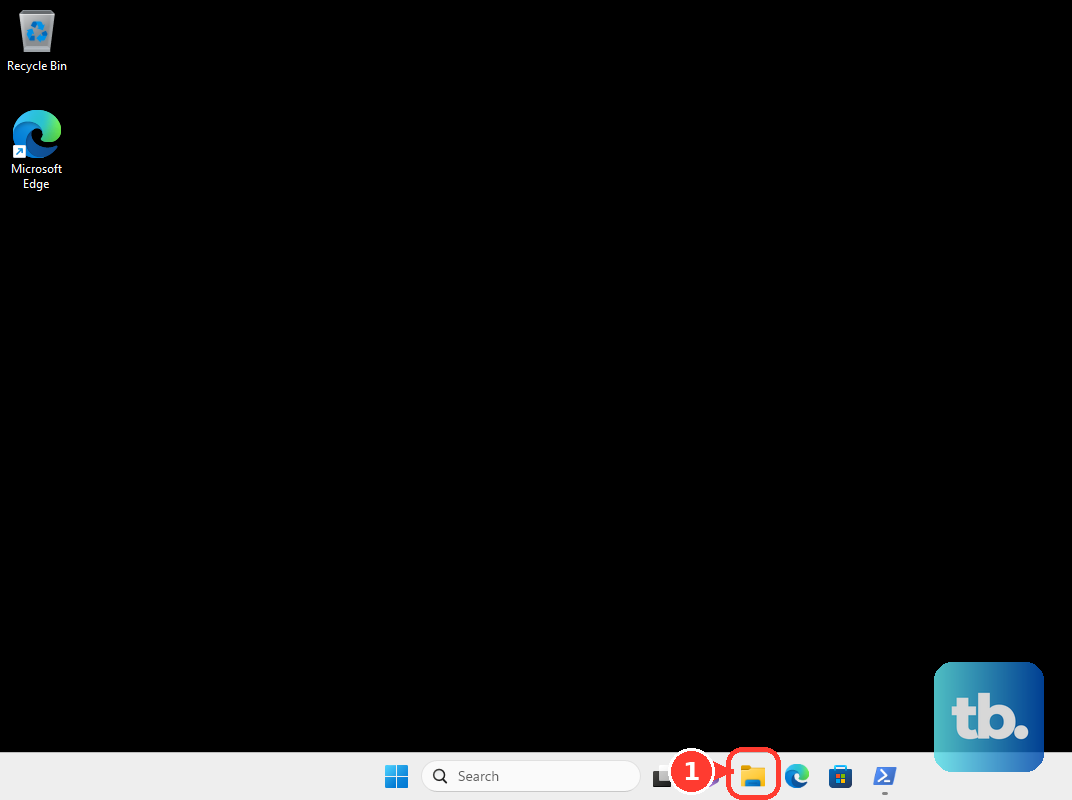
Stopping the service first is the important safeguard here; never delete these files while the spooler is running, or you risk corrupting jobs Windows is actively processing. With the queue physically empty and the service back up, send a fresh test page.
Update or Reinstall the Printer Driver
If the printer still will not respond, the driver is the most likely remaining cause. Use Windows Update as the primary way to download, install, and update printer drivers, so check there first.
When Windows Update does not supply a working driver, get it straight from the manufacturer. On ARM PCs, use Settings > Bluetooth & devices > Printers & scanners > Add device instead, unless the manufacturer has specific guidance for Windows on ARM. Otherwise, identify your exact printer model, which is printed on the printer itself, then go to the manufacturer's official website and open its Support or Drivers section. Search your model, download the latest printer software and drivers, then right-click the downloaded file, select Open, and follow the prompts.
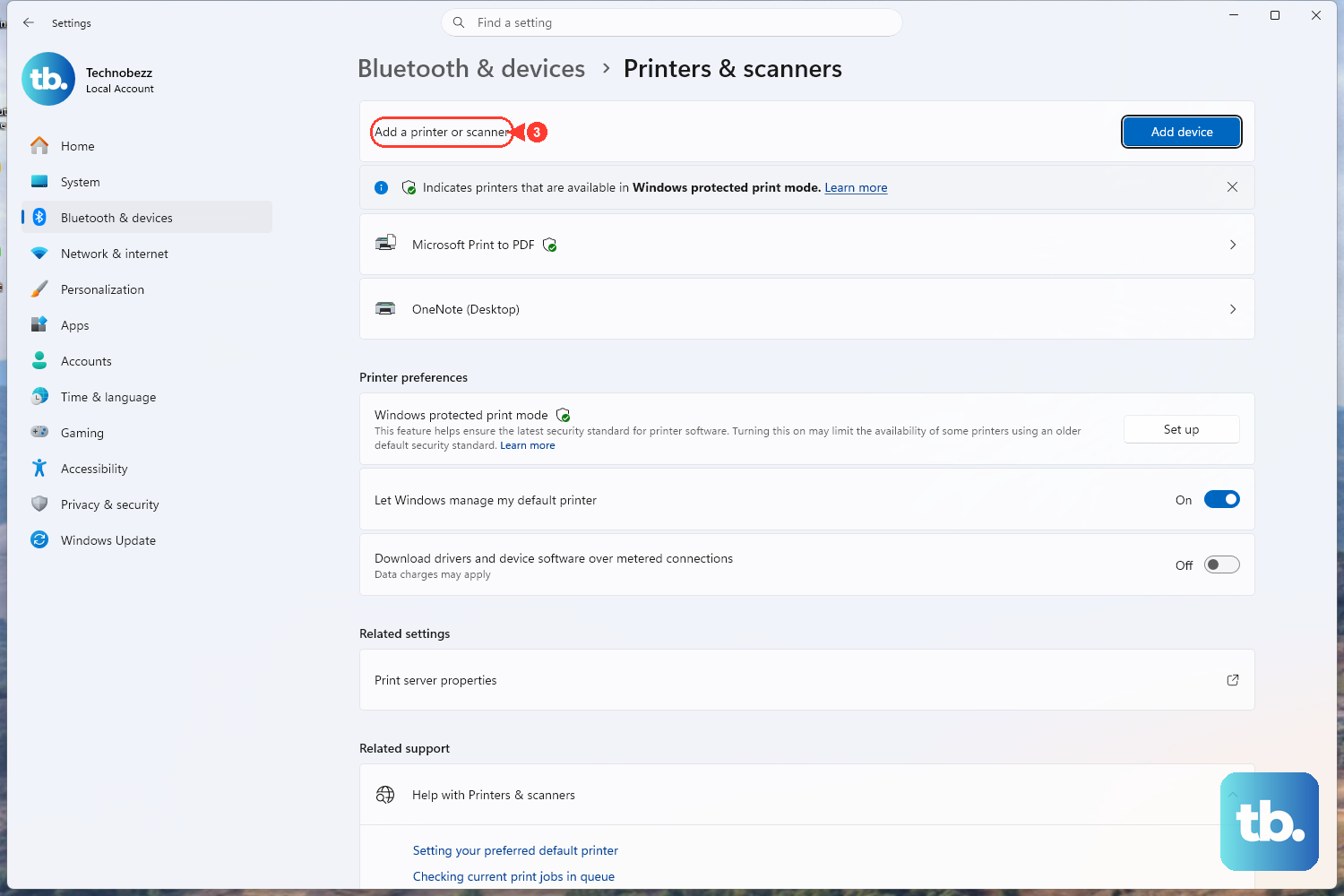
You can jump straight to the printers Settings page at any time using the ms-settings:printers shortcut. To reinstall on Windows 11, select your printer, select Remove, and then select Yes. With the printer turned on and connected, select Add device next to Add a printer or scanner and follow the prompts, then check Windows Update for drivers. Many printer makers also offer their own support app or guided diagnostic tool that can install drivers and run a self-check; if yours does, download it only from the manufacturer's official site.
Frequently Asked Questions
Which fix should I try first?
Start with the built-in Windows printer troubleshooter in the Get Help app, since it tries to fix the problem for you without changing settings manually. If that does not work, power cycle the printer next.
Why do my print jobs sit in the queue and never print?
The most common reasons are that the printer is flagged offline, a stuck job is blocking the queue, or the Print Spooler service has hung. On Windows 10, clear Use Printer Offline if it is selected. For a Wi-Fi printer, check that it is on the same network as your computer. Then cancel the stuck jobs and restart the Print Spooler. If jobs remain stuck, manually clear the spool folder.
How do I restart the Print Spooler quickly?
Press Windows key + R, type services.msc, press Enter, then right-click Print Spooler and select Restart. From an elevated Command Prompt you can instead run net stop spooler followed by net start spooler, or use Restart-Service -Name spooler in an elevated PowerShell window.
Why does Windows keep choosing the wrong default printer?
When "Let Windows manage my default printer" is enabled, Windows reassigns the default to whichever printer you used last. Turn that setting off in Printers & scanners, then set your preferred printer as the default so it stays put.
Do these steps work on Windows 10 too?
Yes. The same fixes apply to Windows 11 and Windows 10, though Microsoft ended Windows 10 support on October 14, 2025. The main difference is the Settings path: Windows 11 uses Settings > Bluetooth & devices > Printers & scanners, while Windows 10 uses Settings > Devices > Printers & scanners.