Your printer worked fine yesterday, but now it sits stubbornly silent while Windows insists it cannot find it on the network. A wireless printer that drops off Wi-Fi is one of the most common and most frustrating home-office snags, and the cause is rarely a broken printer. More often it is a temporary glitch, a paused queue, a misbehaving service, or a printer that has quietly slipped onto a different network than your PC.
The good news is that you can usually get printing again in a few minutes without any technical risk. The fixes below are ordered easiest and safest first, so start at the top and stop as soon as your printer reconnects. Everything here applies to both Windows 11 and Windows 10, with the small menu differences noted where they matter.
Start With a Full Power Cycle of Every Device
Before changing a single setting, reset the hardware. Turn off the printer, wait a moment, then turn it back on. That brief pause lets the printer's network radio fully reset rather than resume the same stuck state.
While you are at it, restart your PC and your Wi-Fi router too. A router that has been running for weeks can drop devices or assign conflicting addresses, and a quick reboot clears most of those temporary connection glitches. Give the router a full minute to come back online before you test printing again.
Make Sure the Printer and PC Share the Same Network
A wireless printer can only be reached if it is on the same network as your computer. Confirm the printer's wireless option is turned on and available, then run the printer's built-in wireless connectivity test using the maker's instructions; most printers can print a network status or test page from their control panel.
Next, check that your PC is connected to the exact same network as the printer. If your home setup broadcasts more than one network name, it is easy for the printer to land on one while your laptop joins another. A printer on a different network cannot be reached, no matter how healthy both devices look on their own.
Let Windows Diagnose It Automatically
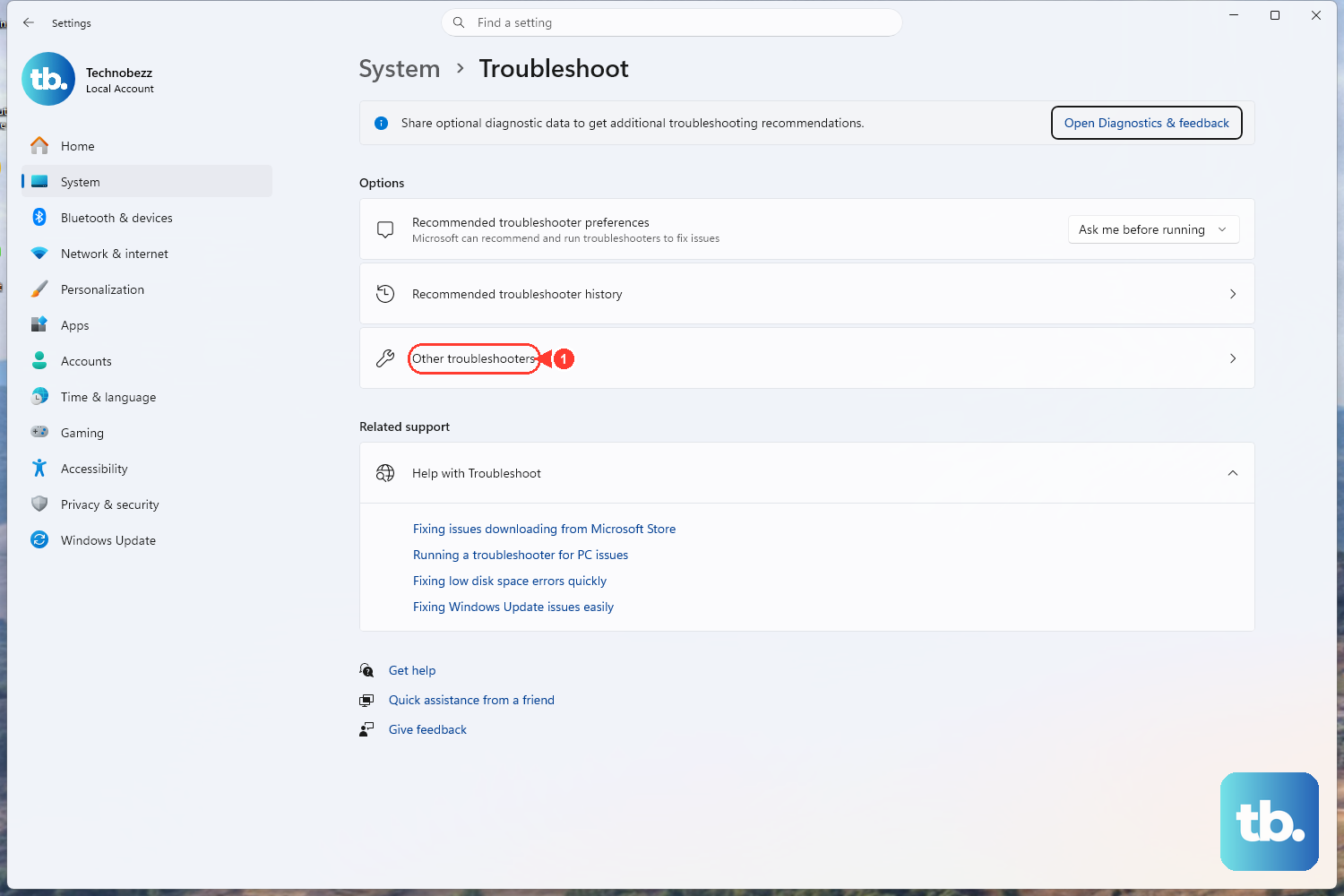
Windows includes an automated printer troubleshooter that scans for printers and fixes configuration problems for you. Open the Get Help app, type printer troubleshooter in the search bar, and follow the prompts. Microsoft also links the same tool directly at aka.ms/PrinterConnection, which opens the troubleshooter inside the Get Help app.
The troubleshooter runs diagnostics and attempts to fix most printer problems on both Windows 11 and Windows 10. It is a safe, hands-off step, so it is worth running before you start poking at settings manually. If it repairs the connection, you are done.
Clear the "Use Printer Offline" Trap
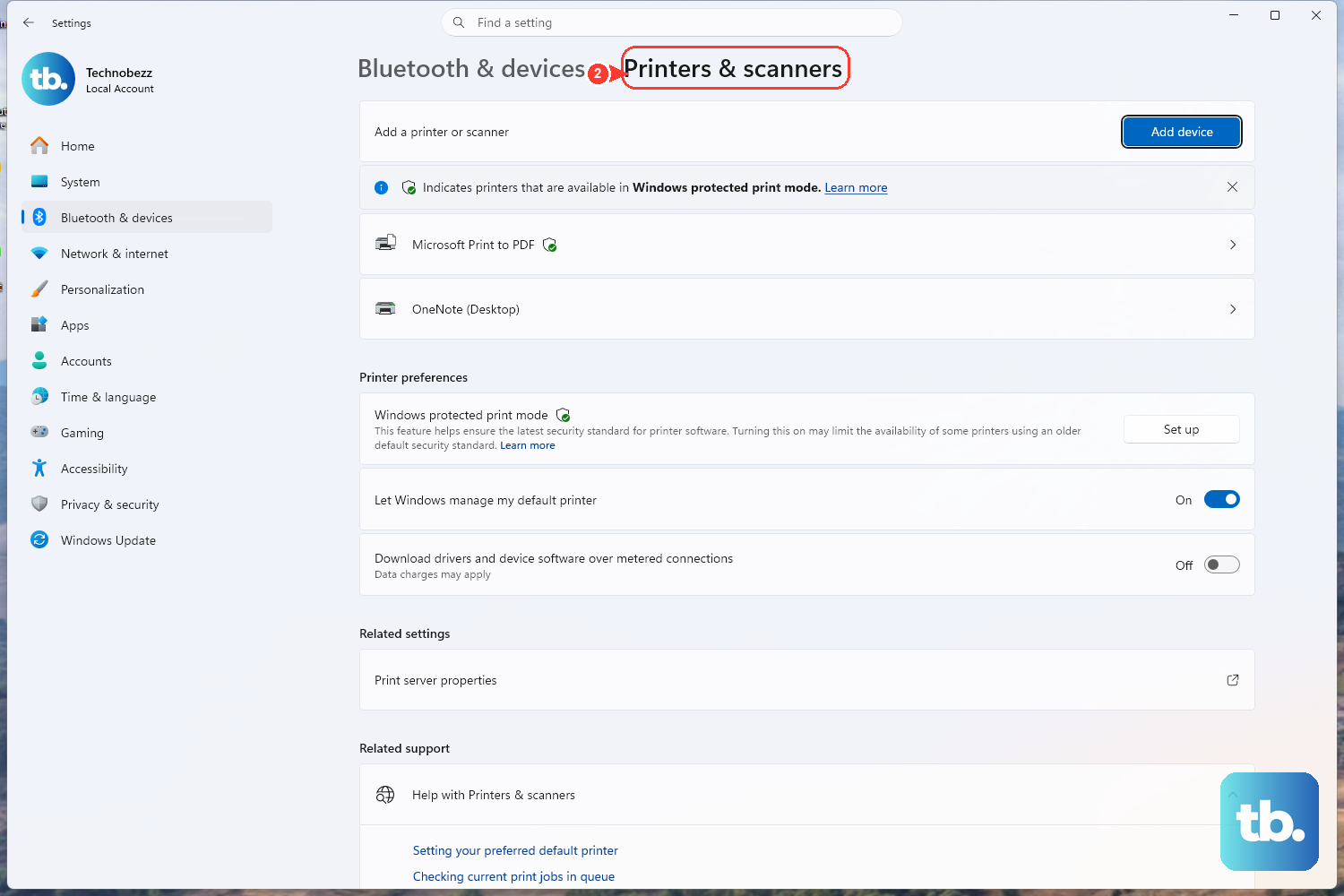
Sometimes Windows flips the printer into an offline state and never flips it back, even after the printer is reachable again. To check, open Printers & scanners. On Windows 11, go to Start > Settings > Bluetooth & devices > Printers & scanners; on Windows 10, go to Start > Settings > Devices > Printers & scanners.
Select your printer and open its print queue from Settings > Bluetooth & devices > Printers & scanners. On Windows 11, Microsoft now points users first to the Get Help printer troubleshooter and the queue's ellipsis menu for stuck jobs. If you are in the older queue interface and see Use Printer Offline or Pause Printing, clear those options.
Flush Out Stuck Print Jobs
A single corrupted document can jam the entire queue and block everything behind it. In Printers & scanners, select your printer and open its print queue. Right-click each print job and select Cancel to clear it out.
If a job refuses to cancel, you can force the queue clear by stopping the spooler service and deleting the queued files directly. Follow these steps carefully, and delete only the files described below so you do not remove anything else:
- 1.Press
Windows key + R, typeservices.msc, and press Enter to open the Services console. - 2.In the Services list, right-click
Print Spoolerand select Stop. - 3.Open File Explorer and go to
C:\Windows\System32\spool\PRINTERS, then delete all files inside this folder. (Delete only the files in this folder; leave the folder itself in place.) - 4.Return to the Services console, right-click
Print Spooleragain, and select Start.
With the queue emptied and the service restarted, send a fresh print job to confirm the jam is gone.
Restart the Print Spooler Service
The Print Spooler is the background service that manages every print job, and when it hangs, your printer can appear offline even though the network connection is perfectly fine. Restarting it is quick and safe.
Press Windows key + R, type services.msc, and press Enter. In the Services list, right-click Print Spooler and select Restart. If you prefer to do it in two steps, you can choose Stop and then Start instead. This works the same way on both Windows 11 and Windows 10.
Rejoin the Printer to Your Wi-Fi From Its Control Panel
If the printer has genuinely fallen off the network, the cleanest fix is to reconnect it directly at the printer rather than from your PC. The exact menu names vary by brand, but the process is similar across most models.
On an HP printer, for example, open the Setup, Network, or Wireless settings menu on the printer's control panel, select Wireless Setup Wizard, choose your network name, and enter your Wi-Fi password to reconnect. For other brands, use the equivalent wireless setup option on that printer; check the maker's support site for the precise menu path on your model. This is also the step to reach for whenever your Wi-Fi password or network name has changed.
Remove the Printer and Add It Back
When the printer is on the network but Windows still treats it as missing, removing and re-adding it forces a clean reconnection. Open Printers & scanners (Windows 11: Settings > Bluetooth & devices > Printers & scanners; Windows 10: Settings > Devices > Printers & scanners), select the printer, and choose the option to remove it.
Then add it back. Use the option to add a printer or device, wait for Windows to scan, then choose your printer and confirm. If your printer does not appear in the list, look for the option to add it manually and follow the prompts to point Windows at it. Once it is added again, send a test page to confirm it is back online.
Point Windows at the Right Default Printer
If jobs are connecting but landing on the wrong device, Windows may be auto-switching your default printer behind your back. Open Printers & scanners (Windows 11: Start > Settings > Bluetooth & devices > Printers & scanners; Windows 10: Start > Settings > Devices > Printers & scanners) and turn off "Let Windows manage my default printer."
Now set the default yourself. Select your printer and choose the option to set it as the default. Locking the default in place stops Windows from quietly redirecting your jobs to whichever device it used most recently.
Update the Printer Driver as a Last Step
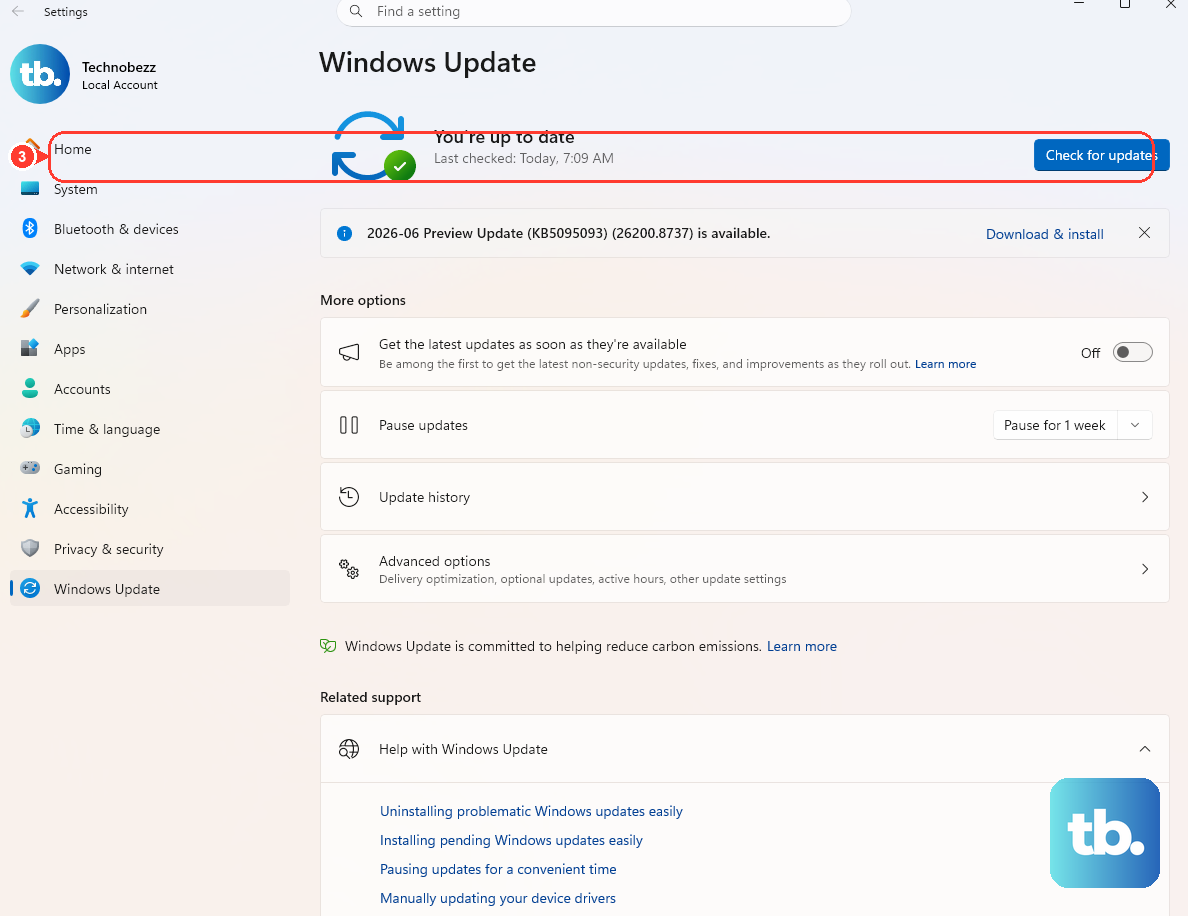
If the printer connects to Wi-Fi but still will not print, an outdated or corrupted driver is the likely culprit. Installing the latest driver gives Windows a fresh, correct set of instructions for talking to your specific model.
The most reliable path is to let Windows Update pull the current driver, or to download the latest software from your printer maker's site and run the installer. Once the new driver is in place, print a test page to confirm the connection is fully restored.
Frequently Asked Questions
Why does my printer say offline when it is connected to Wi-Fi?
This usually means Windows has flagged the printer as offline rather than the printer actually losing its connection. On Windows 11, start with the Get Help printer troubleshooter, then open Settings > Bluetooth & devices > Printers & scanners, select the printer, and choose Open print queue. Cancel stuck jobs from the ellipsis menu, and restart the Print Spooler service through services.msc if the false offline status remains.
How do I open the automatic printer troubleshooter in Windows?
Open the Get Help app, type printer troubleshooter in the search bar, and follow the prompts. You can also open it directly by going to aka.ms/PrinterConnection, which launches the same tool inside Get Help. It runs diagnostics and attempts to fix most printer problems automatically on both Windows 11 and Windows 10.
Where is the print queue folder, and is it safe to clear it?
Queued print files live in C:\Windows\System32\spool\PRINTERS. It is safe to delete the files inside this folder to clear a stuck queue, but you must first stop the Print Spooler service in services.msc, delete only the files (not the folder), and then start the service again.
My printer dropped off Wi-Fi after I changed my router. What do I do?
Reconnect the printer to the new network directly from its control panel. On an HP printer, open the Setup, Network, or Wireless settings menu, select Wireless Setup Wizard, choose your network name, and enter your Wi-Fi password. For other brands, use the equivalent wireless setup option and consult the maker's support site for the exact path.
The printer connects but still will not print. What is wrong?
When the connection is fine but nothing prints, the driver is the most common cause. Install the latest driver through Windows Update or from your printer maker's site, then print a test page. It is also worth clearing any stuck jobs from the queue and confirming the correct default printer is set.