You hit print, expecting a page to slide out, and instead Windows greets you with a status that reads "Printer in error state." Nothing prints, the job sits there, and the message gives you almost nothing to work with. The good news is that this status usually points to a small, fixable problem rather than a dead printer, and most of the fixes take only a minute or two.
The six fixes below move from the safest, most automatic options to the more hands-on ones. Work through them in order and stop as soon as your printer comes back online. If you reach the end and it is still stuck, an extra section at the bottom covers the deeper repairs. Each fix lists the exact steps for both Windows 11 and Windows 10 where the menus differ.
Start With the Built-In Printer Troubleshooter
If you are on a Windows 11 device, the easiest and safest first move is the automated printer troubleshooter built into the Get Help app. It runs diagnostics for you and attempts to fix most printer problems on its own, which means you risk nothing by trying it first; it makes no manual changes that you have to undo later.
- 1.Open the Get Help app on your Windows 11 PC.
- 2.Search for the printer troubleshooter, or open the direct link aka.ms/PrinterConnection.
- 3.Follow the on-screen prompts and let it run its diagnostics.
This troubleshooter has effectively taken over from the older Microsoft Support and Recovery Assistant, which has been replaced by troubleshooters integrated into Get Help. Note that this Get Help troubleshooter is available on both Windows 11 and Windows 10, so Windows 10 users can run it here too.
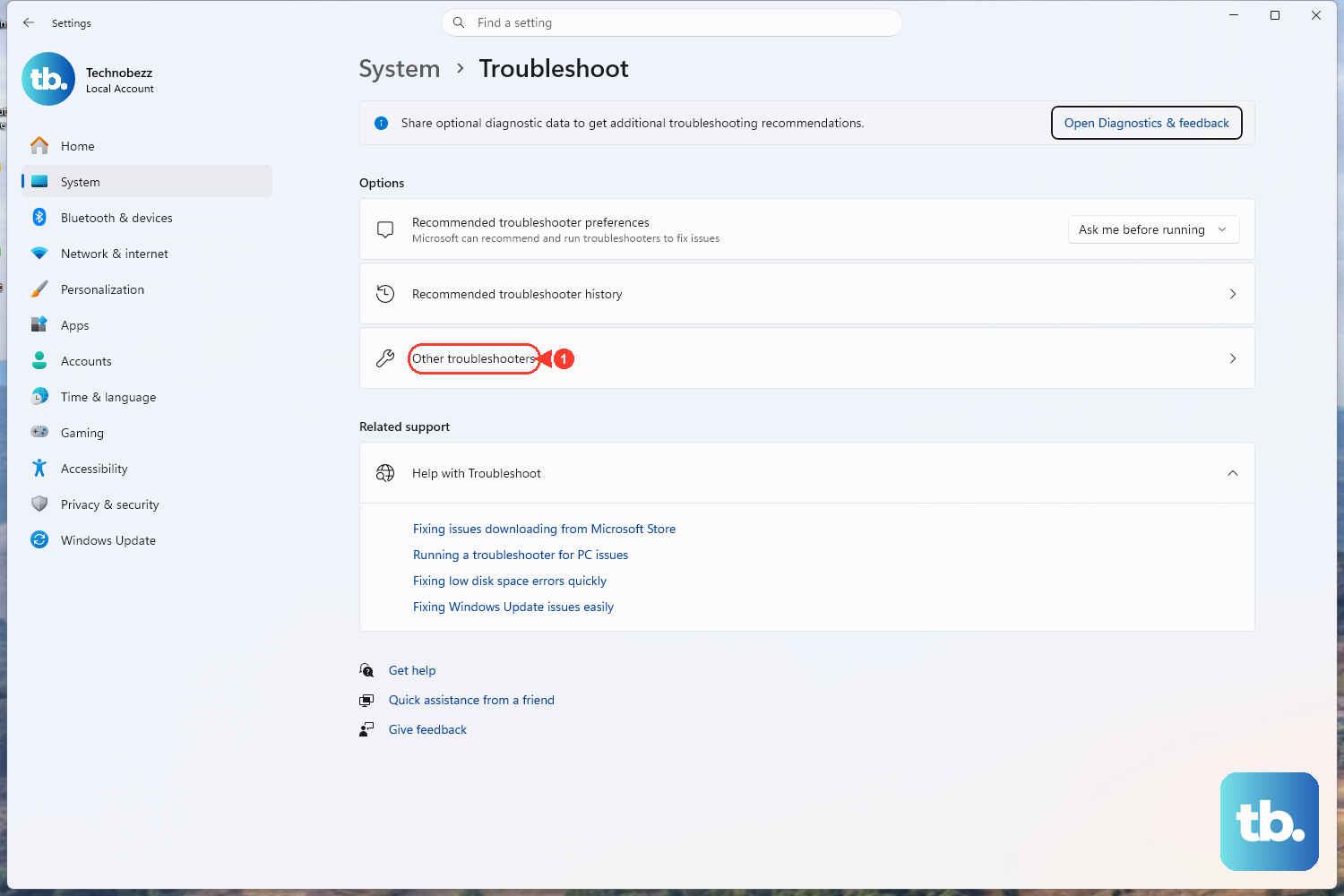
If you own an HP printer, there is also a manufacturer-side option you can reach through Windows settings. Go to Settings then Troubleshoot then Other troubleshooters, find Printer, and select Run to kick off the same kind of automated check.
Rule Out a Physical Problem on the Printer Itself
When Windows shows "Printer in error state," there may genuinely be a problem with the printer hardware rather than your PC. Before you change a single setting, walk over to the machine and look at it directly, because a jammed sheet or an open cover will keep triggering the error no matter what software you run.
Check the printer for low paper or low ink. Make sure the cover is not open and that no paper is jammed inside the feed path. Confirm the printer is actually turned on and connected to your PC, whether that connection is Wi-Fi or a cable.
These checks sound obvious, but the error state is exactly the kind of generic warning that an empty paper tray or a slightly ajar lid can produce. Clear anything physical first so the later software fixes have a chance to stick.
Power Cycle the Printer to Clear a Stuck State
A printer can lock into an error state internally, and a full power cycle is often enough to reset it. This clears temporary faults that no setting on your PC can reach.
- 1.Turn off your printer and unplug it.
- 2.Wait 30 seconds so the printer fully powers down.
- 3.Plug your printer back in.
- 4.Turn the printer back on.
If a power strip or surge protector sits between the printer and the wall, try plugging the printer straight into a wall outlet for this test, which rules out a flaky strip as the cause.
Check the Print Queue and the Offline Setting
Sometimes the printer is fine, but Windows has quietly flipped it into an offline mode, which can surface as an error or stalled state. Checking the queue, and clearing the offline setting on Windows 10, tells Windows the printer is available again.
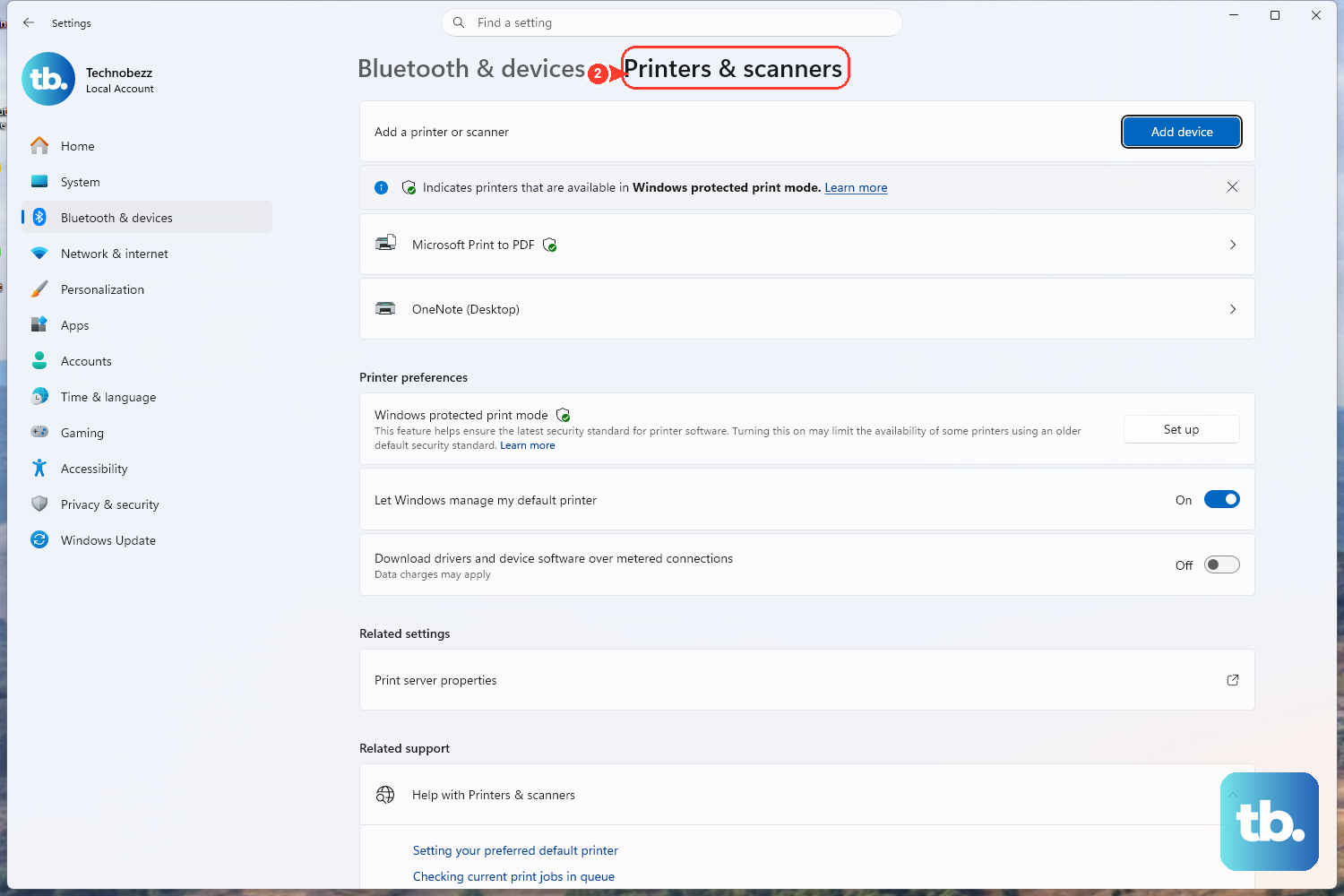
On Windows 11, make sure your printer is connected to the same Wi-Fi network as your PC. Check the printer's built-in menu for its Wi-Fi connection, or consult its manual for connection instructions. To check its queue, go to Start then Settings then Bluetooth & devices then Printers & scanners, select your printer, then choose Open print queue and cancel any jobs that are stuck.
On Windows 10, go to Start then Settings then Devices then Printers and scanners, select your printer, then choose Open queue. Select Printer and clear both Pause Printing and Use Printer Offline if either is selected. Windows 10 has that extra Pause Printing toggle, so make sure both are unchecked before you close the window.
Clear the Stuck Print Queue and Restart the Print Spooler
A single corrupted or stuck print job can jam the whole queue and leave the printer reporting an error. Start by canceling the jobs, then, if they refuse to clear, restart the service that manages them.
To cancel jobs on Windows 11, go to Start then Settings then Bluetooth & devices then Printers & scanners, select your printer, choose Open print queue, then right-click each job and select Cancel. On Windows 10 the button is labeled Open queue, but the cancel step is the same.
If the jobs will not clear, restart the spooler:
- 1.Press the Windows key plus R.
- 2.Type services.msc and press Enter.
- 3.Locate Print Spooler in the list.
- 4.Right-click it and select Restart.
To fully clear a stubborn queue, you can flush the spool folder. First, stop the Print Spooler in services.msc. Then open File Explorer to C:\Windows\System32\spool\PRINTERS and delete all the files inside that folder. Finally, start the Print Spooler again. Deleting the files in this folder only removes pending print jobs, so nothing else on your PC is affected, but be sure you are in the correct folder before you clear it.
Set the Right Printer as Your Default
If Windows is sending jobs to the wrong device, your real printer can look stalled or stuck in an error state. Pinning the correct printer as the default selects it automatically when you print.
On Windows 11, go to Start then Settings then Bluetooth & devices then Printers & scanners. Turn off Let Windows manage my default printer, select your printer, then choose the Set as default button. The status should change to Default.
On Windows 10, go to Start then Settings then Devices then Printers and scanners. Make sure Let Windows manage my default printer is unchecked, select the printer, choose Manage, then Set as default. Turning off the automatic management is the key part here, because otherwise Windows can switch your default back to whatever you last used.
When the Error Still Will Not Clear
If you have worked through all six fixes and the printer is still stuck, two further steps can help, especially when a driver has gone bad. Most printers require the latest driver to work well, so check your printer maker's support site for the model-specific driver, or let Windows Update fetch one.
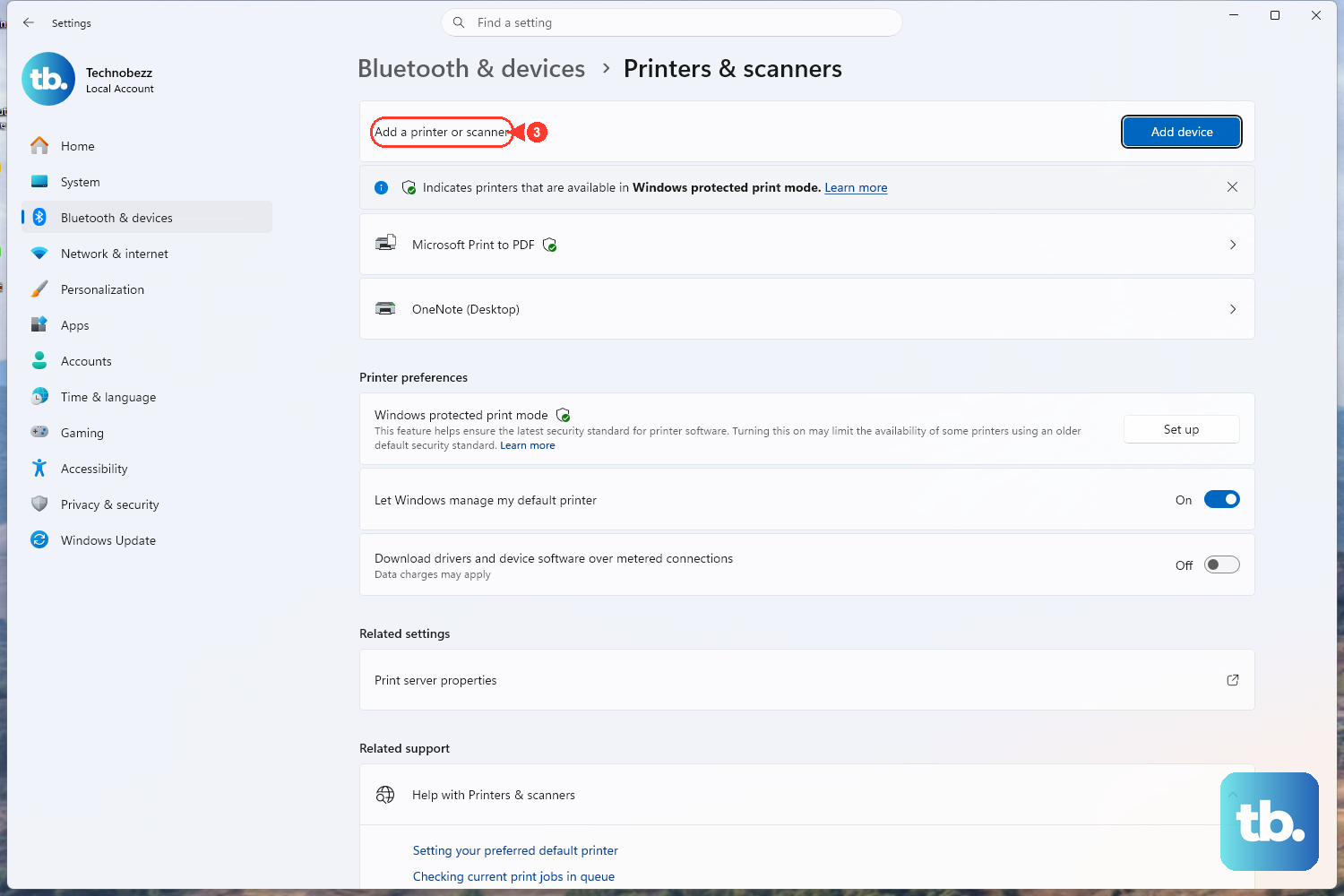
You can also remove the printer and add it back fresh. On Windows 11, go to Start then Settings then Bluetooth & devices then Printers & scanners, select the printer, choose Remove, and confirm with Yes; then make sure the printer is turned on and connected and reinstall it with Add device.
On Windows 10, go to Start then Settings then Devices then Printers and scanners, select the printer, choose Remove device, then reinstall it with Add a printer or scanner. Removing a printer does not delete any of your documents; it only clears the printer's setup so Windows can rebuild it.
HP owners have one more dedicated tool. Install the HP app from 123.hp.com (or your device's app store), then run its Diagnose and Fix feature, which is available on both Windows and macOS. It clears print jobs stuck in the queue, resumes any paused jobs, and resolves other print-queue errors automatically.
Frequently Asked Questions
What does "Printer in error state" actually mean on Windows?
When this status appears, there may be a problem with the printer itself. It is a generic warning that commonly points to physical issues such as low paper or ink, an open cover, or a paper jam, as well as software issues like a stuck print queue or an offline setting. That is why checking the hardware and clearing the queue resolves it so often.
Which fix should I try first?
On Windows 11, start with the automated printer troubleshooter in the Get Help app, because it runs diagnostics and attempts repairs without making manual changes you would have to reverse. After that, check the printer hardware and power cycle it, since those steps are quick and address the most common physical causes.
Is it safe to delete the files in the PRINTERS spool folder?
Yes. Deleting everything inside C:\Windows\System32\spool\PRINTERS only removes pending print jobs, not any of your saved documents or system files. Stop the Print Spooler service first, delete the files, then restart the service so the queue rebuilds cleanly.
I have an HP printer. Is there a faster fix?
For HP printers, install the HP app from 123.hp.com and run its Diagnose and Fix tool on Windows or macOS. It clears stuck jobs, resumes paused jobs, and resolves other print-queue errors for you. You can also stop the Print Spooler service, delete all files in C:\Windows\System32\spool\PRINTERS, and restart the service.
Why does my printer keep dropping back into an error state?
A recurring error often comes from an outdated driver or from Windows reassigning your default printer. Install the latest model-specific driver from the manufacturer's site or via Windows Update, and turn off Let Windows manage my default printer so your chosen printer stays set as the default.