You send a document to print, and instead of pages coming out, Windows throws up a message that the printer driver is unavailable. The printer might still show up in your list, but it refuses to do anything useful. This usually means the software that lets Windows talk to your printer is missing, corrupted, outdated, or simply jammed up, and the good news is that it is fixable without any special skills.
The fixes below are ordered from the easiest and safest to the slightly more hands-on, so start at the top and stop as soon as your printer comes back to life. Windows 11 and Windows 10 paths are included where the menus differ.
Start With the Built-In Printer Troubleshooter
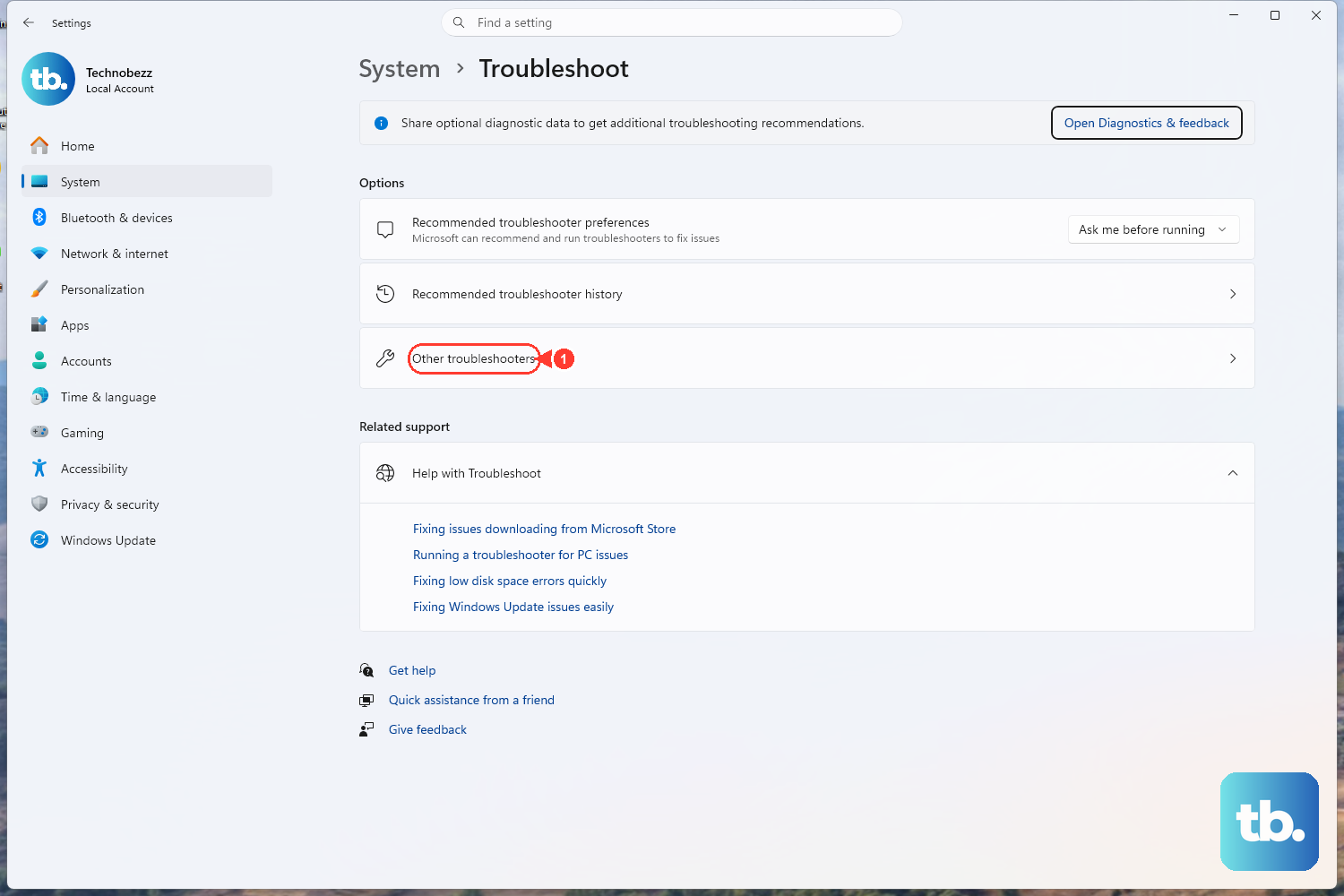
Before you touch any drivers or services, let Windows try to repair the problem for you. On Windows 11, open the Get Help app and run the printer troubleshooter. To view the troubleshooting options shown above, open Settings > System > Troubleshoot > Other troubleshooters. On Windows 10, open Get Help, enter printer troubleshooter in its search bar, and follow the prompts. Also try the printer power-cycle and connection checks below.
The troubleshooter runs diagnostics and attempts to fix most printer problems automatically, including driver issues. It is a useful first step because it automatically runs diagnostics and attempts repairs.
While you are at it, give the printer a quick power-cycle. Turn off your printer and unplug it, wait 30 seconds, plug it back in, and turn it on. If you use a wired printer, confirm the USB cable is properly connected from the printer to your PC before you test again.
Update or Reinstall the Driver From Printers & Scanners
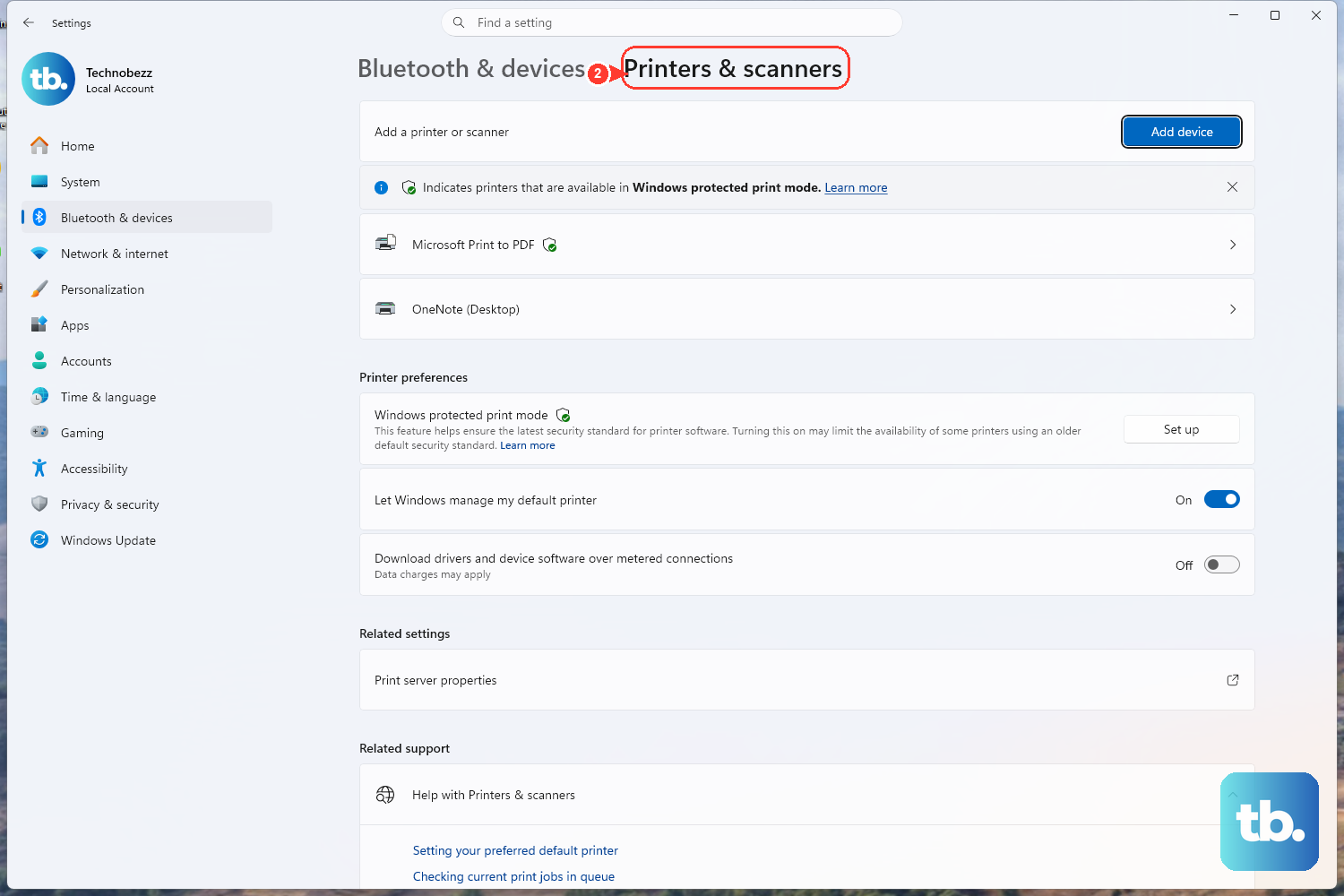
If the troubleshooter does not clear it, the driver itself is the next suspect. Updating it through Windows Update can help fix printing issues.
Open Settings. On Windows 11, go to Start > Settings > Bluetooth & devices > Printers & scanners. On Windows 10, go to Start > Settings > Devices > Printers & scanners.
To update the driver, open Windows Update in Settings and check for updates.
Alternatively, on Windows 11, go to Settings > Bluetooth & devices > Printers & scanners. On Windows 10, go to Settings > Devices > Printers & scanners.
Select your printer, then select Manage.
Select Update driver and follow the on-screen instructions.
If Windows Update does not find a driver, use the manufacturer's download steps below.
Try printing again.
If updating does not help, removing and re-adding the printer may help Windows download and install the latest printer drivers. After reinstalling the printer, check Windows Update again for updated drivers.
On Windows 11, select your printer, then Remove. On Windows 10, select your printer, then Remove device.
Restart your PC.
Return to Printers & scanners. On Windows 11, select Add device, wait for the printer list, and select Add device next to your printer. On Windows 10, select Add a printer or scanner.
Let Windows install the recommended driver.
Pull the Latest Driver Straight From the Manufacturer
Sometimes the driver Windows offers is still unavailable or incompatible with your exact model. In that case, the most reliable source is the printer maker's own website, which always carries the current software for your specific device.
To find the manufacturer's driver, identify your printer model, which is printed on the printer itself or on your purchase information.
Go to the Support or Drivers section of the manufacturer's website.
Enter the printer model in the search bar.
Locate where to download the printer's software and drivers.
Select your Windows version if prompted.
Download the latest software and drivers.
Right-click the downloaded file and select Open, then follow the on-screen prompts. Restart your PC if prompted. On ARM PCs, use Settings > Bluetooth & devices > Printers & scanners > Add device instead of the manufacturer's installer, unless the manufacturer has specific Windows on ARM guidance. To check, open Settings > System > About and look for ARM based processor under System type in Device specifications.
If you own an HP printer, use HP's official Software and Driver Downloads page at support.hp.com/us-en/drivers/printers and enter your printer model to find the right file. For other brands, head to that maker's official support site and search for your model the same way.
Restart the Print Spooler Service
The Print Spooler is the background service that manages everything you send to the printer. When it stalls, a perfectly good printer and driver can look completely unavailable, and a quick restart gets it moving again.
Press the Windows key + R to open the Run box.
Type services.msc and press Enter to open the Services console. This works on both Windows 10 and Windows 11.
Scroll down and locate Print Spooler.
Right-click Print Spooler and select Restart.
Once the service restarts, send a test print. If the spooler had simply hung, this often brings the printer right back without any further work.
Clear Out a Jammed Print Queue
A single stuck print job can block the entire queue and make it seem as though the printer is broken. Cancelling the backed-up jobs frees things up so new prints can go through.
On Windows 11, go to Start > Settings > Bluetooth & devices > Printers & scanners, select your printer, then Open print queue. On Windows 10, go to Start > Settings > Devices > Printers & scanners, select your printer, then Open queue.
Right-click each stuck job and select Cancel.
If the jobs simply will not clear, you can delete them at the source. This involves stopping a service and removing files, so follow the steps in order and only delete files inside the folder named below.
- 1.Stop the Print Spooler service in
services.mscby right-clicking it and choosing Stop. - 2.Open File Explorer and go to
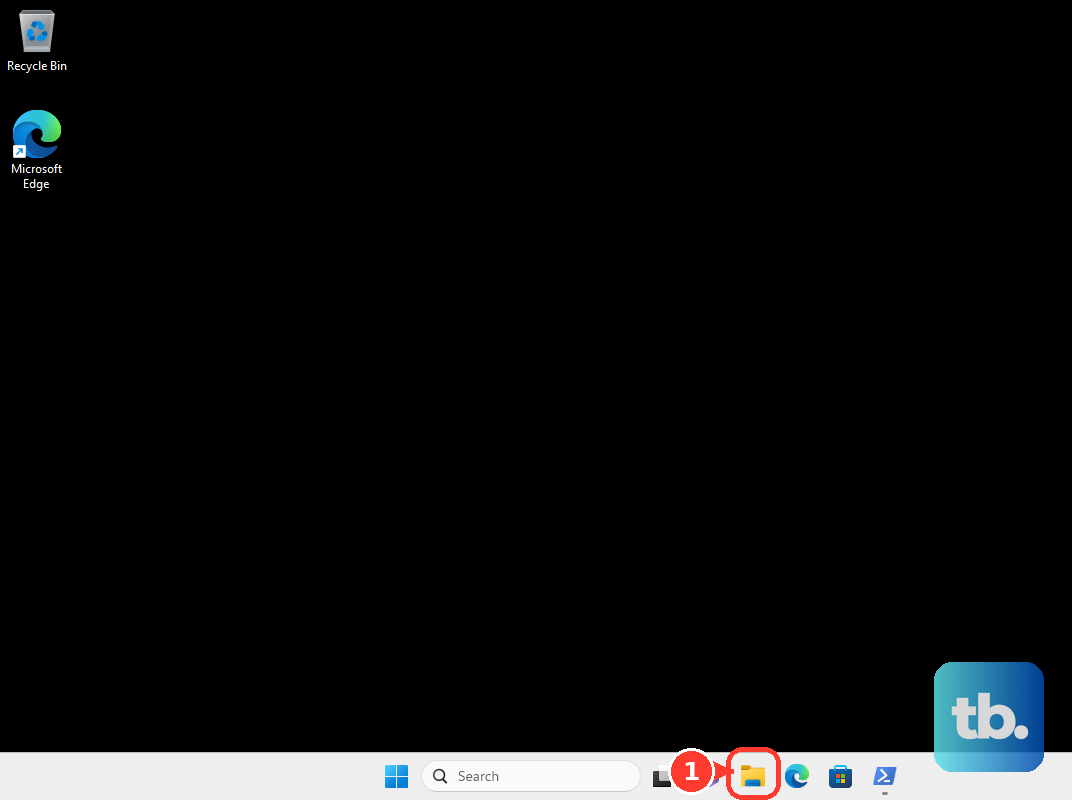
C:\Windows\System32\spool\PRINTERS. - 3.Delete all files in that folder. These are only queued print jobs, so removing them is safe. Leaving the Print Spooler service stopped while you do this prevents new jobs from being written.
- 4.Return to
services.msc, right-click Print Spooler, and select Start so printing can resume.
Take the Printer Out of Offline Mode and Make It Default
Offline mode can imitate an unavailable driver, since Windows quietly refuses to send anything to a printer it thinks is offline. Switching that off, and making sure Windows is pointing at the right printer, often resolves the message on its own.
On Windows 10, go to Start > Settings > Devices > Printers & scanners, select your printer, and select Open queue. Open the Printer menu, then select Set As Default Printer, and clear both Pause Printing and Use Printer Offline if either is selected.
Setting the printer as the default also matters, because Windows can otherwise route your jobs to the wrong device. The steps differ slightly between versions.
On Windows 11, first turn off "Let Windows manage my default printer." Then go to Start > Settings > Bluetooth & devices > Printers & scanners, select your printer, and select Set as default.
On Windows 10, go to Start > Settings > Devices > Printers & scanners and make sure "Let Windows manage my default printer" is not selected. Then select your printer, select Manage, and under Printer status select Set as default.
Frequently Asked Questions
Why does Windows say my printer driver is unavailable?
The message generally means the driver Windows needs to communicate with your printer is missing, outdated, corrupted, or temporarily blocked by a stalled Print Spooler service. Running the built-in troubleshooter, updating or reinstalling the driver, and restarting the spooler are the most direct ways to address each of those causes.
Where do I find the printer troubleshooter on Windows 11 and Windows 10?
On Windows 11 or Windows 10, open Get Help, enter printer troubleshooter, and follow the prompts. It runs diagnostics and attempts to fix most printer problems automatically. Also try the power-cycle and connection checks, then try the other fixes above.
Is it safe to delete the files in the spool PRINTERS folder?
Yes, as long as you stop the Print Spooler service first and only delete files inside C:\Windows\System32\spool\PRINTERS. Those files are queued print jobs, so removing them clears stuck jobs without harming Windows. Start the Print Spooler service afterward.
Should I get my driver from Windows or from the manufacturer?
Try Windows Update first. If it does not find a suitable driver, download the latest software and drivers from the printer maker's official support site, such as HP's Software and Driver Downloads page, by entering your exact printer model. On ARM PCs, use Add device in Printers & scanners instead of the manufacturer's installer unless the manufacturer provides specific Windows on ARM guidance.
How do I stop my printer from showing as offline?
On Windows 10, open the print queue from Settings > Devices > Printers & scanners, then in the Printer menu clear Use Printer Offline (and Pause Printing if it is checked). Setting the printer as your default and confirming the USB cable or network connection also helps Windows keep it online.