You send a document to print, the page never comes out, and within minutes the Print Spooler quits on you again. When that background service stalls, every job behind it freezes, the queue stops responding, and your printer can look offline even though it is plugged in and powered on. The good news is that the spooler is one of the most fixable parts of Windows, and most of the repairs take a couple of minutes with no special software.
The fixes below are ordered from the easiest and safest first, working up to clearing out stuck spool files manually. Start at the top and stop as soon as printing works again. These steps apply to both Windows 10 and Windows 11, and the menu paths for each version are called out wherever they differ.
Run the Built-In Printer Troubleshooter First
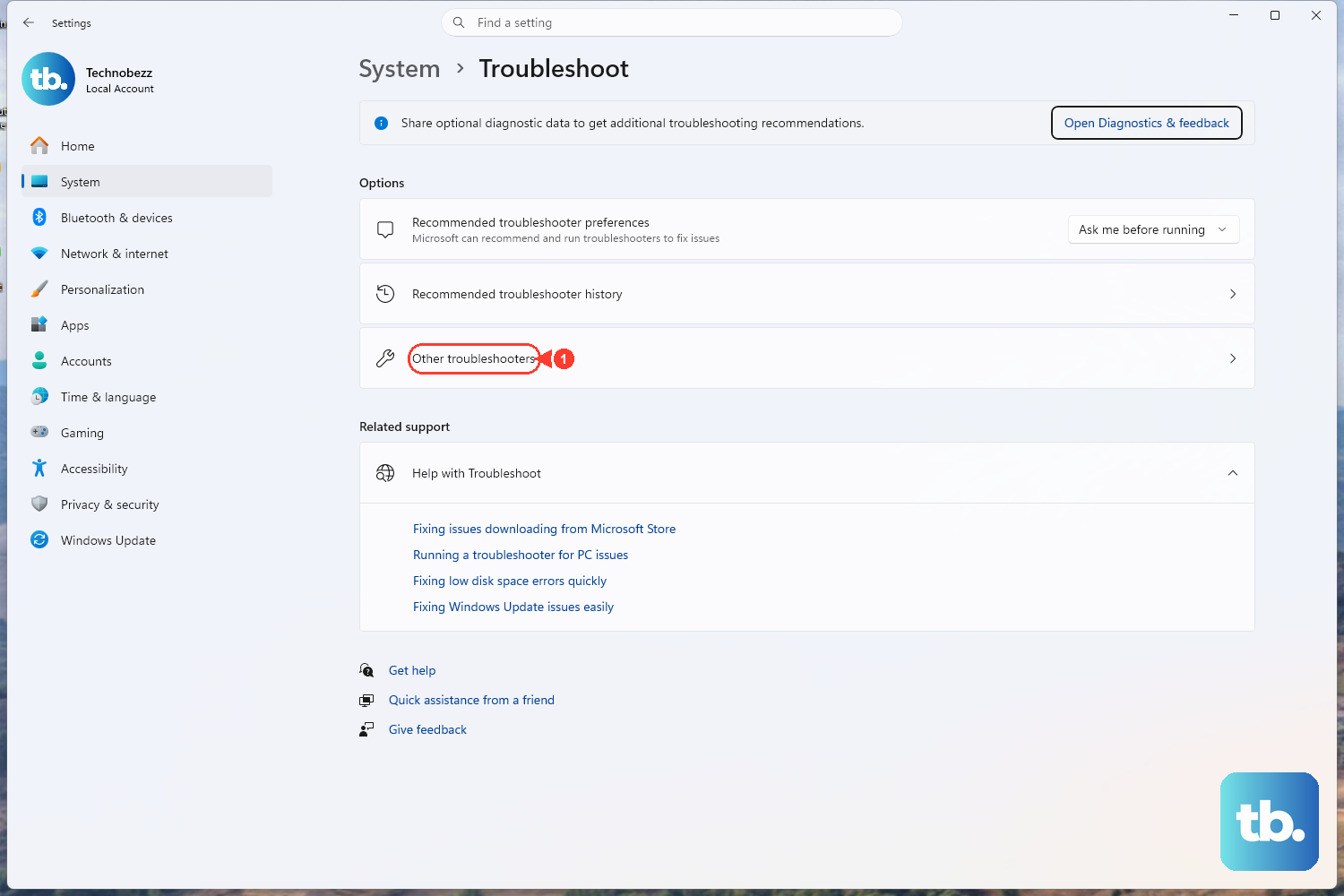
Before changing any settings by hand, let Windows try to repair the problem automatically. Microsoft's first recommended step is the printer troubleshooter built into the Get Help app, which checks the spooler, your queue, and the connection for you. It is the easiest and safest option because it makes no permanent changes on its own.
Open the Get Help app and search for the printer troubleshooter, then follow Microsoft's prompt to run the troubleshooter in Get Help. Let it finish a full pass before you test a print job again.
If the automated tool resolves the stoppage, you can stop here. If the spooler keeps quitting after the troubleshooter runs, move to the next fix.
Confirm the Printer Is Not Stuck Offline
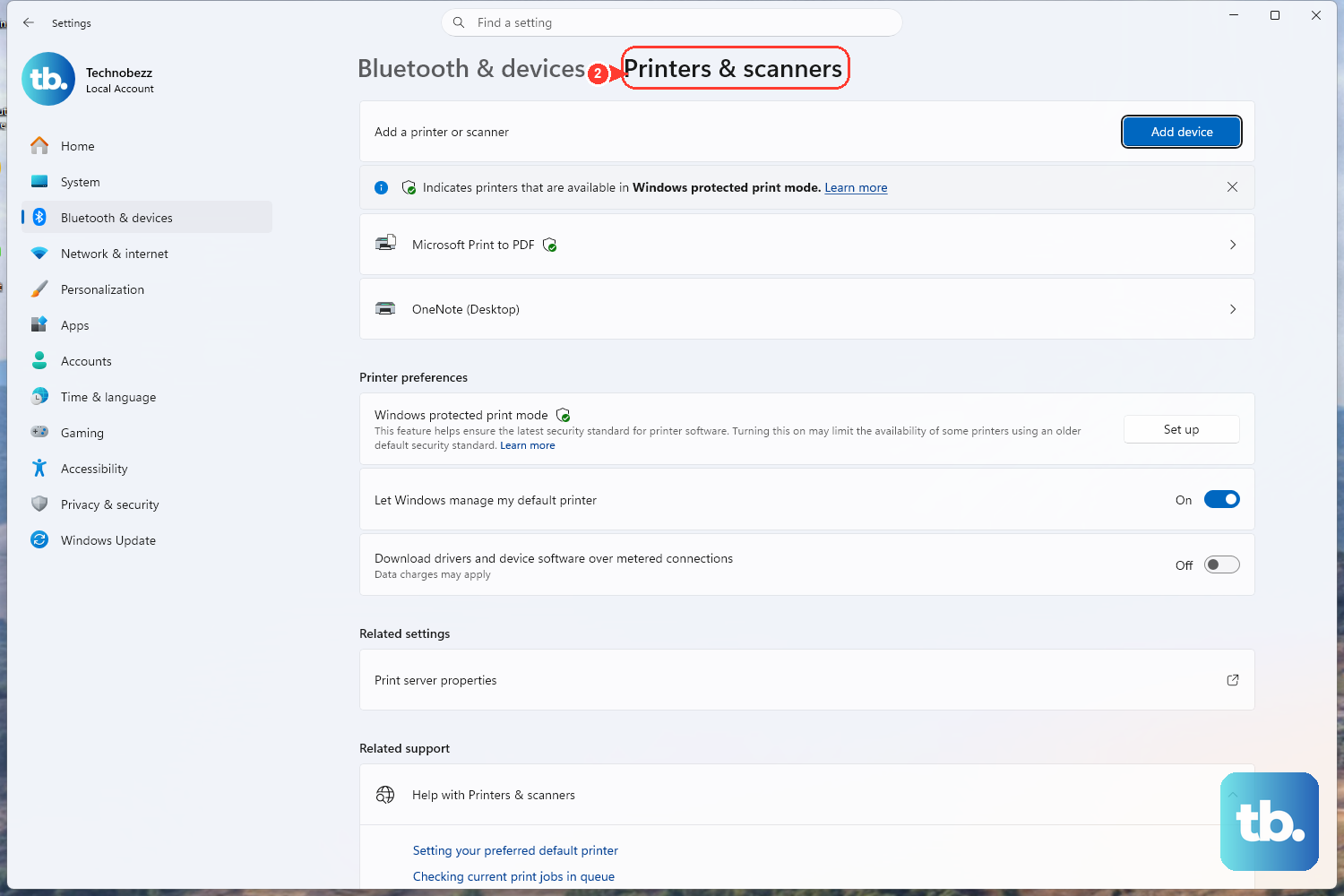
A spooler that appears to stop is sometimes just a printer that Windows has flagged as offline or paused, which holds every job in place. Clearing those two flags often gets things moving again without touching the service itself.
On Windows 11, go to Start > Settings > Bluetooth & devices > Printers & scanners, select your printer, then choose Open print queue and confirm the printer is not paused. On Windows 10, go to Start > Settings > Devices > Printers & scanners, select your printer, then choose Open queue.
In the queue window on Windows 10, open the Printer menu and clear Pause Printing and Use Printer Offline if either is checked. On Windows 11, the goal is simply to verify the printer is not showing as offline before you continue.
Clear Out Stuck Print Jobs in the Queue
One corrupt or oversized job at the front of the line can stall the spooler and block everything queued behind it. Canceling the pending jobs gives the service a clean slate to restart from.
On Windows 11, go to Start > Settings > Bluetooth & devices > Printers & scanners, select your printer, and choose Open print queue. Right-click each job and select Cancel, or use the ellipsis ... and choose Cancel all.
On Windows 10, go to Start > Settings > Devices > Printers & scanners, select your printer, and choose Open queue. Right-click the jobs and select Cancel. Note the button labels differ between versions: Windows 11 uses Open print queue, while Windows 10 uses Open queue.
Restart the Print Spooler Service
If clearing the queue from Settings does not stick, restart the spooler directly from the Services console. This stops and starts the background service cleanly, which often clears a hung state in one move.
- 1.Press Windows key + R, type
services.msc, and press Enter. - 2.Scroll down and locate
Print Spoolerin the list of services. - 3.Right-click
Print Spoolerand select Restart.
The service display name is exactly Print Spooler, so do not confuse it with any similarly named entry. Once it restarts, send a test page to confirm the queue is processing jobs again.
Stop the Spooler and Clear the Spool Folder
When a job refuses to cancel and the queue stays jammed, the leftover spool files on disk are usually to blame. Removing those files by hand forces a fresh queue, but it has to be done with the service stopped first so the files are not locked. Note that deleting these files cancels every pending job, so any documents still waiting will need to be sent to print again.
- 1.In
services.msc, right-clickPrint Spoolerand select Stop. - 2.Open File Explorer and go to
C:\Windows\System32\spool\PRINTERS. - 3.Delete all files inside that folder. (Delete only the files in this folder; do not delete the folder itself.)
- 4.Return to
services.mscand choose Start (or Restart) on thePrint Spoolerservice.

This is the same folder path and procedure Microsoft lists for a stuck queue. With the spool folder empty and the service running again, the printer should accept new jobs normally.
Set the Right Printer as Your Default
If Windows keeps routing jobs to the wrong device, the spooler can appear to stop because nothing reaches the printer you are actually using. Pinning the correct default printer keeps your jobs pointed at the right hardware.
On Windows 11, go to Start > Settings > Bluetooth & devices > Printers & scanners, turn off Let Windows manage my default printer, select the printer, then choose Set as default.
On Windows 10, go to Start > Settings > Devices > Printers & scanners, make sure Let Windows manage my default printer is not selected, select the printer and click Manage, then under Printer status select Set as default. The Set as default button only appears once Let Windows manage my default printer is switched off, so toggle that first if you cannot find it.
If You Have an HP Printer
HP's older Print and Scan Doctor utility has been officially retired and is no longer the recommended tool. In its place, HP points users to the Diagnose and Fix feature inside the HP Smart app, which you can install from the Microsoft Store.
Open HP Smart, run Diagnose and Fix, and let it check the spooler and printer connection. Use this in addition to the Windows steps above rather than instead of them, since the built-in fixes address the spooler service itself.
Frequently Asked Questions
What is the Print Spooler and why does it keep stopping?
The Print Spooler is the Windows service that holds your print jobs in a queue and feeds them to the printer one at a time. It commonly stalls when a corrupt or stuck job sits at the front of the queue or when leftover files build up in the spool folder, which is why clearing the queue and restarting the service resolves most cases.
Where are stuck print files stored on my PC?
Queued spool files live in C:\Windows\System32\spool\PRINTERS. To clear them safely, stop the Print Spooler service in services.msc first, delete all the files in that folder, then start the service again.
How do I restart the Print Spooler service?
Press Windows key + R, type services.msc, and press Enter. Find Print Spooler in the list, right-click it, and select Restart.
Do these fixes work on both Windows 10 and Windows 11?
Yes. The spooler service, the spool folder path, and the troubleshooter are the same on both versions. The main difference is where the Printers & scanners page lives: Settings > Bluetooth & devices > Printers & scanners on Windows 11, and Settings > Devices > Printers & scanners on Windows 10.
Why does the Set as default button not appear?
The Set as default option only shows once you turn off Let Windows manage my default printer. Switch that setting off first, then select your printer and the option will become available.