You double-click the Outlook icon and nothing happens, or the window flashes open and vanishes before you can click anything. It is a frustrating spot to be in, especially when your inbox holds the messages you need for work or personal life. The good news is that classic Outlook on Windows rarely refuses to launch for a mysterious reason; the culprit is usually an add-in, a damaged data file, or a profile that has gone bad.
The fixes below walk you from the fastest checks to the more thorough repairs. Work through them in order, and stop as soon as Outlook opens normally again. These steps apply to the classic Outlook desktop app that ships with Microsoft 365 and Office, not the separate new Outlook for Windows app.
Fix 1: Launch Outlook in Safe Mode to Rule Out Add-Ins
Add-ins are the single most common reason classic Outlook refuses to open, so starting in safe mode is the smartest first move. Safe mode loads Outlook without those extras, which tells you immediately whether one of them is to blame.
Press the Windows key + R to open the Run box.
Type outlook.exe /safe (Microsoft also documents the shorter form outlook /safe) and select OK.
If a prompt appears, accept the default profile.
If Outlook opens in safe mode, an add-in is almost certainly the cause, so continue to the next fix. If Outlook cannot open even in safe mode, the trouble is more likely your profile or data file, which the later steps address.
Fix 2: Turn Off Problem COM Add-Ins One by One
Once you have Outlook running in safe mode, you can disable the add-ins that may be blocking a normal launch. Tackling them individually is the only reliable way to identify the guilty one.
Open the File menu, select Options, then select Add-ins.
In the Manage box, select COM Add-ins and select Go.
Clear the check boxes for the add-ins you want to disable, then select OK.
Disable add-ins one at a time and restart Outlook normally after each change. When Outlook opens without trouble, the last add-in you cleared is the one causing the failure. This methodical approach saves you from disabling everything and losing features you actually use.
Fix 3: Install Pending Office and Windows Updates
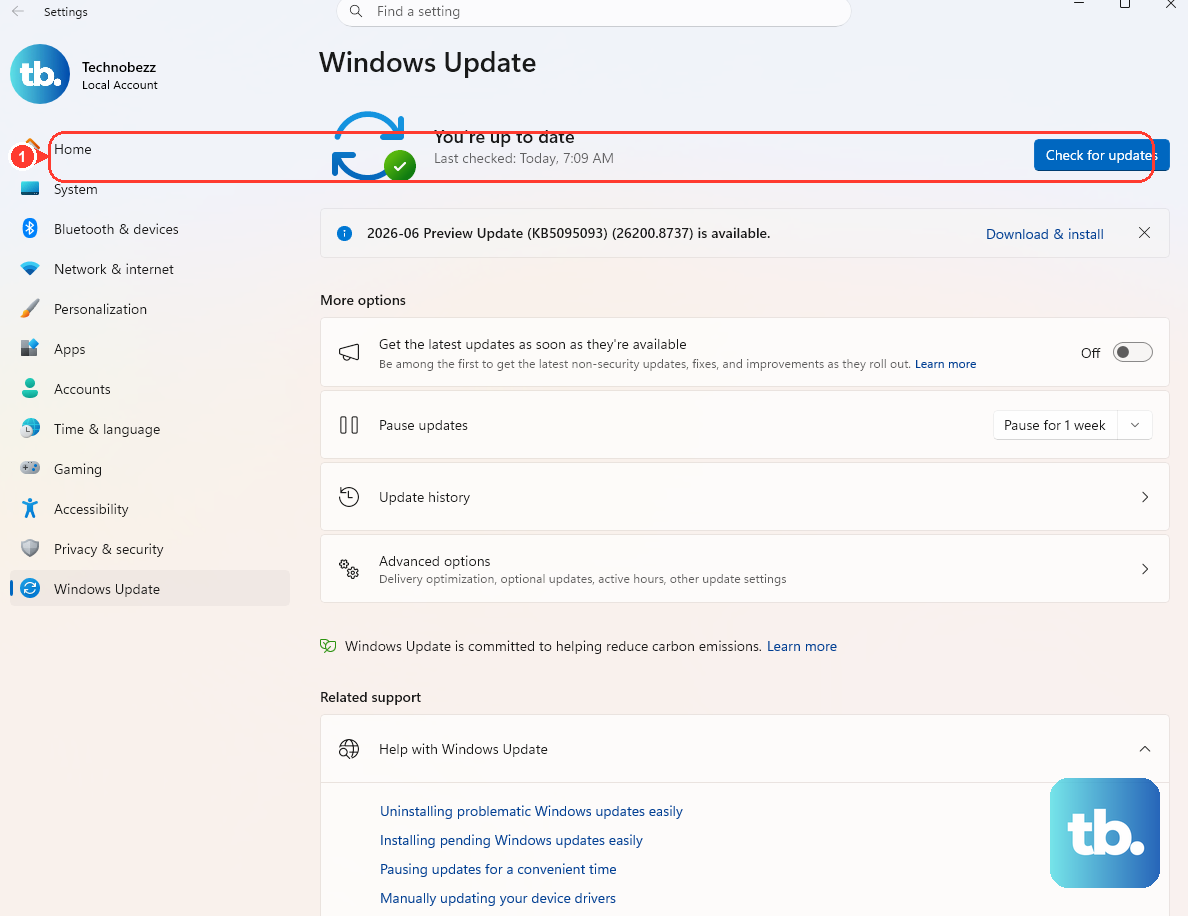
Outdated files can quietly stop Outlook from opening, and a round of updates often replaces them with working copies. It is worth checking both Office and Windows, since either can hold the broken file.
For Office, go to File > Office Account > Update Options > Update Now inside Outlook (you may need a working session in safe mode to reach this).
For Windows, open the Settings app and check Windows Update, then install any waiting updates.
Installing important, recommended, and optional updates frequently swaps out the out-of-date files behind startup problems. Once everything is current, restart and try launching Outlook normally.
Fix 4: Run the Built-In Classic Outlook Troubleshooters
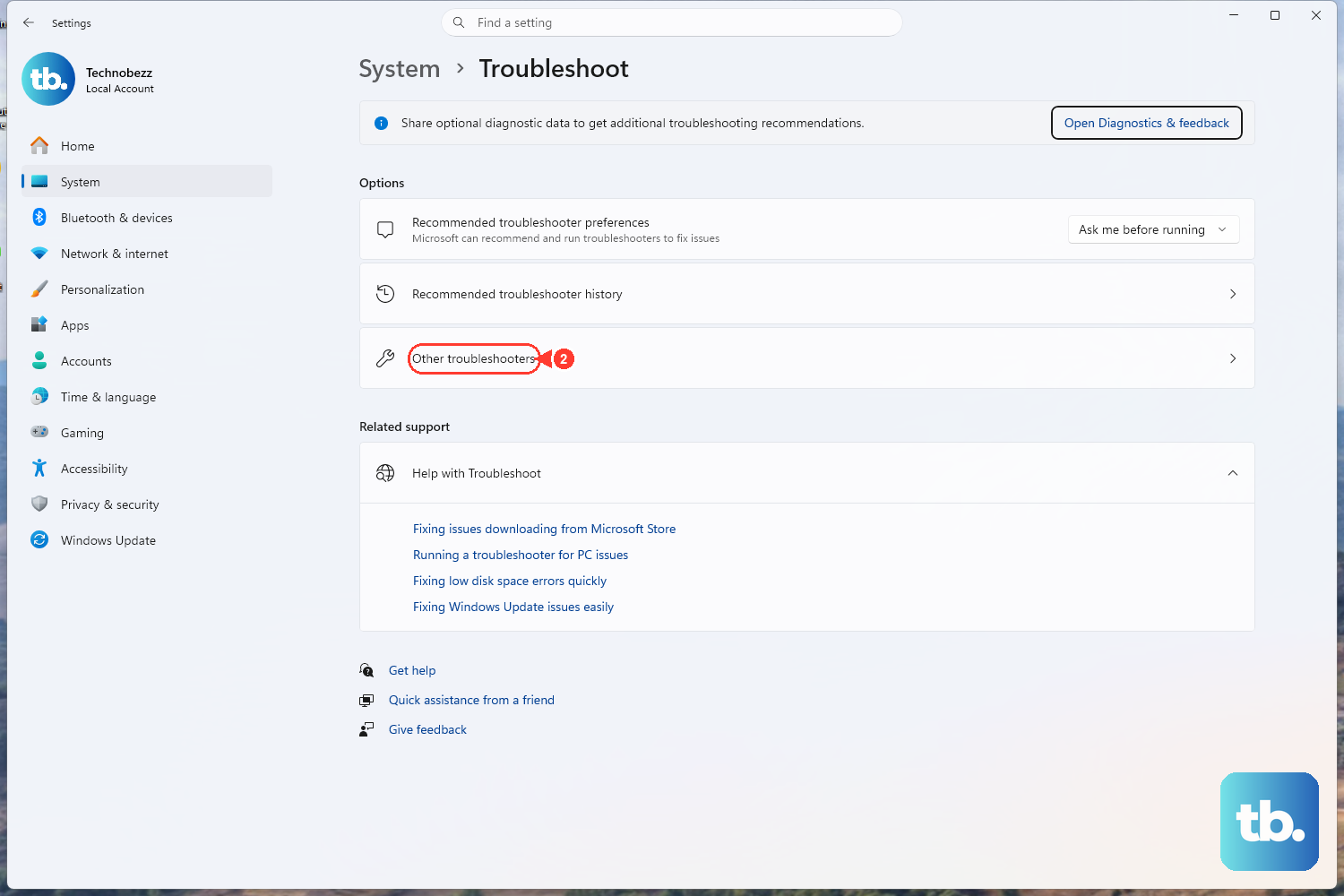
Microsoft now delivers automated Outlook diagnostics through the Windows Get Help app, and these have replaced the older standalone recovery assistant for most users. The diagnostics can detect and resolve known startup problems for you, which is helpful when you would rather not dig through settings by hand.
Open the classic Outlook troubleshooters, which launch the relevant diagnostic in Get Help.
Let the tool run and follow its prompts; it checks for the common causes of a launch failure and applies fixes automatically where it can.
Fix 5: Rebuild a Corrupted Navigation Pane
The navigation pane stores its own configuration, and if that becomes corrupted it can keep Outlook from opening at all. Resetting it forces Outlook to rebuild the pane from scratch.
Press the Windows key + R to open the Run box.
Type Outlook.exe /resetnavpane and select OK.
This command restores the navigation pane to its defaults. Because it only rebuilds that one element, it is a low-risk step that is worth trying before you move on to data file repairs.
Fix 6: Repair Your Data File With the Inbox Repair Tool
A damaged Outlook Data File (.pst or .ost) is a frequent reason the app will not start, and Microsoft includes a dedicated tool for fixing it. The Inbox Repair tool, SCANPST.EXE, scans the file and corrects errors it finds.
Exit Outlook completely before you begin.
The Inbox Repair tool lives inside your Office installation folder, and the exact location depends on your Outlook version and whether you have the 32-bit or 64-bit install.
For Outlook 2016 and 2019 you will typically find SCANPST.EXE in C:\Program Files (x86)\Microsoft Office\root\Office16.
If it is not there, search your computer for SCANPST.EXE to locate it.
- 1.Open SCANPST.EXE.
- 2.Select Browse to pick the data file you want to check.
- 3.Select Start to scan the file.
- 4.If errors are found, select Repair.
Microsoft recommends backing up the data file before you repair it, so make a copy first in case anything goes wrong. When the repair finishes, start Outlook with the profile associated with the file you just fixed.
Fix 7: Build a Fresh Outlook Profile
If Outlook still refuses to open after the steps above, your profile itself may be corrupted. Creating a new profile gives Outlook a clean configuration to work from, and Microsoft lists this as the recommended next step when safe mode does not solve the problem.
After you create the new profile, set Outlook to use it.
You can hold the Shift key while starting Outlook, or use the profile prompt, and then select the new profile when Outlook asks which one to use.
Starting fresh often clears launch failures that nothing else could.
Fix 8: Repair the Office Installation
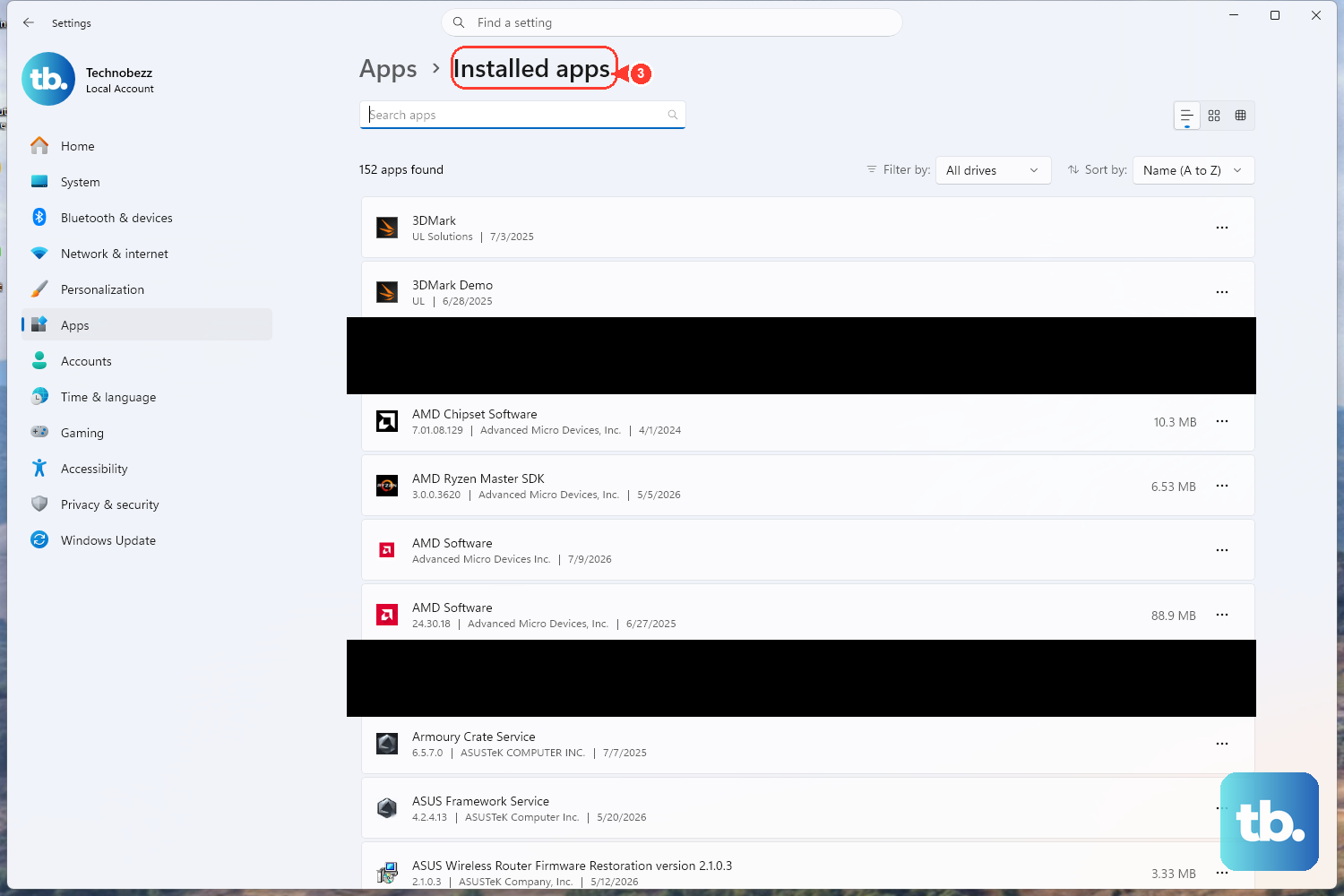
When the trouble runs deeper than a single file or profile, repairing the whole Office installation can put things right. Windows offers two levels of repair, and Microsoft advises trying the faster one first.
On Windows 11, right-click Start and select Installed apps (on Windows 10, right-click Start and select Apps and Features).
Find your Microsoft 365 or Office product and select Modify.
Choose Quick Repair first, since it detects and replaces corrupted files quickly.
If that does not work, choose Online Repair, which is more thorough but requires an internet connection.
You can also reach these options through Control Panel > Programs > Programs and Features, then right-click the Office product and select Change. Quick Repair fixes most launch issues, while Online Repair handles the stubborn ones.
Fix 9: Fully Close Outlook and Restart Your PC
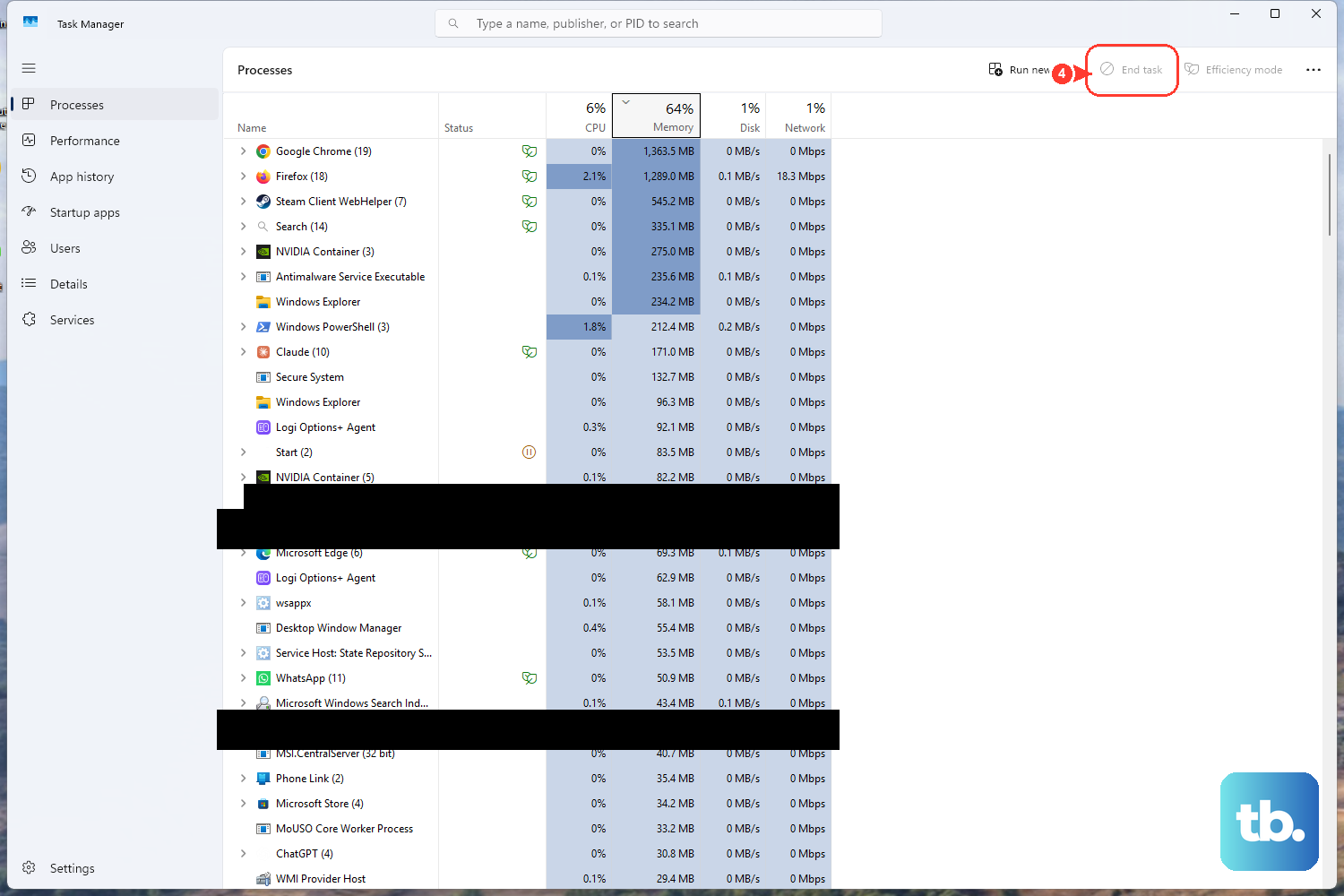
Before and between the deeper repairs, it is worth making sure no leftover Outlook process is hanging in the background and blocking a fresh launch. A stuck process can keep the app from reopening even after the original problem is gone, and a clean restart clears it out. This is a general troubleshooting measure rather than a setting specific to Outlook.
Press Ctrl + Shift + Esc to open Task Manager.
Look for any entry named Outlook or OUTLOOK.EXE, select it, and choose End task.
Restart your computer, then try launching Outlook again.
Ending a lingering process and rebooting gives Outlook a clean slate to start from. If the app opens normally afterward, a stuck session was the obstacle; if it still will not launch, return to the repair steps above.
Frequently Asked Questions
Why does Outlook flash open and then close right away?
A misbehaving add-in or a corrupted data file is the usual cause of Outlook closing the moment it opens. Start in safe mode with outlook.exe /safe to see whether an add-in is responsible, and if safe mode also fails, move on to repairing your data file or creating a new profile.
How do I start Outlook in safe mode?
Press the Windows key + R, type outlook.exe /safe (or the shorter outlook /safe), and select OK. If you are prompted, accept the default profile. Opening successfully in safe mode points to an add-in as the cause.
Will repairing my Outlook data file delete my emails?
The Inbox Repair tool is designed to fix errors in your .pst or .ost file rather than erase your messages, but Microsoft still recommends backing up the data file before you run a repair. Make a copy first so you have a fallback if anything goes wrong during the scan.
What is the difference between Quick Repair and Online Repair?
Quick Repair is faster and only detects and replaces corrupted files, while Online Repair is more thorough, fixes everything, and requires an internet connection. Microsoft advises trying Quick Repair first and using Online Repair only if the faster option does not resolve the issue.
Do these fixes apply to the new Outlook for Windows app?
These steps cover classic Outlook, the desktop app that comes with Microsoft 365 and Office. The safe-mode, data file, profile, and Office repair commands here are specific to classic Outlook and may not apply to the separate new Outlook for Windows app.











