You click the Outlook icon, the splash screen appears, and then everything stops cold at the "Loading Profile" message. Sometimes the window goes white and the title bar reads "Not Responding," and no amount of waiting moves it forward.
This freeze is one of the most common ways Outlook for Windows refuses to start, and it usually traces back to a stuck process, a problem add-in, or a known bug introduced by a Windows update. The good news is that the cause is almost always something you can clear yourself.
The eight fixes below walk you from the quickest resets to deeper repairs of your profile and data files. Work through them in order, since the early steps solve the majority of "Loading Profile" hangs in just a minute or two.
Each fix applies to classic Outlook for Microsoft 365 and the standalone versions (Outlook 2024, 2021, 2019, and 2016) unless noted otherwise.
Fix 1: Clear stuck Office processes and relaunch
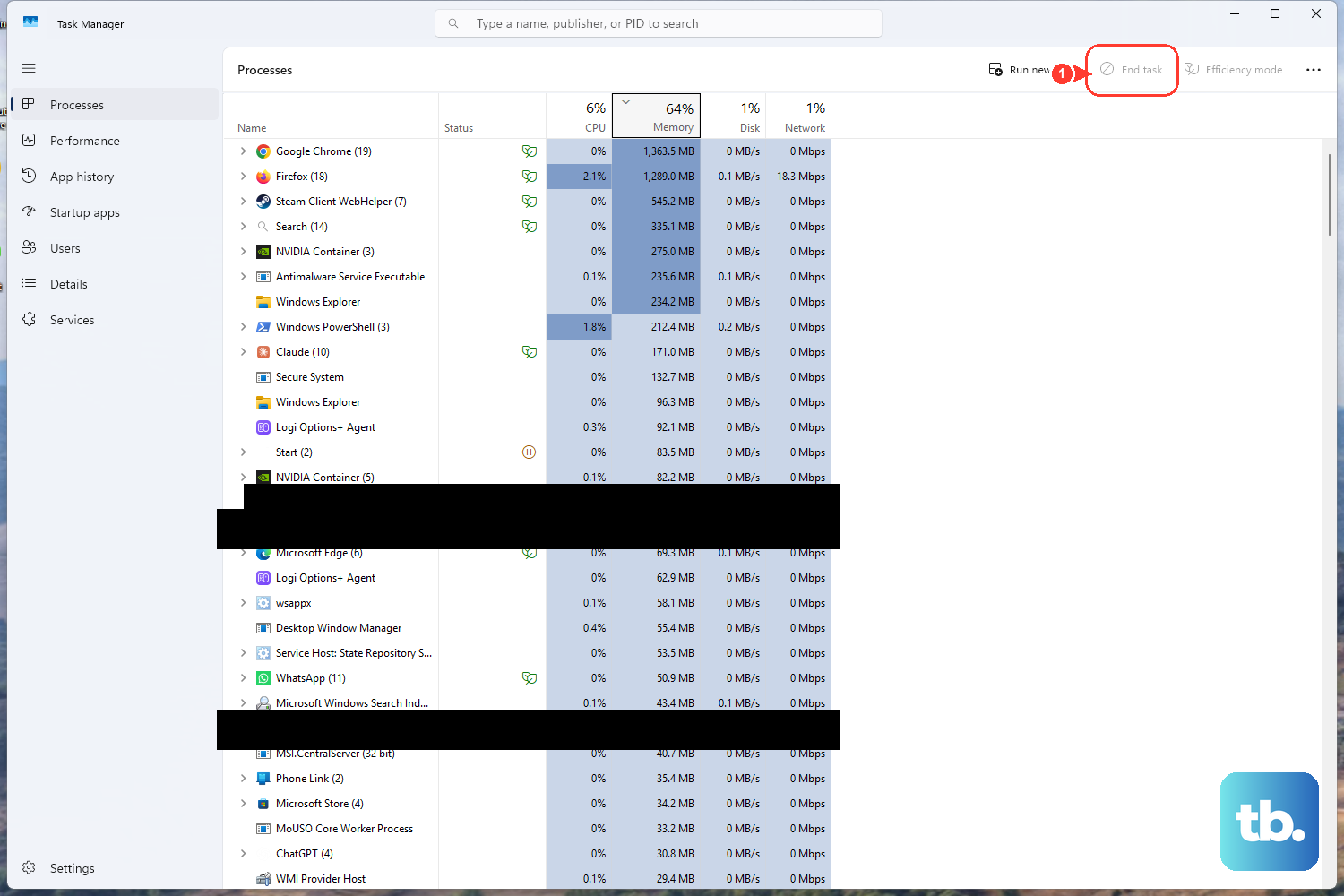
When Outlook hangs on the profile screen, a leftover Office process is often holding the app open in the background. Closing every related process forces a clean restart, and Microsoft lists this as one of the first things to try when Outlook will not open or is stuck at loading the profile.
Right-click any empty space on the Taskbar and select Task Manager.
Under the Processes tab, locate any Office processes.
Select an Office process and choose End task.
Repeat for each Office process listed until none remain.
Reopen Outlook normally and see whether it loads past the profile screen.
If Outlook starts cleanly after this, the hang was a one-time stuck session. If it freezes again, move on to the next fix.
Fix 2: Turn off presence and photo features in People settings
Outlook's presence functionality (the online-status dot and contact photos) can trigger a startup hang. Disabling those two options removes a known source of the loading-profile freeze, so this is worth doing once you can get Outlook open.
With Outlook open, go to File > Options > People.
Uncheck Display online status next to name if it is enabled.
Uncheck Show user photographs when available if it is enabled.
Select OK, then restart Outlook.
After you turn these off, restart Outlook and confirm it loads past the profile screen. If the freeze returns later, repeat the check to make sure both options stayed disabled before you move on.
Fix 3: Install pending Windows and Office updates
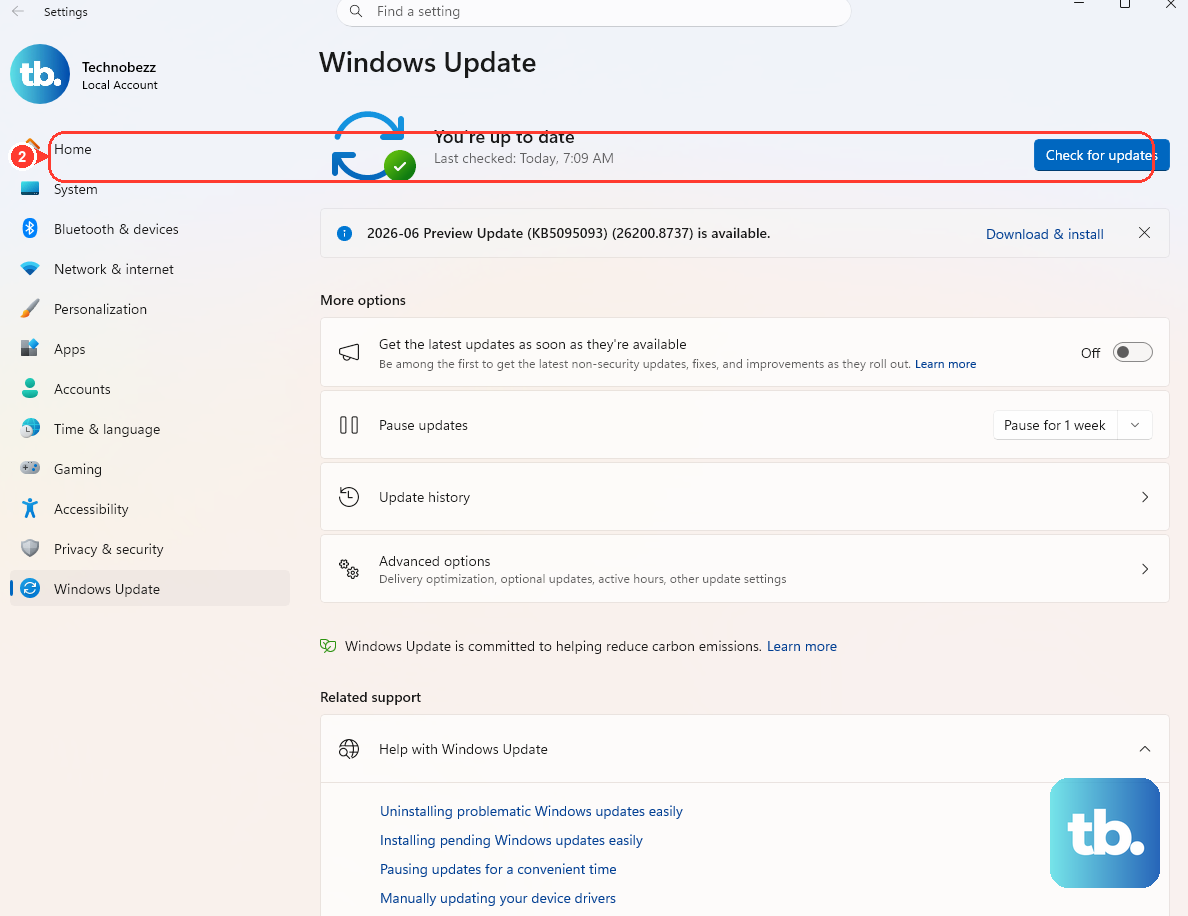
If your Outlook freeze started recently, a known bug may be the culprit. Microsoft confirmed that the January 13, 2026 Windows updates caused classic Outlook profiles with POP accounts, and profiles containing PST files (especially PSTs stored on OneDrive), to hang and show "Not Responding."
Installing the latest updates is the official fix for that issue.
Right-click the Windows Start button and select Settings.
Select Windows Update. On Windows 10, select Update & Security instead.
Select Install Now and restart as needed.
Repeat until Windows Update reports You're up to date.
Even if you do not use a POP account, keeping Windows and Office current rules out update-related hangs and is a sensible baseline before you start digging into your profile.
Fix 4: Launch classic Outlook in safe mode
Safe mode starts Outlook without add-ins and with a minimal configuration, which tells you whether the freeze comes from your data or from something layered on top. This step applies to classic Outlook for Microsoft 365, Outlook 2024, 2021, 2019, and 2016.
Close Outlook completely.
Press the Windows logo key + R to open the Run box.
Type outlook.exe /safe and click OK. On Windows 10, you can select Start, type Outlook.exe /safe, and press Enter.
Accept the default profile if you are prompted.
If Outlook opens normally in safe mode, you have your answer: an add-in or a setting is causing the hang. That points you straight to the next fix.
If it still freezes in safe mode, the problem lies deeper in your profile or data files, covered later on.
Fix 5: Disable COM add-ins one at a time
Add-ins are a frequent cause of startup freezes, and Outlook's COM add-ins are the ones to check first. The goal is to turn them all off, confirm the hang is gone, and then re-enable them individually until the offending one reveals itself.
With Outlook open (use safe mode from Fix 4 if you cannot open it normally), go to File > Options > Add-ins.
Next to Manage, select COM Add-ins, then select Go.
Clear all the checkboxes to disable every add-in.
Select OK and restart Outlook.
Once Outlook is loading reliably, re-enable the add-ins one at a time, restarting after each. When the hang returns, the last add-in you switched on is the troublemaker, and you can leave it disabled or look for an updated version.
Fix 6: Run the built-in account repair
If add-ins are not to blame, a damaged account setup inside your profile may be stalling the load. Outlook includes a repair wizard that rebuilds the account configuration without you having to delete and re-add it from scratch.
In Outlook, choose File.
Choose Account Settings > Account Settings.
On the Email tab, choose your account (profile), then choose Repair.
Follow the prompts in the wizard, and restart Outlook when it finishes.
One caveat: the Repair option is not available if you are using Outlook 2016 to connect to an Exchange account. For Outlook for Microsoft 365, 2024, 2021, and 2019, the wizard is available.
Fix 7: Build a fresh Outlook profile
When a profile is corrupted badly enough that repair does not help, creating a new one is the reliable next step. A clean profile starts Outlook from a known-good state, and you simply re-add your email account to it.
Open the profile picker. You can right-click Start, select Run, type Outlook.exe /profiles, and press Enter, or in Outlook go to File > Account Settings > Change Profile.
Select Options, then select New.
Type a name for the new profile and select OK.
Add your email account to the new profile.
You can also select the Prompt for a profile to be used checkbox so Outlook asks which profile to open at startup, which is handy while you confirm the new one works. This step applies to Outlook for Microsoft 365, 2024, 2021, 2019, and 2016.
Fix 8: Repair your data files, then your Office installation
If the hang survives a new profile, your Outlook data file may be corrupted. The Inbox Repair Tool, named scanpst.exe, is installed with Office and scans and repairs your Outlook data file.
Microsoft lists it among the troubleshooting steps for classic Outlook that is not responding, hanging, or freezing.
Run scanpst.exe and let it scan your data file fully, then reopen Outlook to check whether the profile loads.
If problems persist, the deepest fix is to repair Office itself, which restores the program files that Outlook depends on.
Open Control Panel > Programs and Features (or Programs > Uninstall a program).
Right-click your Microsoft Office or Microsoft 365 entry and choose Change.
Run Quick Repair first.
If the freeze continues, run Online Repair.
Online Repair is more thorough because it reinstalls Office components, so reserve it for when Quick Repair does not clear the hang. This applies to classic Outlook for Windows.
Frequently Asked Questions
Why does Outlook freeze specifically at the "Loading Profile" stage?
The loading-profile step is where Outlook reads your account configuration, add-ins, and data files, so a stuck Office process, a problem add-in, presence features, or a corrupted profile or data file can all stall it there. Clearing stuck processes (Fix 1) and starting in safe mode (Fix 4) quickly narrow down which one is responsible.
I have a POP account and the freeze started after a recent update. What should I do?
Microsoft confirmed that the January 13, 2026 Windows updates caused classic Outlook profiles with POP accounts, and profiles containing PST files (especially PSTs stored on OneDrive), to hang and show "Not Responding." Installing the latest Windows and Office updates until Windows Update reports "You're up to date" is the official fix for that issue.
Will creating a new profile delete my email?
Creating a new profile builds a fresh configuration that you then add your account to; it does not remove the mailbox itself. After the new profile loads cleanly, you re-add your email account to it, and you can use the "Prompt for a profile to be used" option so Outlook asks which profile to open at startup.
What is the difference between Quick Repair and Online Repair?
Quick Repair is the faster first pass you run from Control Panel > Programs and Features, while Online Repair is the more thorough option that reinstalls Office components. Run Quick Repair first and only move to Online Repair if the loading-profile freeze continues.