You launch Outlook and it just sits there. The splash screen reads "Loading Profile" and never moves, or the window opens but shows "Not Responding" in the title bar. Nothing you click registers.
The good news is that this is almost always fixable without losing your mail. The cause is usually a wedged background process, a single misbehaving add-in, a corrupted profile or data file, or an update you are missing.
Work through the fixes below in order. They are arranged quickest and most common first. Where the steps differ between classic Outlook (the desktop app installed with Office and Microsoft 365) and new Outlook for Windows, that is called out.
Confirm Outlook Is Not Simply Busy
Before you change anything, rule out the simplest explanation: Outlook may be working hard, not frozen. A long auto-archive, sending or receiving a very large attachment, or a bulk action across hundreds or thousands of messages can make the window stop responding while it finishes.
Look at the status bar along the bottom of the Outlook window. If it shows activity, give it two to three minutes to complete before doing anything else.
Bring a Hidden Dialog Box to the Front
Sometimes a dialog box is open behind the main Outlook window and is silently blocking every other action. Outlook cannot continue until you answer it.
Press Alt+Tab to cycle through your open windows.
If a hidden Outlook dialog appears, bring it forward.
Then respond to or close it so Outlook can keep going.
Force-Close All Office Processes, Then Reopen
A leftover Outlook.exe or a duplicate Office process can prevent a clean start, leaving you stuck at loading profile. Ending those processes and relaunching clears the jam.
Right-click any empty space on the Taskbar and select Task Manager, or right-click Start and select Task Manager.
On the Processes tab, locate every Office process. In new Outlook, look for Microsoft Outlook.
Select an Office process and choose End task.
Repeat for each Office process listed.
Confirm Outlook is fully closed.
Then close Task Manager and reopen Outlook normally.
For new Outlook for Windows, the same routine applies: select Microsoft Outlook in Task Manager, choose End task, confirm it is closed, then reopen the app.
Start Classic Outlook in Safe Mode, Then Reopen Normally
Safe mode starts Outlook without add-ins, which both clears a stuck "Processing" state and tells you whether an add-in is to blame. Note that safe mode is a diagnostic, not the fix itself.
Close Outlook.
Press the Windows logo key + R to open the Run box, or right-click Start and select Run.
Type outlook.exe /safe and select OK. On Windows 7, you can type Outlook /safe in the Search programs box.
If prompted, accept the default profile in the Choose Profile dialog and click OK.
Then enter your password if asked.
If Outlook was stuck at a "Processing" screen, now that it is open in safe mode, close it again.
Reopen it normally to clear the stuck state.
If Outlook opens fine in safe mode, an add-in is the likely cause; continue to the next fix.
Disable COM Add-ins and Re-enable Them One at a Time
Faulty, outdated, or conflicting third-party COM add-ins load during profile initialization and can hang Outlook at the splash screen. Turning them all off, then reintroducing them one by one, isolates the culprit.
In Outlook, select File > Options > Add-ins.
At the bottom, in the Manage box, make sure COM Add-ins is selected and click Go.
Record or screenshot every checked add-in.
Then clear all the checkboxes and click OK.
Select File > Exit.
Next, restart Outlook normally (Windows + R, type Outlook, OK).
If Outlook now starts fine, re-enable the add-ins one at a time, restarting after each, until the hang returns. The add-in that brings the hang back is the faulty one.
Reset the Navigation Pane
A corrupted Folder Pane (navigation pane) can hang startup on its own. This switch clears and regenerates that pane for your current profile.
Close Outlook completely.
Press the Windows logo key + R to open the Run box.
Type outlook.exe /resetnavpane and select OK.
Be aware this discards any customizations to the Folder Pane. A related switch, outlook.exe /cleanviews, restores default views but loses all custom views you created, so use it only if you also suspect a bad custom view. You can run only one command-line switch at a time, and switch names cannot be abbreviated.
Disable Outlook Presence Features
Outlook's online-status and user-photo features can open a session that triggers a profile-load hang. Disabling them mitigates that specific behavior.
In Outlook, select File > Options > People.
Uncheck "Display online status next to name" and "Show user photographs when available" if they are enabled.
Select OK.
After that, restart Outlook.
One caution: if you later click your account picture in the upper-right corner or open File > Account, a session reopens and can re-trigger the problem.
Install the Latest Windows and Office Updates
Missing bug-fix and performance updates are a common, easily overlooked cause. Several recent classic-Outlook startup hangs (including ones tied to POP accounts plus PST files after Windows updates, and a crash-to-Safe-Mode regression) were resolved through updates.
Open Settings and check Windows Update.
Install all important, recommended, and optional updates.
For Microsoft 365 or Office, open any Office app and go to File > Office Account (or Account) > Update Options > Update Now.
Restart and reopen Outlook.
Enabling automatic recommended updates keeps these fixes flowing in without manual effort.
Repair Your Outlook Data Files With scanpst.exe
A corrupted .pst or offline .ost file can block startup entirely. The Inbox Repair Tool (scanpst.exe) scans and repairs it. Back up the data file first, because severely corrupted or permanently deleted items may not be recoverable.
Exit Outlook completely.
Open File Explorer and go to the tool's folder. For Outlook 2016 and Outlook 2019 (Click-to-Run): C:\Program Files (x86)\Microsoft Office\root\Office16
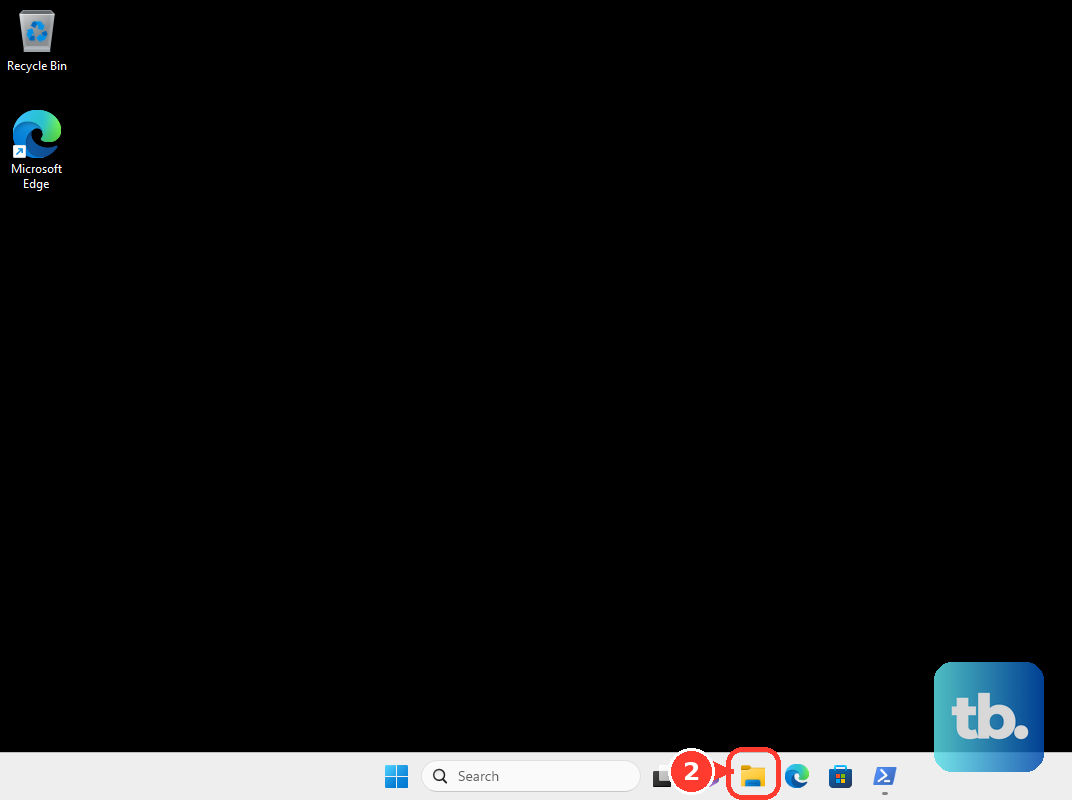
Open SCANPST.EXE.
Click Browse and select your Outlook Data File (.pst).
To find its path, in Outlook go to File > Account Settings > Account Settings > Data Files tab, which lists your .pst and offline .ost files.
Optionally change the backup name or location in the "Enter name of backup file" box.
Then click Start to scan.
If errors are found, click Repair.
When finished, restart Outlook with the profile tied to that data file.
Repair Your Office Programs
Damaged Office installation files can cause persistent hangs. Office includes a built-in repair that fixes them without touching your mail.
Quit all Microsoft 365 and Office programs.
Open Control Panel > Programs and Features (Programs > Uninstall a program).
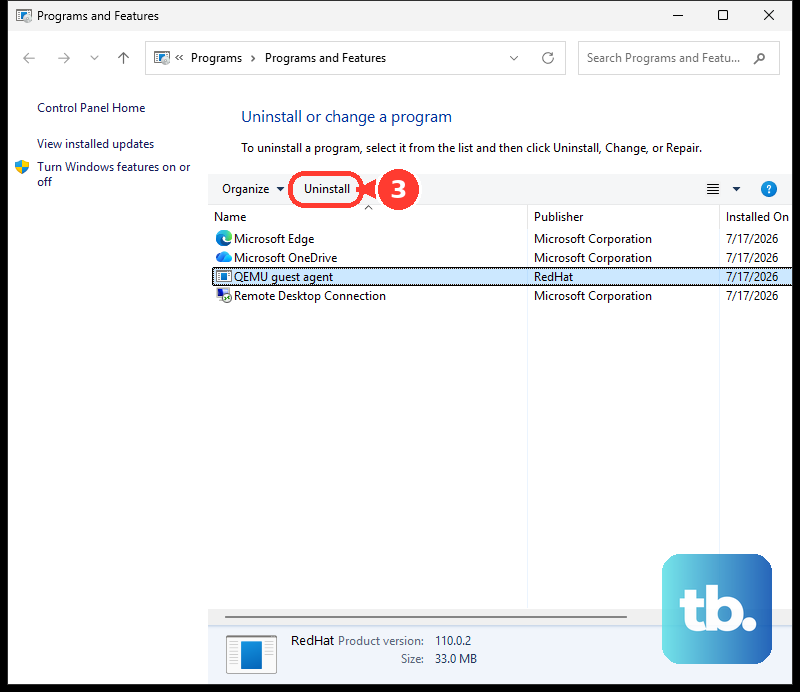
Right-click your Microsoft Office or Microsoft 365 entry and select Change.
Choose Quick Repair first and run it.
If the problem persists, run Online Repair.
Restart and reopen Outlook.
Create a New Outlook Profile
If the steps above have not helped, the profile itself may be corrupted. Creating a fresh one and starting with it confirms the diagnosis and usually resolves it.
Close Outlook.
Open the Mail applet. On Windows 10: Start > Control Panel > User Accounts > Mail > Show Profiles. On Windows 7: Start > Control Panel > Mail > Show Profiles.
Click Add, type a profile name, and click OK.
Enter the email address and password for your primary account and complete the setup wizard.
Back on the Show Profiles dialog, select "Prompt for a profile to be used".
Start Outlook.
In the Choose Profile dialog, select the new profile and click OK.
Alternatively, hold Shift while starting Outlook, or run outlook.exe /profiles, to reach that dialog.
If Outlook now opens normally, the original profile was the problem.
Disable Hardware Graphics Acceleration (Outlook 2013)
On some systems, a graphics-acceleration conflict with the video driver hangs Outlook at the splash screen. This was documented for Outlook 2013 on machines with two video cards. Microsoft treats this as a temporary workaround; the long-term fix is updating your video drivers and re-enabling acceleration.
Exit all Office applications.
Open Registry Editor (type regedit in Start and select regedit.exe).
Go to HKEY_CURRENT_USER\Software\Microsoft\Office\15.0\Common\Graphics\. Use 15.0 for Outlook 2013, or 16.0 for Outlook 2016, 2019, 2021, and Microsoft 365. If the Graphics key does not exist, create it under Common.
On the Edit menu, point to New and select DWORD Value.
Name it DisableHardwareAcceleration and press Enter.
Right-click it > Modify, set the Value data to 1, and click OK.
Exit Registry Editor and start Outlook.
This is an Office-wide setting even though the equivalent checkbox once lived in Outlook's Options. In current Microsoft 365 builds the checkbox has been removed, but the registry value still works.
Fixes Specific to New Outlook for Windows
New Outlook for Windows is a separate app with a different executable (olk.exe) and command-line syntax that uses two dashes rather than the classic forward slash. If you are on new Outlook, try these.
Restart it from Task Manager: right-click Start > Task Manager, select Microsoft Outlook, choose End task, confirm it is closed, then reopen the app.
Reset or safe-start via its switches: press Windows + R and run olk.exe --safe to start in safe mode, olk.exe --reset to return the app to a first-run state, or olk.exe --profile profilename to choose a profile.
Uninstall and reinstall: open Start, find new Outlook, expand the entry, and choose Uninstall. Then open the Microsoft Store, search for Outlook, and select Get to reinstall. Add your accounts if they are not restored automatically.
Frequently Asked Questions
Will I lose my emails if I create a new profile or run scanpst? Creating a new profile re-downloads your account data and does not delete server-side mail. Before running scanpst.exe, back up the .pst or .ost file, because severely corrupted or permanently deleted items may not be recoverable; scanpst also creates its own backup file you can name in the "Enter name of backup file" box.
Outlook works in safe mode but not normally. What does that tell me? It means an add-in is almost certainly the cause. Re-enable your COM add-ins one at a time, restarting after each, until the hang returns to identify which one is faulty.
Can I combine command-line switches like /safe and /resetnavpane? No. Outlook supports only one switch at a time. Switch names are not case-sensitive, but they cannot be abbreviated.
Why do the new Outlook commands not work? New Outlook uses a different executable, olk.exe, with double-dash switches such as --safe and --reset. The classic outlook.exe forward-slash switches (like /safe) do not apply to it.
I disabled presence features but the hang came back. Why? Clicking your account picture in the upper-right corner, or opening File > Account, reopens a session that can re-trigger the loading-profile problem. Avoid those actions, or move on to repairing your data file or creating a new profile.
The hang started right after a Windows update. Is that a known issue? It can be. Several recent classic-Outlook startup hangs and crashes were tied to specific builds and later fixed, so installing the latest Windows and Office updates is the right first response.