
Seeing that "Storage Full" warning on your OPPO Find X8 Pro can really stop you in your tracks, especially when you're trying to capture a moment with its fantastic camera. The phone's powerful Dimensity 9400 chip and high-resolution sensors need room to breathe. Luckily, ColorOS 15 has some great built-in tools to help you clear space quickly, and I'd start with the storage analyzer to see exactly what's going on.
Run the Phone Manager Cleanup
Open the Phone Manager app, which is OPPO's central hub for maintenance. Tap on Cleanup & Speed Up and let it scan. This tool is smart about finding junk files, app caches, and residual data from uninstalled apps. It's a quick first pass that can often free up several gigabytes with just a few taps, clearing out temporary files you don't need.
Check the Detailed Storage Breakdown
For a deeper look, go to Settings > About Phone > Storage. This screen gives you a color-coded breakdown of what's filling your space. Tap on each category like Apps, Photos & Videos, or Audio to see the specifics. This is where you'll find the real culprits, often hiding in app data or downloaded media you forgot about.
Manage App Data and Cache
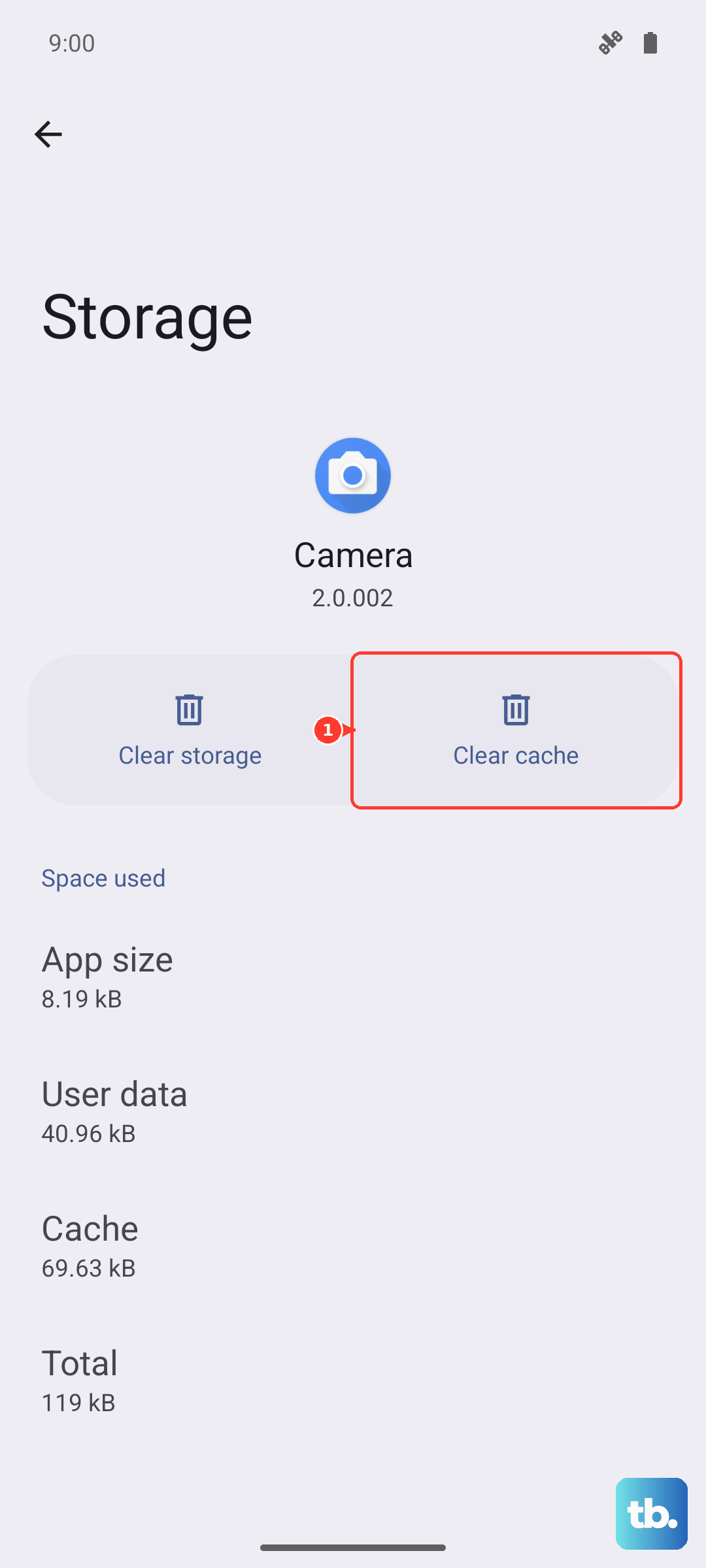
Back in the main Settings menu, go to Apps > App Management. Scroll through the list and tap on any large app, especially social media or streaming apps like WhatsApp, Instagram, or Netflix. Inside the app info page, tap Storage Usage. Here, you can tap Clear Cache safely. For even more space, you can tap Clear Data, but be aware this will reset the app to its freshly installed state, so you'll need to log in again.
Optimize Your Photo and Video Storage
With those dual periscope cameras, photos and 4K videos can pile up fast. Open the Photos app and use the Clean tab. It can find similar photos, screenshots, and blurry images for you to review and delete in bulk. Also, make sure to regularly empty the Recently Deleted album, as files sit there for 30 days before being permanently removed. For a more permanent solution, consider backing your full-resolution library to Google Photos or another cloud service and using the "Free up space" feature within those apps.
Clear Downloaded Files and Documents
Open the Files app by OPPO. Check the Downloads and Documents categories. Over time, PDFs, APK files, and other downloads from browsers and messaging apps accumulate here. You can sort files by size to find the largest ones and delete what you no longer need. This is a common source of hidden storage use that many people overlook.
Review Offline Content in Streaming Apps
Apps like Spotify, Netflix, and YouTube Music store music, podcasts, and videos locally for offline playback. Open each app and navigate to your downloads or offline library. Remove albums, playlists, or shows you've already listened to or watched. In Spotify, for example, you can go to Settings > Storage and clear the cache or remove all downloads at once.
Manage Large Chat Apps
Messaging apps are notorious storage hogs. In WhatsApp, go to Settings > Storage and Data > Manage Storage. You can review large files, forward many times, and see which chats are using the most space, then clear them out. For Telegram, you can manage storage from Settings > Data and Storage > Storage Usage. Setting media to auto-download only on Wi-Fi can also prevent future surprises.
Address System and Other Files
If you see a large, vague category like "System" or "Other" taking up significant space in your storage breakdown, it's often tied to cached data and system files. A simple restart can sometimes help the system clean this up. If it persists, the most effective method is to back up your important data and perform a factory reset. Given that ColorOS can come with more pre-installed apps, you might also check if any you never use can be uninstalled or disabled to recover a bit of space.
Use Cloud Storage Effectively
For a long-term fix, consider leveraging cloud services more heavily. OPPO offers its own cloud backup, and integrating with Google One provides seamless backup for photos, messages, and app data. Once your photos and files are safely backed up, you can use the "Free up space" feature in Google Photos or Files by Google to remove the local copies from your Find X8 Pro while keeping them accessible online.