
When your OPPO Find X8 Pro goes silent or the volume is barely there, it can really throw you off. This phone is packed with powerful speakers, so when they don't work, it's usually a software quirk or a simple setting that needs adjusting. Let's start with the most common fix that often solves the problem in seconds.
Before changing anything, play a quick speaker test in your browser. It sends a tone to the left and right channels separately, so you immediately know whether the speakers produce any sound at all.
Check Your Volume and Sound Mode
First, press the volume up button on the side of your phone. Make sure you're not in Silent or Vibrate mode, which is easy to toggle by accident. You can check this quickly by looking at the status bar for a bell with a slash or a vibration icon.
For more control, go into Settings > Sound & Vibration. Here, you'll see sliders for Media, Ringtone, Notification, and System sounds. Slide the Media volume all the way up. Also, tap on Sound Mode at the top and ensure it's set to "Sound," not "Vibrate" or "Silent."
Disconnect Bluetooth and Accessories
Your phone might be trying to send audio somewhere else. If you have a smartwatch, wireless earbuds, or a car stereo paired, your Find X8 Pro could be routing sound to them even if they're not in use.
Swipe down from the top of your screen to open the Quick Settings panel and tap the Bluetooth icon to turn it off. You can also go to Settings > Bluetooth and toggle the main switch off. Also, remove any headphones or USB-C audio adapters, as the phone can sometimes get stuck thinking they're still connected.
Clean the Speaker Grilles
The Find X8 Pro has speaker grilles at the bottom and top for its stereo setup. Over time, pocket lint, dust, or debris can clog these tiny holes and muffle the sound dramatically.
Take a close look with a flashlight. Use a soft, dry toothbrush or a clean, dry makeup brush to gently sweep across the grilles. You can also use a can of compressed air, but hold it upright and use very short bursts from a few inches away. Never poke anything sharp like a pin or SIM tool into the holes, as you'll likely damage the speaker behind it.
Restart Your Phone
A simple restart clears out temporary glitches in the system that can affect audio. Just hold the power button until the power menu appears, then tap "Restart." Wait for the phone to fully boot back up and check your sound.
If the phone is completely unresponsive or the sound issue is severe, you might need a force restart. On the Find X8 Pro, press and hold the Power button for about 10 seconds or until you feel it vibrate and see the OPPO logo. This is a hard reboot that doesn't erase any data.
Check Do Not Disturb and App-Specific Settings
Do Not Disturb mode can silence everything if it's configured strictly. Go to Settings > Sound & Vibration > Do Not Disturb. Make sure it's turned off, or check the rules to see if a schedule is active.
Sometimes, the issue is only with one app, like YouTube or Spotify. Open the problematic app and play some media. While it's playing, press the volume buttons. A volume slider should appear on screen, and you might see an icon next to it. Tap the settings icon (it looks like three dots or a gear) on that volume pop-up to make sure the app's individual sound isn't being limited.
Boot Into Safe Mode
This is a great way to see if a third-party app you installed is causing the conflict. Safe mode temporarily disables all downloaded apps. To enter it, press and hold the power button until the power off menu appears.
Then, tap and hold the "Power off" option on your screen. A prompt will ask if you want to reboot to Safe Mode. Tap "OK." Your phone will restart, and "Safe mode" will appear in the bottom corner. Test your sound in this mode. If it works fine, a recently installed app is the culprit. Restart normally to exit Safe Mode and try uninstalling apps one by one to find the offender.
Clear the Cache for Sound-Related Services
Corrupted cache data for system services can lead to audio problems. Go to Settings > Apps > App Management. Tap the three-dot menu in the top right and select "Show system apps."
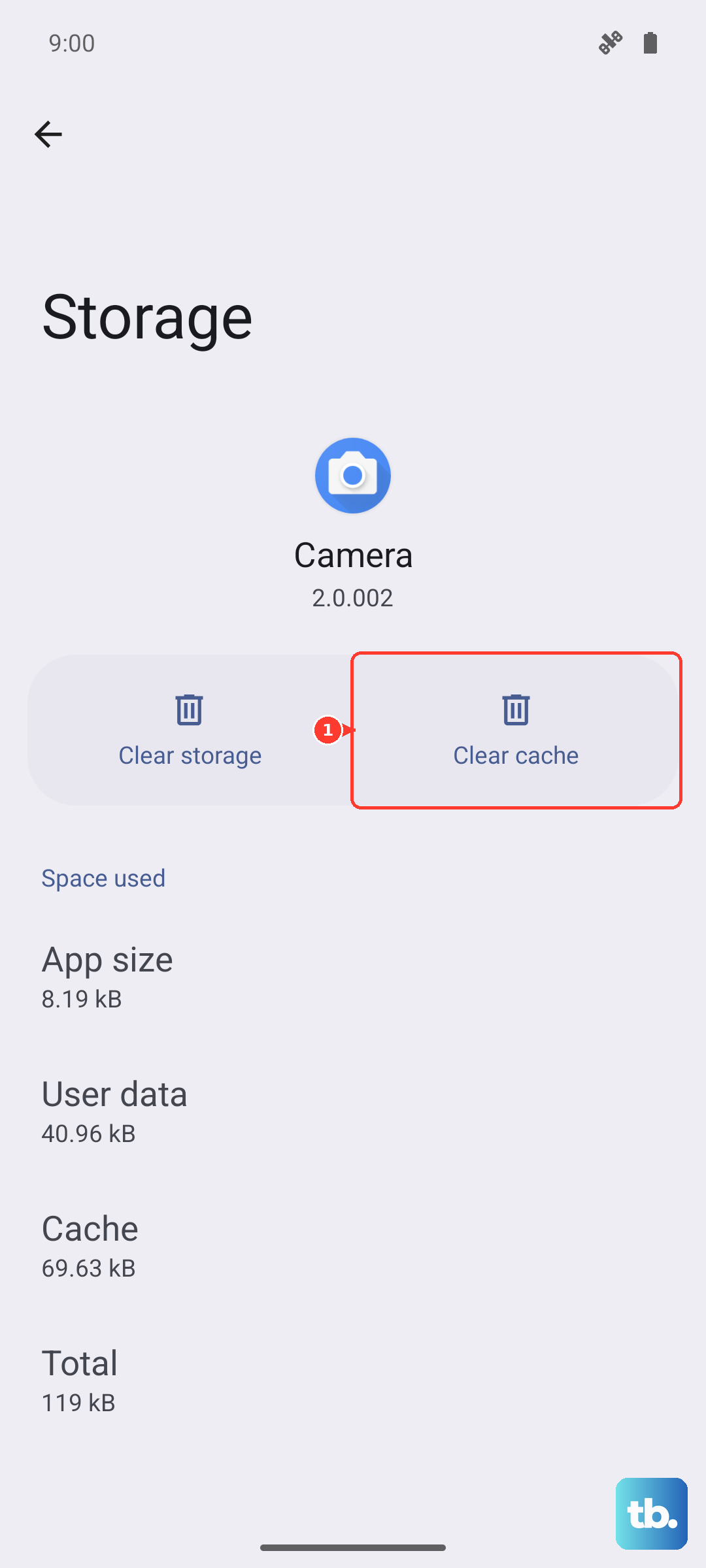
Scroll down and look for services like "Android System," "Media Storage," or "SoundPicker." Tap on one, then select "Storage Usage." You'll see options to "Clear Cache" and "Clear Data." Tap "Clear Cache" first. Do this for a couple of the main system services, then restart your phone. Don't clear data unless you're prepared to reset related settings.
Update Your Software
OPPO regularly releases updates for ColorOS that fix bugs, including audio issues. Make sure you're on the latest version. Connect to Wi-Fi and go to Settings > About Device > Software Update.
Tap "Check for Updates." If an update is available, download and install it. The Dimensity 9400 chipset is powerful, but early software can sometimes have minor bugs that updates smooth out. It's a good habit to keep your phone updated anyway.
Reset All Settings
If you've tried everything and the sound is still messed up, this step resets all your system settings to default without touching your personal photos, messages, or apps. It will wipe your Wi-Fi passwords, Bluetooth pairings, and home screen layout, so be ready to set those up again.
Go to Settings > Additional Settings > Back Up and Reset. Tap on "Reset Phone," then choose "Reset All Settings." Enter your lock screen password if asked and confirm. Your phone will reboot with fresh settings, which often resolves deep-seated configuration conflicts.