
If your OPPO Find X8 Pro is refusing to send picture messages or group chats, it's a frustrating roadblock. On ColorOS 15, this usually comes down to a data setting, a misconfigured message app, or a carrier hiccup. Let's get your multimedia messages flowing again.
Toggle Mobile Data and Check Reception
MMS doesn't travel over your regular cellular voice signal or Wi-Fi. It needs an active mobile data connection. First, swipe down from the top of your screen to open the Quick Settings panel and make sure the mobile data icon is enabled.
If it's on but you're still stuck, poor signal could be the culprit. Try moving to a location with better reception. I've seen this simple fix resolve more MMS issues than you'd think, especially indoors.
Verify the MMS Settings in Your Messages App
Open the default Messages app on your Find X8 Pro and tap the three-dot menu in the top right. Go to Settings > Advanced settings.
Here, ensure Auto-download MMS is turned on. If you're traveling, you might also want to enable Auto-download MMS when roaming, but be mindful of potential data charges.
Clear the Cache for Your Messaging App
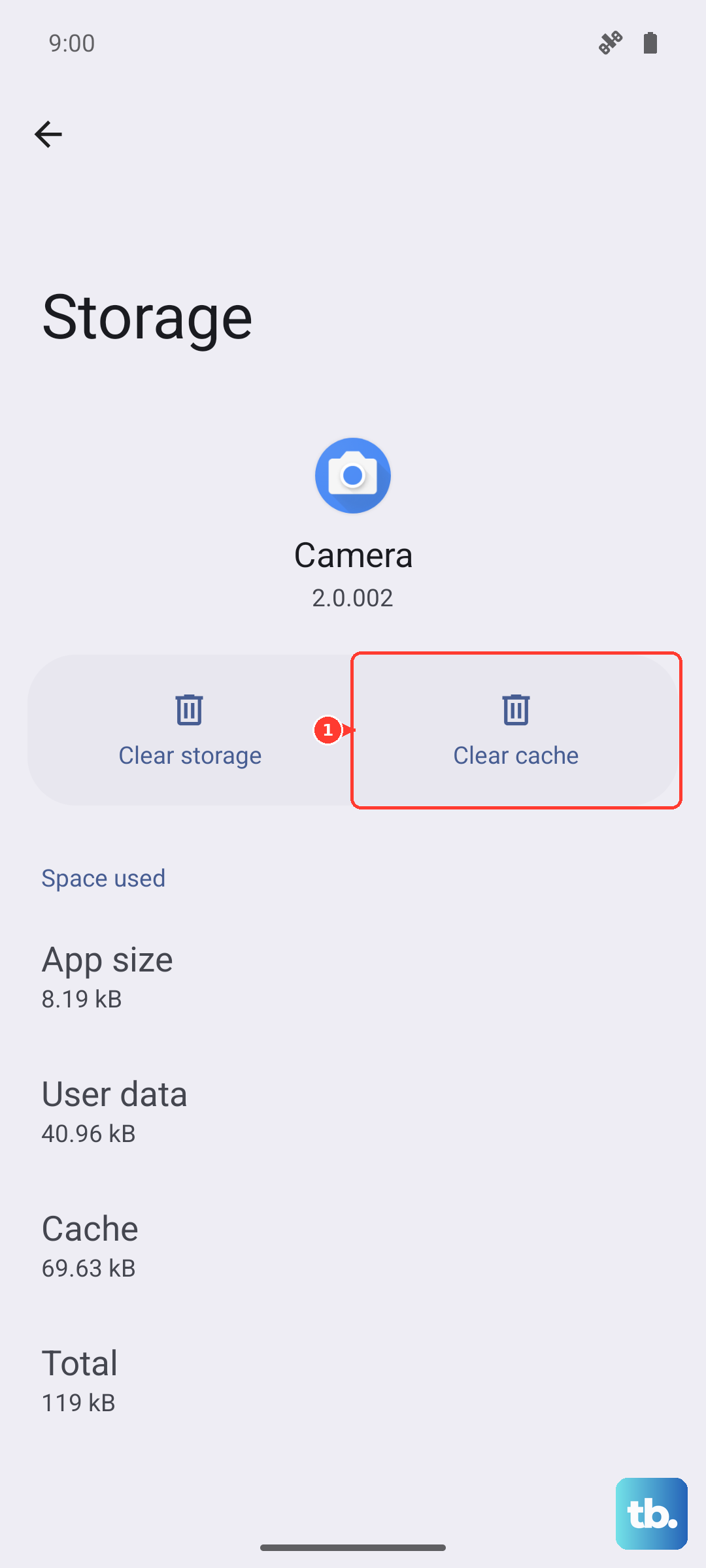
Temporary files can sometimes get corrupted and block message sending. Go to your phone's Settings and tap on Apps. Find and select Messages from the list.
Tap on Storage usage and then hit Clear cache. This won't delete any of your actual messages or conversations, it just cleans out the temporary data. Give sending an MMS another try right after.
Check and Update Your APN Settings
This is a very common fix. The Access Point Name (APN) tells your phone exactly how to connect to your carrier's data and MMS services. An incorrect setting here will stop MMS in its tracks.
Navigate to Settings > Mobile network > Access Point Names. You should see an APN list, usually with one selected. Tap on it to view the details.
You need to verify the MMSC (Multimedia Messaging Service Center) address is correct. This is a specific URL provided by your carrier. If anything looks off or is missing, the safest move is to contact your carrier's support. They can give you the exact, up-to-date APN configuration for your OPPO Find X8 Pro on their network.
Perform a Force Restart
Before diving deeper, give your phone a fresh start. A force restart can clear out minor software glitches affecting the modem or messaging services. Press and hold the Power button for about 10 seconds until you feel a vibration and see the OPPO logo appear on screen.
Wait for the phone to boot up completely, then try sending your MMS again. It's a quick step that takes less than a minute.
Update Your Phone's Software
Running an outdated version of ColorOS can lead to compatibility issues with carrier services. OPPO frequently releases updates that include bug fixes for connectivity and messaging.
Go to Settings > About device > Software update. Tap on Check for updates and install any that are available. After the update installs and your phone restarts, check if the MMS problem is resolved.
Reset Your Network Settings
If you're still having trouble, resetting network settings can wipe out any deeper configuration errors. This will erase all saved Wi-Fi networks, Bluetooth pairings, and mobile data settings, returning them to factory defaults.
To do this, go to Settings > Additional settings > Back up and reset. Tap on Reset phone and then select Reset network settings. Confirm the action. You'll need to reconnect to your Wi-Fi and re-pair Bluetooth devices afterward.
Ensure You Have Enough Storage Space
Your Find X8 Pro needs a bit of free space to process and send multimedia messages. If your storage is critically low, it might fail silently. Open Settings > About device > Storage to see how much space is left.
Try clearing out some old downloads, app caches, or unused apps to free up at least a few hundred megabytes. You can also go into your Messages app and delete very old conversation threads that contain lots of photos and videos.
Try Google Messages as an Alternative App
Sometimes the issue is specific to the default messaging app. Installing Google Messages from the Play Store is a great diagnostic step. It's a clean, widely supported app that often handles MMS more reliably.
After installing it, open the app and set it as your default when prompted. Then, try sending your MMS through Google Messages. If it works, you've identified the stock app as the problem, and you can just keep using Google's version.
Contact Your Mobile Carrier
If you've worked through all the steps on your phone, the issue might be on your carrier's end. Give their technical support a call. They can check if there's an outage affecting MMS in your area, verify your line is properly provisioned for multimedia messaging, and confirm you're using the perfect APN settings for your OPPO Find X8 Pro.