
If your OPPO Find X8 Pro is starting to feel sluggish, it's a frustrating experience for a phone with such a powerful Dimensity 9400 chip. Lag can creep in for a few reasons, often related to software, storage, or how the phone manages heat and power. I'd start with a simple restart, as it clears out temporary glitches and refreshes the system.
Perform a Force Restart
Before anything else, try a force restart. This is different from a normal power off and on. Just press and hold the power button for about 10 seconds until you feel a vibration and see the OPPO logo appear on screen.
It doesn't delete any of your data, but it forces the phone's memory to clear and stops any stuck processes. This single step fixes a surprising number of performance hiccups.
Check for Software Updates
OPPO regularly releases updates for ColorOS that include performance optimizations and bug fixes. An outdated system can be a major cause of lag. Head to Settings > About device > Software update.
Tap to check for updates and install any that are available. It's a good idea to do this over Wi-Fi and while your phone is charging, especially with the included 80W SUPERVOOC charger to make it quick.
Free Up Internal Storage
When your phone's storage is nearly full, it has no room to operate efficiently. The Find X8 Pro needs free space for system tasks and app caches. Go to Settings > Additional settings > Storage to see what's using space.
Look for "Large files" or review app data. Your 4K videos and high-resolution photos from those excellent periscope cameras can fill space fast. Consider moving media to cloud storage or a computer.
Manage Background Apps and Processes
ColorOS allows apps to run in the background, which can drain the battery and slow things down. You can view and close recent apps by swiping up from the bottom and holding, then swiping the app windows away.
For more control, go to Settings > Battery > Background power management. Here, you can set apps to "Intelligent control" or restrict them from running in the background entirely.
Review and Disable Unnecessary Bloatware
Like many manufacturer skins, ColorOS comes with pre-installed apps you might not use. These can sometimes run background services. You can't uninstall all of them, but you can often disable them.
Go to Settings > Apps > App management. Find apps you don't recognize or need, tap on them, and select "Disable". This prevents them from running or updating.
Clear App Caches
Over time, apps store temporary data that can become corrupted or bloated. Clearing this cache can free up space and fix sluggish behavior within specific apps. Go to Settings > Additional settings > Storage > Clean up.
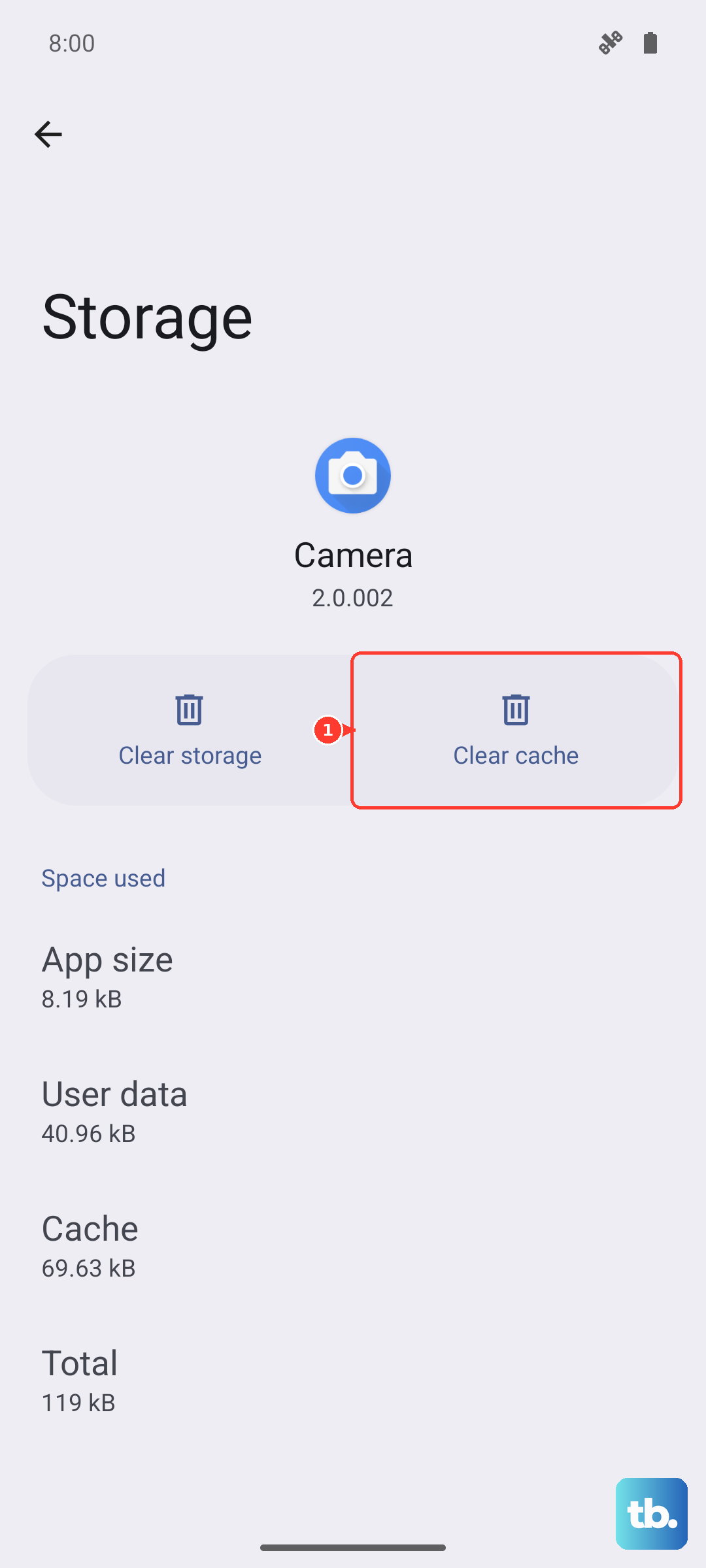
The phone will analyze and suggest files to delete, including app caches. You can also clear caches for individual apps by going to Settings > Apps, selecting the app, and tapping "Storage usage" > "Clear cache".
Monitor for Overheating
The Dimensity 9400 is powerful but can generate heat during long gaming sessions or intensive tasks. When the phone gets too hot, it will intentionally throttle performance to protect the hardware.
If your phone feels warm and is slowing down, give it a break. Remove the case if you're using one, avoid direct sunlight, and stop charging for a bit. Using the 50W AIRVOOC wireless charger can also generate more heat than wired charging.
Optimize Battery and Performance Settings
ColorOS has built-in tools to balance performance and battery life. Go to Settings > Battery. Here, you can enable "Power saving mode" for a quick boost, though it limits background activity.
For more advanced options, look for a "Performance mode" or "High-performance mode" toggle, often found in the battery or additional settings menus. This keeps the chip running at higher speeds.
Reduce Animations and Visual Effects
Smoothing out animations uses processor power. You can speed up the phone's perceived responsiveness by shortening these effects. Go to Settings > Additional settings > Accessibility > Visual effects.
Look for settings like "Window animation scale" or "Transition animation scale". You can reduce these or even turn them off. It makes the interface feel snappier instantly.
Reset All Settings
If you're still experiencing lag after trying everything, a "Reset all settings" can help. This will revert all your system settings (like Wi-Fi passwords, wallpaper, and ringtones) back to default without touching your personal data or apps.
Go to Settings > Additional settings > Back up and reset > Reset phone. Choose "Reset all settings" and enter your lock screen password to confirm. It's a good way to rule out a misconfigured setting causing the slowdown.