
When your headphones stop working with your OPPO Find X8 Pro, it can be incredibly frustrating. Whether you're using the USB-C port, a wireless pair, or Bluetooth earbuds, the issue can range from no sound to distorted audio or the phone simply not recognizing them at all. Let's get it sorted.
A browser based quick headphone test makes this easy to confirm. If both sides play test tones correctly there, the headphones are fine and the problem is in the device or app.
Restart Your Find X8 Pro
This is almost always my first move. A simple restart clears out temporary software glitches that can mess with audio routing. Just press and hold the Power button for about 10 seconds until you feel the phone vibrate and the screen goes black. Wait for it to boot back up, then try your headphones again. It's a quick fix that works more often than you'd think.
Check Your Volume and Sound Mode
It sounds obvious, but it's easy to miss. While your headphones are connected, press the volume up button on the side of the phone. Make sure the on-screen slider isn't all the way down. Also, pull down the notification shade and check that you haven't accidentally enabled Silent or Vibrate mode, which can affect headphone audio.
Clean the USB-C Port
If you're using wired headphones, pocket lint and debris can get packed into the USB-C port, preventing a solid connection. Grab a wooden toothpick or a soft-bristled brush and gently clean out the port. Avoid using anything metal. A clean port is one of the most common fixes for wired headphone problems on any phone.
Forget and Re-Pair Your Bluetooth Headphones
Go to Settings > Bluetooth. Find your headphones in the list of paired devices and tap the gear icon next to them. Select Forget to remove them. Then, put your headphones into pairing mode and reconnect them from scratch. This creates a fresh connection profile and often solves pairing or audio quality issues.
Toggle Bluetooth Off and On
Head to Settings > Bluetooth and simply switch the main Bluetooth toggle off. Wait about 10 seconds, then turn it back on. This quick refresh of the Bluetooth radio can resolve minor connection hiccups and get your wireless audio streaming again in seconds.
Check the Audio Output Selection
Sometimes your phone sends sound to the wrong place. When media is playing, pull down the notification shade twice to open Quick Settings. Look for the media playback controls and tap the device name or icon below the song title. A menu will pop up letting you choose between your phone's speaker, your Bluetooth headphones, or other connected devices.
Update Your Phone's Software
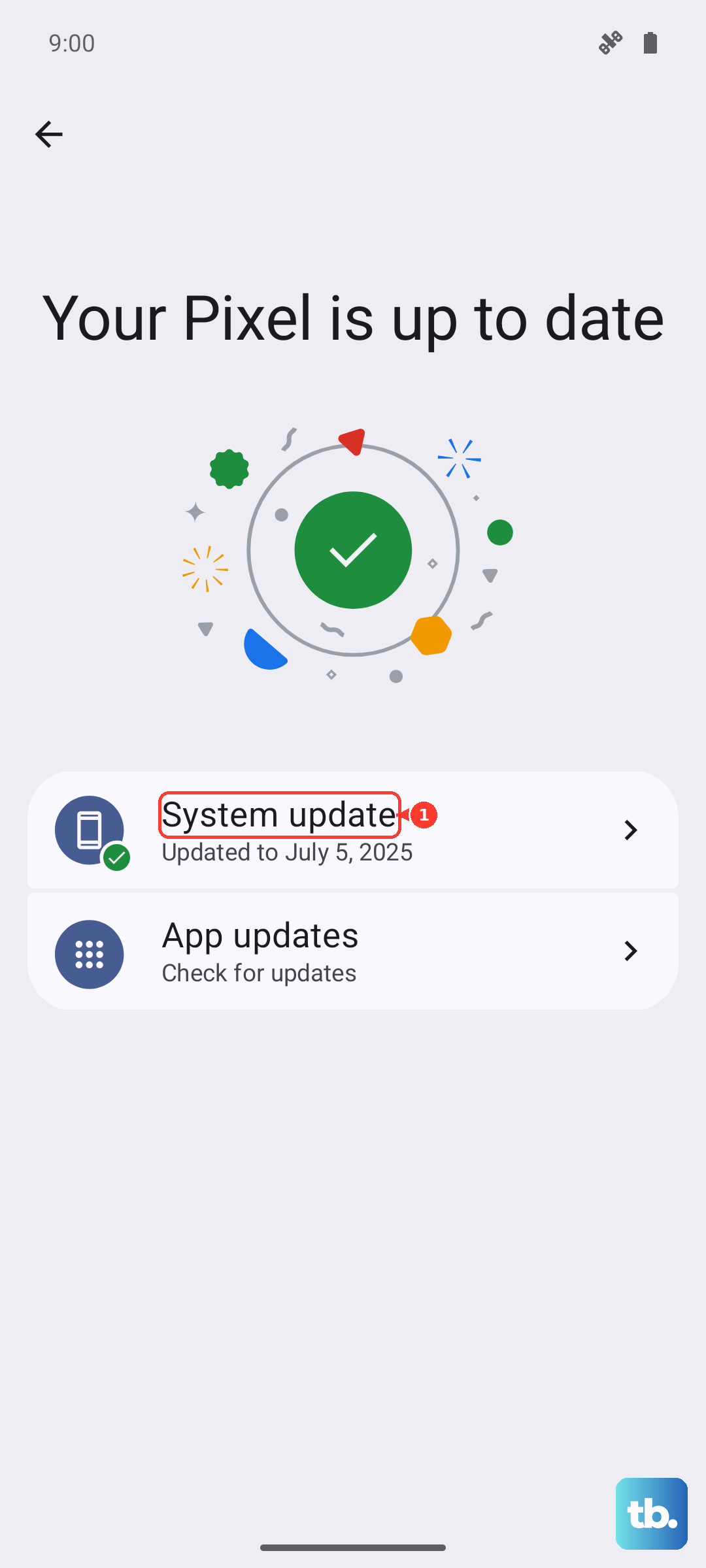
Audio and Bluetooth bugs are frequently addressed in system updates. Go to Settings > About device > Software update to check for any available updates for ColorOS and Android. Installing the latest software can patch the exact issue causing your headphone troubles, especially with newer devices like the Find X8 Pro.
Test Your Headphones on Another Device
This tells you where the problem actually lies. Try your headphones with another phone, tablet, or computer. If they don't work there either, the issue is with the headphones themselves, check their battery, cables, or pairing mode. If they work fine elsewhere, then the focus is squarely on your OPPO.
Reset All Settings
If you're still stuck, this is a stronger step that won't delete your personal data. Navigate to Settings > Additional settings > Backup and reset > Reset phone > Reset all settings. This will revert all system settings, like Wi-Fi passwords, Bluetooth pairings, and sound preferences, back to default. You'll need to re-pair your headphones afterward, but it can clear deep-seated configuration errors.
Check for App-Specific Issues
Does the problem only happen in one app, like Spotify or YouTube? Try playing audio from a different app or a video from your gallery. If it works elsewhere, the issue is likely with that specific app. Try force-stopping the app through Settings > Apps, clearing its cache, or checking for an update in the Play Store.