Your OPPO Find X8 Pro is supposed to lock onto your position in seconds, yet the blue dot is drifting across the map, your ride-hailing driver cannot find you, or a fitness app refuses to record a single mile. GPS trouble on a phone this capable is almost always a software or settings issue rather than a broken antenna, because the Find X8 Pro carries full multi-constellation GNSS hardware (dual-band GPS L1+L5, GLONASS, BeiDou, Galileo, QZSS and NavIC) backed by Wi-Fi and cellular assist. That means the fix is usually waiting in a toggle you can flip yourself. Work through the steps below in order, starting with the quickest and safest, and only move on to the heavier options if the easy ones do not bring your location back.
Confirm location is actually switched on
It sounds obvious, but the master location switch gets turned off by accident more often than you would expect, and when it is off no app on the phone can get a fix. The Find X8 Pro runs ColorOS 15 on the Android 15 location stack, so the control lives in one place.
Open Settings > Location.
Turn 'Use location' on.
You can also reach it faster by swiping down twice from the top of the screen and tapping the 'Location' Quick Settings tile so location is active. Once it is on, reopen the app that was struggling and give it a moment to acquire satellites.
Give the affected app precise location permission
If only one app shows the wrong spot or no location at all (for example Maps, a weather app, or a ride-hailing app) while everything else is fine, the problem is that app's individual permission rather than the phone. Android can grant approximate-only location or block it entirely, and either setting wrecks accuracy for that single app.
- 1.Touch and hold the app icon, then tap App info.
- 2.Go to Permissions > Location.
- 3.Choose 'Allow all the time' or 'Allow only while using the app'.
- 4.Turn 'Use precise location' on.
'Don't allow' or an approximate-only setting is one of the most common reasons a single app reports a bad GPS position while the rest of the system works.
Turn on Location Accuracy plus Wi-Fi and Bluetooth scanning
The Find X8 Pro does not rely on satellites alone. Google's Location Accuracy service blends Wi-Fi, cell towers, GPS and the device sensors so the phone locks on faster and performs far better indoors or among tall buildings. If that helper service is off, you are leaving accuracy on the table.
Go to Settings > Location > Location Services > Location Accuracy.
Turn 'Improve Location Accuracy' on.
Go back to Location Services and turn 'Wi-Fi scanning' on.
Turn 'Bluetooth scanning' on as well.
Both scanning options let apps read nearby signals to refine your position, which is especially useful when the open sky is blocked.
Head outside and clear the radios
Even great GNSS hardware needs a clear view of the sky to reacquire satellites, so a position fix that fails indoors or in a parking garage may simply be starved of signal. Move to an open area away from tall structures and give the receiver a chance to start fresh.
While you are at it, make sure two settings are not throttling location. Turn off Airplane mode, which disables the radios entirely, and turn off Battery saver mode, which can block or restrict background location. Wait about a minute outdoors and let the phone pull a brand-new fix before you judge whether the problem is solved.
Recalibrate the blue dot and compass in Google Maps
If your position is roughly right but the dot jumps around, or the direction beam points the wrong way, the issue is calibration rather than the satellite fix. Google Maps has a built-in recalibration routine for exactly this.
Open Google Maps and tap the blue dot that marks your location.
Tap 'Calibrate'.
Follow the on-screen Live View instructions.
If you would rather not use the camera, the alternative is to make a figure 8 motion with the phone until the beam becomes narrow and points in the right direction. A quick recalibration often steadies a wandering dot immediately.
Force restart the Find X8 Pro
A location service that has frozen will usually come back to life after a hard restart, which clears the running state without touching your data. The Find X8 Pro has a specific button combination for this, and it is not the power button on its own.
Press and hold the Power and Volume Up buttons for at least 8 seconds until the phone turns on. This is OPPO's official force-restart sequence for the device. Once it boots back up, open Settings > Location, confirm 'Use location' is still on, and test GPS again.
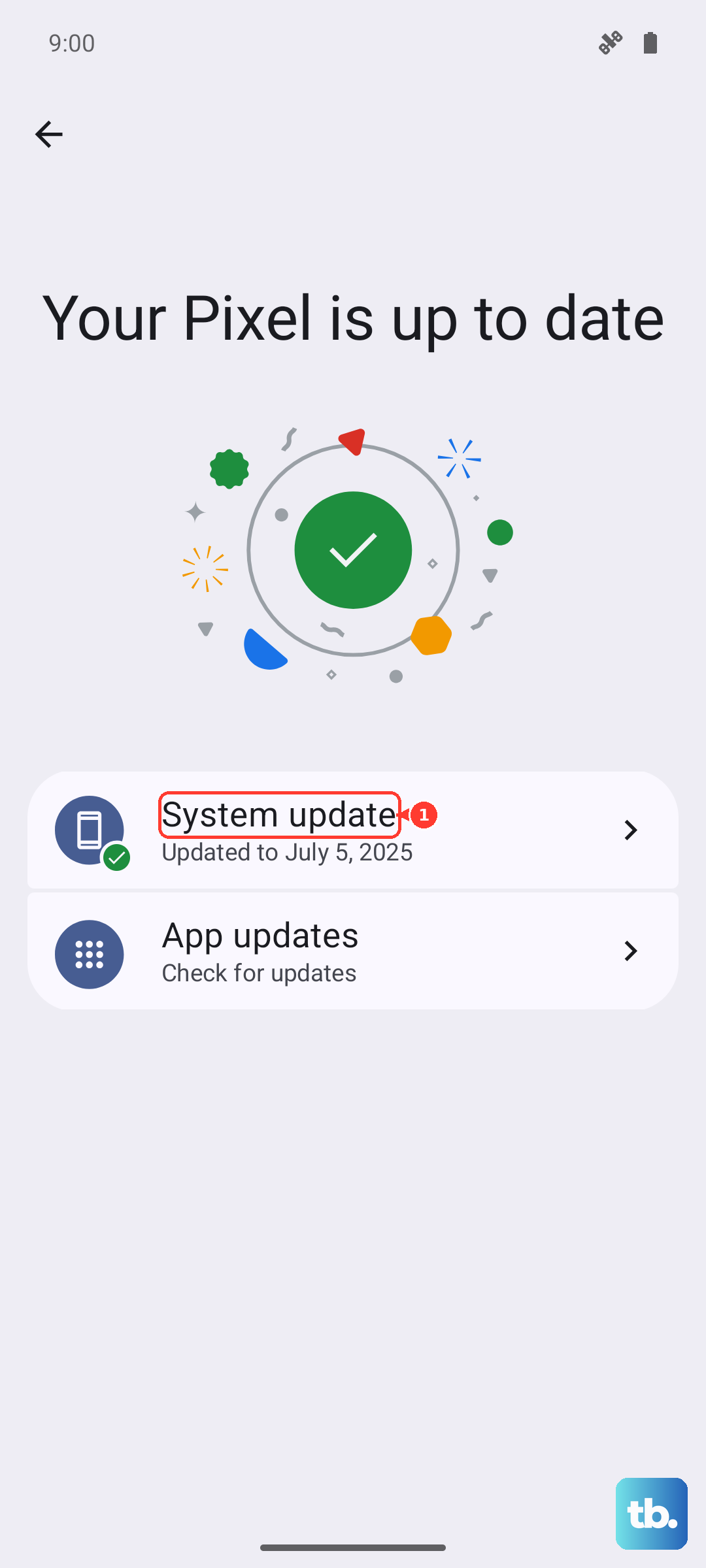
Install the latest ColorOS 15 update
Keeping the Find X8 Pro on the newest ColorOS 15 firmware matters because OPPO ships over-the-air updates that optimize system performance and stability, and a positioning bug is exactly the kind of thing a patch can resolve. These updates roll out in batches by region, so yours may already be waiting.
Open Settings and install any pending system update, then recheck GPS afterward. Back up anything important before a major update, just as a sensible precaution.
Reset the network settings
The Find X8 Pro leans on Wi-Fi and cellular assist (A-GNSS) to speed up positioning, so a corrupted network configuration can slow or scramble your fix. Resetting just the network connections clears that up without erasing any of your personal files.
Go to Settings > Additional Settings > Backup and reset > Reset phone.
Choose the network-settings reset option.
This resets your Wi-Fi and Bluetooth connections but leaves your photos and files alone. Reconnect to your Wi-Fi network afterward and test GPS again.
Factory reset as a last resort
If GPS still fails after everything above, a full factory reset wipes out any deeper software fault, but it is a serious step that deletes everything on the phone, so treat it as a final option only. Back up your data first.
Go to Settings > Additional Settings > Backup and reset > Reset phone.
Choose 'Erase All Data'.
OPPO warns that this clears all data including photos and music and restores the phone to factory settings, and that the reset cannot be stopped or paused once it begins (this applies to ColorOS 12 and above). Make sure your backup is complete before you start.
Book a check with OPPO support
If location still does not work after a factory reset, you have ruled out the software side, and the GNSS antenna or module may have a hardware fault. At that point the right move is to get it inspected by professionals.
Contact OPPO official support or book an appointment at an OPPO Service Center for inspection and repair. Bring a note of the steps you have already tried, which helps the technician skip straight to the hardware diagnosis.
Frequently Asked Questions
Why does only one app on my Find X8 Pro show the wrong location?
When a single app is affected while the rest of the phone is fine, the cause is almost always that app's location permission. Touch and hold the app icon > App info > Permissions > Location, set it to 'Allow all the time' or 'Allow only while using the app', and turn 'Use precise location' on.
Does turning on Wi-Fi and Bluetooth scanning really improve GPS?
Yes. The Find X8 Pro combines satellite signals with Wi-Fi and cellular assist, and Google's Location Accuracy service uses nearby Wi-Fi and Bluetooth signals along with cell towers and sensors to lock on faster, especially indoors or among tall buildings. Enable both under Settings > Location > Location Services.
What is the correct way to force restart the OPPO Find X8 Pro?
Press and hold the Power and Volume Up buttons together for at least 8 seconds until the phone turns on. This is OPPO's official force-restart sequence for the device, and it clears a frozen location service without deleting any of your data.
Will resetting network settings delete my photos or apps?
No. The network-settings reset, found under Settings > Additional Settings > Backup and reset > Reset phone, only clears your Wi-Fi and Bluetooth connections used for assisted positioning. Your photos, files and apps stay in place, though you will need to reconnect to Wi-Fi afterward.
How do I know if my GPS problem is a hardware fault?
If location still fails after you have worked through every software step, including a backup and a full factory reset, the GNSS antenna or module may be faulty. That is the point to contact OPPO official support or book an OPPO Service Center appointment for inspection and repair.