You pull your OPPO Find X8 Pro out in a dark room, swipe down, tap the Flashlight tile, and nothing happens. No beam, no glow from the rear camera area, maybe just a tile that flicks on and straight back off. It is a frustrating moment, but a dead flashlight on this phone is almost always one of a handful of fixable causes rather than a broken phone. The fixes below move from the quickest and safest checks to the official reset and repair paths, so start at the top and only work your way down if the light still refuses to come on.
One detail explains a surprising number of these failures. On OPPO and ColorOS phones, the flashlight is the rear LED flash that the camera also uses, and OPPO documents that the same single LED serves both jobs. That shared hardware is the first thing to rule out, so begin there before you touch any deeper settings.
Close the Camera app before you reach for the flashlight
Because the flashlight and the camera flash are the exact same LED, only one of them can use it at a time. OPPO confirms you cannot turn on the flashlight while the rear camera is actively using the flash, which means a camera session running in the background can quietly block the torch.
If the flashlight will not switch on, fully close the Camera app first. Close any other app that might be using the flash, then swipe down and tap the Flashlight tile again. In many cases the light fires immediately once the camera releases the LED.
Toggle the flashlight the way ColorOS expects
The OPPO Find X8 Pro does not ship with a standalone flashlight app, so Quick Settings is the built-in way to control the torch. Using the correct control rules out the simplest mistake of all, which is tapping the wrong place or expecting an app that is not there.
- 1.Swipe down from the top of the screen to open Quick Settings.
- 2.Tap the Flashlight icon to turn it on.
- 3.Tap it again to turn it off, and confirm the beam responds each time.
Give it a moment between taps so the system registers the change. If the tile lights up but no beam appears, the problem is more likely the LED or a system service, which the later steps address.
Bring the Flashlight tile back if it has vanished
Sometimes the flashlight is not broken at all; the tile has simply been removed from the Quick Settings panel, so there is nothing to tap. ColorOS lets you customize which tiles appear, and the Flashlight control can be added back in seconds.
Open Quick Settings, then go to the Quick Settings edit screen where you arrange and add tiles. Re-add the Flashlight icon, return to the panel, and test it. With the control restored to its usual spot, the torch should respond as normal.
Cool the phone down when it feels warm
When the Find X8 Pro gets too hot, ColorOS shows a high-temperature notice and limits performance and features to protect the device. If your phone has been pushed hard, that protection can interfere with the flash firing.
Stop heavy tasks such as gaming, video recording, or using the phone while it fast charges. Take off the case so heat can escape, keep the phone out of direct sunlight, and let it return to a normal temperature. Once it has cooled, open Quick Settings and try the flashlight again.
Force a restart to clear a stuck flash service
A frozen or stuck system service can stop the flashlight from working even when the hardware is fine. A force restart clears that state without touching any of your data, which makes it a safe step to try before anything drastic.
- 1.Press and hold the Power and Volume Up button together.
- 2.Keep holding for at least 8 seconds (up to about 10 seconds in some regions).
- 3.Release when you see the OPPO logo and let the phone finish rebooting.
This is OPPO's official force-restart sequence for the Find X8 Pro, and it needs the Power and Volume Up buttons together, not the Power button on its own. After the phone restarts, open Quick Settings and test the flashlight.
Install the latest ColorOS update
Software bugs can disable the flash, and OPPO regularly ships fixes through system updates. Keeping ColorOS current is one of the most reliable ways to clear a problem that started after a software change.
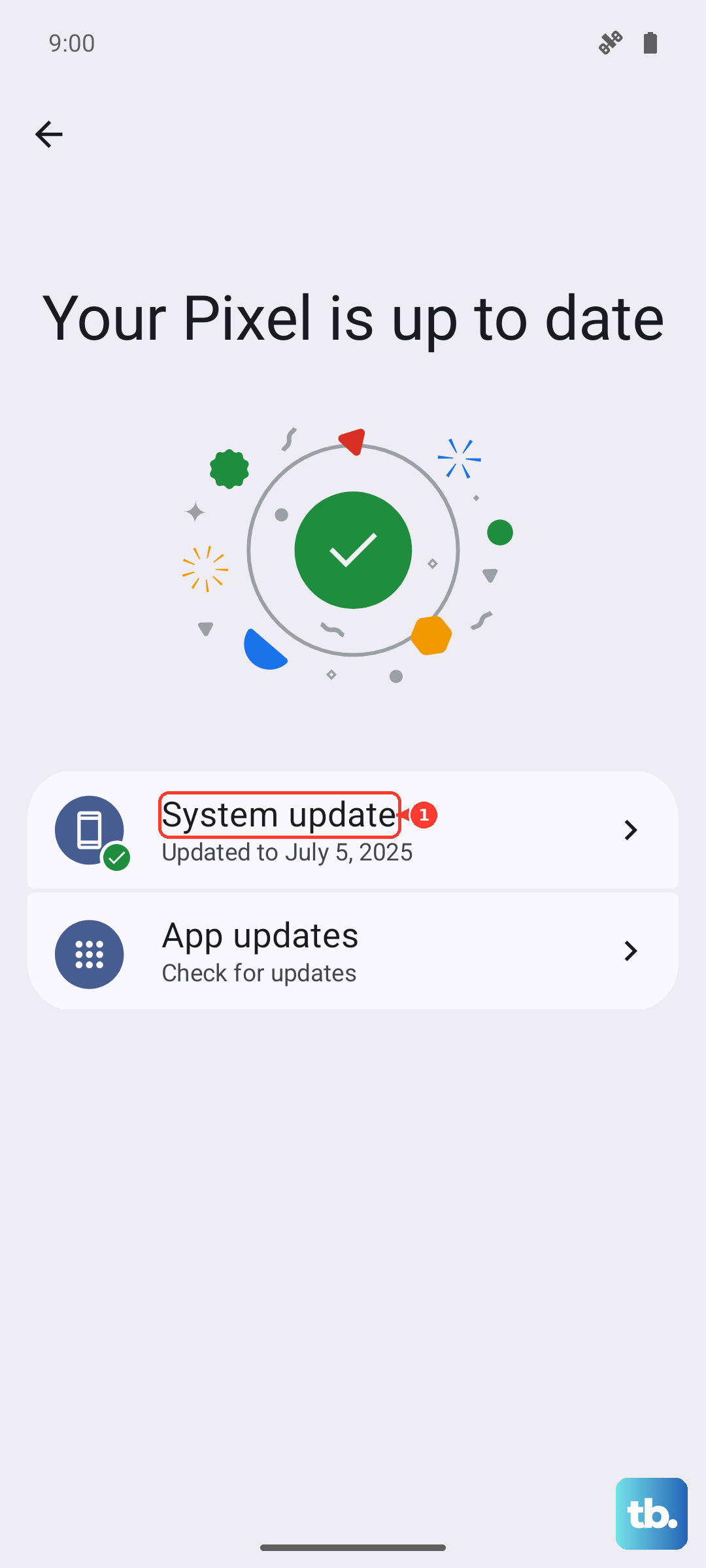
Go to Settings > Software Update to check for and install the latest ColorOS and firmware. A notification usually appears when an update is available, but you can also check manually on that screen. The Find X8 series receives six years of security updates, so staying current is worth doing regardless of the flashlight.
Once any available update finishes installing, restart the phone and test the flashlight from Quick Settings again. If a recent bug was behind the failure, the torch often returns after the phone is fully up to date.
Confirm the shared LED with the camera flash check
Since the flashlight and the camera flash are the same LED, the camera gives you a second way to test whether that hardware responds at all. OPPO publishes a dedicated support article for when the camera flash is not working, and it is the right reference for this check.
Open the Camera app, set the flash to on, and take a photo to see whether the LED fires for the camera. If the camera flash works but the Quick Settings flashlight does not, the issue points to software, which the reset step can address. If the camera flash also fails after the steps above, that points to a deeper software or hardware fault that needs official support.
Back up and erase all data as your last software move
If none of the earlier steps bring the flashlight back, a factory reset is the final software option before involving OPPO. This is a serious step. A factory reset restores factory settings and permanently erases everything on the phone, including photos, music, and apps, so back up your data first.
- 1.Back up your photos, accounts, and anything else you cannot lose.
- 2.In Settings, open the Back Up and Reset section.
- 3.Choose Reset Phone, then select Erase All Data.
- 4.Let the phone reset, set it up again, and test the flashlight.
On ColorOS 15 the exact top-level menu label before Back Up and Reset can vary slightly by build, but the option you are looking for is Erase All Data. If a fresh, factory-clean system still cannot turn on the flashlight, the cause is almost certainly hardware.
Reach OPPO support when the LED itself has failed
A flashlight that refuses to turn on even after a full reset usually means the LED flash module is faulty. At that point the fix is a repair, not a setting, and there is no benefit to repeating the software steps.
Contact OPPO official support through live chat or by booking a service-center appointment at the official support site. They can check your warranty status and arrange a repair for the LED flash module. Have your model details and a short description of what you have already tried ready so the process moves faster.
Frequently Asked Questions
Why does the flashlight turn off when I open the camera?
The flashlight and the camera flash on the OPPO Find X8 Pro are the same single LED. OPPO documents that you cannot use the flashlight while the rear camera is using the flash, so the torch becomes unavailable while the Camera app holds that LED. Close the Camera app and try the Quick Settings toggle again.
Where is the flashlight on the OPPO Find X8 Pro?
It lives in Quick Settings. Swipe down from the top of the screen and tap the Flashlight icon to turn it on or off. There is no separate flashlight app on ColorOS, so if the icon is missing you re-add it through the Quick Settings edit screen.
What is the correct way to force restart the Find X8 Pro?
Press and hold the Power and Volume Up button together for at least 8 seconds, up to about 10 seconds, until the OPPO logo appears, then let the phone reboot. It requires both buttons at once; the Power button alone will not perform the official force restart.
Will a factory reset fix a flashlight that will not turn on?
It can, if the cause is software. A factory reset through Back Up and Reset > Reset Phone > Erase All Data restores factory settings, but it permanently deletes everything on the phone, so back up first. If the flashlight still fails after a clean reset, the LED hardware is likely at fault and needs repair.
Does the Find X8 Pro have a dedicated flashlight bulb?
No. The flashlight uses the rear camera's LED flash rather than a separate light. That shared hardware is why the camera flash check is a useful way to confirm whether the LED responds at all.