
When your OPPO Find X8 Pro's email stops working, it can throw a wrench in your day. You might not be getting important messages, or perhaps you can't send anything out. These problems are usually tied to a few common settings on your phone.
Before we get into the specific fixes, let's cover the absolute basics. Make sure you have a working internet connection, either through Wi-Fi or mobile data. It's also worth checking if your email service itself is down by visiting its website on another device. Finally, double-check that you're using the correct email address and password.
Restart the Email App
The quickest fix is often just restarting the app. On your Find X8 Pro, swipe up from the bottom of the screen and hold to see your recent apps. Find your email app, whether it's Gmail or the built-in Email app, and swipe it up to close it completely. Wait a moment, then tap the app icon again to reopen it. This clears out any temporary glitch that might be hanging things up.
Check Your Sync and Fetch Settings
Your phone controls how often it checks for new emails. If these settings are off, messages won't come through automatically. Open the Settings app and go to Accounts & Sync. Tap on your email account and look for sync settings. Make sure sync is turned on for Mail.
For more control, especially in the built-in Email app, look for a setting called "Fetch new data" or "Sync frequency." I'd set this to "Push" if your email provider supports it, which delivers messages instantly. If not, choose a short interval like every 15 or 30 minutes.
Switch Between Wi-Fi and Mobile Data
Sometimes the issue is with your network, not your email. A quick test is to switch connections. If you're on Wi-Fi, turn it off and see if your email works on mobile data. You can do this by swiping down twice from the top of your screen to open the Quick Settings panel and tapping the Wi-Fi icon.
If email works on mobile data but not Wi-Fi, the problem is likely with your router or internet connection. Try the reverse as well. Disable mobile data in Settings > Mobile network and rely solely on Wi-Fi to see if that changes anything.
Toggle Airplane Mode
This is a classic network reset trick. Enabling Airplane mode shuts off all your phone's radios, and disabling them re-establishes fresh connections. Swipe down twice from the top of your screen to open the Quick Settings panel and tap the airplane icon.
Wait about 15-20 seconds, then tap the icon again to turn Airplane mode off. Your phone will reconnect to your mobile network and Wi-Fi. After it reconnects, try opening your email app again to see if it's working.
Verify Background Data and Battery Settings
ColorOS has aggressive battery optimization to extend the life of that large battery, and it can sometimes stop apps from working in the background. Go to Settings > Battery > More battery settings. Look for an option like "Background power management" or "App battery management."
Find your email app in the list and make sure it's not restricted. Set it to "Allow background activity" or a similar option. This ensures the app can check for new messages even when you're not actively using it.
Check Your Account Password and Security
Email services often require you to re-enter your password after a security update or if they detect unusual activity. Open your email app and see if there's a notification asking you to sign in again. If you're unsure, try logging into your email account through a web browser on a computer.
If you can't log in on the web, you'll need to reset your password with your email provider. Also, if you use two-factor authentication (2FA), you might need to generate a new app-specific password for your phone to use.
Update Your Email App and Android
An outdated app can have bugs that break functionality. Open the Google Play Store, tap your profile picture, and go to Manage apps & device. Check if there's an update available for Gmail or whatever email app you use.
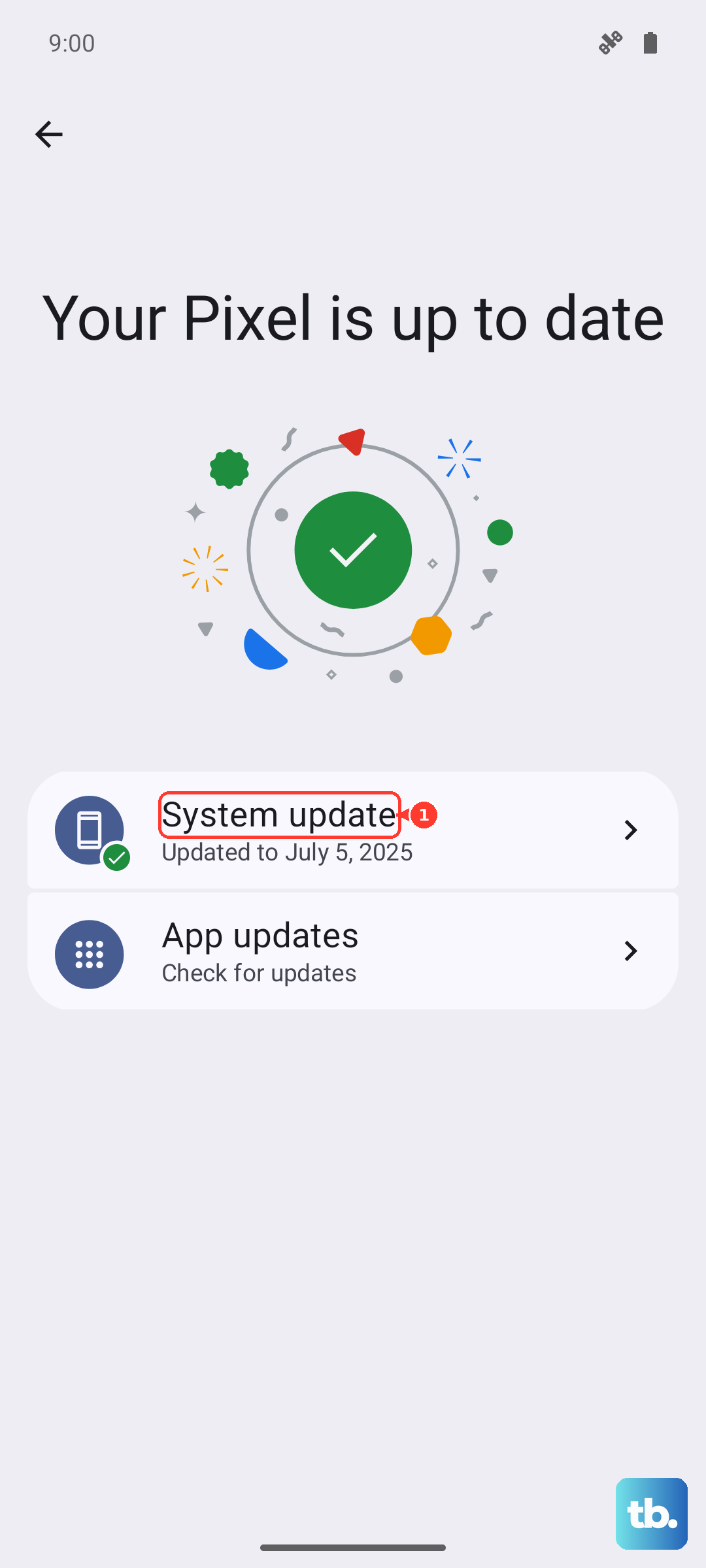
Similarly, a system update can fix deeper issues. Go to Settings > About device > Software update to check for any available updates for ColorOS and Android. Installing the latest software can resolve conflicts that affect email and other apps.
Clear the App's Cache and Data
If the app itself is corrupted, clearing its cache can help. Go to Settings > Apps > Manage apps. Find and tap your email app, then select Storage usage. Tap "Clear cache" first. This won't delete your emails or account.
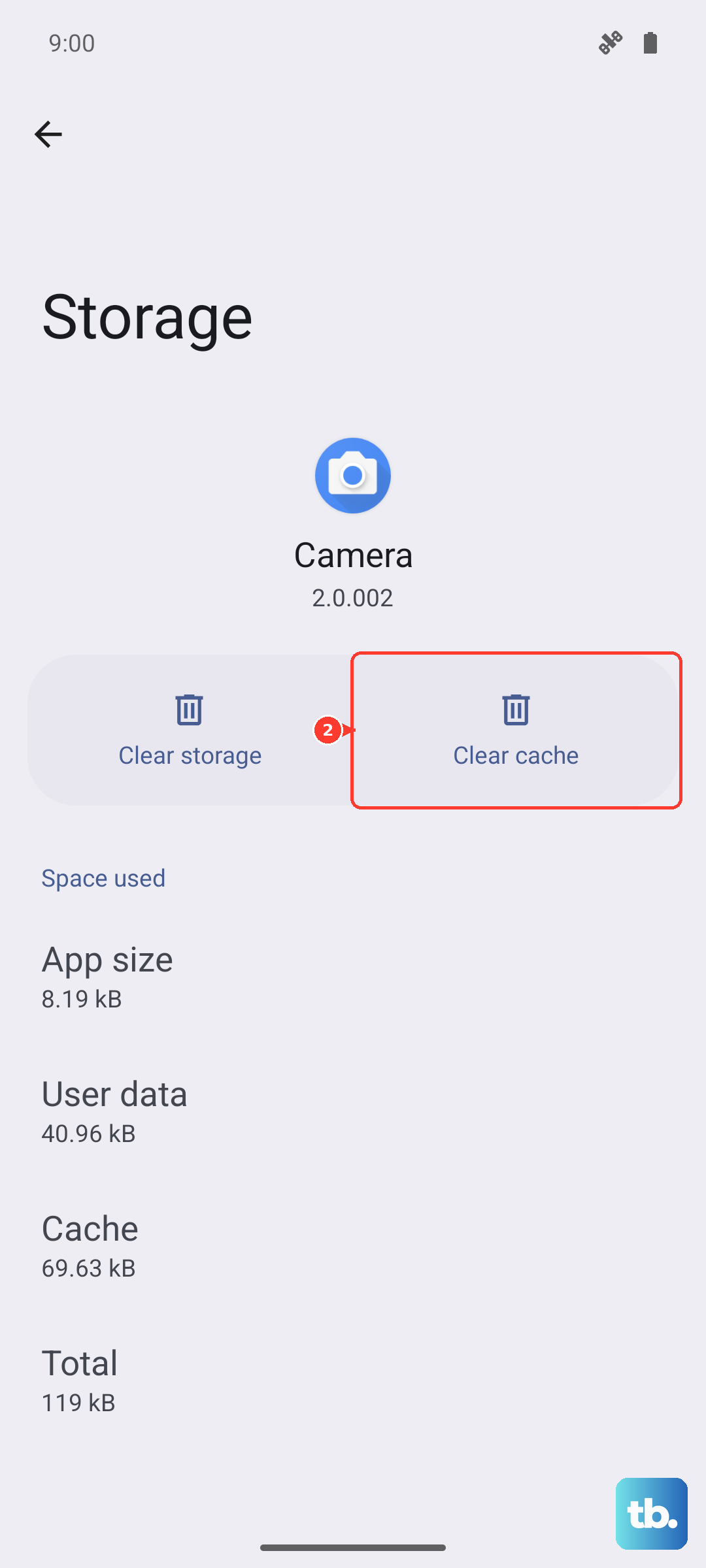
If the problem persists, you can try "Clear data." Be warned, this will remove the app's settings and log you out, so you'll need to set up your email account again. Your actual emails are stored on the server, so they'll redownload.
Remove and Re-add Your Email Account
This is a more thorough reset that often solves stubborn sync issues. Go to Settings > Accounts & Sync. Tap on the problematic email account and select "Remove account" or "Delete account." Confirm that you want to remove it.
Don't worry, this only removes the account from your phone, not from the email service itself. After removing it, go back and add the account again through the same menu or directly in your email app. You'll need to enter your email address and password fresh.
Check for Conflicting Apps or VPNs
If you use a VPN for privacy or work, try disabling it temporarily. VPNs can sometimes interfere with an app's ability to connect to its servers. You can turn it off from the Quick Settings panel or within the VPN app itself.
Also, consider if you've recently installed any new security, battery saver, or firewall apps. These can sometimes block network access for other applications. Try disabling them temporarily to see if your email starts working again.
Force Restart Your OPPO Find X8 Pro
When in doubt, a full reboot can clear out system-level hiccups. For the Find X8 Pro, simply press and hold the Power button for about 10 seconds or until you feel a vibration and see the OPPO logo appear on the screen. This forces the phone to shut down and restart, which is more effective than a standard restart if the phone is frozen.
Reset Your Network Settings
This is a last resort before more drastic measures, but it can fix deep-seated connection problems. Go to Settings > Additional settings > Backup and reset. Tap on "Reset phone" and then choose "Reset network settings."
This will erase all your saved Wi-Fi networks, Bluetooth pairings, and mobile data settings. You'll have to reconnect to Wi-Fi and re-pair Bluetooth devices afterward, but it often resolves persistent network-related issues, including email not syncing.