
A frozen OnePlus Open can be a real headache, especially when you're trying to use that big, beautiful inner display. The screen might be stuck on an app, the home screen, or just completely black and unresponsive. I've found that most of the time, this is a temporary software hiccup that you can fix yourself without losing any photos or messages.
Force Restart Your Phone
This is almost always the first thing you should try. Just press and hold the Power button on the right side of the phone for at least 10 seconds. Keep holding it until you feel a vibration or see the OnePlus logo appear on the screen. This forces a clean reboot of the system software and fixes the vast majority of temporary freezes.
Give It a Minute and Some Power
Sometimes the phone is just working hard in the background, like after a major app update or a system process. If it feels warm, it might still be chugging along. Let it sit for five minutes. If it's still frozen, plug it in. A critically low battery can cause weird behavior. Use the included 67W SUPERVOOC charger for the fastest boost.
Close the Problem App
If the rest of your phone works but one app is frozen, you can force close it. Swipe up from the bottom of the screen and hold to bring up your recent apps. Find the frozen app and swipe it all the way up to close it. Then try opening it again. If a specific app keeps causing freezes, head to the Google Play Store to check for an update.
Check Your Available Storage
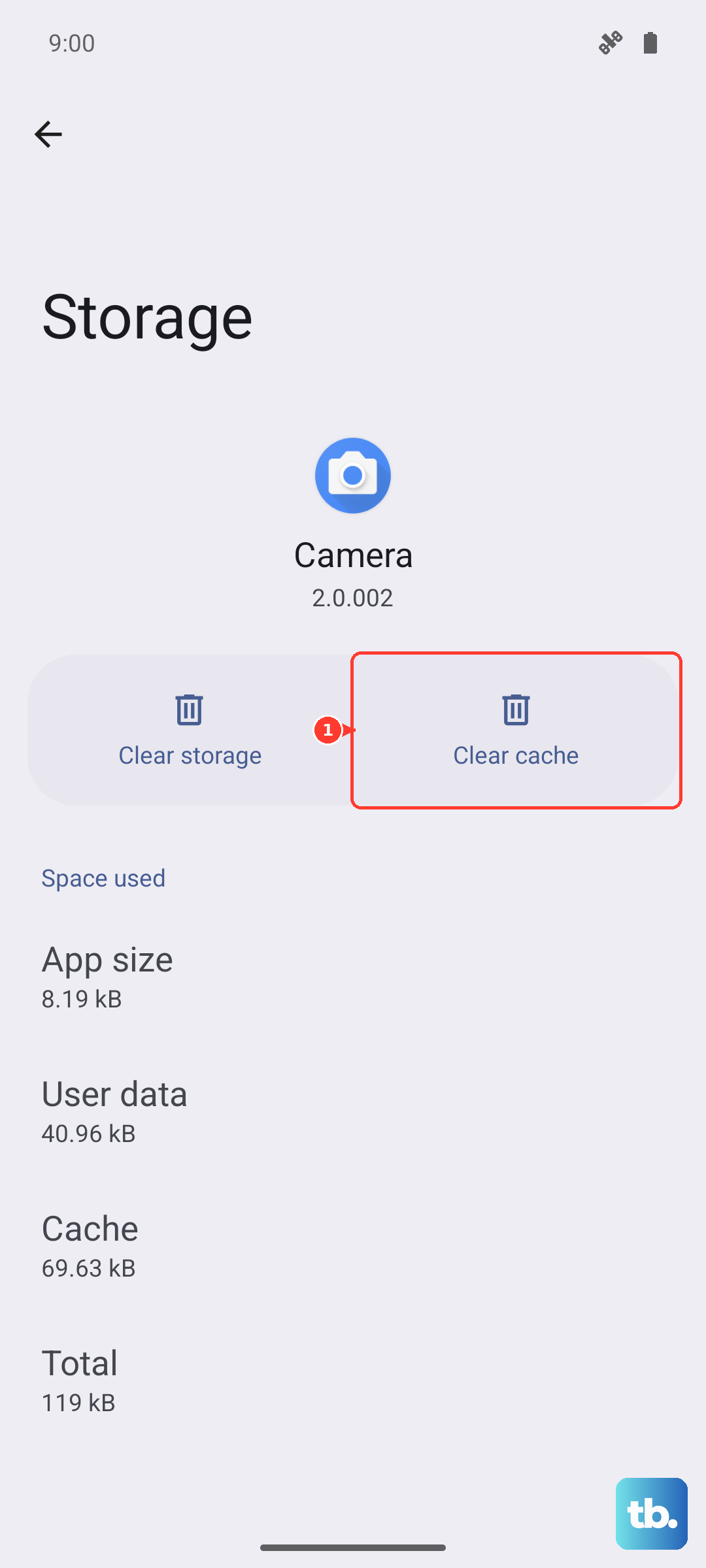
When your phone's storage is almost completely full, it can struggle to operate smoothly and may freeze. If you can get into your settings, go to Settings > Storage and see how much space you have left. Try to keep at least 10-15GB free. You can quickly clear cache for large apps or offload some photos to free up room.
Update Your Software
An outdated version of OxygenOS might have a bug that's causing the freezing. After you've restarted your phone, go to Settings > About device > OxygenOS version and tap on the top banner to check for updates. Installing the latest software patch can resolve a lot of stability issues.
Reset Your App Preferences
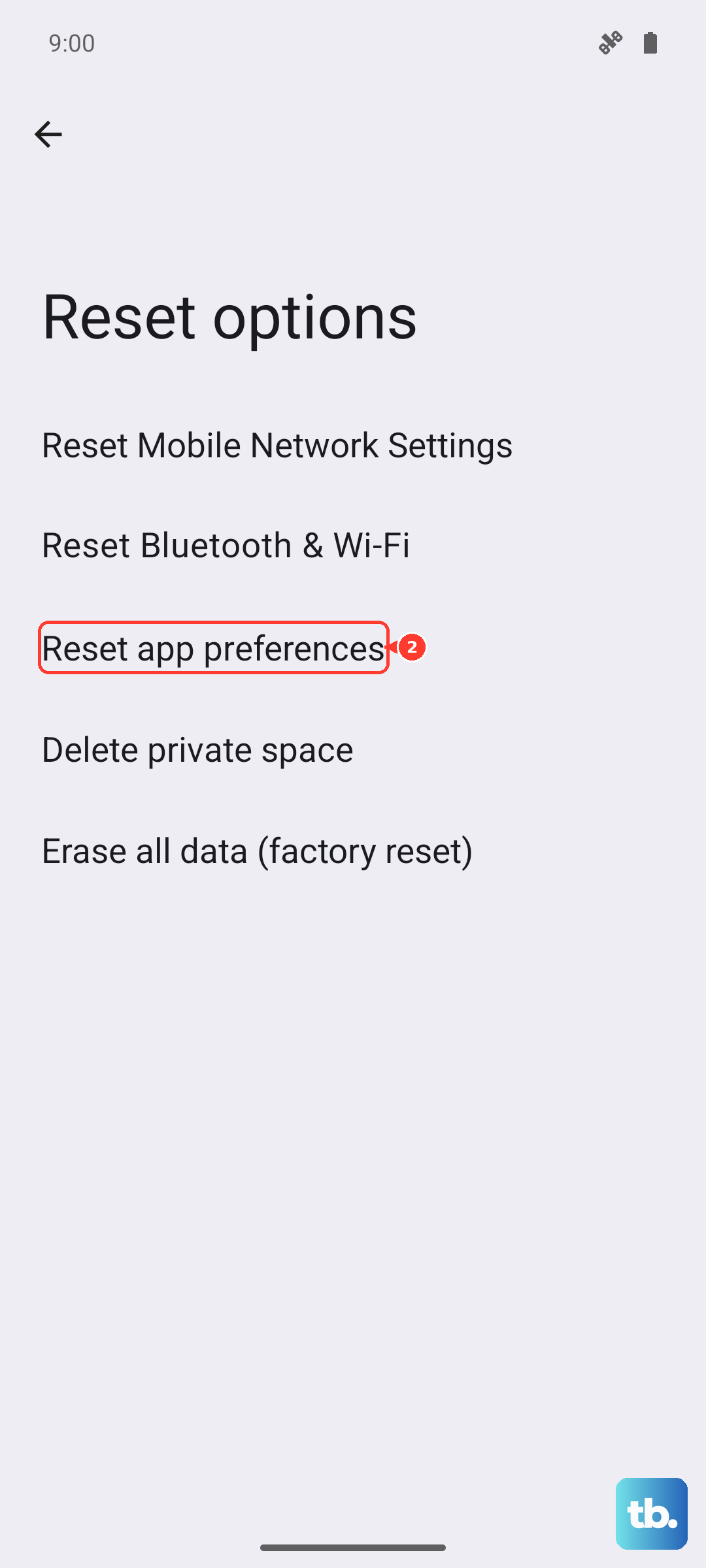
This is a useful step if certain apps keep misbehaving. It resets permissions, background data restrictions, and notification settings for all your apps without deleting the apps or your data. Go to Settings > System > Reset options > Reset app preferences. Tap to confirm, and your apps will go back to their default settings.
Boot Into Safe Mode
Safe mode temporarily disables all third-party apps you've downloaded. If your phone works fine in safe mode, you know a downloaded app is the culprit. To enter safe mode, press and hold the power button until the power off menu appears. Then, press and hold the "Power off" option on your screen until you see a prompt to reboot to safe mode.
Tap "OK" to restart. If the freezing stops, you'll need to uninstall recently downloaded apps one by one to find the bad one. To exit safe mode, just restart your phone normally.
Perform a Factory Reset
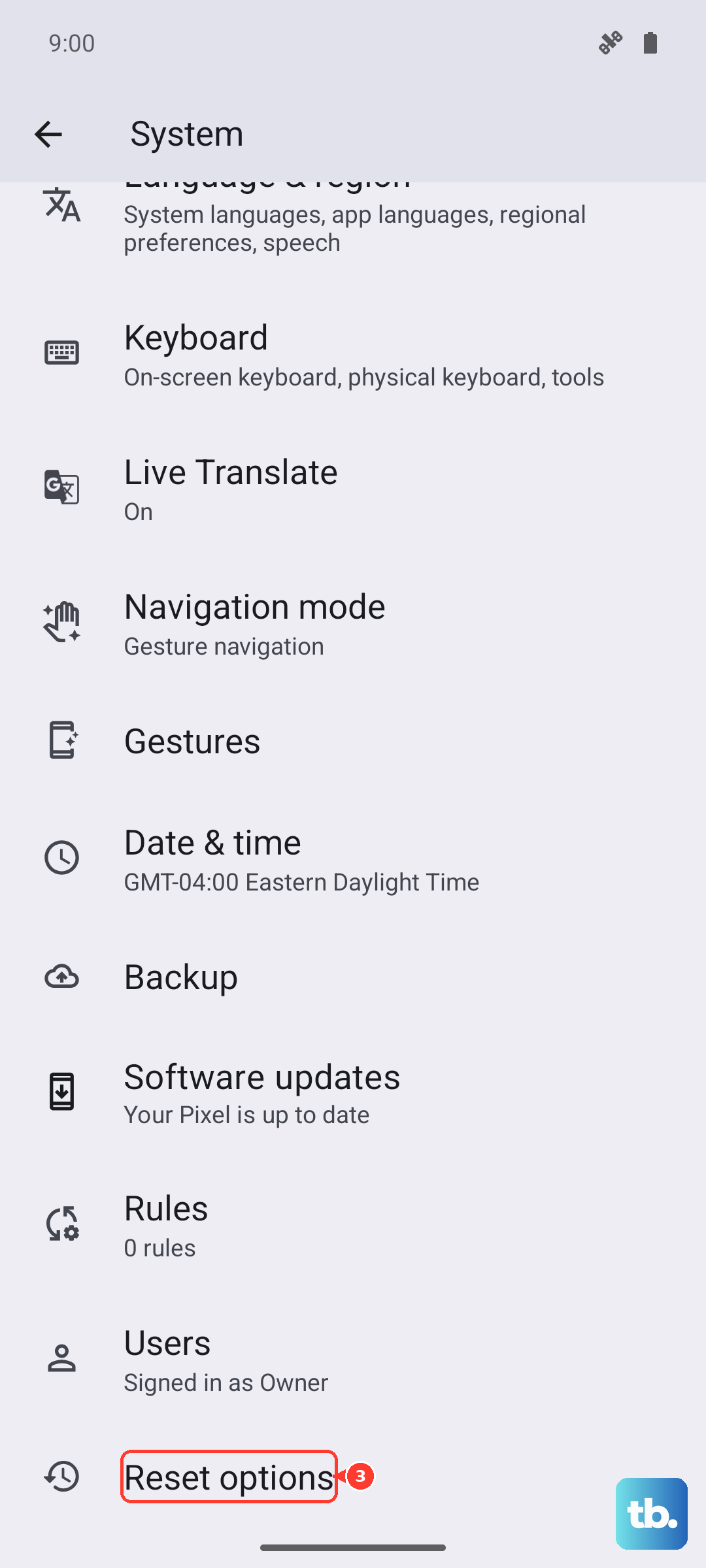
This is a last resort if nothing else works and the freezing is constant. A factory reset will erase all your data, so you must back up everything important first. You can initiate it from the settings if the phone is working intermittently by going to Settings > System > Reset options > Erase all data (factory reset).
If the phone is completely unresponsive, you can use the hardware buttons. Power off the phone completely. Then, press and hold the Volume Down button and the Power button together until the OnePlus logo appears, then release. Use the volume buttons to navigate to "Wipe data/factory reset" and select it with the power button.
Consider Physical Factors
Since this is a foldable, it's worth considering the hardware. Avoid pressing on the inner screen with fingernails or any sharp objects, as this can damage the sensitive display layer. Also, dust buildup in the hinge over time can potentially cause issues. Gently cleaning the hinge area with a soft, dry brush can help maintain smooth operation.