
When your OnePlus Open starts having apps freeze or crash, it can really interrupt your day, especially when you're trying to use that big, beautiful inner display. The good news is that most of these issues are caused by software hiccups that you can fix yourself without too much trouble.
Restart Your OnePlus Open
This is almost always the first thing I'd try. A simple restart clears out the phone's temporary memory and stops any background processes that might be causing conflicts. Just press and hold the Power button until the power menu appears, then tap "Restart."
If the screen is completely frozen and you can't access the menu, you'll need to force a restart. For the OnePlus Open, press and hold the Power button for about 10 seconds, or until you feel the device vibrate and see the OnePlus logo appear on the screen.
Update the Problematic App
App developers release updates constantly to squash bugs and improve compatibility, especially for foldable devices with unique screen ratios. Open the Google Play Store, tap your profile icon in the top right, and go to Manage apps & device.
Look under "Updates available." If you see the app that's been crashing, tap "Update" next to it. It's a good habit to check for updates every week or so to keep everything running smoothly on OxygenOS.
Force Stop and Relaunch the App
When an app freezes, it might not close properly on its own. Force stopping it gives you a completely clean slate. Go to Settings > Apps and find the app that's giving you trouble.
Tap on it, then tap "Force Stop." Confirm if prompted. Wait a few seconds, then open the app again from your home screen or app drawer. This cuts off any misbehaving process and lets the app start fresh.
Clear the App's Cache
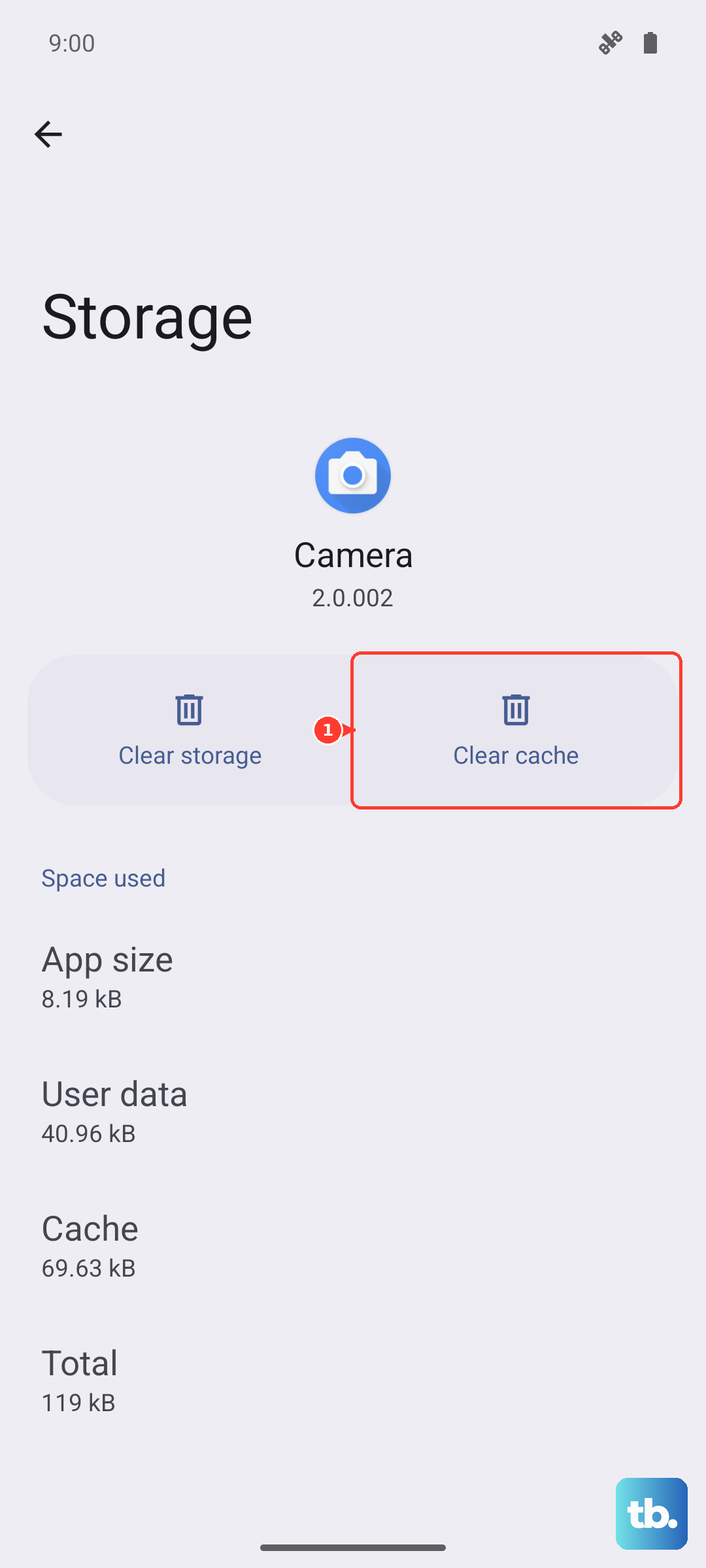
Over time, apps store temporary data (cache) to load faster. Sometimes this data gets corrupted. Clearing it won't delete your login info or saved files, but it can resolve crashes.
Head back to Settings > Apps, select the problematic app, and tap "Storage usage." Here, you'll see an option to Clear cache. Tap it, then open the app again to see if it behaves better.
Check Your Internet Connection
Some apps, particularly social media, streaming, or banking apps, will freeze or crash if they have a poor or unstable connection. This can be more noticeable if you're switching between the inner and outer displays.
Try toggling Airplane mode on and off from the Quick Settings panel. You can also try switching from Wi-Fi to mobile data, or vice versa, to see if the problem is network-specific. A quick speed test can help rule this out.
Free Up Storage Space on Your Device
The OnePlus Open doesn't have expandable storage, so if you're running low on space, apps can struggle to function. Android needs some breathing room to operate properly. Go to Settings > Storage to see what's using your space.
Look for large files or apps you no longer use. The "Clean up" feature in OxygenOS can help identify junk files. I'd recommend keeping at least 5-10GB of free space to avoid performance issues.
Update OxygenOS
System updates from OnePlus often include important stability patches and optimizations for the foldable experience. Make sure your phone is running the latest version of Android 14 with OxygenOS 14.
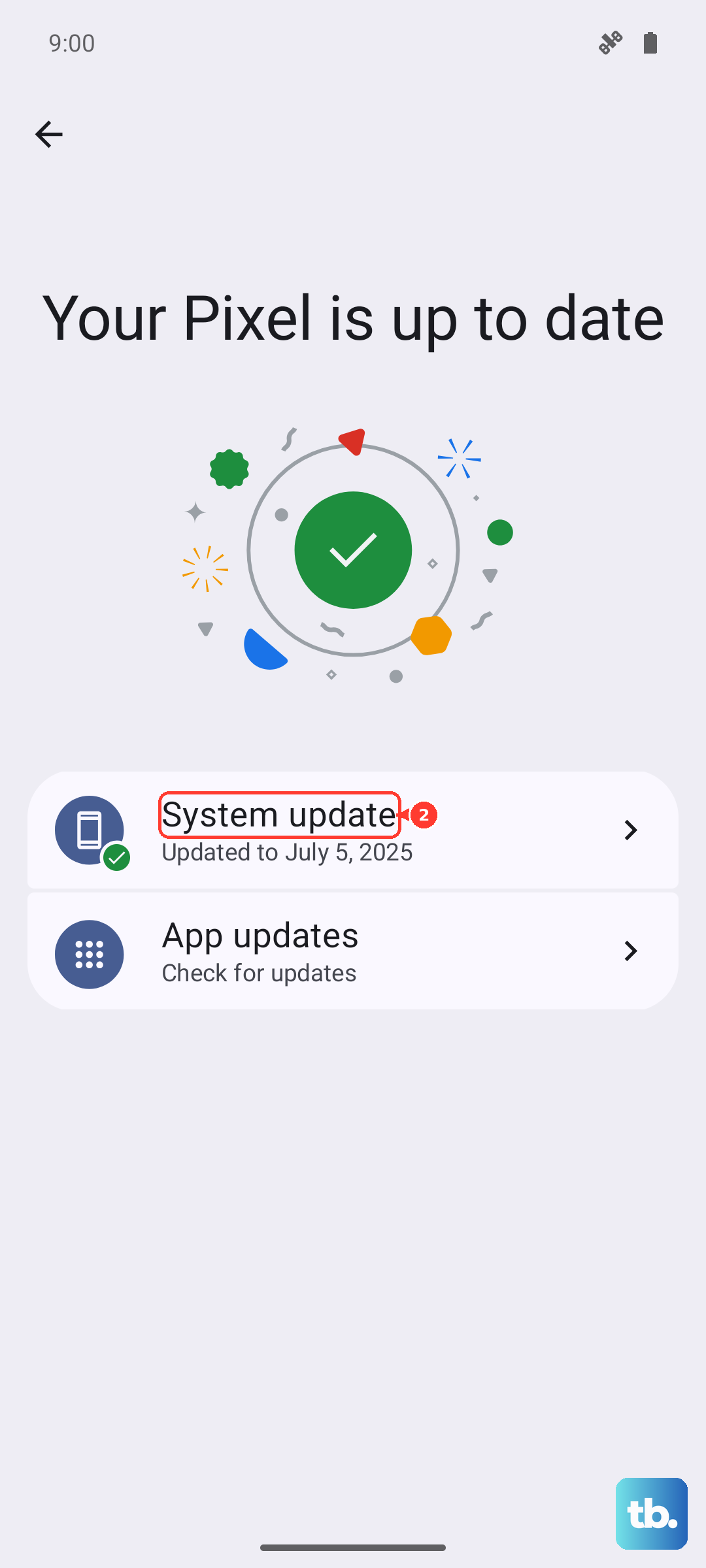
Go to Settings > About device > OxygenOS version and tap on the icon at the top. If an update is available, download and install it. It's best to do this while connected to Wi-Fi and with your phone plugged into the included 67W SUPERVOOC charger.
Reinstall the App Completely
If clearing the cache didn't work, the next step is to clear the app's data, which will reset it to a like-new state. Be warned: this will erase your login information and any settings within that app.
In Settings > Apps, select the app and go to "Storage usage." This time, tap Clear data. Confirm, then restart your phone. If the problem persists, uninstall the app entirely from this same menu or by long-pressing its icon, then reinstall it fresh from the Play Store.
Check for App Compatibility with the Inner Display
This is a specific consideration for the OnePlus Open. Some apps aren't fully optimized for the larger, square-ish aspect ratio of the unfolded inner screen. They might work fine on the outer display but crash when you open the phone.
Try using the app only on the outer cover screen for a while. If it stops crashing, that points to a compatibility issue. You can check the app's listing on the Google Play Store for foldable-specific update notes, or contact the app developer directly to report the problem.