You press play on a clip and the picture hitches, the audio slides out of sync, or a 4K video you just recorded jerks every time you scrub through it. On a phone that was built for smooth playback, that stutter is frustrating, and the good news is that it almost always points to something you can fix yourself rather than a broken handset.
The OnePlus Nord 4 is a fully capable video device. It pairs a display that runs at up to 120 Hz with a Qualcomm Snapdragon 7 Plus Gen 3 platform and an Adreno 732 GPU, and it records 4K video at 60 or 30 fps. Because the hardware is more than enough, lagging video almost always comes down to software, low storage, heat, or a misbehaving app. The steps below work through those causes in order, starting with the easiest and safest and ending with the official reset and support paths.
Force restart before you change anything
A forced restart clears a stuck system state and is the safest first move when video suddenly freezes or stutters. It does not erase any of your data, so there is no risk in trying it.
Press and hold the Power and Volume Up buttons for more than 10 seconds.
Release the buttons when the phone restarts.
Open your video or camera again and check the playback.
Holding the Power button on its own will not force a restart on this model, so you must use the Power and Volume Up combination together. For a normal restart, press and hold the power button until the Power Menu appears, then tap 'Restart' or 'Power off'.
Update OxygenOS, then reboot
The official guidance for a phone that is lagging or not running smoothly is to update it to the latest software version and reboot. Newer builds frequently include playback and performance fixes that resolve stutter on their own.
Open Settings > About device.
Tap the version number (Official version) card at the top to check for and download any available update.
Reboot the phone once the update finishes installing.
Run the update on stable Wi-Fi and do not touch the Power button while it installs. To keep future updates automatic, go to Settings > About device > Official version widget > upper-right menu > Auto update > 'Auto update overnight'.
Clear the cache for the app that lags
If only one player or streaming app stutters while everything else is smooth, that app's temporary files are the likely cause. Clearing the cache is a low-risk reset for a single app.
Touch and hold the app icon, then open App info.
Tap Storage usage (Storage).
Tap Clear cache.
If the lag persists, tap Clear data.
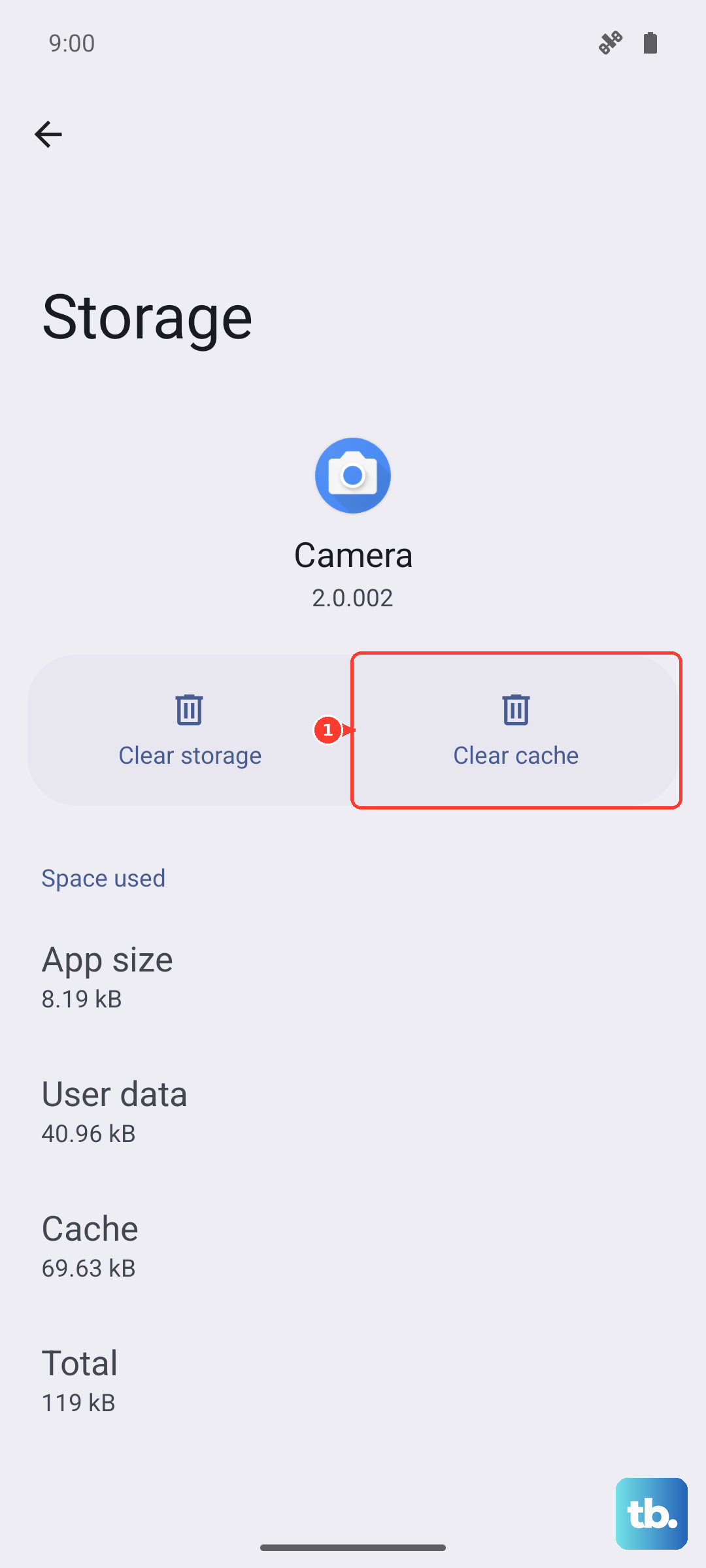
Try Clear cache first, because Clear data signs you out and resets the app's settings back to default. Only fall back to Clear data if a cleared cache does not help.
Free up storage and clear junk files
A nearly full storage drive can make video playback stutter, especially with large 4K files. The Nord 4 has a built-in Phone Manager that monitors storage and removes clutter for you.
Open Phone Manager.
Tap 'Clean' to remove junk files for a smoother experience.
Closing apps you are not using also frees up memory, giving heavy video more headroom. The more space and memory the phone has free, the less likely it is to drop frames.
Switch off Power saving mode while you watch
Power saving mode and Super power saving mode deliberately reduce performance and limit background activity to stretch battery life, and that throttling can make video playback choppy. Turning the saver off while you watch or record gives the phone its full performance back.
Go to Settings > Battery and turn off Power saving mode. If Super power saving mode is on, turn that off too, then test your video again.
Check the screen refresh rate
If on-screen motion looks choppy even when the file itself is fine, the display may be locked to its Standard rate. Setting a higher refresh rate lets smooth content render the way it was meant to.
Go to Settings > Display & brightness > Screen refresh rate and choose 'Auto select' or 'High'. High lets the phone use its higher refresh rates, up to 120 Hz, while Auto select adjusts the rate for you.
Turn on High performance mode for heavy clips
For graphics-intensive playback or recording, the Nord 4 offers a dedicated High performance mode that prioritizes raw speed. It is worth enabling when you are editing or shooting demanding 4K footage.
Go to Settings > Battery > More settings and turn on 'High performance mode'. This mode increases power use and heat, so switch it on only when you need it and turn it back off afterward.
Rule out a single misbehaving app
If the lag began right after you installed something new, a third-party app is the most likely culprit. The official support guidance is to isolate that app rather than assume the whole phone is at fault.
Open Settings > Apps (App info) for the suspect app.
Open Storage and use Clear cache, then Clear data if needed.
Test the phone with third-party apps disabled to confirm whether one is causing the slowdown.
Uninstall the culprit once you have identified it.
This narrows the problem to one app so you are not undoing settings that were never the issue. If video plays smoothly with the app disabled, you have found your answer.
Back up, then factory reset as a last resort
If nothing above works, a factory reset returns the software to a clean state, but it erases everything on the phone, so back up first. Make a local backup via Settings > Additional settings > Back up & migrate > Local backup > 'New backup' before you continue.
- 1.Go to Settings > Additional settings > Back up and reset > Reset phone.
- 2.Follow the onscreen instructions and enter your Lock screen password.
- 3.Choose to erase all data to complete the reset.
OnePlus warns that "all your data will be erased. Please act with caution." Only take this step once you are sure your backup is complete.
When to contact OnePlus support
If video still lags even after a factory reset, the problem is beyond what on-device steps can fix, and OnePlus directs you to its after-sales support. Contact OnePlus or an official service center through oneplus.com/support for help.
If you ever hit a problem you cannot solve on your own, an official service center can run hardware diagnostics that on-device steps cannot. Bringing along the details of what you have already tried will make that visit faster.
Frequently Asked Questions
Why does my OnePlus Nord 4 lag if the hardware is so capable?
The Nord 4 is a fully capable video device, with a display up to 120 Hz, a Snapdragon 7 Plus Gen 3 platform with Adreno 732 GPU, and 4K recording at 60 or 30 fps. Because the hardware is not the limit, lagging video almost always comes from software, low storage, heat, or a misbehaving app, all of which the fixes above address.
How do I force restart a OnePlus Nord 4?
Press and hold the Power and Volume Up buttons together for more than 10 seconds, then release when the phone restarts. Holding the Power button alone will not force a restart on this model.
Will a factory reset delete my saved videos?
Yes. A factory reset restores the phone to its original settings and erases all your data, so make a local backup first via Settings > Additional settings > Back up & migrate > Local backup > 'New backup' before you reset.
Does the OnePlus Nord 4 support wireless charging?
No. The Nord 4 charges over a cable using 100W SUPERVOOC wired charging only, with no wireless charging. If your battery is low while playing or recording heavy video, plug in the wired charger.
Is the OnePlus Nord 4 water resistant?
Yes. OnePlus rates the Nord 4 at IP65 for dust and water resistance, so it is built to handle dust and low-pressure water splashes, though it is not designed for submersion.