
When the microphone on your OnePlus Nord 4 stops picking up your voice, it can turn simple tasks like making a call, sending a voice note, or using Google Assistant into a real headache. The first thing I'd do is figure out exactly which microphone is acting up, as the Nord 4 has a few of them.
A fast way to narrow this down is a browser based microphone test. If the meter responds when you talk, the mic itself is fine and the problem sits in software or settings.
Test Which Microphone Is Failing
Open your Voice Recorder app and make a quick test recording. Speak normally, then play it back. If your voice sounds muffled or isn't there at all, you've confirmed the main issue.
Next, try a phone call with the speakerphone on. If the other person can hear you clearly on speakerphone but not when you hold the phone to your ear, the problem might be with the primary call microphone, usually located at the bottom of the phone.
For a more thorough check, use the camera app to record a video. The Nord 4 uses different microphones for video recording, often leveraging the top noise-cancellation mic or others. If the video has no audio, the issue could be more widespread.
Check for Physical Blockages First
Take a close look at the small pinholes on your Nord 4. The main microphone is a tiny hole next to the USB-C port at the bottom. There's also a secondary microphone at the top of the phone, near the earpiece.
Dust, pocket lint, or even a small bit of debris from the metal unibody's machining can get lodged in these openings. Gently brush the areas with a soft, dry toothbrush or use a can of compressed air to blow out any obstructions. Be very careful not to push anything further in.
Since the Nord 4 doesn't have an official IP rating for water resistance, it's also worth considering if recent exposure to moisture or humidity could be causing a temporary short. If you suspect this, power the phone off and let it dry completely in a warm, dry place for a few hours.
Disconnect Any Bluetooth Accessories
Your phone might be trying to use the microphone on a paired Bluetooth device like headphones or a car kit. Swipe down from the top of your screen to open the Quick Settings panel and tap the Bluetooth icon to turn it off temporarily.
Alternatively, go into Settings > Connected devices > Previously connected devices and forget the specific audio device you usually pair with. This ensures the Nord 4's own microphones are the default audio input.
Verify App Permissions in OxygenOS
Android apps need explicit permission to use your microphone. If you're having trouble in apps like WhatsApp, Discord, or Instagram, this is a common culprit.
Head to Settings > Privacy > Permission manager > Microphone. Here, you'll see a list of all apps that have requested access. Find the app giving you trouble and make sure it's set to "Allow only while using the app" or "Allow all the time" if needed for calls.
Force Restart Your OnePlus Nord 4
A simple reboot can clear out temporary software glitches that might be affecting the audio subsystem. Press and hold the Power button for about 10 seconds, or until you feel the phone vibrate and the OnePlus logo appears on the screen.
This force restart is slightly different from a normal shutdown and is often more effective at clearing system-level hiccups. It doesn't delete any of your data or settings.
Clear the Cache for Problem Apps
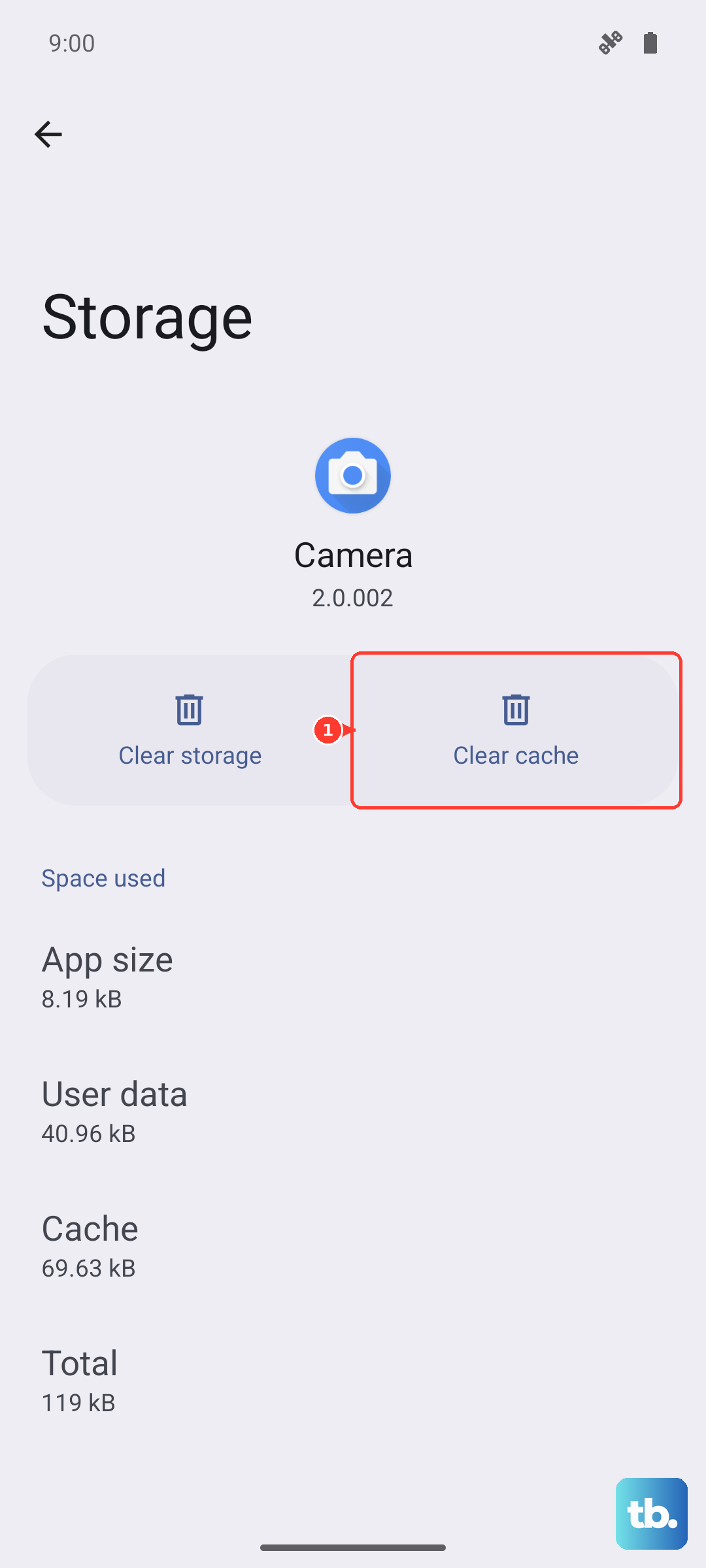
If the microphone fails in one specific app, corrupted cache data could be the reason. Go to Settings > Apps > See all apps and select the problematic application.
Tap on Storage & cache and then select Clear cache. This gets rid of temporary files without touching your login info or saved data within the app. After clearing, reopen the app and test the microphone again.
Update Your Software
OnePlus frequently releases OxygenOS updates that include bug fixes for hardware performance, including audio. An outdated system can sometimes cause microphone conflicts.
Check for an update by going to Settings > About device > OxygenOS version and tap on the top banner that says "Check for update." If an update is available, make sure your Nord 4 is connected to Wi-Fi and has at least a 50% charge, then install it.
Boot into Safe Mode
This step helps you figure out if a third-party app you installed is causing the problem. To boot into Safe Mode, press and hold the Power button until the power off menu appears.
Then, press and hold the "Power off" text on the screen. A prompt will ask if you want to reboot to Safe Mode. Tap OK. In Safe Mode, all downloaded apps are disabled. Test your microphone with a voice recording or call.
If the microphone works perfectly in Safe Mode, a recently installed app is likely the culprit. You'll need to restart your phone to exit Safe Mode, then uninstall apps one by one to find the offender.
Reset App Preferences or Network Settings
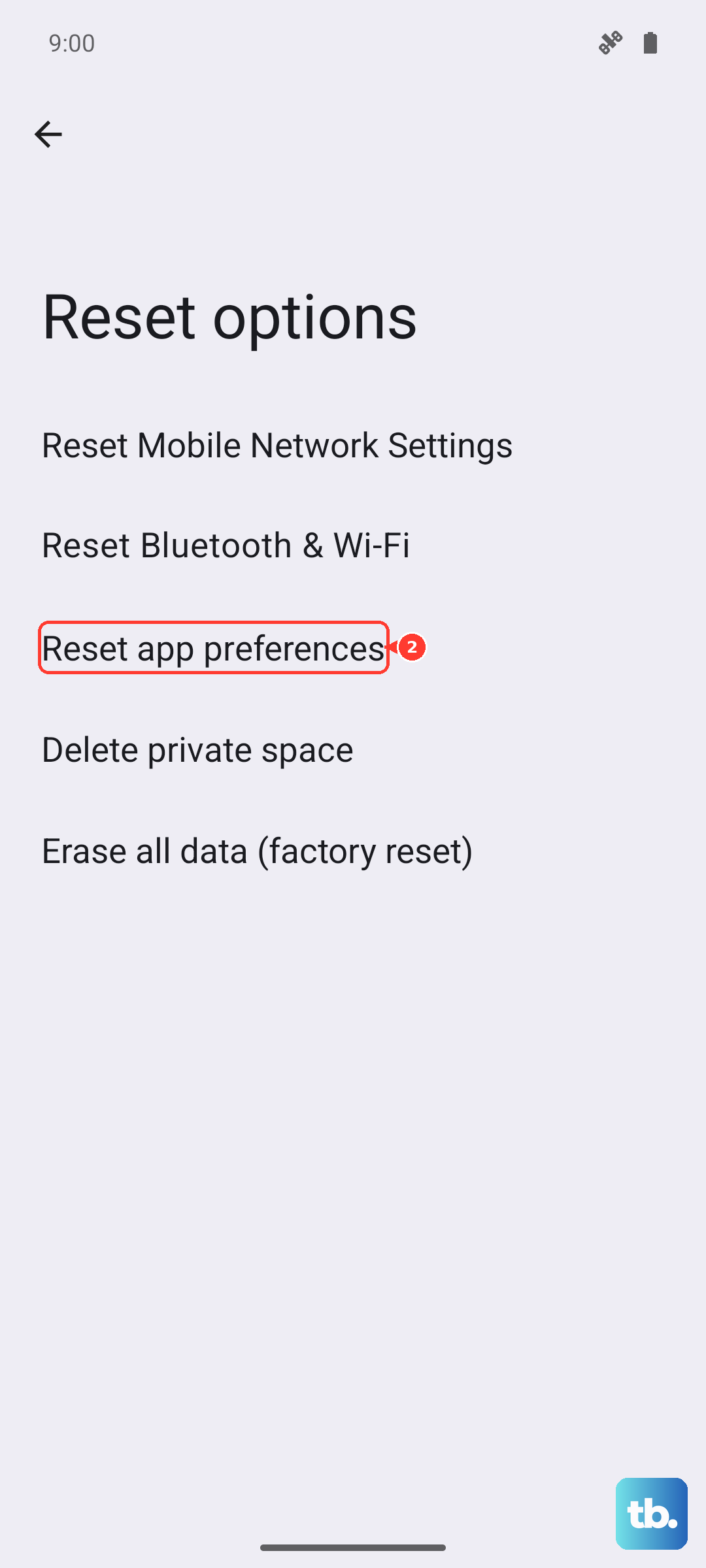
Resetting app preferences reverts all your app permissions, notifications, and default apps back to their original state without deleting any app data. You can find this option at Settings > System > Reset options > Reset app preferences.
For issues specifically with calls, resetting network settings can sometimes help. This will erase all Wi-Fi passwords, Bluetooth pairings, and mobile network settings. Navigate to Settings > System > Reset options > Reset Wi-Fi, mobile & Bluetooth.
Perform a Factory Reset
This is the last resort software fix. A factory reset will wipe your Nord 4 back to its original out-of-the-box state. Before you do this, it's absolutely critical to back up everything you want to keep, photos, messages, and app data.
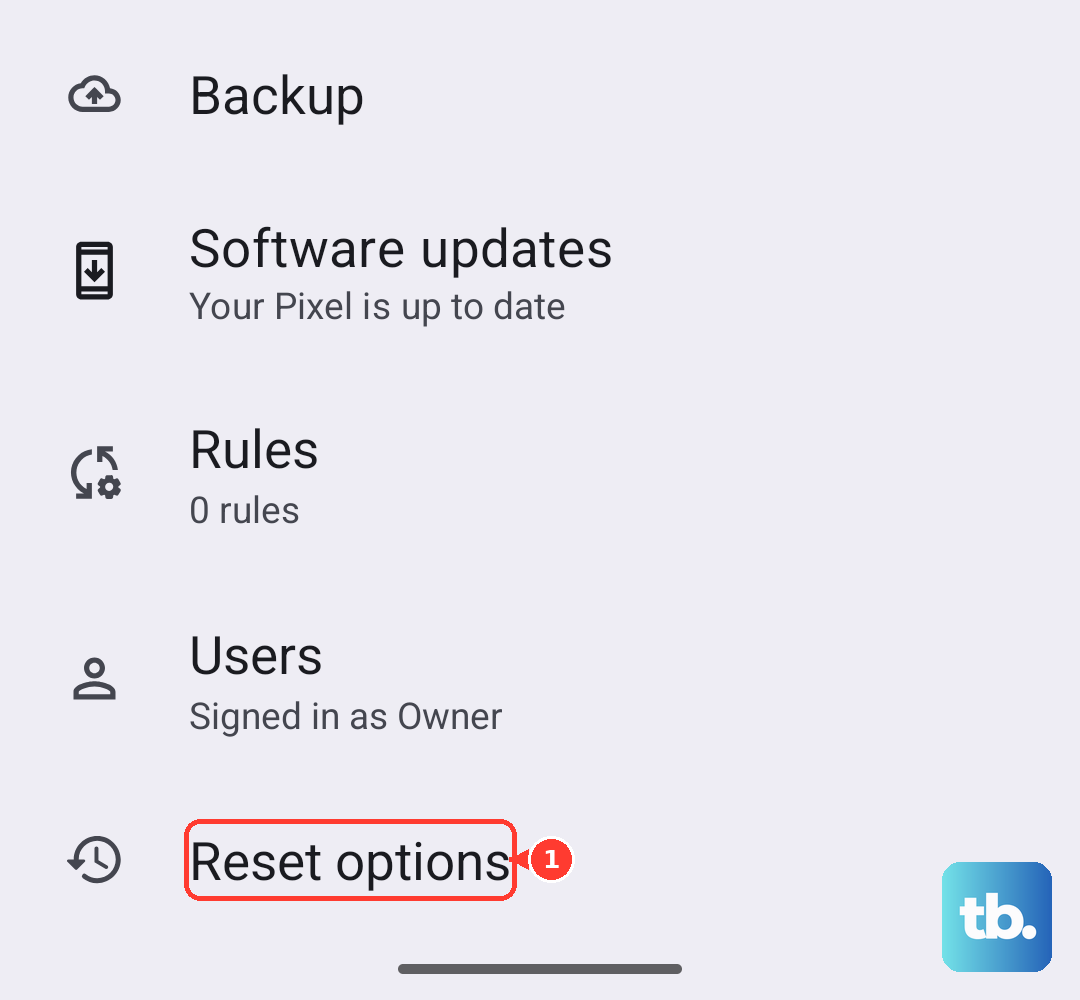
You can back up to your Google account or use OnePlus' own Clone Phone app to transfer data to another device temporarily. Once backed up, go to Settings > System > Reset options > Erase all data (factory reset). Follow the prompts to complete the process.