Seeing the "Settings has stopped" error pop up on your OnePlus 13 is a real roadblock. It usually means the app has crashed or its data is corrupted, and it's a known hiccup that can happen with early OxygenOS builds. The good news is you can almost always fix it yourself without losing any data.
Force Restart Your OnePlus 13
This is the quickest thing to try. A force restart clears out the phone's temporary memory and can stop a minor software glitch in its tracks. It's different from a normal restart and often works when the touchscreen is unresponsive.
Just press and hold the Volume Down button and the Power button together for about 10 seconds. You'll feel the phone vibrate and see the OnePlus logo as it boots back up. Check if you can open Settings normally now.
Clear the Settings App Cache
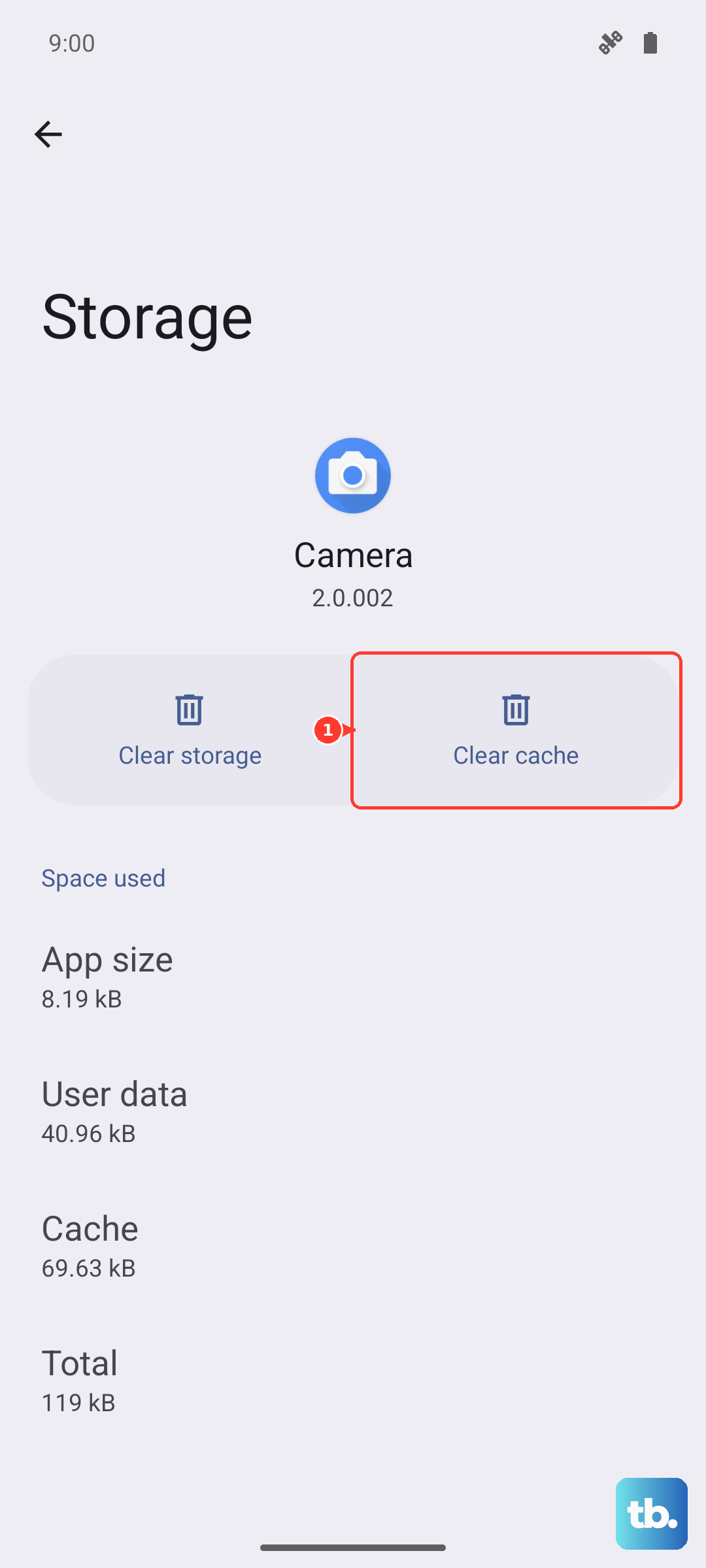
Cache files help apps load faster, but they can get messed up over time. Clearing the cache for the Settings app is a safe first step that doesn't delete any of your personal information or preferences.
You'll need to get to the Apps menu. If the Settings app itself won't open, you can usually get there by long-pressing on the Settings app icon on your home screen and tapping the "i" or App Info button. From there, tap on Storage & Cache, then hit Clear Cache.
Force Stop and Update Settings
Sometimes the app just needs a fresh start. Force stopping it closes all its processes completely. While you're in the Settings app info screen, tap Force Stop. Then, open the Google Play Store, tap your profile picture, and go to Manage apps & device.
Look under Updates available to see if there's an update for "Android System" or a similar system component. Installing available updates can patch the exact bug causing your crash.
Check for a System Software Update
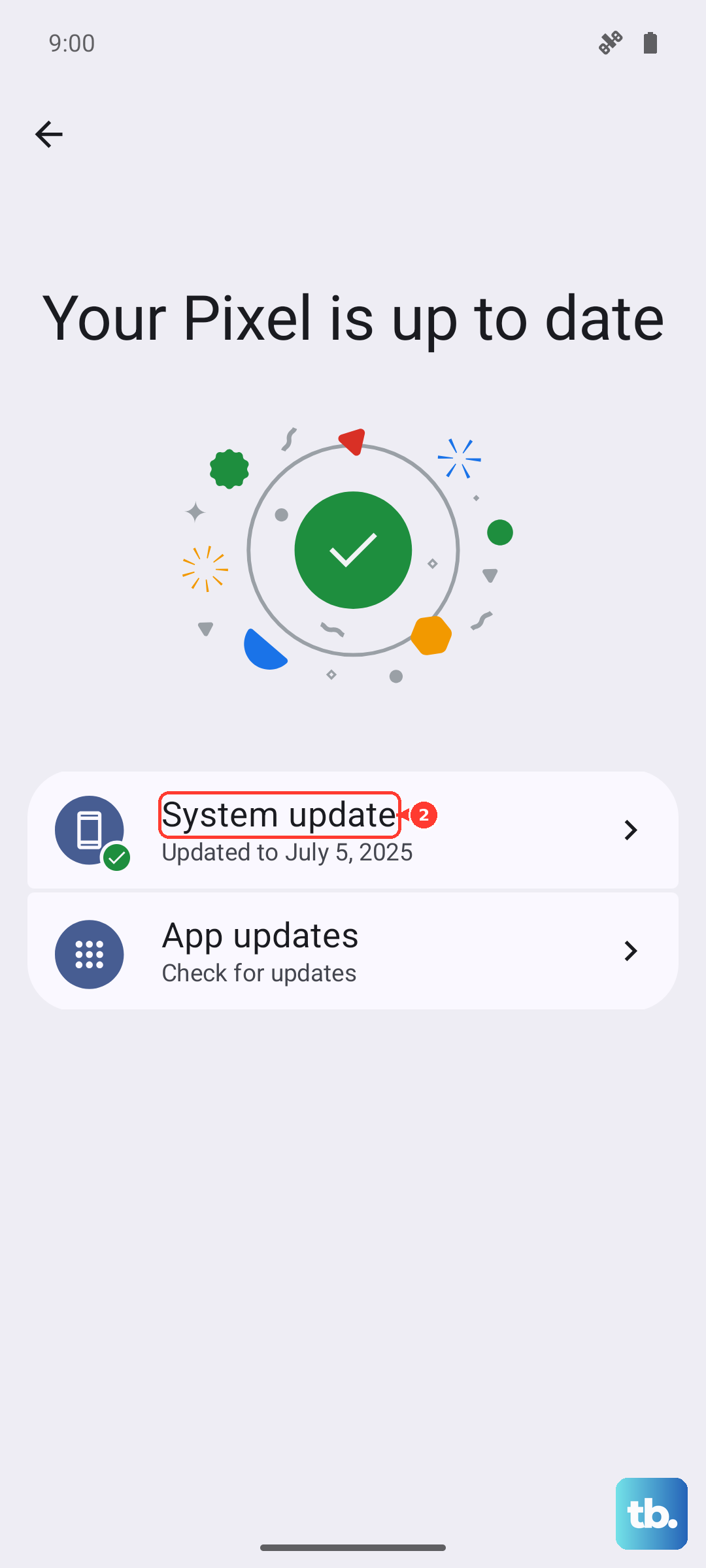
Since the OnePlus 13 is new, OnePlus is actively releasing OxygenOS updates to squash bugs and improve stability. The fix for your Settings crash might already be in an update waiting for you.
If you can get into Settings, go to System > System updates. If you can't, you might see a notification about an available update. Make sure your phone is connected to Wi-Fi and has a decent charge, then install any pending updates. I've seen this resolve a lot of early-release quirks.
Review Google Play Services
Google Play Services works in the background to help system apps like Settings communicate properly. If it acts up, it can cause all sorts of weird errors. Go back to your Apps list and find Google Play Services.
Tap into it, then go to Storage & Cache. Tap Clear Cache first. If the problem continues, you can go back and tap Manage Space, then Clear All Data. Don't worry, this will reset some Google-related services, but it will rebuild itself automatically.
Boot into Safe Mode
This step helps you figure out if a recently downloaded app is causing a conflict with your system settings. Booting into Safe Mode temporarily disables all third-party apps.
Press and hold the power button until the power menu appears. Then, long-press the "Power off" option on your screen. You'll get a prompt to reboot to Safe Mode. Tap OK. If Settings works perfectly in Safe Mode, you know a downloaded app is the culprit. You can then restart normally and uninstall apps you added around the time the problem started.
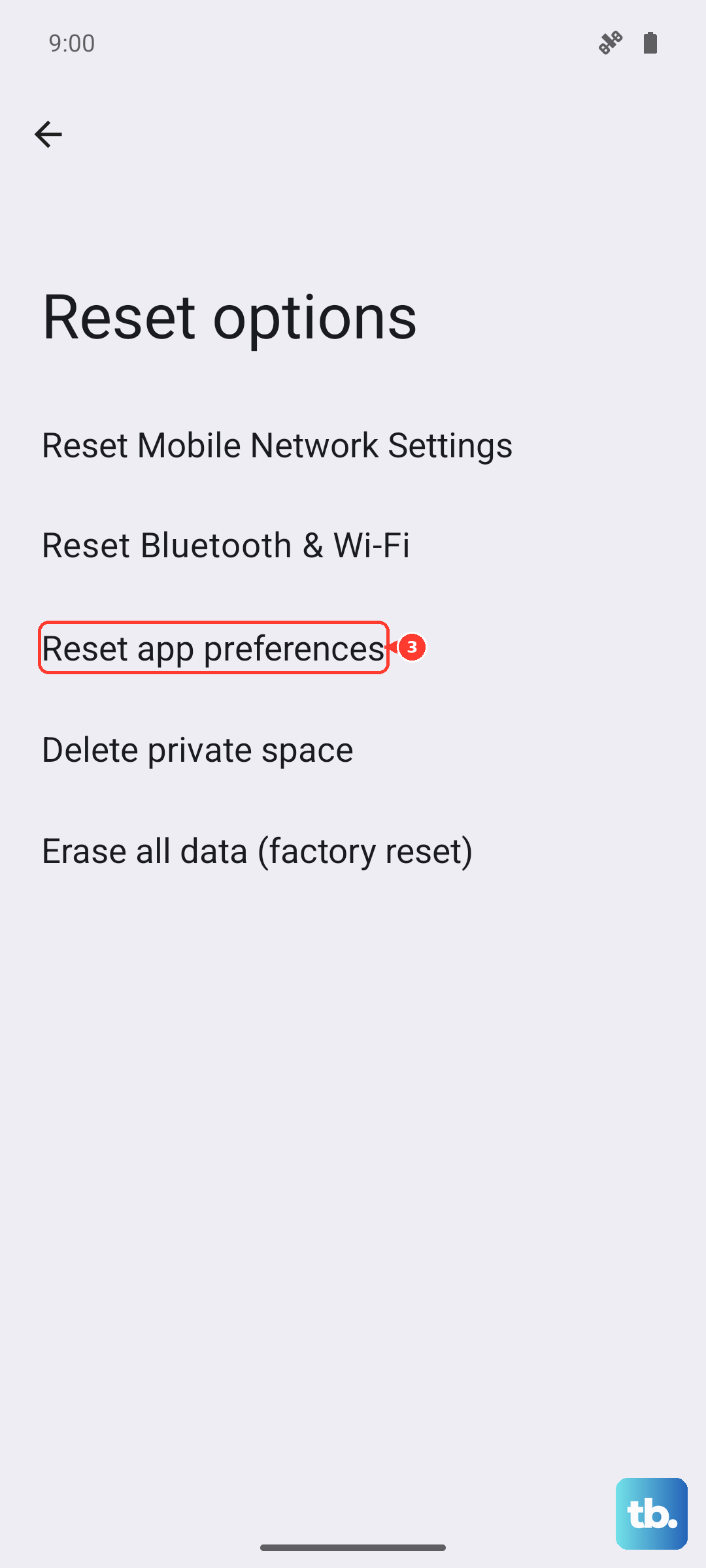
Reset App Preferences
This is a useful middle-ground step before considering a full reset. It won't delete any of your app data, but it will reset all your notification permissions, default apps, and any background restrictions you've set. It can clear up conflicts that cause system apps to fail.
Navigate to Settings > System > Reset options. Tap on Reset app preferences and confirm. You'll need to re-allow notifications for your apps afterward, but it's a small price to pay if it gets your Settings working again.