
When your OnePlus 13 Pro suddenly goes quiet or the volume is stuck on low, it can throw you off completely. Whether you're missing notifications, can't hear calls, or your media is barely a whisper, the issue usually has a straightforward fix. I'd start with the basics, as a simple setting or a bit of pocket lint is often the culprit.
Start with a free online speaker test that plays left and right channels one at a time. Hearing both sides confirms the hardware, which makes the remaining steps much easier to pin down.
Check Your Volume and Sound Mode
First, make sure your phone isn't just set to vibrate or silent. While playing some audio or media, press the volume up button on the side of your OnePlus 13 Pro. If the volume slider appears but is low, keep pressing to raise it.
Next, pull down the Quick Settings panel from the top of the screen. Look for the sound mode icon, which might show a bell with a line through it for silent or a vibrating phone for vibrate mode. Tap it to cycle back to the standard sound mode with the bell icon.
For more granular control, go into Settings > Sound & vibration. Here you can adjust individual sliders for Media, Ringtone, Notification, and System sounds to make sure none are accidentally set to zero.
Disconnect Bluetooth and Accessories
Your phone might be trying to send audio to a paired device instead of its own speakers. Open the Quick Settings panel again and check if the Bluetooth icon is highlighted. If it is, tap it to turn Bluetooth off completely.
You can also go to Settings > Bluetooth and review the list of paired devices. If something like headphones or a car stereo is connected, tap the settings icon next to it and select "Disconnect." It's a good idea to remove any physical accessories too, like a case that might be covering the bottom speaker grill.
Clean the Speaker Grills
The OnePlus 13 Pro's bottom-firing speaker can easily get clogged with lint from your pocket or bag. Grab a small, soft-bristled brush, like a clean makeup brush or a new toothbrush, and gently brush across the speaker slit.
You can also use a dry cotton swab to lightly dislodge any debris. Avoid using compressed air, as the pressure can damage the internal speaker components. A quick visual check with your phone's flashlight can show if there's a visible blockage.
Review Do Not Disturb and App-Specific Settings
Check if Do Not Disturb is active by looking for a small circle with a line through it in your status bar. You can turn it off from the Quick Settings panel or by going to Settings > Sound & vibration > Do Not Disturb and toggling it off.
Sometimes, the issue is only with one app. Open the app that's having sound problems, like YouTube or Spotify, and start playing something. Then press the volume buttons and see if a separate app volume slider appears. You can adjust it there. Also, check the app's own in-app settings for any mute options.
Check for Software Updates
Audio glitches can sometimes be fixed with a system update. OnePlus regularly releases updates for OxygenOS that include bug fixes. Go to Settings > About device > OxygenOS version and tap on "Check for update."
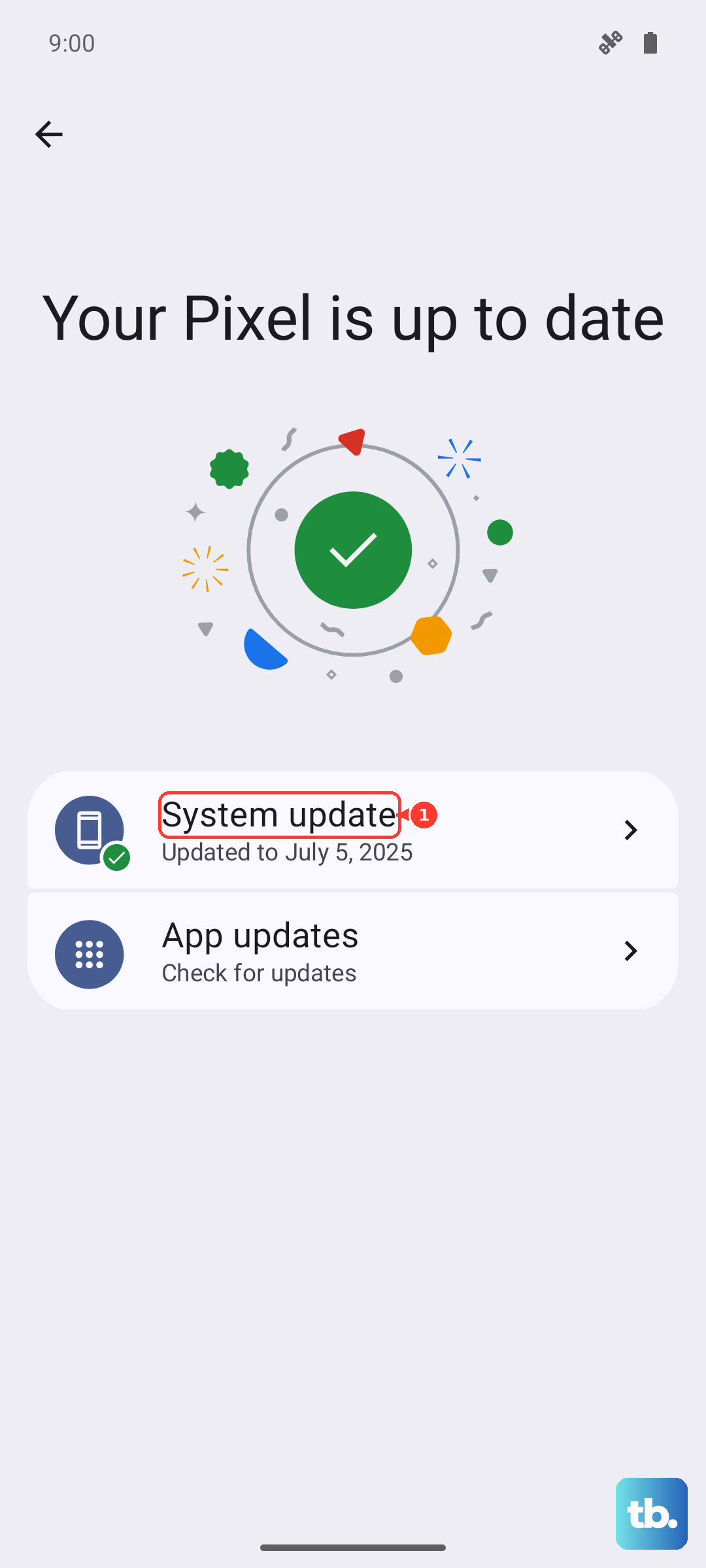
If an update is available, I'd recommend installing it while your phone is connected to Wi-Fi and has a good charge. Keeping your OnePlus 13 Pro updated is one of the best ways to ensure stable performance and can resolve odd issues like this.
Restart or Force Restart Your Phone
A simple restart clears out temporary software hiccups that can affect sound. Just hold the power button until the power menu appears, then tap "Restart."
If the phone is completely unresponsive or the restart doesn't help, try a force restart. Press and hold the Volume Down button and the Power button simultaneously for about 10 seconds. Release when you feel the device vibrate and see the OnePlus logo appear on the screen.
Boot Into Safe Mode
If the problem started after installing a new app, Safe Mode can help you confirm it. To enter Safe Mode on the OnePlus 13 Pro, press and hold the power button until the power off menu appears.
Then, tap and hold the "Power off" option on your screen. A prompt will ask if you want to reboot to Safe Mode. Tap "OK." If your sound works perfectly in Safe Mode, a recently downloaded third-party app is likely the cause. You'll need to restart normally to exit Safe Mode and then uninstall apps one by one to find the culprit.
Clear the Cache Partition
Corrupted system cache files can lead to all sorts of strange behavior, including audio problems. To clear them, first power off your OnePlus 13 Pro completely. Then, press and hold the Volume Down and Power buttons together until the device logo appears and you enter recovery mode.
Use the volume buttons to navigate to the "Wipe data and cache" option and select it with the power button. On the next screen, choose "Wipe cache" and confirm. Once it's done, select "Reboot" to start your phone normally. This doesn't delete any personal data like photos or messages.
Reset All Settings
If you're still having issues and you've ruled out hardware problems, resetting all your settings can help. This will revert sound, network, and display settings back to their defaults without touching your personal files. Go to Settings > Additional settings > Back up and reset > Reset phone.
On this menu, select "Reset all settings (network, sound, display)." Enter your lock screen password if prompted and confirm. Your phone will reboot, and you'll need to reconfigure things like Wi-Fi passwords and custom sound profiles, but it often clears up persistent software conflicts.