When your OnePlus 13 Pro's microphone stops working during calls, it can turn a simple conversation into a frustrating game of charades. The issue might be with the phone app, a specific contact, or the microphone itself. Let's start by figuring out exactly where the problem is.
Test Your OnePlus 13 Pro Microphone
Before trying any fixes, it's a good idea to confirm the microphone is the culprit. The easiest way is to open your Voice Recorder app. Record a quick message and play it back. If your voice sounds clear, the hardware is likely fine and the issue is app-specific.
You can also make a test call to your voicemail. Speak your name and number, then hang up and call back to listen to the message. If the recording is muffled or silent, you've confirmed there's a problem. I'd start with this test, as it directly mimics a real phone call.
1. Remove Your Phone Case
Some cases, especially rugged ones with thick lips, can partially cover the microphone ports. The OnePlus 13 Pro has multiple microphones, typically at the bottom near the USB-C port, at the top, and on the rear camera module. Take the case off and make a quick test call to see if audio improves.
2. Check for Debris in the Microphone Ports
Lint from your pocket or dust can easily clog the tiny microphone grilles. Carefully inspect the small holes at the bottom and top of your phone. Use a soft, dry brush (a clean, soft-bristled toothbrush works) to gently dislodge any visible debris. Avoid using compressed air or sharp objects, as you could push debris further in or damage the internal mic.
3. Disconnect Bluetooth Accessories
If you have wireless earbuds, a smartwatch, or a car stereo connected via Bluetooth, your phone might be routing the call audio to that device instead of using its own microphone. Swipe down from the top of your screen to open the Quick Settings panel and tap the Bluetooth icon to turn it off temporarily, then test your call again.
4. Force Restart Your OnePlus 13 Pro
A simple reboot clears out temporary software glitches that can affect the audio system. Press and hold the Volume Down button and the Power button simultaneously for about 10 seconds. You'll feel the device vibrate and see the OnePlus logo as it restarts. This takes about 30 seconds and won't delete any of your data.
5. Check App Permissions
If the microphone only fails in certain apps like WhatsApp, Telegram, or Zoom, the app might have lost permission to use it. Go to Settings > Privacy & security > Permission manager > Microphone. Here, you'll see a list of all apps that have requested microphone access. Find the problematic app and make sure it's set to "Allow only while using the app" or "Allow all the time."
6. Clear the Phone App's Cache and Data
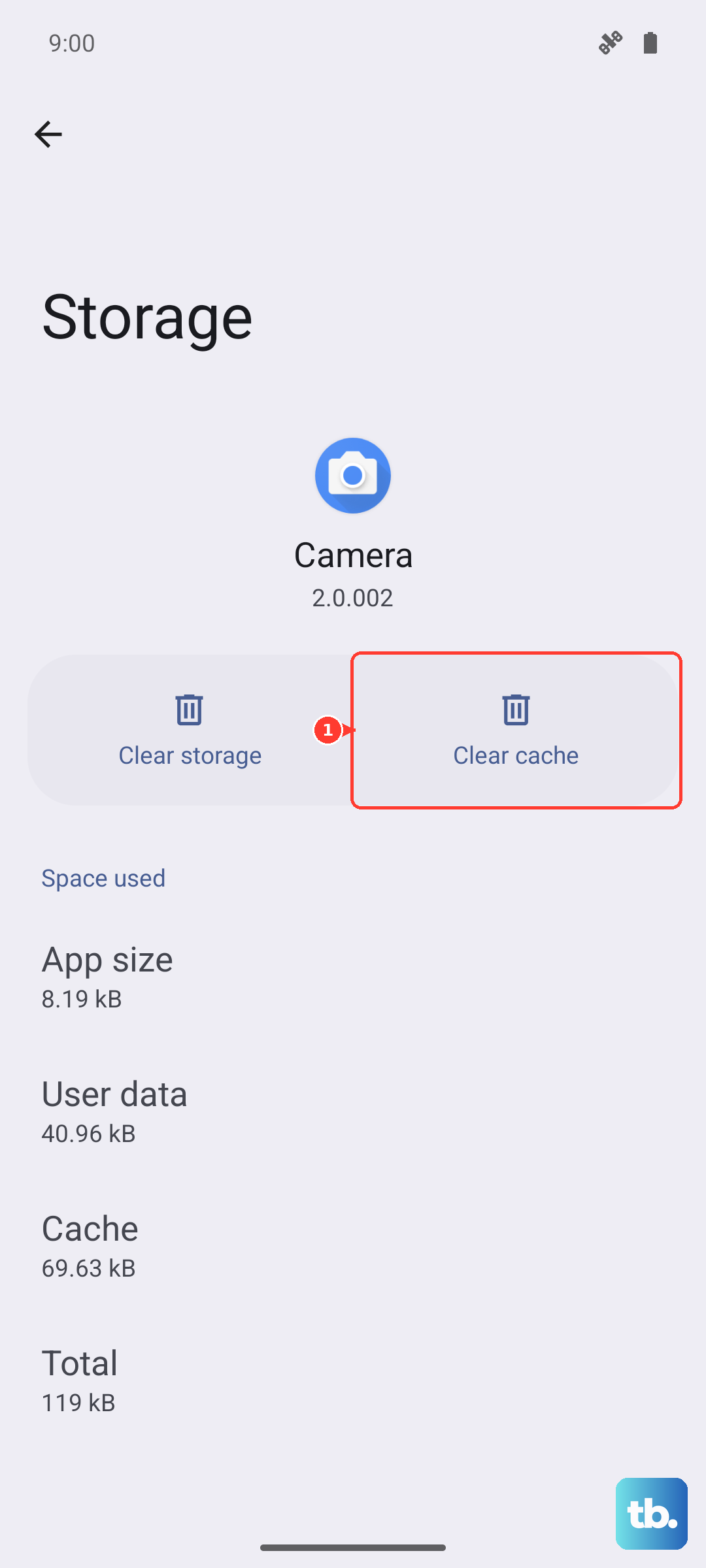
Corrupted data in the Phone app itself can cause call issues. Go to Settings > Apps > See all apps and find "Phone" in the list. Tap on it, then select Storage & cache. Tap "Clear cache" first and test a call. If that doesn't work, you can try "Clear storage" or "Clear data." Just be aware this will reset your call log and any custom settings within the Phone app back to default.
7. Update OxygenOS
OnePlus regularly releases updates that fix bugs, including audio-related ones. Go to Settings > About device > OxygenOS version and tap on the top banner to check for updates. If an update is available, download and install it. Make sure your phone is connected to Wi-Fi and has at least a 50% charge before starting.
8. Try Safe Mode
This starts your phone with all third-party apps disabled. If the microphone works fine in Safe Mode, a recently installed app is likely causing the conflict. To boot into Safe Mode, press and hold the power button until the power menu appears. Then, press and hold the "Power off" option on your screen until you see a prompt to reboot to Safe Mode. Test a call. To exit, just restart your phone normally.
9. Reset App Preferences
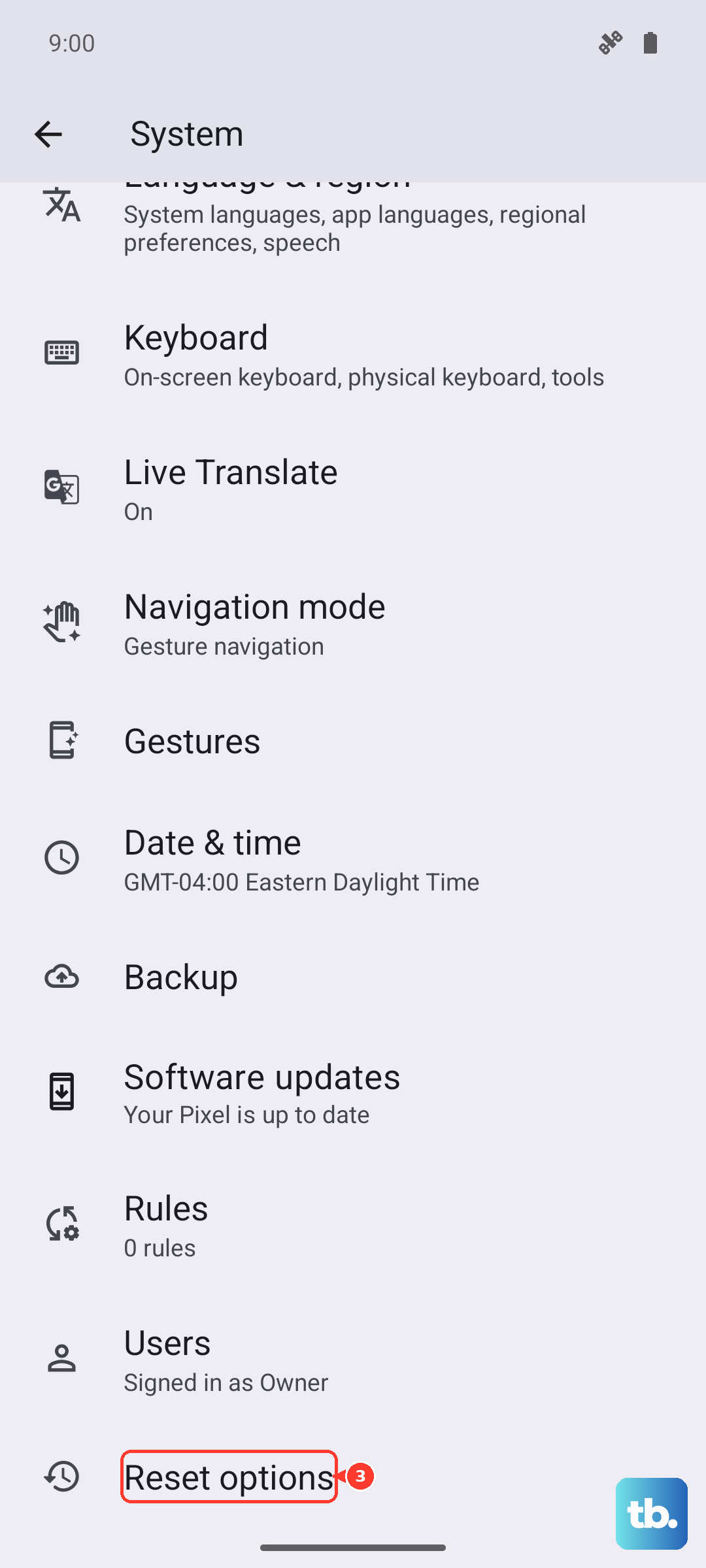
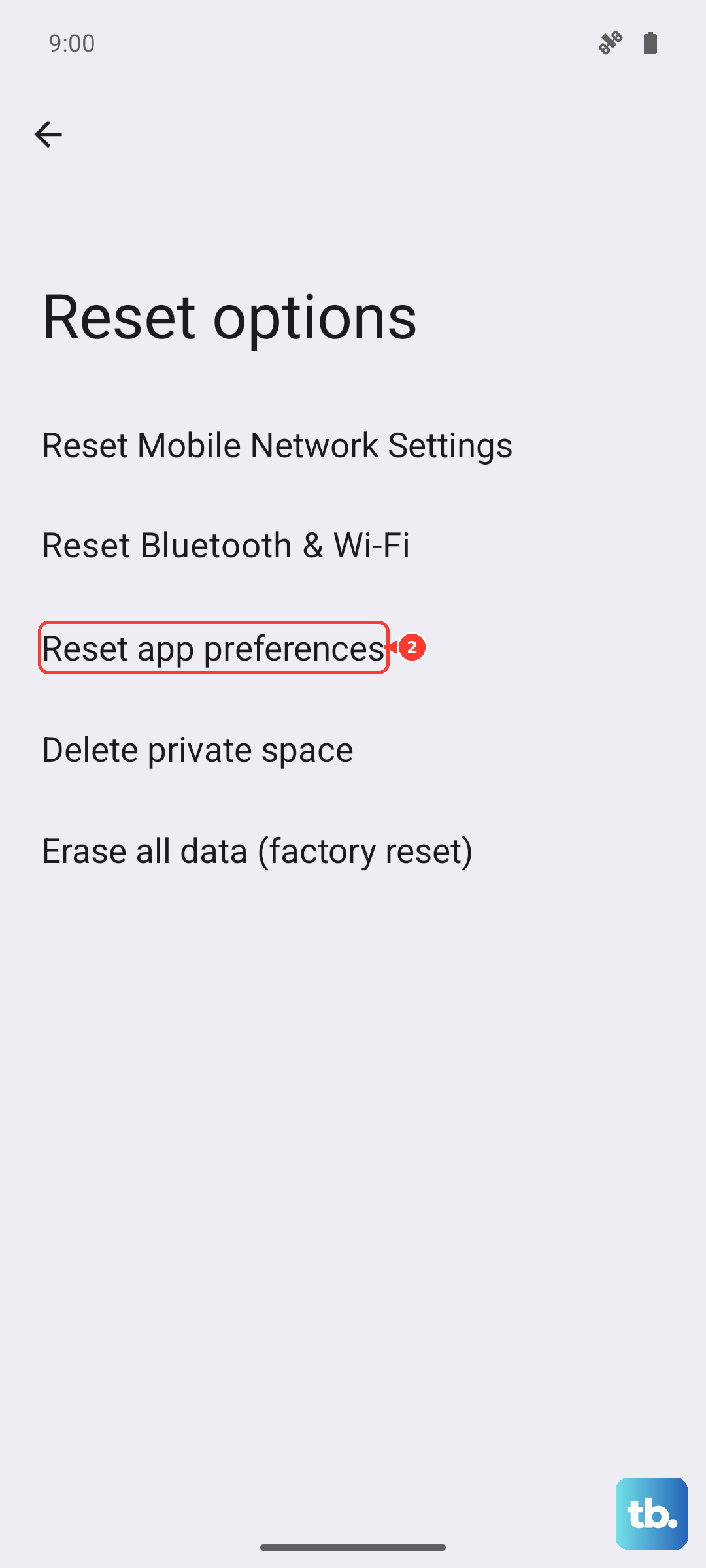
This resets all your app permissions, notification settings, and default apps without deleting any personal data. It's a less nuclear option than a full factory reset. Navigate to Settings > System > Reset options > Reset app preferences. Tap reset and confirm. You'll need to re-grant permissions to apps the next time you use them, but it often resolves odd conflicts.
10. Perform a Network Settings Reset
Since we're dealing with call issues, resetting your network settings can help. This clears all Wi-Fi networks, Bluetooth pairings, and mobile data settings. Go to Settings > System > Reset options > Reset Wi-Fi, mobile & Bluetooth. Confirm the reset. After your phone reboots, you'll need to reconnect to Wi-Fi and re-pair your Bluetooth devices, but it can fix call audio problems related to network configuration.