Your OnePlus 13 was built around a 6.82-inch ProXDR LTPO 4.1 AMOLED panel, so a screen that flickers, strobes, or pulses in brightness is impossible to ignore on a display this sharp. The good news is that a lot of flicker on this phone comes down to a software hiccup you can clear yourself, while only some cases turn out to be the panel itself. Working through the fixes in order matters, because the quick, safe ones solve the problem far more often than a reset does.
It is worth viewing a few test patterns from a screen test before changing hardware. Faults that persist across every pattern point firmly at the display itself.
The fixes below run from the gentlest checks to the official reset and service steps, so you can stop as soon as the screen settles down. Start at the top, test the screen after each step, and only move on if the flicker is still there.
1. Find out whether it is the software or the panel
Before you change a single setting, it is worth knowing whether the flicker is being drawn by the software or whether the physical panel is at fault. OnePlus's official display guidance uses a simple screenshot test for exactly this, and the result tells you which half of this list to focus on.
While the screen is misbehaving, press and hold the power button and volume down button simultaneously to take a screenshot.
Next, transfer that screenshot to a computer and open it on the larger display.
If the screenshot looks completely normal on the computer while the phone still shows the flicker, that points to a display or hardware fault. If the screenshot shows the same abnormality you see on the phone, the cause is more likely software, and the steps further down stand a good chance of clearing it. Keep this comparison photo either way, because OnePlus asks you to attach it if you later request after-sales service.
2. Force restart the OnePlus 13
A forced restart clears the temporary software glitches that are behind a surprising amount of flickering, and it costs you nothing. This is a stronger action than a normal restart, so it is the right first move once you know the screen is acting up.
With the phone powered on, long press the power button and volume up button for 10 seconds, and the phone will shut down.
After that, press the power button, which is located on the right side of the phone, to turn the device on again.
OnePlus confirms this volume up plus power combination, held for about 10 seconds, for the OnePlus 6T and later, which includes the OnePlus 13. Give the screen a few minutes of normal use afterward before deciding whether it worked.
3. Let the phone manage its own brightness
Erratic manual brightness can read as flicker, especially when you are moving between bright and dim rooms. Handing brightness back to the sensor often steadies a screen that seems to be hunting for the right level.
Open Settings > Display & brightness > Brightness and turn on Auto Brightness. When enabled, the phone optimizes the screen brightness according to ambient light conditions, and you can still nudge the slider to set your own preference. Watch the screen for a while in a few different lighting conditions to see whether the pulsing stops.
4. Drop the refresh rate to Standard 60 Hz
The OnePlus 13 runs a dynamic refresh rate that swings up to 120 Hz, and pinning the screen to a fixed lower rate is a useful way to test whether that variable refresh is involved in what you are seeing.
Go to Settings > Display & brightness, find Screen refresh rate, and switch it from High (120 Hz) to Standard (60 Hz). Use the phone for a while at 60 Hz and see whether the flicker eases. Treat this as a diagnostic test rather than a permanent cure; if the screen behaves at 60 Hz you have learned something useful, and you can switch back to High once an update or repair resolves the underlying cause.
5. Switch on Eye Comfort and Dark mode
If the flicker shows up mostly as a shimmer on bright white backgrounds or it strains your eyes, the OnePlus 13's two comfort controls can reduce how much of it you notice. They will not repair a faulty panel, but they ease the conditions that make flicker most obvious on an AMOLED screen.
Under Settings > Display & brightness, turn on Eye comfort. It reduces blue light from the screen and alleviates eye strain, and it is normal for the screen to appear yellowish when eye comfort is on. For Dark mode, go to Settings > Display & brightness > Dark mode > Dark mode settings, where you can choose the Enhanced, Medium, or Gentle style; darker backgrounds light up fewer pixels at full brightness, which can make the screen feel calmer.
6. Update OxygenOS to the latest version
OnePlus's display guidance specifically includes updating to the latest operating system, because software updates routinely fix the display bugs that cause flickering. The OnePlus 13 launched on OxygenOS 15 and is supported through OxygenOS 16, so there is a good chance a fix is already waiting for you.
Enter Settings > About device > Software update, and the system starts to check for updates. Follow the instructions to download and install whatever is available, keep the phone charged during the process, and let it restart on its own when prompted.
7. Boot into Safe Mode to expose a problem app
Safe mode temporarily disables every downloaded, third-party app, which makes it the cleanest way to find out whether something you installed is driving the flicker. If the screen behaves normally in safe mode, a downloaded app is the cause.
The exact way to enter safe mode varies by phone and OxygenOS version. On most Android phones you press and hold the power button, then touch and hold the Power off option until you are asked to reboot into safe mode; if that does not work on your build, check OnePlus Support for the current steps. When safe mode is active, the words Safe mode appear at the bottom of the screen.
Watch the display for a while, and if the flicker is gone, restart the phone normally to leave safe mode, then uninstall the apps you added most recently, starting with anything that overlays the screen or controls brightness.
8. Clear the cache from Recovery mode
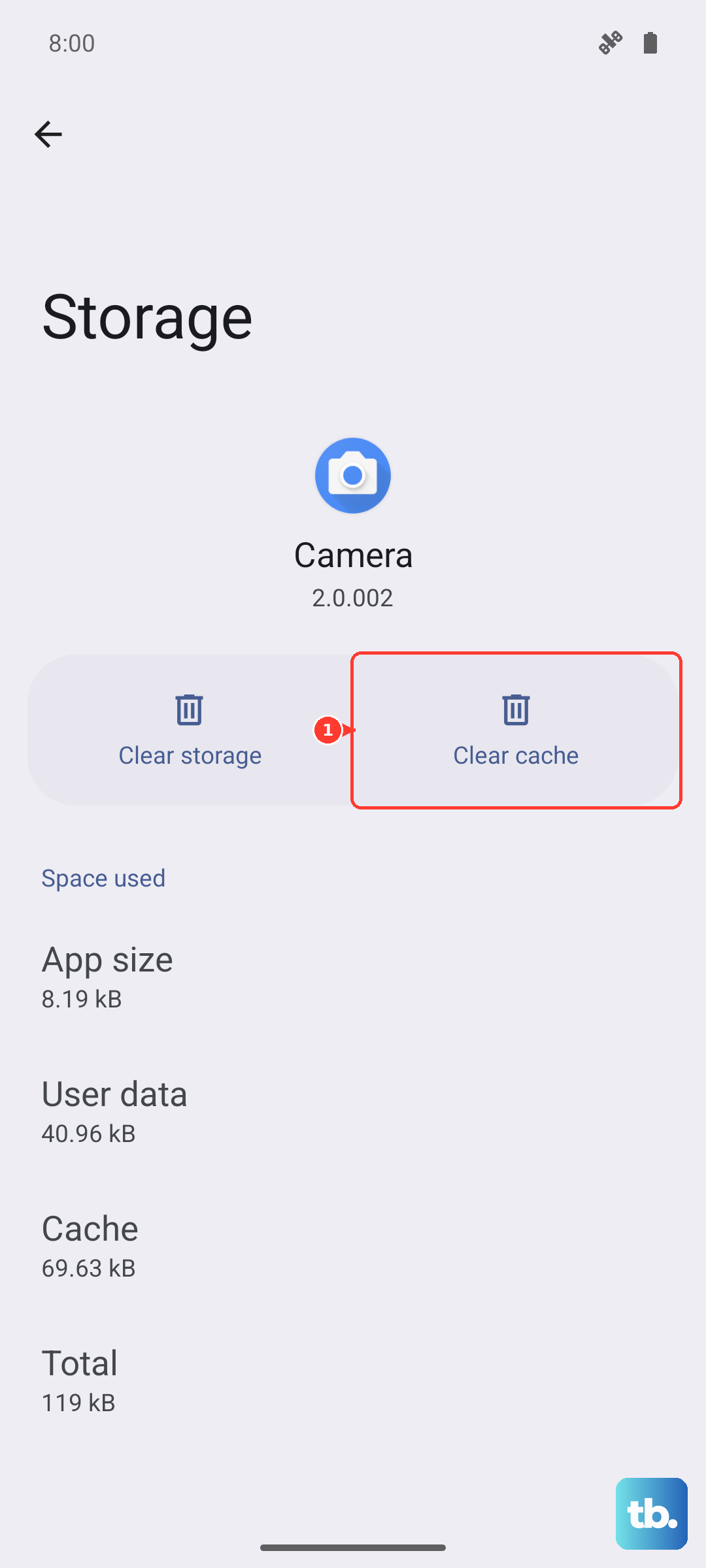
OnePlus's display guidance also calls for clearing the cache, which removes corrupted temporary system files without deleting your personal data. Even so, it is sensible to back up your important data before going into Recovery mode.
With your data backed up, power the phone off completely.
Then press and hold the power button and volume down button simultaneously to access recovery mode while the device is powered off.
Use the on-screen options to clear the cache, then restart the phone.
If a damaged cache was behind the flicker, the screen should be steady once the phone boots back into the normal interface.
9. Back up your data, then factory reset
If the flicker only appears in software and nothing above has cleared it, a factory reset returns the phone to a clean state and rules out a stubborn software fault for good. This step erases the phone, so the backup is not optional. As OnePlus warns, restoring factory settings will wipe all app data, contacts, text messages, and so on, so back up important data before a factory reset.
- 1.Go to Settings > Additional settings > Back up and reset > Reset phone.
- 2.Tap Reset phone.
- 3.Enter your passcode if the passcode is enabled.
- 4.Wait until the factory reset is complete.
Set the phone up fresh afterward and watch the screen before you reinstall everything, so you can tell whether the reset alone fixed it.
When the screen needs OnePlus, not another setting
If the screenshot test back at the start pointed to a display fault, or if you have worked through every step above and the flicker is still there, the problem is almost certainly hardware and needs proper service. At that point, more settings changes will not help.
Apply for after-sales support through OnePlus Support and, as OnePlus instructs, share the comparison photo, the screenshot that looked normal on a computer while the phone still showed the flicker. That single image often saves a round of back-and-forth, because it shows the technician that the panel, not the software, is the issue.
Frequently Asked Questions
How can I tell if my OnePlus 13 flicker is hardware or software?
Take a screenshot with the power button and volume down button while the screen is flickering, then open that screenshot on a computer. If the image looks normal on the computer but the phone still flickers, it points to a display or hardware fault; if the screenshot shows the same problem, it is more likely software.
Does setting the refresh rate to 60 Hz stop the flickering?
Standard 60 Hz is an official option under Settings > Display & brightness, and switching to it is a good way to test whether the dynamic refresh rate is involved. Treat it as a diagnostic check rather than a guaranteed cure, and switch back to High 120 Hz once the underlying cause is resolved.
Will a factory reset delete everything on my OnePlus 13?
Yes. OnePlus warns that restoring factory settings will wipe all app data, contacts, text messages, and so on, so back up important data before a factory reset. Use it only after the gentler fixes have failed.
Do I need a separate app to fix the OnePlus 13 screen?
No. The OnePlus 13 is managed entirely in its own on-device Settings, so every fix here lives on the phone. OnePlus's built-in Clone Phone app is only for migrating data and backup or restore, not for controlling the display.
Why does my screen look yellow after I turn on Eye Comfort?
That is expected. Eye comfort reduces blue light from the screen to alleviate eye strain, and it is normal for the screen to appear yellowish while it is on. You can turn it back off under Settings > Display & brightness at any time.