
When your OnePlus 13 Pro gets stuck on an update, it's a real roadblock. You might see a download that won't start, an installation that fails partway through, or an error message that just says "Update Failed." Getting past this usually involves checking a few key things on your device.
Free Up Storage Space on Your Phone
OxygenOS updates need a good chunk of free space to download and unpack. Head to Settings > About device > Storage to see what you have available. I'd recommend having at least 8-10 GB free for a major update. If you're low, the quickest fix is to clear cached data from apps or move photos and videos to cloud storage or a computer.
Check Your Wi-Fi Connection
A stable, strong Wi-Fi connection is mandatory for downloading updates over the air. Make sure you're connected and not using mobile data. Try loading a webpage to test the speed. If it's slow, restart your router or connect to a different network. Public networks with login portals often block large downloads like system updates.
Force Restart Your OnePlus 13 Pro
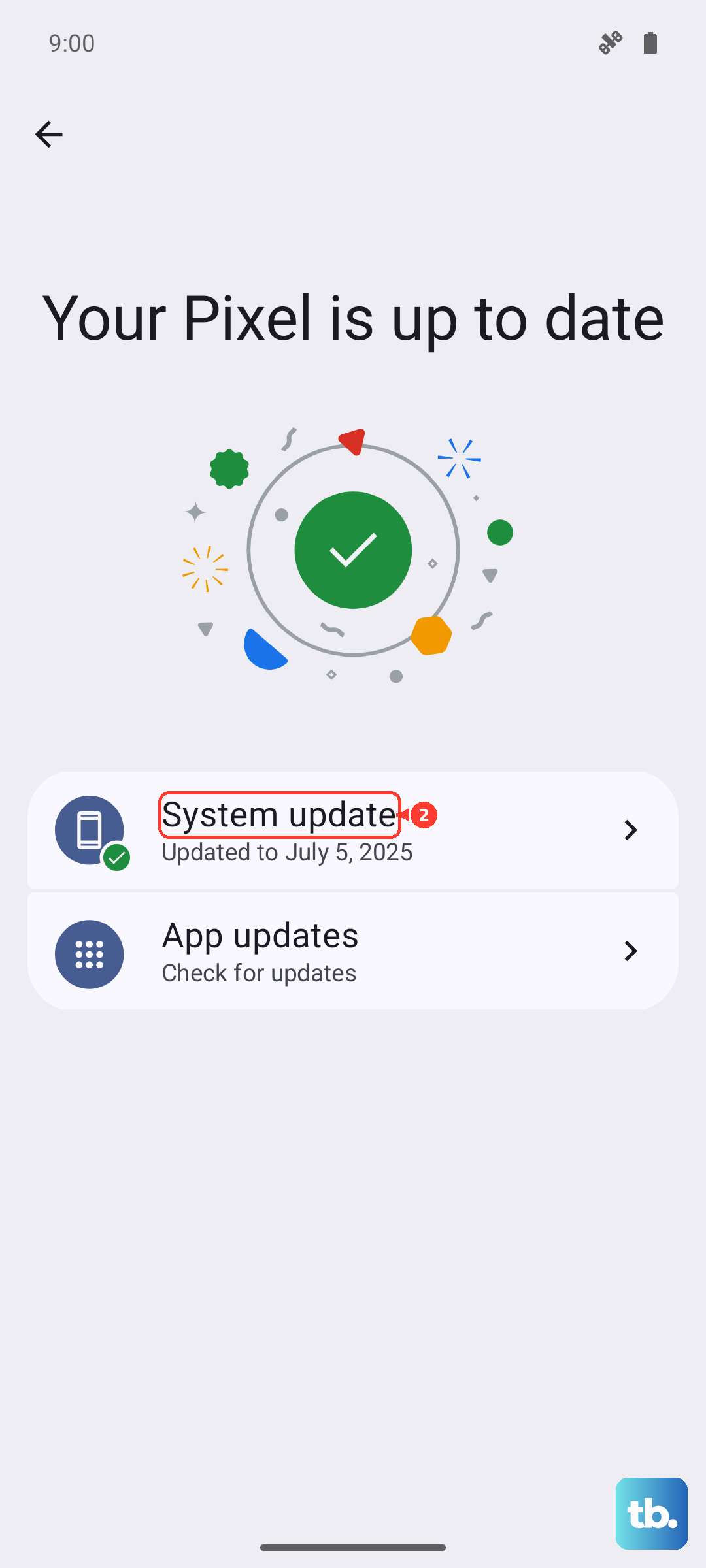
This is the digital equivalent of taking a deep breath and starting over. Press and hold the Volume Down button and the Power button together for about 10 seconds. You'll feel the device vibrate and see the OnePlus logo as it restarts. Once it's back on, go to Settings > About device > OxygenOS version and tap "Check for updates" again.
Clear the Update App's Cache and Data
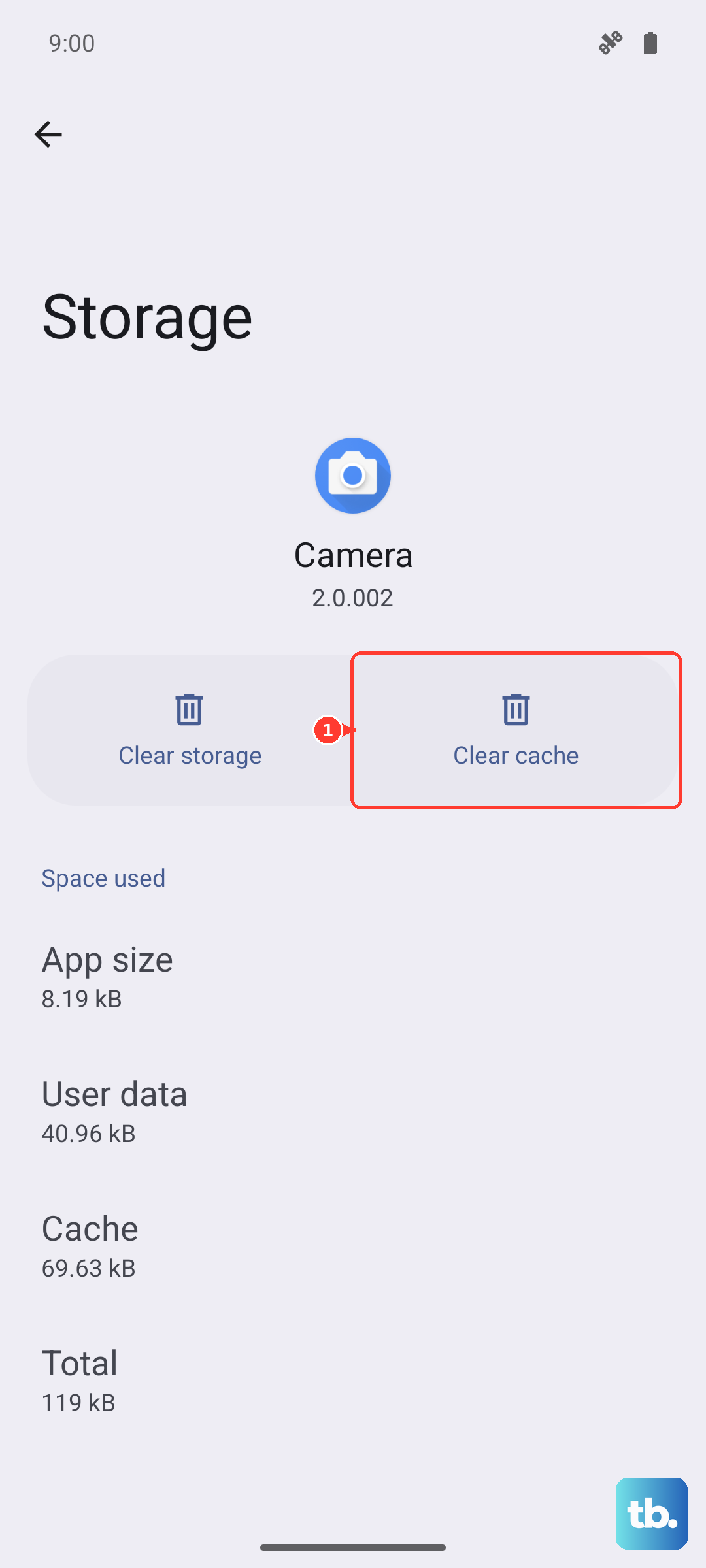
Sometimes the system update service itself gets bogged down with temporary files. Go to Settings > Apps > See all apps. Tap the three-dot menu in the top right and select Show system apps. Find and tap on Software Update. Select Storage & cache, then tap Clear cache and Clear storage. This resets the update component without harming your data.
Reset Your Network Settings
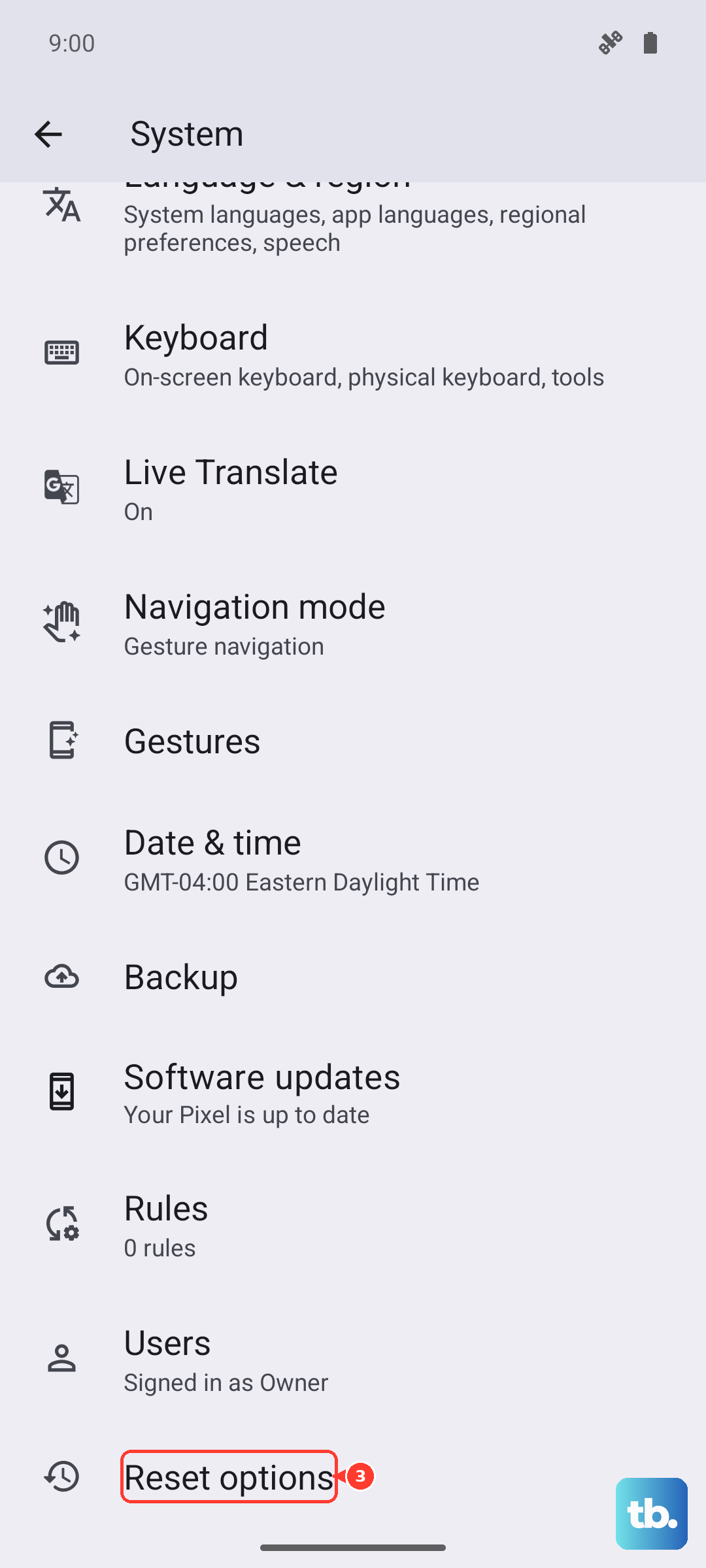
If the download keeps failing, network configuration glitches are a common culprit. This step will erase all saved Wi-Fi networks and Bluetooth pairings. Go to Settings > System > Reset options > Reset Wi-Fi, mobile & Bluetooth. Confirm the reset, then reconnect to your Wi-Fi network and immediately try the update again.
Use OxygenOS Updater or a Local Upgrade
If the standard update path is broken, you can try a more direct method. First, check if the "OxygenOS Updater" app is available on your device or in the Google Play Store. Alternatively, you can download the full update package (a .OZIP file) from the official OnePlus community website to your phone's internal storage. Then, go to Settings > About device > OxygenOS version > top-right menu > Local install to select the file and manually trigger the update.
Check for Server Issues
When a new OxygenOS version rolls out, especially a major one based on Android 15, OnePlus's servers can get overwhelmed. This can cause downloads to timeout or fail for everyone. It's worth checking the OnePlus Community forums or social media channels to see if other users are reporting similar update problems. If it's a widespread server issue, waiting a few hours or trying late at night often resolves it.
Ensure Your Device is Compatible
While the OnePlus 13 Pro will receive updates for years, it's still good to verify. The update notification you're seeing should be for a version of OxygenOS 15. If you're trying to install a beta or a very old software version meant for a different model, it will likely fail. Your device info is in Settings > About device.
Update with Your Computer
When all else fails, using a computer is the most reliable method. You'll need the official OnePlus PC tool, often called the MSM Tool or the Local Update Tool, which you can find on the OnePlus support site. This method downloads the update to your computer and installs it directly to the phone via USB, completely bypassing any Wi-Fi or phone storage issues. It's a bit more involved but almost always works.
Make sure your phone has at least a 30% charge, or better yet, plug it in during the process. A failed update due to a dead battery can cause more serious problems. If you've tried the local install from storage and the PC tool method with no success, it could indicate a deeper software issue that may require a factory reset, so be sure to back up your data first.