
Seeing a "Not registered on network" error on your OnePlus 13 Pro is incredibly frustrating. It cuts you off from calls, texts, and mobile data, turning a powerful device into a Wi-Fi-only slab. This error means your phone can't authenticate with your carrier's network, and there are several common reasons why this happens on OxygenOS.
Before you panic, the quickest thing to try is toggling Airplane Mode. Swipe down from the top of your screen to open the Quick Settings panel and tap the Airplane Mode icon. Wait about 15 seconds, then tap it again to turn it off. This forces your phone's modem to completely re-scan for and register on the network, which often clears up a temporary glitch.
Perform a Force Restart
If Airplane Mode didn't work, a force restart is your next best step. This is more thorough than a standard restart and can clear deeper system hiccups. Press and hold the Volume Down button and the Power button simultaneously for about 10 seconds. You'll feel the device vibrate and see the OnePlus logo as it reboots. Wait for it to fully start up before checking your signal.
Check Your SIM Card
A loose or dirty SIM card is a classic culprit. Power off your OnePlus 13 Pro completely. Use the SIM ejector tool to pop out the tray and carefully remove the SIM card. Give both the gold contacts on the SIM and the inside of the tray slot a gentle wipe with a dry, lint-free cloth. Reinsert the SIM, making sure it's seated correctly in the tray, and push everything back in firmly. Power the phone back on.
Verify Your Carrier Account Status
It's worth confirming the issue isn't on your carrier's end. An unpaid bill, an expired prepaid plan, or even a network outage in your area can cause this error. Try logging into your carrier's account portal from another device or give their customer service a call from a different phone. I've seen more than a few cases where the problem was simply a billing hiccup.
Reset Your Network Settings
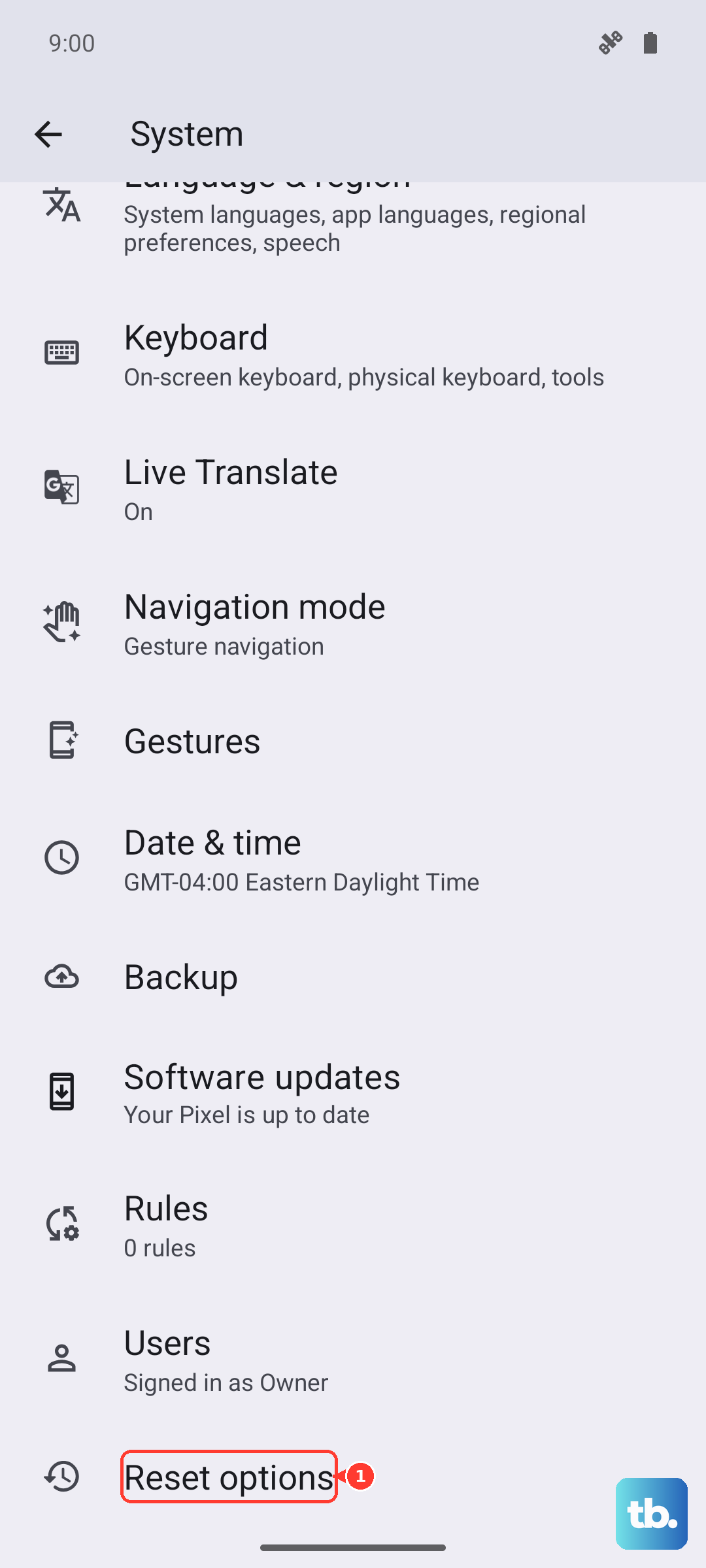
This is a powerful step that wipes all your saved network configurations. You'll lose saved Wi-Fi passwords and Bluetooth pairings, but it clears out any corrupted settings that could be blocking cellular registration. On your OnePlus 13 Pro, go to Settings > System > Reset options. Tap on Reset Wi-Fi, mobile & Bluetooth and confirm. Your phone will restart and you'll need to reconnect to Wi-Fi networks afterward.
Manually Select Your Network Operator
Sometimes your phone gets stuck trying to register on a specific tower or network band. You can manually tell it which carrier to use. Go to Settings > Mobile network. Tap on Network operators or a similar option. Turn off "Select automatically," wait a moment for the list to populate, and then manually choose your carrier's name from the list. This can initiate a fresh, direct registration attempt.
Update Your Phone's Software
Carriers and OnePlus regularly release updates that fix connectivity bugs. Running outdated software on your OnePlus 13 Pro could mean you're dealing with a known issue that's already been patched. Head to Settings > About device > OxygenOS version and tap on the top banner to check for updates. If one is available, install it over a stable Wi-Fi connection and let the phone complete the update process.
Change the Preferred Network Type
If you're in an area with spotty 5G coverage, forcing your phone to connect on a different band can help. Navigate to Settings > Mobile network > SIM & network > Preferred network type. Try switching from "5G/LTE/3G/2G" to just "LTE/3G/2G." If your phone registers successfully on LTE, the issue might be related to the 5G network configuration in your location.
Try a Different SIM Card
This test helps pinpoint whether the problem is with your SIM or the phone itself. If you can, borrow a known-working SIM card from a friend (on any carrier) and insert it into your OnePlus 13 Pro. If the borrowed SIM connects to a network, your original SIM card is likely faulty or deactivated, and you'll need a replacement from your carrier. If the other SIM also fails, the issue is with your phone.
Factory Reset Your Device
Consider this a last resort. A factory reset will erase all data on your phone, so ensure everything important is backed up first. To proceed, go to Settings > System > Reset options > Erase all data (factory reset). Follow the prompts to confirm. After the reset, set up the phone as new without restoring a backup immediately, and see if the network error is gone. If the problem persists after a clean factory reset, it strongly suggests a hardware issue with the phone's internal modem or antenna.