If your OnePlus 13 Pro is starting to feel sluggish, you're not alone. Even a powerhouse phone with the latest specs can hit a performance snag. The lag is usually caused by a few common things like storage filling up, too many background apps, or a pending software update.
Let's jump straight into the most common fix. A simple restart clears out temporary system glitches and stops any rogue background processes. Just press and hold the Volume Down button and the Power button together for about 10 seconds until the phone vibrates and reboots.
Close Your Recent Apps
Having dozens of apps sitting in your recent apps menu can use up valuable RAM. To close them, swipe up from the bottom of the screen and hold to enter the recent apps view. You can then swipe up on each app card to close it individually, or tap the three-dot menu and select 'Close all' for a clean slate.
Check Your Available Storage
When your internal storage gets too full, the phone has less room to operate efficiently, which can cause slowdowns. Head to Settings > Storage to see a breakdown. If you're below 10-15% free space, it's time for a cleanup. I'd start by offloading large video files or clearing app caches.
For a more aggressive clean, go to the storage menu and look for the 'Cleanup' or 'Free up space' option. This tool can identify duplicate files, large downloads, and cached data from apps you haven't used in a while.
Update OxygenOS and Your Apps
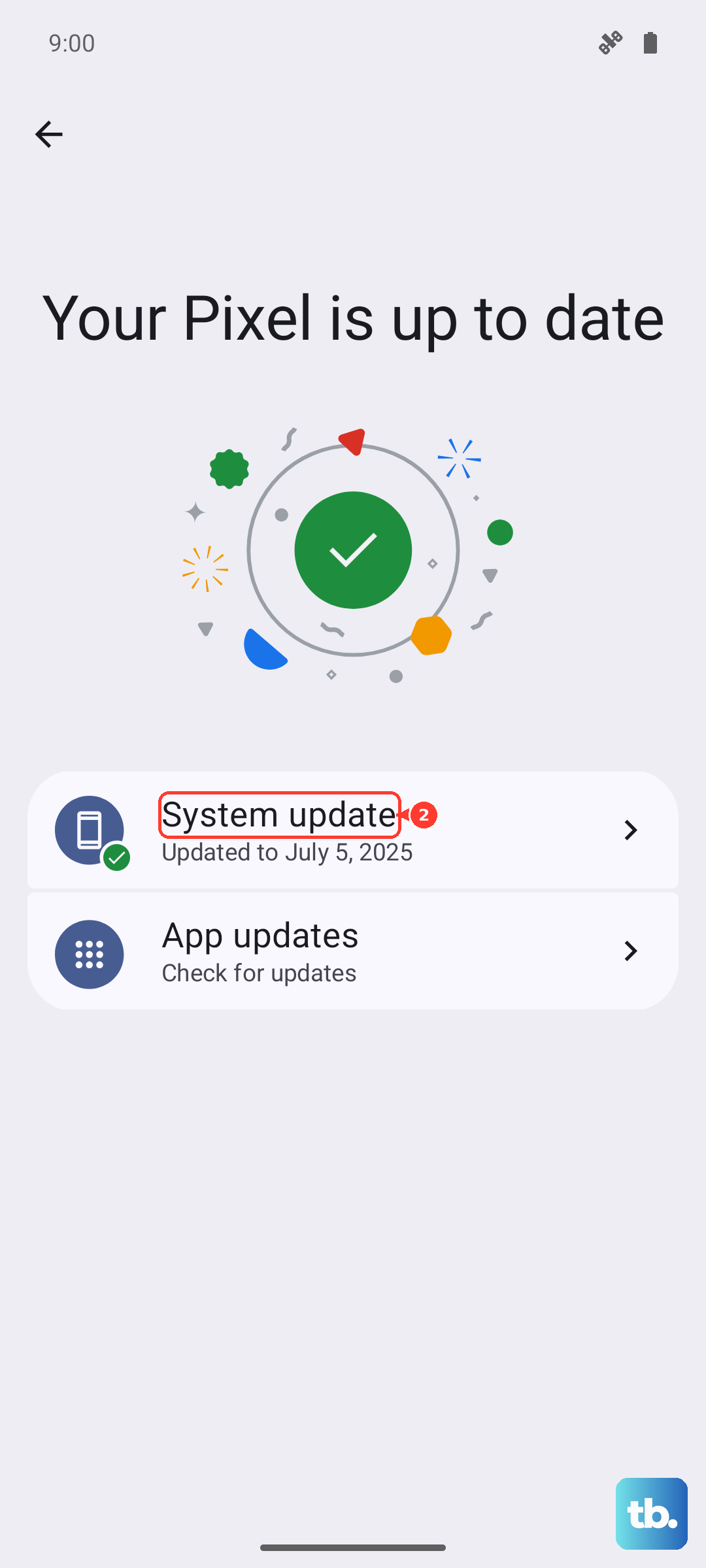
Running outdated software is a prime culprit for performance issues. New updates often include bug fixes and optimizations. To check, go to Settings > About device > OxygenOS version and tap on 'Check for update'.
Don't forget your apps. Open the Google Play Store, tap your profile icon, and go to Manage apps & device > Updates available. Keeping everything current ensures compatibility and smooth operation.
Manage Background Activity and Refresh
Some apps are very active in the background, constantly syncing data or checking for notifications. You can rein them in. Go to Settings > Apps > App management, select a specific app, and tap 'Battery usage'. Here, you can often restrict background activity.
For a broader setting, look for 'Background app management' or 'Special app access' in your settings. This lets you control which apps can run freely in the background and which should be more restricted to save battery and processing power.
Review Your Battery Health and Usage
While less common on newer devices, a degraded battery can sometimes trigger performance throttling. You can check your battery's condition by going to Settings > Battery > Battery health.
More importantly, check which apps are using the most power. In the same Battery menu, look at the usage chart. If a single app is consuming a disproportionate amount of battery in the background, it might also be slowing down your system. Consider restricting its background activity or updating it.
Reduce Animations and Visual Effects
The smooth animations in OxygenOS look great, but they use GPU resources. Speeding them up or turning them off can make the phone feel snappier. You'll need to enable developer options first. Go to Settings > About device and tap on 'Build number' seven times.
Then, go back to Settings and enter the new 'Developer options' menu. Scroll down to the 'Drawing' section. Here, you can adjust the 'Window animation scale', 'Transition animation scale', and 'Animator duration scale'. Setting these to '0.5x' speeds things up noticeably, while turning them off makes transitions instant.
Clear App Caches Individually
Over time, apps store temporary data (cache) that can become corrupted or bloated. Clearing it can free up space and fix odd behavior. Go to Settings > Apps > App management, select an app, then tap 'Storage usage'. You'll see an option to 'Clear cache'.
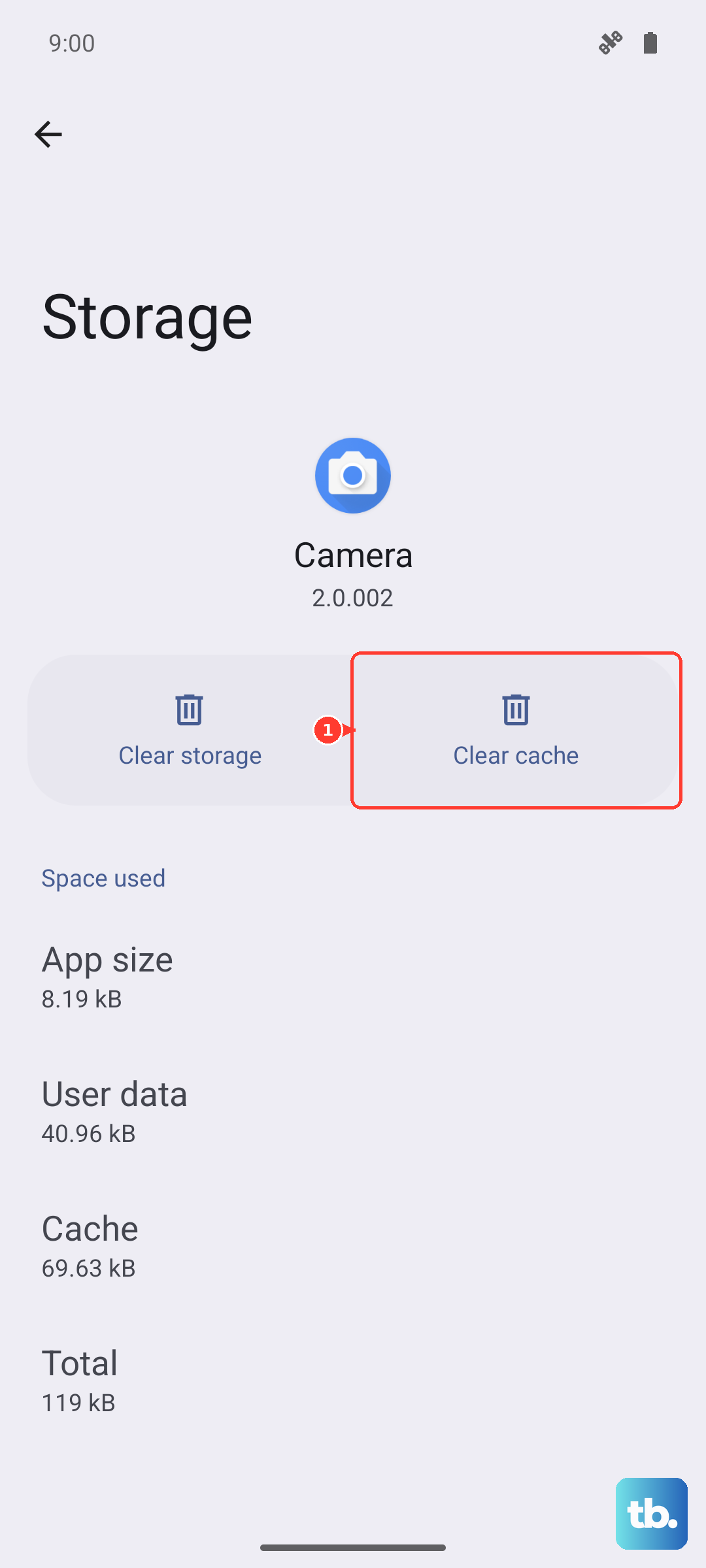
This is a safe first step for any app feeling slow, as it doesn't delete your login info or personal data. For problematic apps, you can also tap 'Clear data', but be warned this will reset the app to its freshly installed state, erasing all your settings within it.
Perform a Soft Reset on System Settings
If you've changed a lot of settings or something just feels off, resetting your system settings can help without touching your personal files. Navigate to Settings > Additional settings > Backup & reset > Reset phone.
Here, select 'Reset all settings (network, Bluetooth, wallpaper, etc.)'. This will revert all your system preferences to default, so you'll need to reconnect to Wi-Fi and Bluetooth devices and redo your wallpaper, but your photos, messages, and apps will remain untouched.
Check for Rogue or Heavy Widgets
Widgets that update frequently, like live weather or social media feeds, can drain resources. Take a look at your home screens and lock screen. If you have widgets you don't actively use, long-press on them and tap 'Remove'.
Stick to essential widgets. A clock or calendar widget is very lightweight, while a widget pulling constant news updates or GPS location is more demanding. Simplifying your home screens can contribute to a smoother overall feel.
Start with the quick wins like a force restart and closing apps, then move through these steps. In my experience, clearing storage and managing background apps resolves most slowdowns on OxygenOS. Keeping the system updated is also crucial for maintaining that fast, smooth feel the OnePlus 13 Pro is known for.