You reach for the OnePlus 13 flashlight in a dark room, tap the Quick Settings tile, and nothing happens; the screen says the torch is on, yet the LED stays stubbornly dark. It is a maddening fault because the small LED on the back is shared hardware, the same flash that lights your photos doubles as the flashlight, so when one stalls the other often refuses to fire too. The reassuring part is that most cases trace back to software, a busy camera, or heat rather than a broken component, and you can usually clear it in a couple of minutes. Work through the steps below in order, beginning with the safest checks and saving anything that erases data for the end.
Check the Quick Settings Tile First
Before assuming the worst, make sure you are toggling the torch the right way and that the tile has not slipped off your panel. On OxygenOS the flashlight lives in the full Quick Settings drawer, and a dimmed icon simply means it is switched off.
- 1.Swipe down from the top of your screen, then swipe down again to open the full Quick Settings panel.
- 2.Tap the Flashlight (torch) icon to turn it on; remember that a dimmed icon means the setting is off.
- 3.If you do not see a Flashlight tile at all, tap Edit and add it back from the available tiles.
This rules out an accidentally removed or mis-tapped tile, which is a common reason the torch appears to be doing nothing.
Let an Overheated Phone Cool Down
Because the flashlight runs off the camera's LED flash, Android will switch it off as a heat-protection measure. The official guidance is explicit that when the phone senses excessive heat it may turn off the camera's flash and even turn off the camera entirely, so a warm OnePlus 13 can leave you with a dead torch through no fault of your own.
To get it back, unplug the phone if it is charging and move it to a cooler place. Stop heavy tasks such as gaming, video recording, or turn-by-turn navigation, peel off any thick case that traps heat, and simply wait. Once the phone has cooled down, the flashlight should respond normally again.
Free the LED From the Camera App
The flashlight and the camera flash draw on the same LED, so the torch can fail while the Camera app (or a third-party camera or QR scanner) is still using that hardware. Closing the app and clearing its cache hands the LED back to the system.
- 1.Close the Camera app fully.
- 2.Press and hold the Camera app icon, then tap App info.
- 3.Tap Storage & cache.
- 4.Tap Clear Cache.
- 5.Try the flashlight again from Quick Settings.
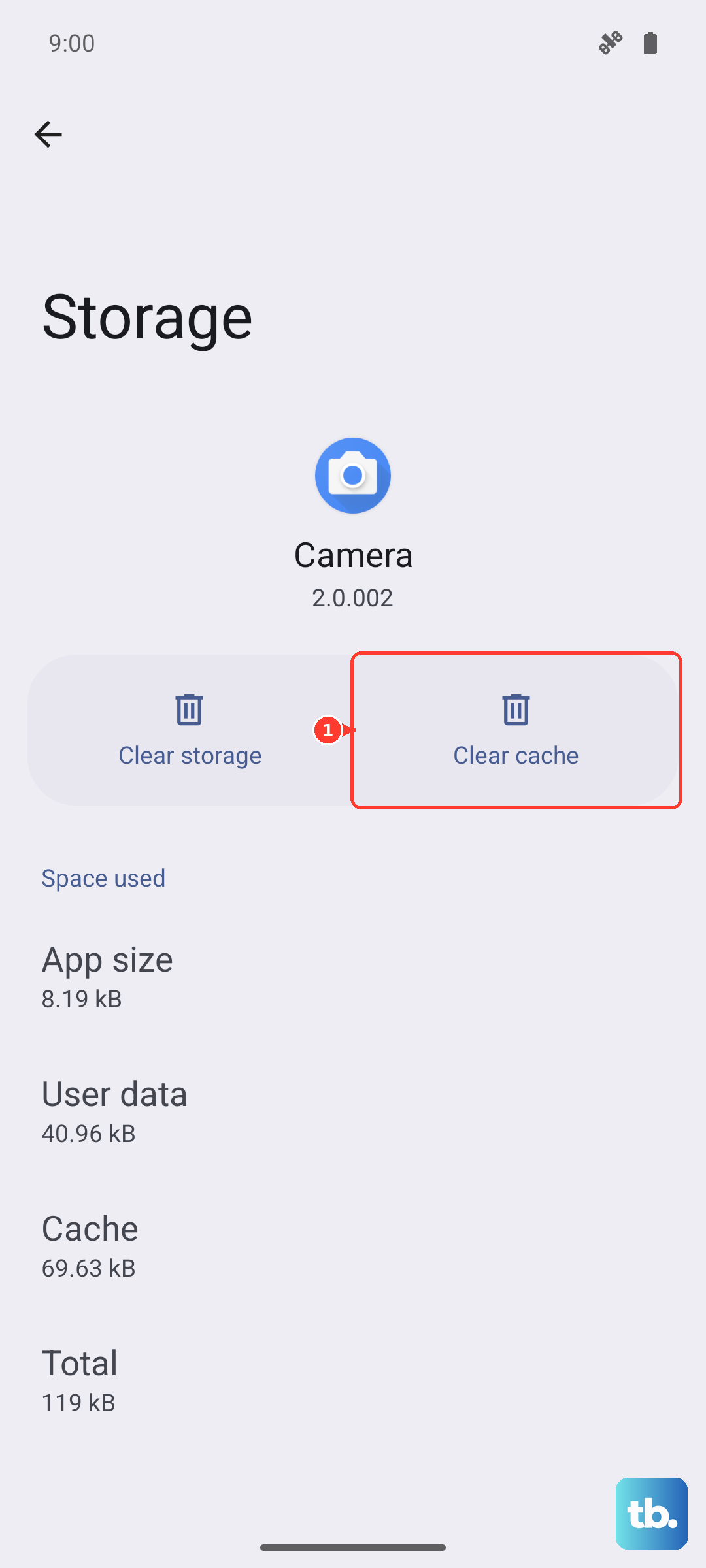
Clearing the cache leaves your photos and settings untouched; it only discards the temporary files that can leave the flash stuck in a busy state.
Restart the Phone to Clear a Stuck Flash
A plain restart is one of the most reliable ways to release a wedged flash or camera state without losing anything. Open the power menu and tap Restart. If the display is frozen and the menu will not appear, press and hold the power button for about 30 seconds, until your phone restarts.
Give the torch a try as soon as the phone is back at the lock screen. A clean boot resets the background services that control the LED, which often resolves an intermittent flashlight on its own.
Force a Restart When the Screen Is Frozen
If the OnePlus 13 is completely unresponsive, a force restart cuts power to the system and brings it back up. Per OnePlus official support, on the OnePlus 13 (which counts as a OnePlus 6T and later device) you press and hold the Volume Up button and the Power button together for 10 seconds.
Note that this is Volume Up plus Power, not Volume Down; the wrong combination opens a different menu. If the phone still does not respond after a force restart, OnePlus advises contacting after-sales support, since that points to a deeper fault rather than a simple software hang.
Install the Latest OxygenOS Update
Flashlight glitches are sometimes a software bug that a system update has already addressed, so it is worth confirming you are on the current build. The OnePlus 13 ships on OxygenOS 15.0 based on Android 15 and receives fixes over the air.

- 1.Go to Settings > System updates.
- 2.Tap Check for updates.
- 3.If an update is available, tap DOWNLOAD&INSTALL NOW.
Before you start, back up your data, keep the battery above roughly 60%, and use Wi-Fi so the download is not interrupted. The phone will restart to finish installing, after which you can test the torch again.
Test the Flash in Safe Mode
If the torch still misbehaves, a downloaded app may be interfering with the camera or flash. Safe Mode loads the phone with only its built-in software, which isolates the problem cleanly.
Boot the phone into Safe Mode and test the flashlight and camera there. If the torch works normally in Safe Mode, a third-party app is to blame; return to normal mode and uninstall your most recently downloaded apps one at a time until the flashlight works again.
Factory Reset as a Final Software Step
When every other software fix fails but you suspect the hardware is still fine, a factory reset gives you a clean slate. This erases everything on the phone, so treat it as a last resort. In OnePlus's own words, make sure you BACKUP your personal data before doing so as this will WIPE your phone.
Once your backup is complete, the OnePlus support path is Settings > System or Additional Settings > Backup & Reset > Reset Phone > Erase All Data. After the phone reboots and you finish setup, test the flashlight before restoring your apps, so you can tell whether the reset alone resolved it.
Book OnePlus Service for a Hardware Fault
If none of the steps above brings the torch back, the LED flash module itself is the likely culprit, and that is a repair rather than a setting. Contact OnePlus after-sales support or a OnePlus Service Center for diagnosis and, where applicable, warranty repair.
OnePlus directs owners to after-sales support when the device will not respond properly, which is exactly the situation once you have exhausted the software fixes. Have your proof of purchase ready, as it speeds up any warranty claim.
Frequently Asked Questions
Why does my OnePlus 13 flashlight turn off by itself?
A common reason is heat. When the phone senses excessive temperature it protects the hardware by turning off the camera's flash, which is the same LED the flashlight uses. Cool the phone down by unplugging it, moving it somewhere cooler, and pausing heavy tasks, and the torch should return.
Does the flashlight really use the same LED as the camera?
Yes. The OnePlus 13's rear camera system includes an LED flash, and that single LED is what the Quick Settings torch switches on. That shared hardware is why the flashlight can fail while the camera or another app is using the flash, and why closing the Camera app and clearing its cache often helps.
Will a factory reset fix the flashlight?
A factory reset can fix the problem if it is caused by software, but it will not help if the LED module itself has failed. Because it wipes the entire phone, back up your personal data first and try the lighter steps such as a restart, an update, and Safe Mode before resorting to it. If the torch is still dead after a reset, the issue is almost certainly hardware.
How do I force restart a frozen OnePlus 13?
Press and hold the Volume Up button and the Power button together for 10 seconds. This is the OnePlus method for the OnePlus 13 and other OnePlus 6T and later devices. Make sure you use Volume Up, not Volume Down. If the phone still does not respond after the force restart, contact OnePlus after-sales support.