
That constant drop in your favorite song or the sudden silence during a call is incredibly annoying. When your OnePlus 13 Pro's Bluetooth keeps disconnecting, it breaks the wireless experience the phone is built for. The good news is this is almost always a software hiccup you can fix yourself.
I'd start with the quick toggle. Swipe down from the top of your screen to open the Quick Settings panel and tap the Bluetooth icon to turn it off. Wait about ten seconds, then tap it again to turn it back on. This simple refresh of the connection often solves a temporary glitch right away.
Restart Your Phone and the Accessory
If toggling didn't help, a full restart is your next best step. For your OnePlus 13 Pro, press and hold the Volume Down button and the Power button together for about ten seconds until you feel it vibrate and restart. Do the same for your headphones, speaker, or car system, power them completely off and then on again. This clears out any minor system errors on both ends.
Forget and Re-Pair the Problem Device
Sometimes the pairing information itself gets corrupted. Go to Settings > Bluetooth & device connection. Tap the settings gear next to the device that's disconnecting and select Forget. Once it's removed from the list, put your accessory back into pairing mode and tap its name on your phone to set it up as a brand new device. This fresh start fixes a lot of persistent issues.
Check for Basic Connection Killers
Before we go deeper, run through a quick mental checklist. Make sure both your phone and the Bluetooth device have decent battery life, ideally above 20%. Keep them within a reasonable range, as walls and other electronics can interfere. Also, if you're using a MagSafe-compatible case, ensure it's properly aligned on a wireless charger, as a low battery on your phone can cause unstable Bluetooth performance.
It's also worth testing your OnePlus 13 Pro with a different Bluetooth device. If the problem follows your phone to another speaker or set of headphones, you know the issue is with the phone. If it works fine with other gear, the problem is likely with that specific accessory.
Clear the Bluetooth System Cache
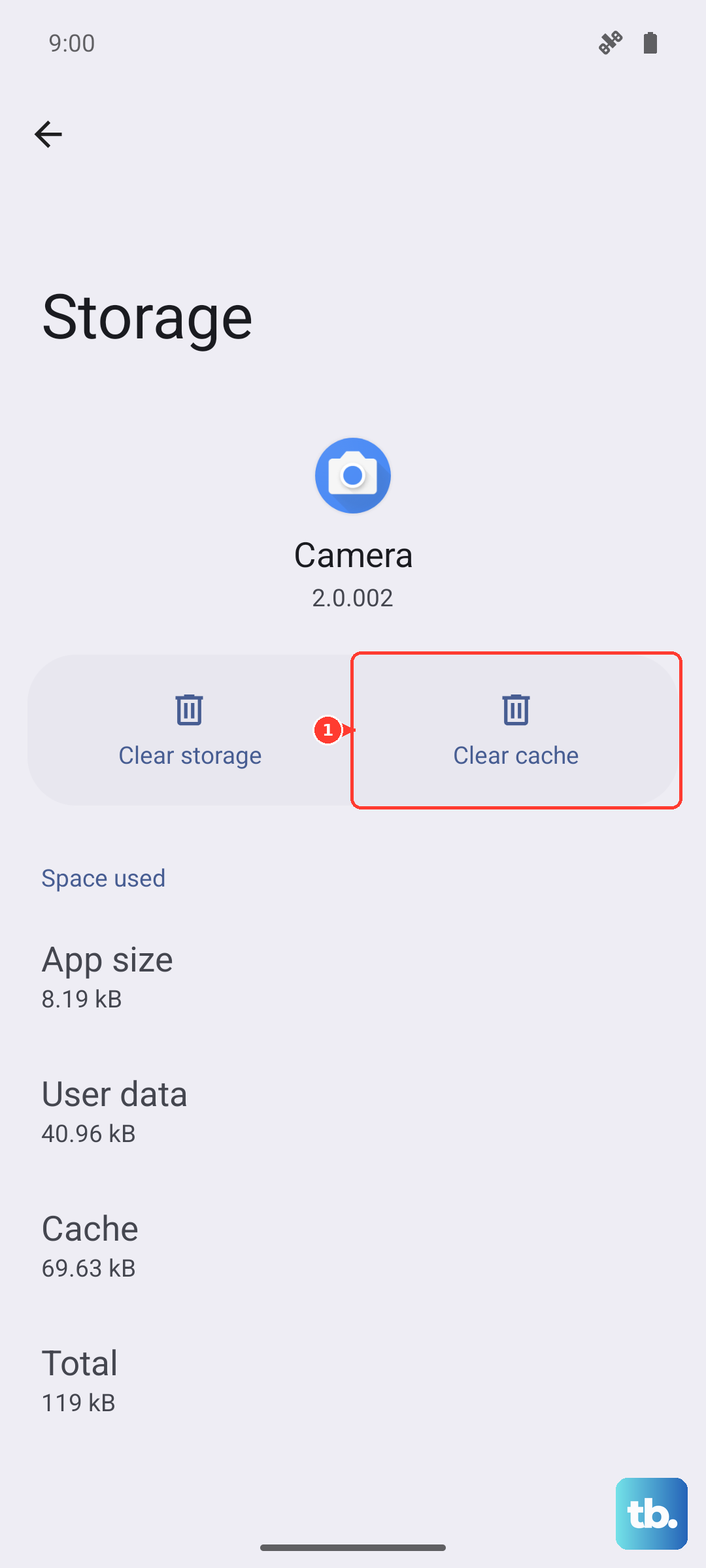
OxygenOS stores temporary data to help Bluetooth run smoothly, but this cache can become corrupted. Clearing it is safe and won't delete your paired devices. Go to Settings > Apps > Manage apps. Tap the three-dot menu in the top right and select Show system. Scroll down and find Bluetooth, then tap it.
Select Storage usage and tap Clear cache. After doing this, restart your phone and test the connection again. If disconnections continue, you can take the more thorough step of tapping Clear data on that same screen, but be aware this will forget all your paired devices, so you'll need to re-pair them.
Update Your OnePlus 13 Pro Software
OnePlus frequently releases updates for OxygenOS that include bug fixes and performance improvements, especially for a new device like the 13 Pro. An outdated system could be the reason for your Bluetooth troubles. Check for an update by going to Settings > About device > OxygenOS version.
Tap on the icon to check for updates and install any that are available. Also, check if your Bluetooth headphones or speaker have a companion app that might offer a firmware update for the accessory itself.
Boot Into Safe Mode to Find a Bad App
A third-party app you installed could be interfering with the Bluetooth radio. Booting into Safe Mode temporarily disables all those apps. Press and hold the Power button until the power menu appears. Then, tap and hold the Power off option on your screen until you see a prompt to reboot to Safe Mode. Tap it.
If your Bluetooth connection is stable in Safe Mode, you know a downloaded app is the culprit. Restart normally to exit Safe Mode and try uninstalling apps you installed around the time the problems began, especially battery savers, VPNs, or other system utilities.
Reset Your Network Settings
This resets all wireless communications on your phone, Wi-Fi, mobile data, and Bluetooth, back to their default states. It's a bigger step but very effective. You'll need to re-enter Wi-Fi passwords and re-pair Bluetooth devices afterward. Go to Settings > Additional settings > Back up and reset.
Tap Reset phone and then select Reset Wi-Fi, mobile & Bluetooth. Confirm your choice and let the phone reset. Once it reboots, try setting up your Bluetooth connection again from scratch.
Address Car Bluetooth Problems Specifically
Car systems are a common trouble spot. The most reliable method is to clean the slate on both sides. First, forget the car from your phone's Bluetooth list. Then, in your car's infotainment system, find the menu to delete your phone from its memory. With both devices cleared, restart your car's system and your phone, then attempt a completely new pairing.
Older car Bluetooth systems sometimes struggle with the newer protocols in modern phones like the OnePlus 13 Pro. If possible, check your car manufacturer's website for any available firmware updates for your vehicle's stereo or infotainment unit.
Consider a Factory Reset
If you've tried everything else and the disconnections make the phone difficult to use, a factory reset is the final software step. This will erase all data on your phone, so it is absolutely critical to back up everything important first. You can use OnePlus' cloud backup or a local backup to a computer.
Once backed up, go to Settings > Additional settings > Back up and reset > Erase all data (factory reset). Follow the prompts to complete the reset. After the phone restores, test Bluetooth before restoring your apps and data, to see if the problem is truly gone.