You pull your OnePlus 13 out in a dark garage, swipe down to fire up the torch, and the rear LED stays stubbornly black. Maybe the flashlight icon refuses to light at all, switches itself off the instant you tap it, or has gone missing from your panel entirely. Whatever the symptom, the cause is almost always something you can clear yourself in a couple of minutes. The OnePlus 13 uses its rear LED camera flash as the flashlight, and OxygenOS controls it entirely through the Quick Settings panel, so there is no separate app or accessory to blame. Work through the fixes below in order, starting with the quickest on-screen checks and saving the reset and repair options for last.
Tap the Flashlight Tile in Quick Settings First
The fastest thing to rule out is a toggle that is simply off, mis-tapped, or showing a state you did not expect. On OxygenOS the flashlight lives entirely in the Quick Settings panel, and a dimmed icon means the feature is off rather than broken. Before assuming anything is wrong with the hardware, confirm you are actually tapping the right control.
Swipe down from the status bar to open Quick Settings, then swipe down again to expand it.
Find the Flashlight icon and tap it to turn the torch on; a dimmed icon means it is currently off.
Tap the icon a second time and watch the rear LED to confirm whether it responds.
If the icon brightens and dims as you tap but no light appears, move on to the steps below. If the icon itself is missing from the panel, the next fix covers how to put it back.
Add the Flashlight Toggle Back If It Has Vanished
Quick Settings tiles can be rearranged or removed by accident, and if the Flashlight tile was dragged out of the layout you will have nothing to tap. OxygenOS lets you edit the panel and pull any available tile back into place. This rules out a missing toggle as the reason the torch seems dead.
Swipe down twice to fully expand the Quick Settings panel.
Tap Edit.
Scroll to the available tiles, then tap Add or drag the Flashlight tile into your active layout.
Return to the panel and tap the restored Flashlight tile to test it.
With the tile back where you can reach it, give the torch one more try before assuming there is a deeper software or hardware issue.
Close the Camera to Free Up the LED
The flashlight draws on the same rear LED as the camera flash, so when the Camera app is open and holding that LED, the torch can refuse to fire. The same can happen with a barcode or QR scanner, a video recorder, or any other app that controls the flash. Releasing the LED usually restores the flashlight straight away.
Open the recent apps view and close the Camera along with any scanner or video app that might be using the flash, then return to Quick Settings and tap the Flashlight tile again. If the torch lights now, a flash conflict was the culprit, and you can avoid it by closing the camera before you reach for the flashlight.
Restart OxygenOS to Clear a Stuck Flash
A normal restart clears a temporarily stuck flash and the minor software glitches that can keep the LED from responding. On the OnePlus 13 you can trigger this from the Power Menu, which the long press of the power button opens once that behavior is set. If a long press does something else on your phone, you can confirm the setting under Settings > Additional settings > Power Button, where the press-and-hold action can be set to open the Power Menu.
Press and hold the power button until the Power Menu pops up.
Tap Restart, or tap Power off and then turn the phone back on.
Once OxygenOS finishes booting, open Quick Settings and test the Flashlight tile.
Let a Warm OnePlus 13 Cool Down
If your phone has been running games, recording video, or fast charging and feels noticeably hot, give it time to rest before troubleshooting further. OnePlus advises that when the device gets hot from heavy use you should stop using it and let it rest for a while, and that some warmth while charging is normal. If it climbs beyond the normal range while charging, stop charging immediately and let the phone cool down.
Once the OnePlus 13 has returned to a comfortable temperature, open Quick Settings and try the flashlight again. Retesting after it has cooled separates a heat-related hiccup from a genuine fault with the torch.
Force a Restart When the Phone Is Frozen
If the screen is black or frozen, or the flashlight will not respond to anything you do, a force restart can bring the phone back without touching your data. The OnePlus 13 uses the same combination as the OnePlus 6T and every model since, and it is important to use Volume Up, not Volume Down. Press and hold the Power button and the Volume Up button together for more than 10 seconds until the phone restarts.
If nothing happens at all, your battery may be too low to boot, so plug the phone in to charge and try the force restart again after a few minutes. Once it powers back up, open Quick Settings and check the torch.
Install the Latest OxygenOS Update
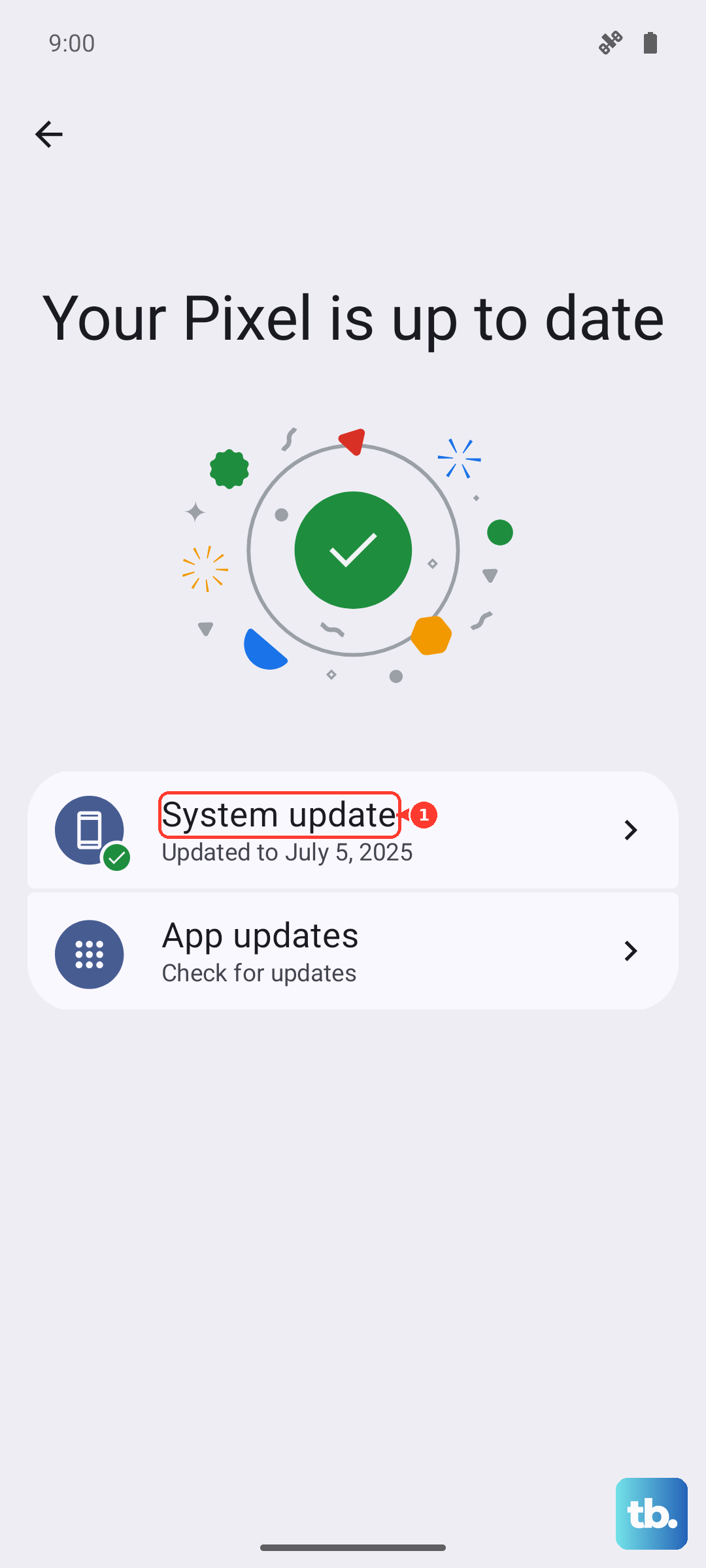
Software bugs that break the flashlight are often resolved in an OxygenOS update, so it is worth making sure your phone is current. Connect to Wi-Fi first, then check for and install any pending update. If your build is already current, the screen will tell you it is the latest version.
Go to Settings > System & update > Software Update, also shown as System Update.
If you do not see that menu, open Settings > About device, then tap the version number at the top to check for an update.
If an update is offered, download and install it, then let the phone restart and test the flashlight.
Back Up, Then Factory Reset as a Last Software Step
If the torch still fails after updating, a factory reset is the final software resort before you consider a hardware fault. This step erases everything on the phone, so back up your photos, accounts, and files first; OnePlus warns owners to act with caution because tapping Erase all data restores factory settings and wipes all of your data.
- 1.Back up everything you want to keep.
- 2.Go to Settings > System & update > Back up and reset > Reset phone (on some builds the path is Settings > Additional settings > Back up and reset > Reset phone).
- 3.On the Reset phone page, follow the onscreen instructions; tapping Erase all data restores the phone to factory settings and erases all your data.
After the reset and setup are complete, test the flashlight before restoring your backup so you can tell whether the reset itself solved the problem.
When to Contact OnePlus After-Sales Support
If a force restart, a software update, and a factory reset all fail to bring the torch back, the flash LED itself may have a hardware fault. OnePlus instructs owners to contact after-sales support when the steps above cannot resolve the problem. Reach the official after-sales channel through OnePlus support to arrange service or repair, and have your model and any warranty details ready before you get in touch.
Frequently Asked Questions
Why does my OnePlus 13 flashlight turn off by itself?
The most common reasons are another app holding the LED and heat. Because the torch shares the rear LED with the camera flash, an open Camera, scanner, or video app can take control of the light, and a phone that has gotten hot from gaming, video, or fast charging may need to rest before it works normally again.
What is the correct force restart for the OnePlus 13?
Press and hold the Power button and the Volume Up button together for more than 10 seconds until the phone restarts. This works on the OnePlus 6T and every later model, including the OnePlus 13. Be sure to use Volume Up, since Power with Volume Down is used to enter recovery mode instead.
Where is the flashlight on the OnePlus 13?
It lives in the Quick Settings panel. Swipe down from the status bar, swipe down again to expand the panel, and tap the Flashlight icon. If the tile is missing, expand Quick Settings, tap Edit, and add the Flashlight tile back into your layout.
Will a factory reset fix the flashlight?
A factory reset can clear a software cause that survives updates, but it erases all of your data, so back everything up first and treat it as a last software step. If the flashlight still fails after a reset, the issue is likely hardware, and you should contact OnePlus after-sales support.