
When your OnePlus 12 volume buttons stop responding, it can leave you scrambling to adjust a call or media playback. You press the rocker, but nothing happens, no on-screen indicator, no change in sound. The good news is that a lot of the time, this is a software hiccup or a simple obstruction that you can fix yourself without a trip to the service center.
Before you assume the worst, work through these practical solutions. I'd start with the first few, as they resolve the majority of cases.
Remove Your Phone Case
This is always the best first step. Take off whatever case you're using on your OnePlus 12. Sometimes, especially with thicker or worn-out cases, the material can press against the volume rocker and prevent it from clicking properly.
Once the case is off, test the buttons directly. If they work fine, you've found the culprit. You might need a different case or to check if your current one is misaligned.
Perform a Force Restart
A force restart is the go-to fix for many random glitches on OxygenOS, including unresponsive buttons. It clears the phone's temporary memory without touching your personal data.
For the OnePlus 12, it's straightforward. Press and hold the Power button for 10 to 15 seconds. Keep holding it until you feel a vibration and see the OnePlus or Android boot logo appear on the screen.
Once the phone rebarts, test the volume buttons immediately. This simple reset fixes a surprising number of temporary software freezes.
Clean the Volume Rocker
Dust, lint, and pocket debris are common enemies of physical buttons. Over time, they can get packed into the small gap around the OnePlus 12's volume rocker, preventing it from making proper contact.
Grab a can of compressed air and give the area around the button a few short bursts. Hold the phone at an angle so the debris blows out, not further in.
For any sticky residue, a cotton swab dipped in a tiny amount of isopropyl alcohol (90% or higher) can help. Be very gentle, wipe around the button's edges, and let it dry completely before testing.
Check for App-Specific Issues
Sometimes the problem isn't with the phone, but with a single app. Open a few different applications to test the buttons. Try adjusting the volume in the YouTube app, then in Spotify, and then from the home screen.
If the volume rocker works perfectly in some apps but is dead in others, you've isolated the issue. Try force-stopping the problematic app or checking for its updates in the Google Play Store.
Test with the On-Screen Slider
While you're figuring this out, remember you can always control volume from the screen. Pull down the notification shade twice to open the Quick Settings panel, and you'll see a volume slider there.
You can also press the physical volume button once to make the on-screen volume panel appear, then adjust it by dragging the slider with your finger. This is a good workaround and can sometimes help "wake up" the button controls.
Toggle the Alert Slider
The OnePlus Alert Slider on the side of the phone is a hallmark feature. Flipping it between Ring, Vibrate, and Silent modes can sometimes reset the volume button logic if there's a minor software conflict.
Slide it through all three positions a couple of times. Then, set it back to your preferred mode and test the volume rocker again. It's a simple trick that has worked for many users.
Update OxygenOS
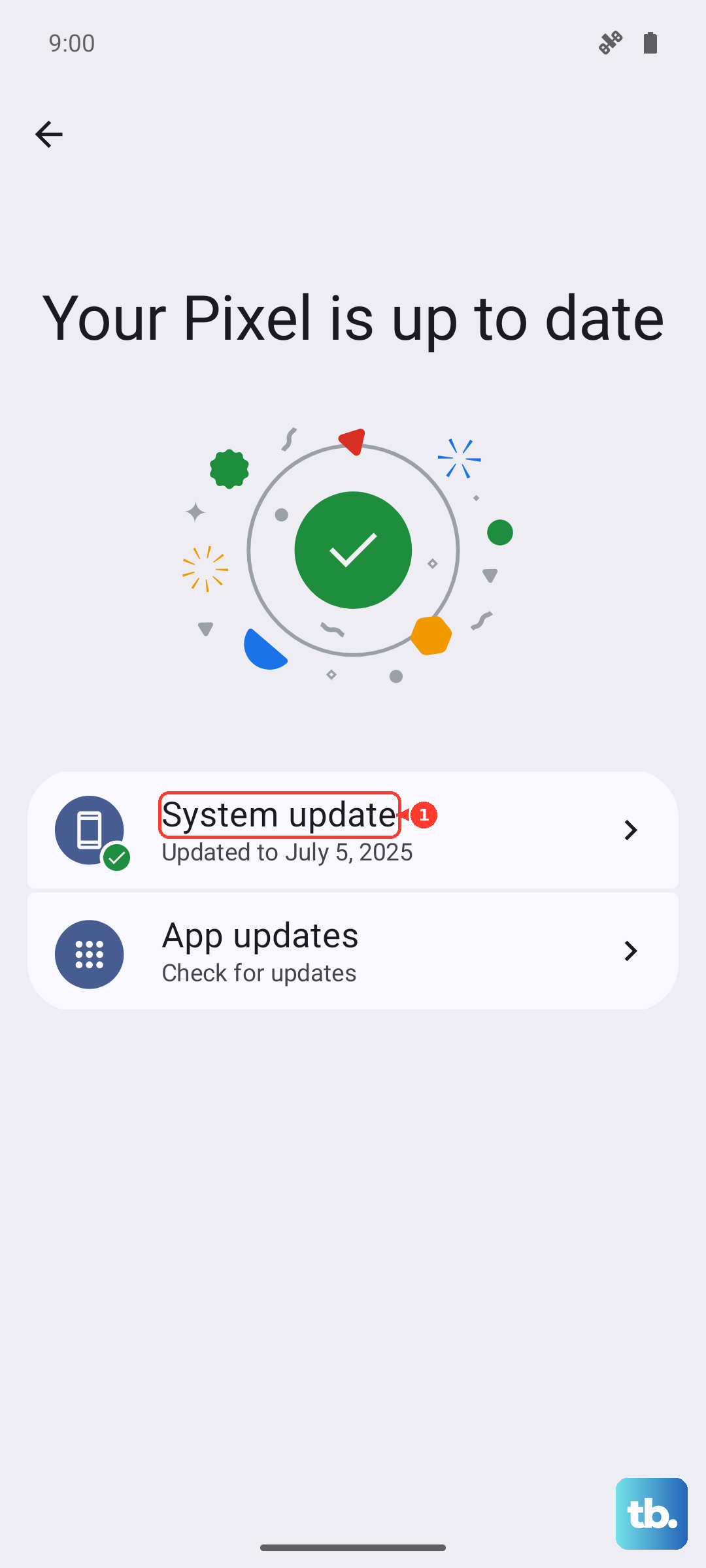
Software bugs can occasionally cause hardware controls to act up. OnePlus regularly releases updates that include stability fixes. Make sure your OnePlus 12 is running the latest version of OxygenOS.
Go to Settings > About device > OxygenOS version and tap on the top banner to check for updates. If an update is available, connect to Wi-Fi and install it. A system update has resolved button responsiveness issues for people in the past.
Boot into Safe Mode
Safe Mode temporarily disables all third-party apps you've installed. If the volume buttons work perfectly in Safe Mode, you know a downloaded app is causing the conflict.
To enter Safe Mode on the OnePlus 12, press and hold the Power button until the power menu appears. Then, press and hold the "Power off" option on the screen. A prompt will ask if you want to reboot to Safe Mode. Tap "OK".
Test the buttons in this mode. If they work, restart normally and try uninstalling recently downloaded apps one by one to find the offender.
Check Accessibility Settings
Certain accessibility features can remap or interfere with button functions. It's worth a quick look to make sure nothing is accidentally enabled.
Head to Settings > Additional settings > Accessibility. Look through features like "Volume key shortcut" or any button remapping options. Make sure they are set to your preference or turned off if you don't use them.
Consider a Factory Reset
If every other step has failed and the buttons are still unresponsive, a deeper software issue might be at play. A factory reset will wipe your phone back to its original out-of-the-box state.
This will erase all your data, so a full backup is absolutely essential first. You can back up to your Google account and locally to a computer.
To reset, go to Settings > Additional settings > Backup & reset > Erase all data (factory reset). Follow the prompts. After the reset, set up the phone as new and test the buttons before restoring your backup, to see if the problem persists on a clean system.