Your OnePlus 12 keeps interrupting you with a "Storage full" warning, the camera refuses to save a new photo, app updates stall, and everything feels a half-step slower than it should. It is a frustrating wall to hit on a phone that shipped with either 256GB or 512GB of fast UFS 4.0 storage, but the cause is almost always the same: months of photos, videos, downloads, and app data have quietly filled the drive.
The most important thing to know up front is that the OnePlus 12 has no microSD card slot and no expandable storage. The official specs list only the fixed 256GB or 512GB internal storage and a dual nano-SIM tray, so you cannot drop in a memory card to buy yourself more room. The good news is that every fix below works with what is already on the phone, freeing space by deleting, offloading, and tidying up rather than adding hardware. Work through them in order, from the safest and easiest to the last-resort reset.
Start by finding out what is actually eating your space
Before you delete anything, see where your storage has gone so you target the biggest offenders instead of guessing. OxygenOS gives you a full breakdown by category.
- 1.Open the Settings app.
- 2.Tap Storage.
You will see how much space is used and which categories (apps, photos, videos, downloads, and system files) are taking the most. Photos and videos are usually the largest single chunk, with app data close behind. Note the two or three biggest categories, because those are where the rest of these steps will pay off fastest. Remember that on the OnePlus 12 everything lives on the one fixed internal drive, so freeing space here is the only place it counts.
Clear out downloads and oversized files you no longer need
Downloaded files are one of the easiest wins because so many of them are one-time items you have long since finished with: PDFs, installers, saved attachments, and old video clips. From Settings > Storage, review the downloaded files and large items and remove the ones you do not need.
For files you want to keep but no longer need on the phone, you can connect the OnePlus 12 to a computer with a USB cable, copy the files across, and then delete them from the phone. That gives you a free way to offload large videos and folders without a cloud subscription, which matters on a device that cannot take an SD card. Once the files are safely copied to your computer, deleting the on-phone versions reclaims that space immediately.
Clear the cache on your most storage-hungry apps
Apps build up temporary cache data over time, and for heavy hitters like social, streaming, and browser apps that cache can swell to gigabytes. Clearing it is safe; per Google's guidance, "Clear cache: Deletes temporary data. Some apps may be slow the next time you open them." It does not delete your personal data or sign you out, so this is a low-risk step to take often.
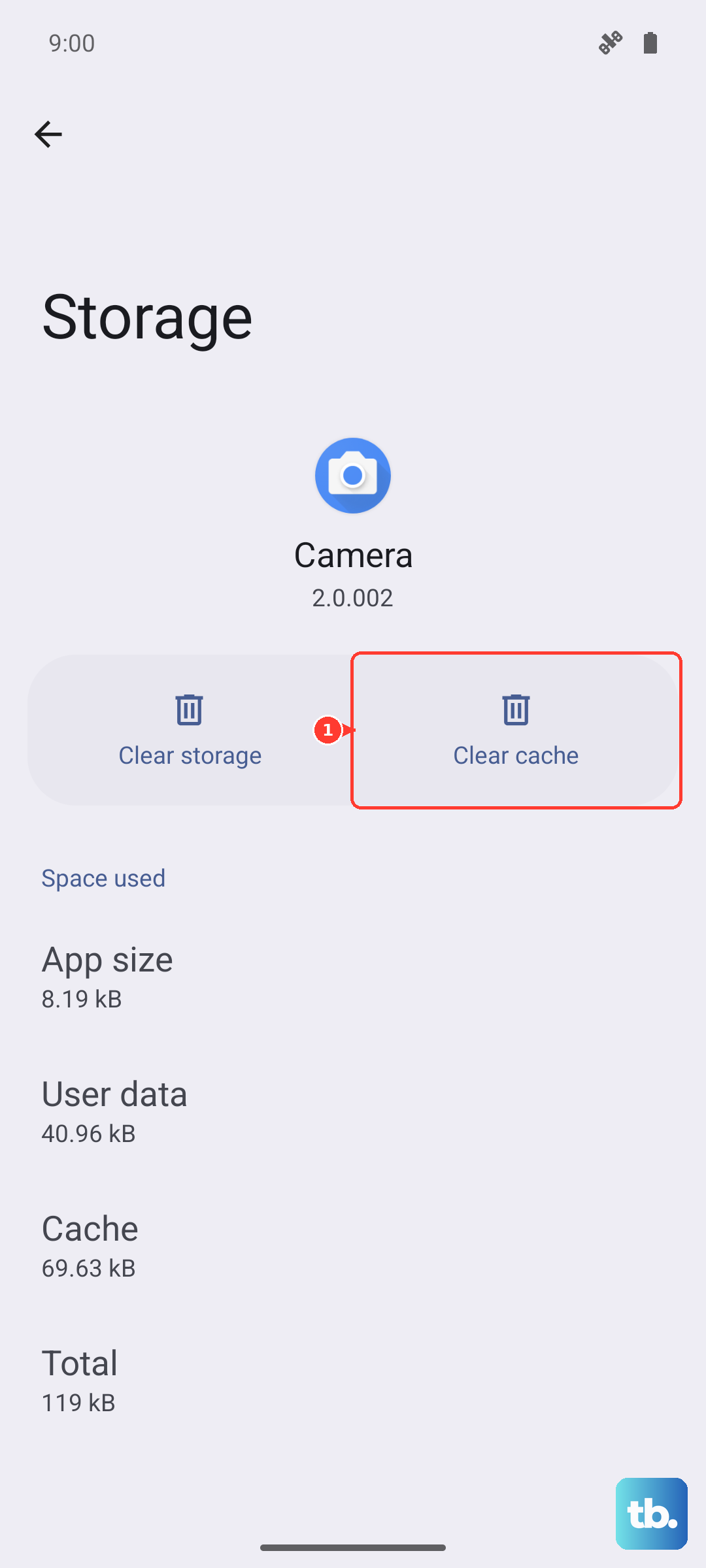
- 1.Open Settings.
- 2.Go to Apps and select the app you want to clean up.
- 3.Tap Storage.
- 4.Tap Clear cache.
Start with whichever apps showed up largest back in Settings > Storage, then repeat for the next few. The app simply rebuilds its cache as you use it again.
Wipe an app's stored data when clearing cache isn't enough
If an app is still hogging space after you clear its cache, you can go a step further and clear its stored data. Be careful, because this is permanent: Google's guidance states "Clear storage: Permanently deletes all app data." It resets the app to a fresh-install state, so you may need to sign back in or set it up again.
Try to delete unwanted content from inside the app first (for example removing downloaded episodes, offline maps, or saved messages), since that often frees plenty of space without nuking everything. Only if that is not enough, open Settings > Apps > [app] > Storage and use Clear storage. Treat this as a targeted tool for one stubborn app rather than something to run across the board.
Move your photos and videos to the cloud, then reclaim the local copies
Since the camera roll is usually the single biggest space user, offloading it to the cloud frees the most room in one move. Google Photos can keep your library backed up online and then remove the copies stored on the phone.
- 1.Open the Google Photos app.
- 2.Tap your profile photo or initial.
- 3.Tap Free up space on this device.
- 4.Confirm Free up [x] from device.
Make sure your photos and videos are fully backed up first, because this deletes the local copies from the phone while keeping them safe in the cloud. After it finishes, your pictures still appear in Google Photos and download on demand when you open them, but they no longer occupy your limited internal storage.
Remove or archive the apps you never open
Most phones accumulate a drawer full of apps that get used once and forgotten. Uninstalling the ones you no longer want frees both their install size and their accumulated data, and if you need an app again later you can simply download it from the Play Store.
If you would rather not lose your place in an app you might return to, Android can automatically archive unused apps to free space while keeping your data and the app icon on your home screen. Archived apps shrink down to a small placeholder and restore fully with a tap when you next open them. Either way, prioritize the largest apps you have not touched in months.
Update OxygenOS to pick up storage and stability fixes
Keeping the phone on the latest software matters because updates can include storage handling and stability improvements. The OnePlus 12 launched on OxygenOS 14 (Android 14) and has since received OxygenOS 15 (Android 15), so it is worth confirming you are current.
On OxygenOS 14.1 and above, go to Settings > System & update > Software update. On older builds, go to Settings > About device and tap the OxygenOS card to check for updates. If an update is available, back up first as a precaution, then install it and restart when prompted.
Force a restart if a full phone freezes on you
A nearly full OnePlus 12 can occasionally lock up or stop responding while it struggles to write data. If the screen becomes unresponsive and normal taps do nothing, you can force the phone to restart.
OnePlus's official method for the OnePlus 6T and subsequent products, which includes the OnePlus 12, is to press and hold the Volume Up button and the Power button together for 10 seconds to force restart the phone. This is the correct sequence; holding the Power button alone is a common myth and will not perform the force restart. A force restart does not erase your data. Once it boots back up, return to the steps above to clear more space.
When nothing else works, back up and reset
If storage problems persist even after clearing caches, offloading photos, and removing apps, a factory reset is the last resort. This erases everything on the phone, so OnePlus warns that you must back up your personal data first because this wipes the device. Save your photos, contacts, messages, and any app data you cannot afford to lose before you begin.
To reset, go to Settings > System (or Additional settings) > Back up and reset > Reset phone > Erase all data. The phone returns to its out-of-the-box state with a clean storage drive. If the issue continues after a reset, or if the storage figures never seem to add up correctly, contact OnePlus official support for further help.
Frequently Asked Questions
Can I add a microSD card to my OnePlus 12 for more storage?
No. The OnePlus 12 has no microSD card slot and no expandable storage; the official specs list only the fixed 256GB or 512GB internal storage with a dual nano-SIM tray. To gain room you have to delete files, clear caches, offload photos and videos to the cloud, or uninstall apps.
Does clearing an app's cache delete my photos or sign me out?
No. Clearing cache only deletes temporary data, so the app may be a little slow the next time you open it while it rebuilds. It does not remove your personal data or log you out, which is why it is one of the safest first steps to free up space.
Will freeing up space in Google Photos delete my pictures forever?
No, as long as they are backed up first. The "Free up space on this device" option removes only the local copies from the phone while keeping the backed-up versions in the cloud, where you can still view and download them. Always confirm your library is backed up before you run it.
What is the correct way to force restart a frozen OnePlus 12?
Press and hold the Volume Up button and the Power button together for 10 seconds. This is OnePlus's official method for the OnePlus 6T and later models, which includes the OnePlus 12. Holding only the Power button does not trigger the force restart.
How much space can I expect to recover from these steps?
It depends on your usage, but the biggest gains almost always come from photos and videos and from large app caches, which is why checking Settings > Storage first matters. Offloading your camera roll to the cloud and clearing the cache on your heaviest apps typically reclaims the most room before you ever consider a factory reset.