You press play on your OnePlus 12, slip on your headphones, and get silence, crackling, or sound that stubbornly stays in the phone's own speaker. It is an aggravating problem on a phone built for good audio, and the first thing worth knowing is what you are actually working with. The OnePlus 12 has no 3.5mm headphone jack, so your headphones are connecting one of two ways: as wired USB-C earphones through the Type-C port, or as wireless Bluetooth 5.4 headphones. Almost every no-sound issue on this model comes down to a volume setting, a connection that has not fully seated or paired, or a software hiccup, and the fixes below walk through them from the quickest and safest to the last-resort options.
Start with a free headphone test that checks left and right channels, stereo order, bass, and treble. Two minutes there tells you whether the hardware needs attention at all.
Start with the volume and Silent mode
Before assuming anything is broken, rule out the most common cause, which is that the media volume is down or the phone is silenced. Because there is no headphone jack, your audio is routing over USB-C or Bluetooth, but the phone's own media output still controls what you hear.
Open Settings > Sounds & vibration to raise the media volume and confirm the phone is not in Silent mode. The official manual puts it plainly: "Go to 'Settings > Sounds & vibration' to adjust the volume of media, ringtones, notifications, and alarms." While a track is actually playing, also tap the physical volume keys upward so the on-screen Media slider is not sitting at zero, since the slider that appears depends on what is currently making sound.
Reconnect your USB-C earphones and check the port
If you are using wired earphones, the connection itself is the usual culprit on a jack-less phone. The OnePlus 12 has a USB 3.2 Gen 1 Type-C port, and its specifications confirm it "Support[s] standard Type-C earphones," so a USB-C earphone should play sound once it is seated properly.
- 1.Unplug your USB-C earphones completely.
- 2.Inspect the Type-C port and gently clear out any lint, pocket dust, or debris that could block a clean contact.
- 3.Plug the connector back in firmly so it seats all the way, then play audio to test.
A loose or partially blocked connection is one of the most frequent reasons a wired pair produces no sound or cuts in and out, so do not rush this step.
Reset the Bluetooth connection
For wireless headphones, a quick Bluetooth reset clears a surprising number of dropouts and silent connections. The official Android guidance is to turn Bluetooth off and then on again, confirm your devices are paired and connected, and restart the devices if needed.
On the OnePlus 12, open Settings > Bluetooth, switch Bluetooth off, wait a moment, then switch it back on. When it comes back, check that your headphones appear in the list and show as Connected before you test audio again; a pair that is saved but not connected will not play anything.
Send media audio to the right place
Sometimes the headphones connect successfully but the music still will not come through, which usually means audio is not being routed to them. The OnePlus 12 lets you control exactly what each Bluetooth device handles.
In Settings > Bluetooth, "tap [i] beside a paired device," where you can "set the purpose of the Bluetooth device, such as sharing contacts, media audio, or call audio," according to the manual. Make sure Media audio is turned on for your headphones; the Android-level guidance similarly advises verifying that Media audio is enabled next to the device name. If only call audio is enabled, you will hear phone calls in the headphones but no music.
Reboot the phone to clear an audio glitch
A plain restart often resolves temporary audio-routing problems that no setting seems to explain. On the OnePlus 12 the power button can be set to open the Power Menu first.
- 1.Go to Settings > Additional settings > Power Button > Press and hold the power button and set it to bring up the Power Menu.
- 2.Then "press and hold the power button until the Power Menu pops up, and tap 'Power off' or 'Restart'," as the manual describes.
- 3.After the phone boots, reconnect your headphones and test the sound again.
Switch off the audio extras that fight with headphones
The OnePlus 12 ships with audio-processing features that are great for the speaker but can interfere once headphones are in the picture. Two are worth checking directly.
First, Dolby Atmos: the manual notes it "is enabled by default in Speaker mode. You can choose to disable it while using headphones." Try disabling it under Settings > Sounds & vibration > Dolby Atmos and test again. Second, look at Settings > Sounds & vibration > Additional settings > In-ear monitoring and turn it off if it is on; the manual specifically warns to "turn off in-ear monitoring provided by other apps or external devices to ensure there are no conflicts."
Forget the headphones and pair them fresh
A pairing that has quietly become corrupted is a frequent cause of no sound, and the clean fix is to remove the headphones from the phone's memory and add them back. The Android guidance is to clear the saved device first, then pair it again from scratch.
- 1.Go to Settings > Connected devices > Saved devices and select Forget device for your headphones. On the OnePlus 12 you can also open Settings > Bluetooth, tap [i] beside the headphones, and choose Unpair.
- 2.Put the headphones back into pairing mode.
- 3.Open Settings > Connected devices > Pair new device and select your headphones from the list to re-pair them, then follow the prompts.
Pairing them fresh rebuilds the connection profile and clears out whatever was preventing audio from passing through.
Force a restart when the phone is frozen
If the phone has become unresponsive or the audio is completely dead and a normal restart is not possible, a forced restart is the documented recovery for this model. The manual's exact sequence is to press and hold "the Power and Volume Up buttons for more than 10 seconds."
Hold both the Power and Volume Up buttons together for more than 10 seconds until the phone restarts. Use this only when the device is genuinely stuck; a power-button-only long press is not the documented force-restart for the OnePlus 12, so stick to the Power plus Volume Up combination.
Install the latest OxygenOS update
System updates often carry fixes for audio and connectivity bugs, so an outstanding update may already resolve your headphone trouble. It is worth checking whether one is waiting before you move on to anything more drastic.
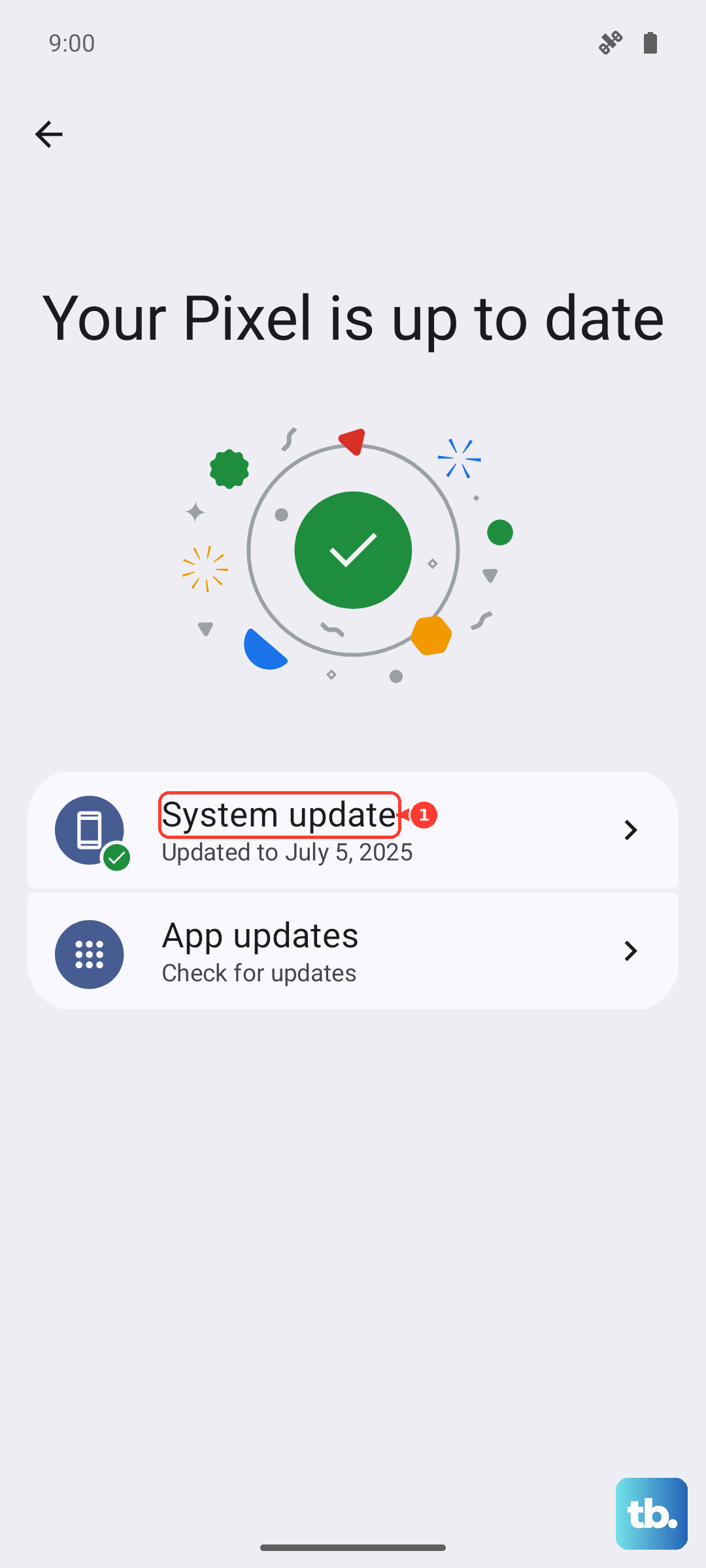
Go to Settings > About device and "Tap the version number at the top to check for updates and download it if any update is available." Install whatever is available, then reconnect your headphones and test once more.
When to reset and when to call OnePlus
If you have worked through everything above and your headphones still produce no sound, a factory reset is the last software step, but treat it carefully because it wipes the phone. Back up your data first.
Go to Settings > Additional settings > Back up and reset > Reset phone. The manual's warning is blunt: "If you tap 'Erase all data', your phone will be restored to factory settings and all your data will be erased. Please act with caution." If the problem survives a reset, it points toward a hardware fault, most likely with the USB-C port. In that case, back up your phone data and arrange a repair through OnePlus Support or an official service center.
Frequently Asked Questions
Does the OnePlus 12 have a 3.5mm headphone jack?
No. The OnePlus 12 official specifications confirm there is no 3.5mm headphone jack. Headphones connect either as wired USB-C earphones through the USB 3.2 Gen 1 Type-C port, which the spec page says "Support[s] standard Type-C earphones," or as wireless Bluetooth 5.4 headphones.
Which Bluetooth audio codecs does the OnePlus 12 support?
The OnePlus 12 supports Bluetooth 5.4 with the aptX HD, aptX, LDAC, LHDC, AAC, and SBC codecs, according to its official specifications. The spec page also lists Dolby Atmos and noise cancellation support.
My headphones connect but I only hear calls, not music. Why?
That usually means Media audio is not enabled for the headphones. In Settings > Bluetooth, tap [i] beside the paired device and set its purpose so that media audio is turned on; the manual lets you choose whether a Bluetooth device handles contacts, media audio, or call audio.
What is the correct way to force restart a frozen OnePlus 12?
Press and hold the Power and Volume Up buttons together for more than 10 seconds, as stated in the official manual. This is the documented force-restart for the OnePlus 12; a power-button-only long press is not the supported sequence for this model.
Will a factory reset fix my headphone problem?
It can, if the cause is software, but it erases all data, so back up first and treat it as a last resort. Go to Settings > Additional settings > Back up and reset > Reset phone. If the issue continues after a reset, it is likely a hardware fault with the USB-C port, and contacting OnePlus Support or an official service center is the next step.