Your OnePlus 12 was working fine a minute ago, and now the screen is stuck. Taps do nothing, the display will not wake or will not turn off, and the usual swipe gestures are completely ignored. A frozen OnePlus 12 is almost always a temporary software hang rather than a broken phone, and most cases clear up in seconds once you use the correct recovery sequence for this model.
The fixes below are ordered from the safest and easiest to the heaviest. Start at the top and only move down if the phone is still locked up, because the later steps can erase data. Work through them in order and you will usually be back to a responsive phone well before you reach the support stage.
Force restart the OnePlus 12 the way OnePlus intends
This is the primary fix for a frozen or unresponsive OnePlus 12, and it is the first thing to try. A common piece of advice is to hold the Power button on its own, but that is not the correct sequence for this model. OnePlus's official force restart for the OnePlus 12 uses two buttons together.
- 1.Press and hold the Volume Up button and the Power button together for 10 seconds.
- 2.The phone shuts down. OnePlus states this works for OnePlus 6T and subsequent products, which includes the OnePlus 12.
- 3.Once it has powered off, press the Power button to turn the device back on.
A forced restart like this does not wipe your apps, photos, or settings; it simply cuts power to a stalled system and lets OxygenOS load cleanly. If the screen comes back to life and behaves normally, you are done. Do not use the Power-button-only method, because it will not reliably restart this model.
When the display stays completely black
Sometimes the phone is not frozen at all; it has simply run out of charge and looks dead. If the OnePlus 12 will not turn on or shows a low-battery indicator, give it power before you assume the worst.
OnePlus's specific guidance is clear here. If the phone has a completely black screen and will not even vibrate when you press the Power button, charge it for at least 15 minutes, then try turning it on again. Use a working cable and adapter, leave it plugged in for the full quarter of an hour, and only then attempt the force restart above. A drained battery can mimic a freeze, and a short top-up often brings the phone straight back.
Clear out one app that keeps locking up the phone
If the freeze happens inside one particular app, or right after you open it, that app is the likely culprit rather than the phone as a whole. Clearing its stored data resets it to a clean state without touching the rest of your system.
- 1.Long press the app icon, then choose App info.
- 2.Open Storage.
- 3.Tap CLEAR DATA or CLEAR CACHE.
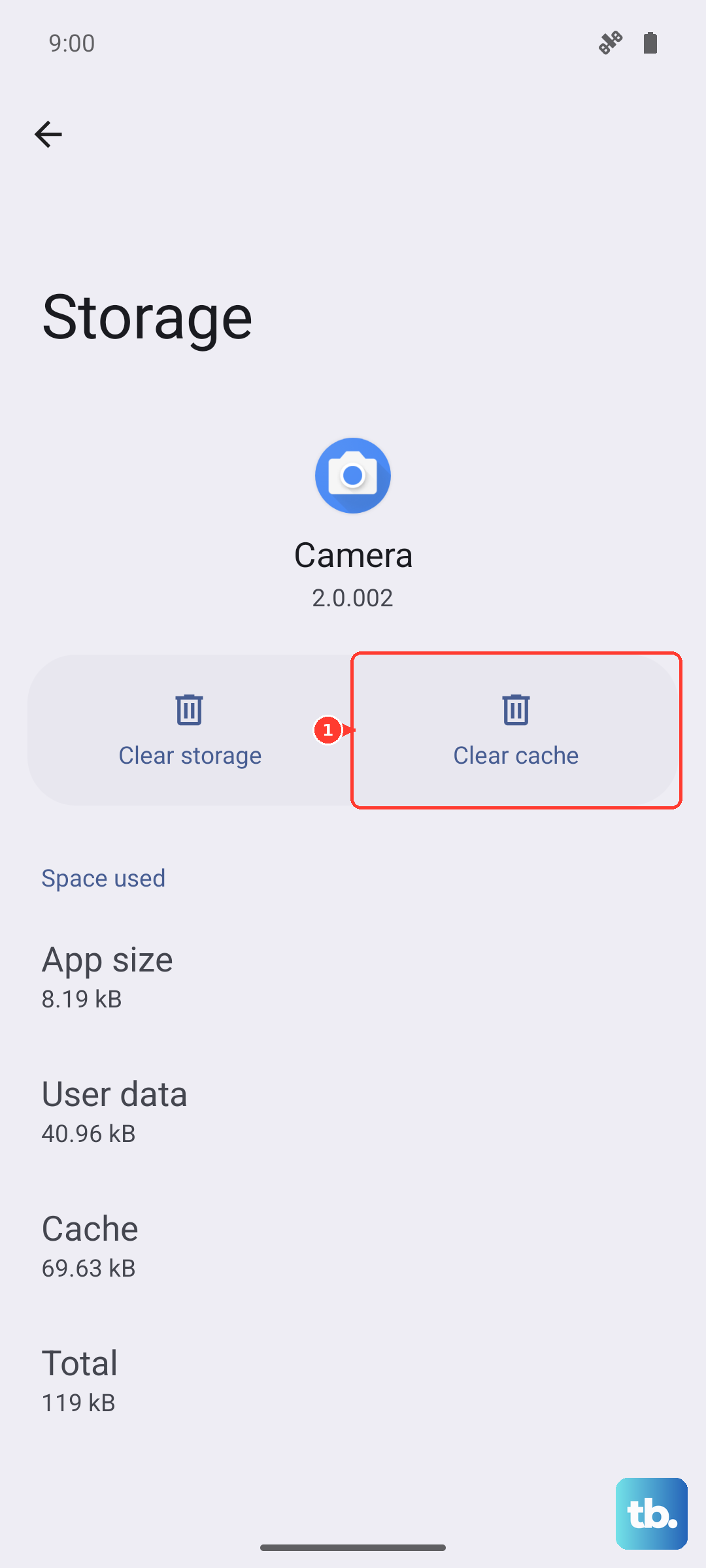
Clearing data signs you out of that app and removes its saved settings, so be ready to log back in. If the app still misbehaves afterward, reinstall it from the Google Play Store, then update your phone software and reboot. A fresh copy of a problem app paired with current software resolves a surprising number of repeat freezes.
Bring OxygenOS up to date
Software updates fix known stability issues, and an out-of-date build is a frequent cause of recurring hangs. On OxygenOS 14.1 and above, check for one through the system settings.
Go to Settings > System & update > Software update, connect to stable Wi-Fi, and let the phone check for an available update. Before you start the download and install, plug the phone in or make sure the battery is above 60 percent, stay on a stable Wi-Fi connection, and do not operate or power off the phone during the update. Interrupting an update partway through can cause far worse problems than the freeze you started with, so let it run undisturbed until it reboots on its own.
If the phone is stuck on the OnePlus logo
A different kind of freeze happens at startup, where the device hangs on the OnePlus logo or boot animation and never reaches the home screen. For that, OnePlus provides a recovery-mode option that clears system data and cache. Treat this as a heavier step than the ones above, because it does delete data.
- 1.Make sure the device is powered off.
- 2.Press the Power button and the Volume Down button at the same time for a few seconds to enter recovery mode.
- 3.Select Wipe data and cache - Reset system setting.
OnePlus notes that this deletes system data and cache, so do not use it casually. It is the right tool specifically when the phone cannot finish booting, and it often gets a logo-stuck device back to a working state without a full erase.
The full erase, only when nothing else works
If the OnePlus 12 keeps freezing and none of the steps above hold, a factory reset is the last self-service option. This wipes the phone, so back up everything you care about first. OnePlus's own warning is blunt. Your phone will be restored to factory settings and all your data will be erased, so please act with caution.
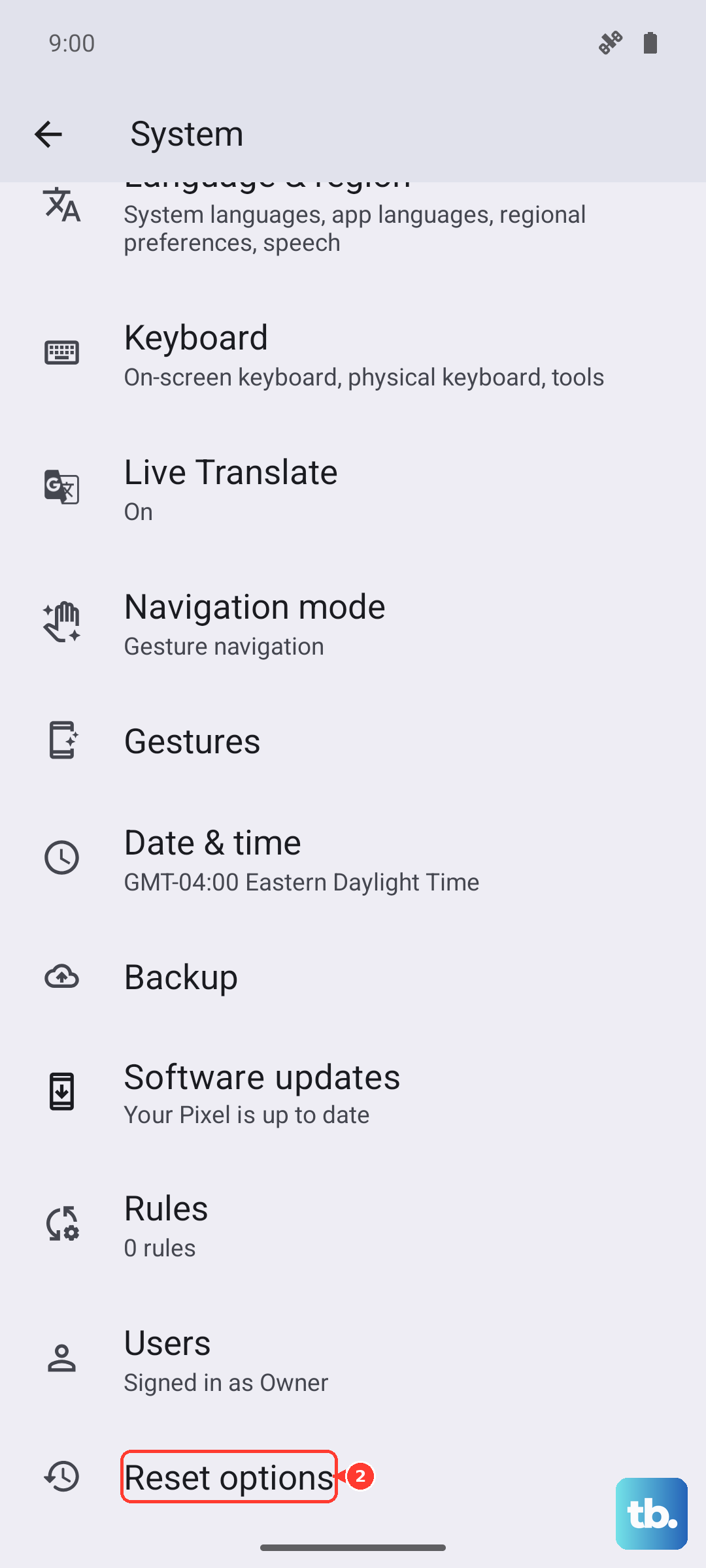
On OxygenOS 14, go to Settings > Additional settings > Back up and reset > Reset phone > Erase all data. OnePlus support also lists an alternate path at Settings > System > Reset options > Erase all data (Factory reset). Either route returns the phone to the state it was in out of the box, which clears software conflicts that survive a normal restart. Only take this step once you are confident your photos, messages, and accounts are safely backed up elsewhere.
When to let OnePlus take over
Some freezes point to a hardware issue that no amount of resetting will fix. There is a clear tell for this. If the phone has no response or no display but it does vibrate when you force restart it, or if nothing above resolves the freeze, it is time to get it looked at.
OnePlus's guidance is to contact OnePlus for after-sales support through its official support channels or an authorized OnePlus service center. Describe exactly what happens when you press the buttons, including whether the phone vibrates, since that detail helps the technician separate a software fault from a hardware one.
Frequently Asked Questions
What is the correct force restart for the OnePlus 12?
Press and hold the Volume Up button and the Power button together for 10 seconds until the phone shuts down, then press the Power button to turn it back on. OnePlus lists this sequence for OnePlus 6T and subsequent products, which includes the OnePlus 12. Holding only the Power button is not the right method for this model.
Will a force restart erase my data?
No. Holding Volume Up and Power for 10 seconds simply cuts power to a stalled system and reboots it, leaving your apps, photos, and settings in place. The steps that do delete data are recovery mode's Wipe data and cache and the factory reset, both of which are clearly flagged.
My screen is completely black and the phone will not vibrate. What should I do?
That can mean the battery is empty rather than the phone being frozen. OnePlus advises charging it for at least 15 minutes, then trying to turn it on again. Use a working cable and adapter and leave it plugged in for the full time before attempting the force restart.
What does recovery mode's Wipe data and cache remove?
Selecting Wipe data and cache - Reset system setting in recovery mode deletes system data and cache, as OnePlus notes. It is meant for a phone stuck on the OnePlus logo or boot animation, so reach for it only when the device cannot finish starting up.
When should I contact OnePlus support?
If the phone has no response or no display but vibrates when you force restart it, or if none of the steps above fix the freeze, OnePlus says to contact after-sales support or reach an authorized OnePlus service center.