You raise your OnePlus 12, frame the shot, and tap the shutter, only to get a photo that looks soft, hazy, or stubbornly out of focus. Sometimes the preview never sharpens, sometimes the picture looks fine on screen but turns mushy once you open it, and sometimes only the selfie camera is the problem. The good news is that blurry photos on the OnePlus 12 are far more often a smudge, a software hiccup, or a stale cache than a broken sensor. Work through the fixes below in order, starting with the quickest and safest, and most people get sharp shots back well before the last step.
First, Figure Out Which Lens Is Letting You Down
The OnePlus 12 carries a Hasselblad triple rear camera, and all three rear lenses autofocus. There is a 50MP main wide camera (Sony LYT-808) with optical image stabilization, a 64MP 3X periscope telephoto that is also stabilized, and a 48MP ultra-wide that can shoot macro from as close as 3.5 cm. Because these rear lenses actively focus, soft rear photos usually respond to cleaning, a restart, or a software fix.
The 32MP front (selfie) camera is different. OnePlus lists it as fixed focus, which means it has no autofocus at all. If only your selfies are blurry, no focus trick will help, because there is nothing to refocus. A fixed-focus lens that looks soft is almost always dirty or partly covered. Knowing which camera is failing tells you whether to chase a focus fix on the rear or simply clean the glass on the front.
Wipe the Lens Before You Try Anything Else
The single most common cause of soft or blurry OnePlus 12 photos is a dirty lens, and it is also the easiest to rule out. OnePlus's official camera troubleshooting guidance is to check the phone lens carefully for any dust, using a light to spot it, then clean the lens glass with a soft cloth.
Hold the phone under a lamp and look at an angle so fingerprints, dust, and smudges catch the light. Wipe the rear lens cluster gently with a soft, lint-free cloth, and make sure no case lip, screen film, or lens protector is sitting partly over the glass and blocking the view. Once the lens is clean and unobstructed, take a test shot before moving on.
Give the Camera App a Clean Restart
If your shots are still soft after cleaning, the Camera app itself may be stuck. OnePlus advises force-stopping the Camera app, clearing its cache, and restarting the phone, which clears out temporary data without touching your saved photos.
- 1.Long press the Camera app icon and open App info.
- 2.Tap Storage, then tap CLEAR CACHE.
- 3.Force stop the Camera app from the same App info screen.
- 4.Restart the phone, reopen the camera, and try again.
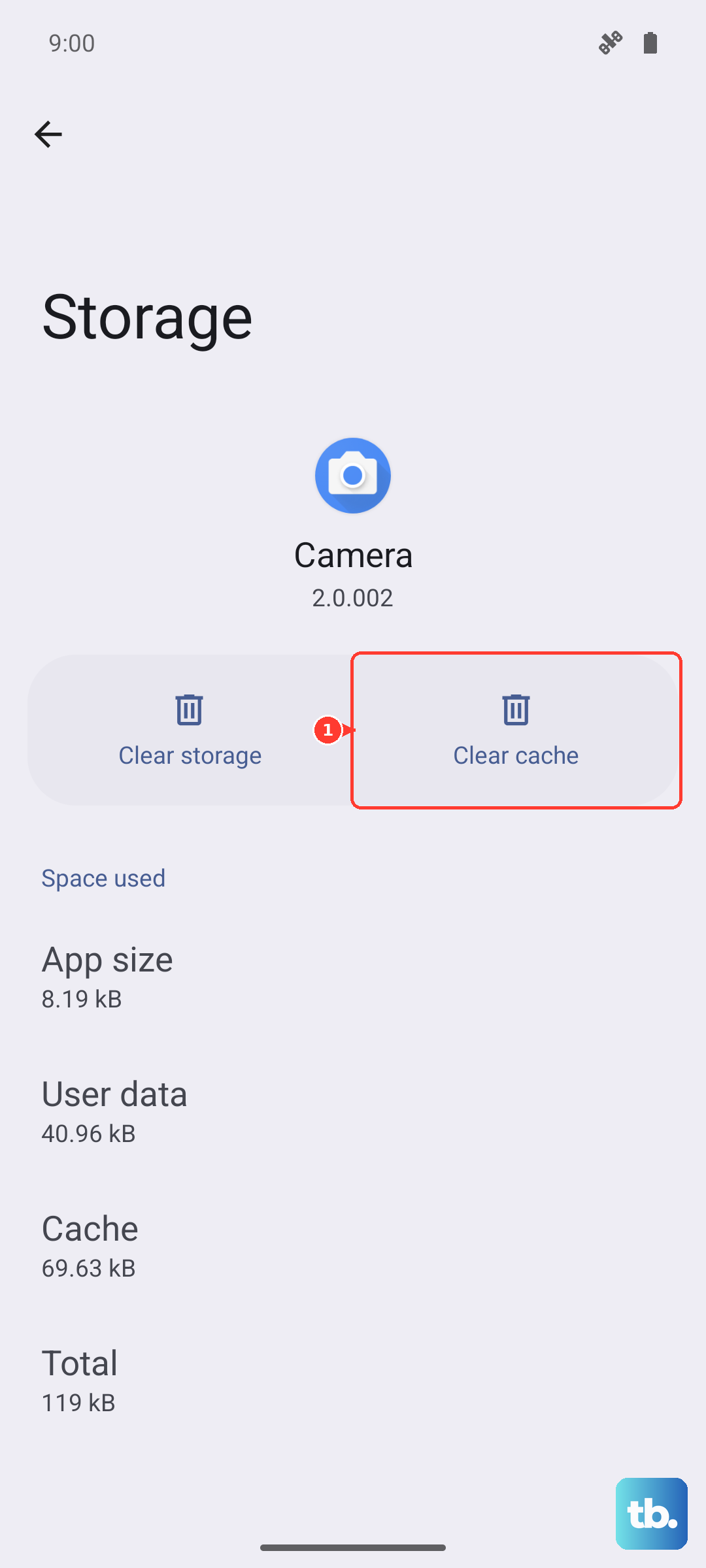
Clearing the cache only removes throwaway temporary files, so none of your pictures are deleted in this step.
Clear Out Background Apps Hogging Memory
When too many apps run at once, the camera can lag, stutter, or fail to lock focus because the system is starved of resources. OnePlus's official guidance is to close those background apps and then reopen the camera with more headroom.
Tap the Recent button to bring up your open apps, then swipe each one off the screen to close it. With the background cleared, launch the Camera app fresh and check whether focus locks faster and the preview holds sharp.
Force the Phone to Restart
A camera that is frozen, shows a black preview, or refuses to focus at all will often come back to life with a force restart. For the OnePlus 6T and subsequent products, which includes the OnePlus 12, press and hold the Volume Up button and the Power button together for 10 seconds until the phone restarts.
Note that holding the Power button alone is the older method meant for the OnePlus 6 and earlier, not the OnePlus 12, so use the Volume Up plus Power combination on this phone. Once it boots back up, open the camera and test it again.
Update OxygenOS to Catch Camera Fixes
Camera focus and image-processing bugs are frequently corrected in OxygenOS updates, so an out-of-date phone can stay blurry until you patch it. The OnePlus 12 shipped on OxygenOS 14 (Android 14) and can move up to OxygenOS 15 and OxygenOS 16, where many such fixes land.
On OxygenOS 14.1 and above, go to Settings > System & update > Software update and install anything that is waiting. Before you start, keep the battery above 60% or plug the phone in, stay on a stable Wi-Fi or mobile connection, and do not power the phone off during the update.
Clear the System Cache From Recovery Mode
If the camera still misbehaves after updating, a corrupted system cache can be the holdout, and OnePlus's troubleshooting includes clearing it from Recovery mode. This step removes temporary system files only and leaves your personal data in place, though it is more advanced than the earlier fixes.
- 1.Power off the phone completely.
- 2.Press and hold the Power key and the Volume Down button until the screen reacts.
- 3.Choose the wipe cache option, then let the phone restart normally.
Reopen the camera afterward to see whether the fresh cache has cleared the blur.
Back Up and Reset as a Last Software Resort
When every other software step has failed, OnePlus lists a factory reset as the final option. This erases everything on the phone, including your photos, apps, and accounts, so back up your data first, for example with OnePlus Switch or to the cloud, before you go any further.
Once your backup is safe, go to Settings > System > Reset options > Erase all data (Factory reset) and follow the prompts. Set the phone up again and test the camera before restoring all your apps, so you can tell whether the reset itself solved the problem.
Knowing When It Is a Hardware Fault
If the camera is still blurry after you have cleaned the lens, updated the software, and reset the phone, or if the lens or sensor looks physically damaged, the issue is most likely hardware. OnePlus advises contacting OnePlus after-sales and support for service in that case.
Mention the exact troubleshooting you already tried and whether the problem affects the rear cameras, the front camera, or both. That detail helps the service team pin down a stabilization, sensor, or lens fault more quickly.
Frequently Asked Questions
Why is only my OnePlus 12 selfie camera blurry?
The 32MP front camera is listed as fixed focus, so it has no autofocus to adjust. When selfies look soft, the cause is almost always a dirty or obstructed lens, so clean the front glass with a soft cloth and remove any film or case edge covering it.
Does clearing the Camera app cache delete my photos?
No. Clearing the cache only removes temporary throwaway files. Your saved photos and videos stay in your gallery, so this is a safe step to try early.
What is the correct force restart for the OnePlus 12?
Press and hold the Volume Up button and the Power button together for 10 seconds. This is the method for the OnePlus 6T and later, including the OnePlus 12, while holding Power alone is only for the OnePlus 6 and earlier.
How do I check for a camera-fixing software update?
On OxygenOS 14.1 and above, go to Settings > System & update > Software update and install any available version. Keep the battery above 60% or plugged in and stay on a stable connection while it installs.
Will a factory reset fix a blurry camera?
It can, if the blur is caused by software. Because a reset erases everything, back up first with OnePlus Switch or the cloud. If photos are still blurry after a clean reset, the problem is most likely hardware and should go to OnePlus support.