You reach for your OnePlus 12, tap the screen, and nothing happens. The panel stays completely dark even though the phone felt fine an hour ago, and you cannot tell whether it is switched off, frozen, or genuinely broken. A black screen on a OnePlus 12 is one of the most alarming faults precisely because it gives you so little to work with, but in most cases it is a drained battery, a stalled boot, or a software hiccup rather than dead hardware. Work through the fixes below in order, starting with the safest, and you will usually have the AMOLED display lit again without losing a thing.
Start by ruling out a flat 5,400 mAh battery
A fully drained battery looks exactly like a dead black screen, and the OnePlus 12 carries a large 5,400 mAh dual-cell pack that can sit at zero for a surprisingly long time before it shows any sign of life. According to the official OnePlus guidance, "If your phone cannot be turned on or indicates low battery capacity when turning on, charge your phone for a while to ensure it has enough battery to turn on." Before you assume the worst, give it real power and real time.
Plug your OnePlus 80W SUPERVOOC charger into a known-good wall outlet, not a laptop port or a random hub.
Connect the phone using the OnePlus charging cable (the OnePlus 12 supports 80W SUPERVOOC wired charging and 50W AIRVOOC wireless charging).
Leave it untouched for 15 to 30 minutes, then try to wake or power on the phone again.
If a charging indicator or the OnePlus logo appears at any point during that window, the problem was simply an empty battery and you can carry on as normal. If there is still nothing after half an hour, move to the next step.
Force a restart with Volume Up and Power
When the screen is black or frozen and will not respond to taps, a forced restart cuts the power and reloads the system without erasing any of your data. This is the single most effective fix for a OnePlus 12 that has locked up, and it is safe to repeat. The important detail is the exact button combination, because using the wrong one does nothing.
OnePlus's official instruction for this model is to "press and hold Volume Up button & Power button for 10 seconds (for OnePlus 6T and subsequent products)," a group that includes the OnePlus 12.
Press and hold the Volume Up button and the Power button together.
Keep both held for a full 10 seconds, even if nothing seems to happen at first.
Release them and watch for the screen to light up or the phone to vibrate and begin booting.
Note that this is the official combination, Volume Up plus Power, and not the Power button on its own. If the display comes back, let the phone finish starting up before you do anything else.
Check the SUPERVOOC charger and cable
If the phone still will not power on, the next suspect is the gear you used to charge it. The OnePlus 12 fast-charges over the SUPERVOOC standard, which works best with a genuine OnePlus SUPERVOOC charger and a compatible cable. A frayed cable, a loose port, or a dead outlet can leave the battery empty even though you thought it was charging overnight.
Try the original OnePlus charger and cable together, since mismatched third-party kit may not deliver power reliably to this phone.
Move to a different wall outlet to rule out a dead socket, and inspect the cable and the phone's USB-C port for lint or damage.
Give it another 15 to 30 minutes on this known-good setup, then attempt the Volume Up plus Power restart again once you are confident charge is actually flowing.
Keep OxygenOS current to stop random blackouts
Sometimes the OnePlus 12 boots normally but the screen drops to black at random while you are using it. That intermittent behavior is often a software bug, and OnePlus ships fixes through OxygenOS updates. The OnePlus 12 launched on OxygenOS 14 based on Android 14, has since moved to OxygenOS 15 based on Android 15, and is now receiving OxygenOS 16, so an outdated build can easily be behind the problem.
Once you can get the phone running, connect to stable Wi-Fi and install anything pending.
- 1.Open Settings > About device and tap the OxygenOS card to check for updates. On some versions the path is Settings > System & update > Software update.
- 2.If an update is listed, let the firmware download fully over Wi-Fi.
- 3.Tap [Software Update] or [System Update] and allow the device to reboot to install it.
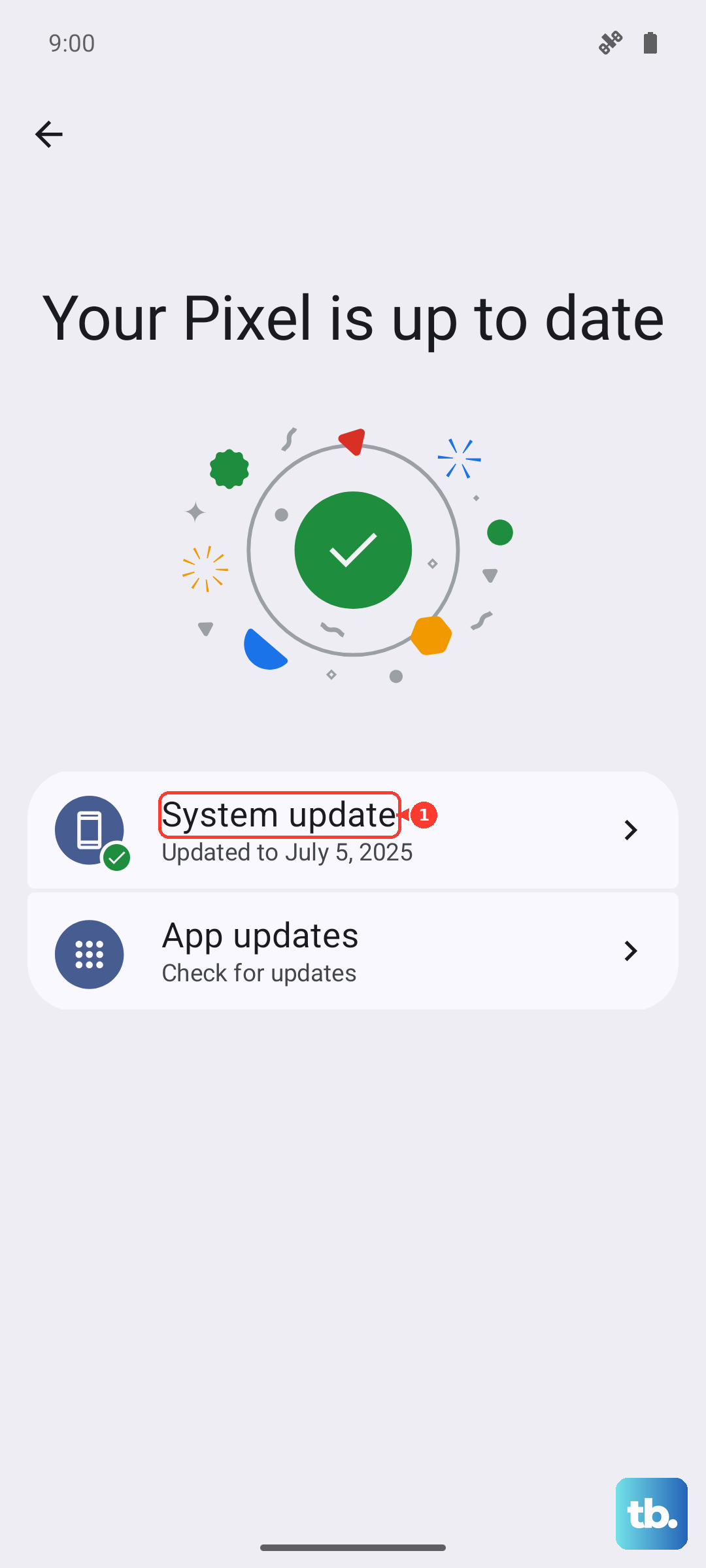
Keep the phone connected to power while it updates so it does not run flat mid-install. After the reboot, use the phone for a while and see whether the blackouts return.
Clear data and cache from Recovery mode when it sticks on the logo
A different version of this fault is a OnePlus 12 that powers on but then hangs on the OnePlus logo or the boot animation and never reaches the home screen. For that, OnePlus directs you into the built-in Recovery mode, where you can wipe the system data and cache that may be jamming the boot. This is a stronger step than a restart, so read the note carefully before you commit.
The official procedure is to turn off the device, then "press Power button and Volume Down button at the same time for a few seconds to enter the recovery mode, select Wipe data and cache - Reset system setting."
Turn the phone off if it is not already off.
Press and hold the Power button and the Volume Down button together for a few seconds to enter Recovery mode.
Select the option labelled Wipe data and cache - Reset system setting.
OnePlus notes that system data and cache will be deleted by this action, so treat it as a meaningful reset of the system state rather than a harmless cache clear. Once it finishes, let the phone reboot and check whether it now reaches the home screen.
Erase the phone as your last software step
If the black-screen behavior survives every step above, a full factory reset is the final software remedy before you treat the issue as hardware. A reset returns OxygenOS to a clean state, which clears out a corrupted setting or rogue app that no smaller fix could shift. Because it wipes everything, it sits near the bottom of this list on purpose.
Data-loss warning: a factory reset erases all of your photos, messages, apps, and accounts from the phone, so back up anything you care about before you start. Once you have a backup you are happy with, follow the official path.
Open Settings > System settings (this top-level entry is called Additional settings on some OxygenOS versions).
Tap Back up and reset.
Tap Reset phone, then choose Erase all data and confirm.
Let the phone complete the wipe and reboot, then set it up fresh and watch to see if the display behaves. If a clean, fully updated phone still goes black, the cause is almost certainly physical rather than software.
When it vibrates but the screen stays dark, call in OnePlus service
There is one symptom that tells you to stop trying software fixes altogether. If you run the forced restart and the phone clearly responds, by vibrating, yet the display shows nothing at all, that points to a hardware fault in the screen or board that you cannot repair from the settings menu.
OnePlus is direct about this: "If your phone has no response or no display but vibrates when you force restart your phone, please contact OnePlus for after-sales support." In that situation, arrange service through oneplus.com/support rather than repeating resets that cannot fix a physical fault. Have your purchase details ready so the support team can check warranty coverage and walk you through repair or replacement.
Frequently Asked Questions
What is the correct force-restart combination for the OnePlus 12?
Press and hold the Volume Up button and the Power button together for 10 seconds, which is the official method for the OnePlus 6T and subsequent products, including the OnePlus 12. Holding the Power button on its own is not the correct sequence for this model, so use both buttons together.
My OnePlus 12 will not turn on at all. What should I try first?
Charge it before anything else, because a completely flat 5,400 mAh battery looks identical to a dead screen. Use the OnePlus SUPERVOOC charger and cable in a known-good outlet and leave it for 15 to 30 minutes, then attempt the Volume Up plus Power restart once it has had time to take a charge.
Will entering Recovery mode or factory resetting delete my data?
Yes, both remove data. The Recovery option Wipe data and cache - Reset system setting deletes system data and cache, and a factory reset via Settings > System settings > Back up and reset > Reset phone > Erase all data wipes everything on the phone. Back up your personal data before you run either one.
The phone vibrates when I restart it but the screen stays black. Is it broken?
A vibrate-with-no-display response usually means a hardware fault in the display or board rather than a software problem. OnePlus advises contacting after-sales support in this exact case, so reach out through oneplus.com/support instead of repeating resets that cannot fix physical damage.
Can a software update really stop the screen going black?
It can, if the blackouts are intermittent while the phone is otherwise working. The OnePlus 12 has moved through OxygenOS 14, OxygenOS 15, and now OxygenOS 16, and these updates carry stability fixes, so install any pending update from Settings > About device by tapping the OxygenOS card (or Settings > System & update > Software update on some versions).