
When your OnePlus 12 gets stuck and won't download apps from the Play Store, it can bring your day to a halt. You see the download icon spinning forever, or you get an error message that doesn't make sense. This is a common Android headache, but on your OnePlus 12 running OxygenOS 14, there are several specific things you can try to get things moving again.
Let's start with the quickest fix, which often solves the problem in under a minute.
Restart Your OnePlus 12
It sounds too simple, but a restart clears temporary system glitches that can freeze the Play Store. Just press and hold the power button until the power menu appears, then tap "Restart." If your screen is completely unresponsive, you can force a restart by holding the power button down for 10 to 15 seconds until the phone vibrates and reboots.
Once it's back on, open the Play Store and try your download again. If it's still stuck, we'll move on to more targeted solutions.
Check Your Internet Connection
A weak or unstable connection is the most common culprit. Swipe down from the top of your screen to open the Quick Settings panel and make sure your Wi-Fi or mobile data is active and has strong signal.
Try toggling Airplane mode on for 10 seconds, then off again. This resets all your radio connections. If you're on Wi-Fi, try switching to mobile data temporarily to see if the problem is with your network.
Verify the Date and Time
Google's servers are very picky about time synchronization. If your phone's clock is off, downloads can fail. Go to Settings > Additional settings > Date & time.
Make sure "Use network-provided time" is switched on. If it's already on and you're having issues, try turning it off, manually setting the correct date and time, and then turning the automatic setting back on.
Clear the Google Play Store Cache
The Play Store stores temporary data that can sometimes become corrupted. Clearing this cache is safe and won't delete your apps or account info. Go to Settings > Apps > App management.
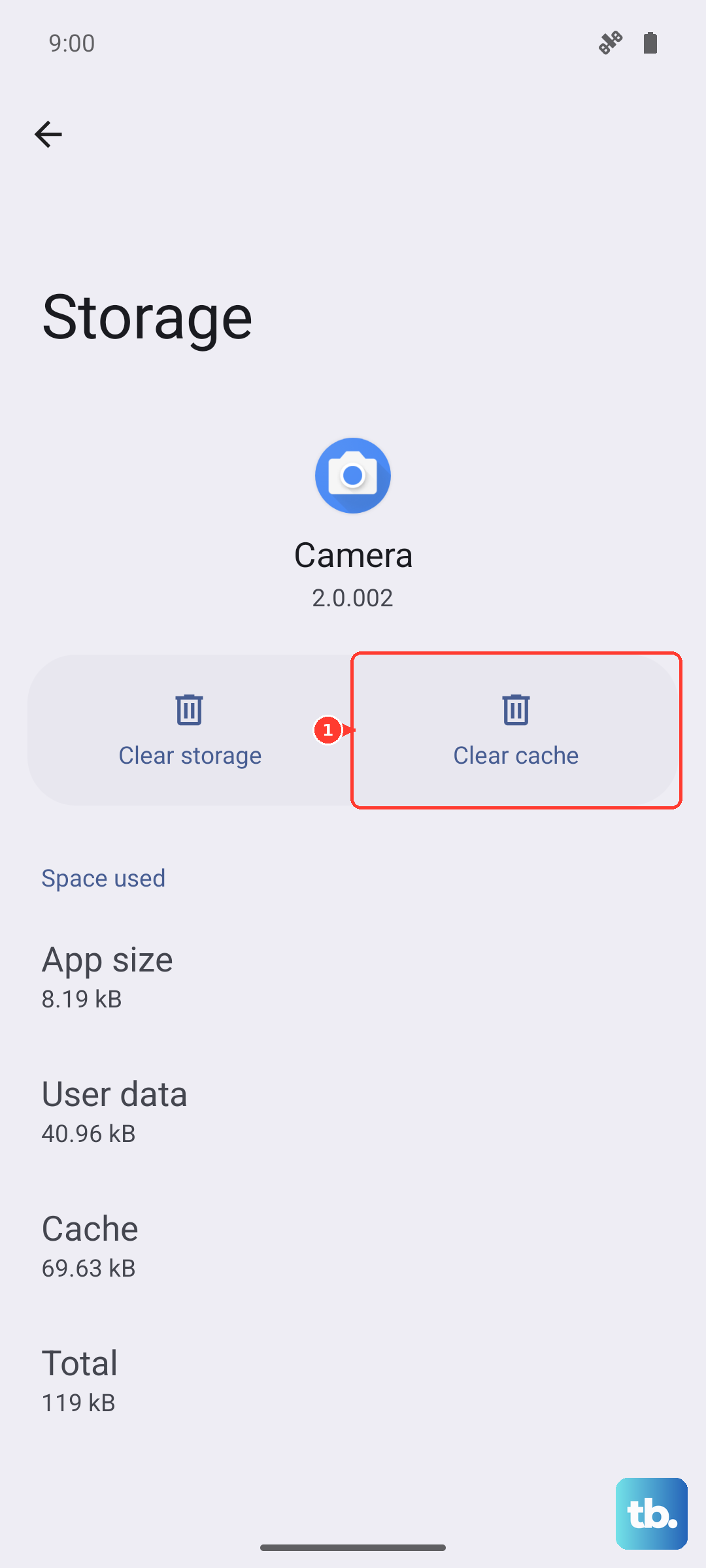
Find and tap "Google Play Store." Tap on "Storage usage" and then hit "Clear cache." Go back and try your download. If that doesn't work, you can also tap "Clear data" on the same screen. This will reset the Play Store app to its default state, so you may need to sign in again.
Clear Google Play Services Data
This is a more powerful step than clearing the Play Store cache. Google Play Services is the background engine that handles downloads, updates, and security. Go to Settings > Apps > App management and tap the three-dot menu in the top right. Select "Show system apps."
Now find and tap "Google Play Services." Go to "Storage usage" and tap "Manage storage." Here, tap "Clear all data." Confirm the prompt. Your phone will refresh Google Play Services, which often resolves persistent download hangs.
Check for OxygenOS Updates
Sometimes a bug in the system software itself can interfere with the Play Store. OnePlus regularly releases updates that fix these kinds of issues. Go to Settings > About device > OxygenOS version and tap on the icon at the top to check for updates.
If an update is available, install it. Your phone will restart. I've seen this fix download issues that appeared after a previous update, especially on new devices like the OnePlus 12.
Review Your Google Account Sync
A hiccup in your account synchronization can block downloads. Go to Settings > Accounts & sync > Google. Tap on your Google account.
You'll see a list of items that sync, like Gmail and Contacts. Tap the three-dot menu and select "Sync now." If everything looks synced, you can try removing and re-adding the account. Tap "Remove account" at the bottom, then go back and add it again through the "Add account" option.
Free Up Storage Space
Your OnePlus 12 might be silently blocking downloads because it's running out of room. The Play Store needs free space to download and install an app, even if the app size seems small. Go to Settings > Additional settings > Storage to see how much space you have left.
If you're below 1GB free, you should clear some space. Use the built-in "Clean up storage" tool or manually uninstall apps you don't use. Large video files and downloaded podcasts are also good candidates for cleanup.
Disable Any Active VPNs
If you're using a VPN app for privacy or work, it could be interfering with the connection to Google's servers. The VPN might be routing your traffic through a location that the Play Store doesn't recognize or trust.
Open your VPN app and disconnect from it. You can also go to Settings > Wi-Fi & network > VPN to see if any VPN profile is active and disable it there. Try your download again on a standard connection.
Reset App Preferences (A Safe Last Step)
This is a useful nuclear option that doesn't delete any of your personal data. It resets all your app permissions, default apps, and background restrictions back to factory defaults. It can fix issues where a system setting was accidentally changed.
Go to Settings > Apps > App management. Tap the three-dot menu and select "Reset app preferences." Confirm the action. You'll then need to re-grant permissions to apps as you use them, but your downloads should start working if a restrictive setting was the cause.