You open the network settings expecting your usual Wi-Fi list, and instead Windows acts like the wireless hardware does not even exist. No networks appear, the Wi-Fi toggle is missing, and the connection icon shows you are stranded. The good news is that a missing wireless adapter is almost always a software, driver, or configuration hiccup rather than dead hardware, and Windows 10 (and Windows 11) includes tools that can help bring it back, though you may need a compatible driver from the device manufacturer. Work through the fixes below in order, because they are arranged from the safest and easiest to the more involved resets you should only reach for last.
Let Windows Diagnose the Connection First
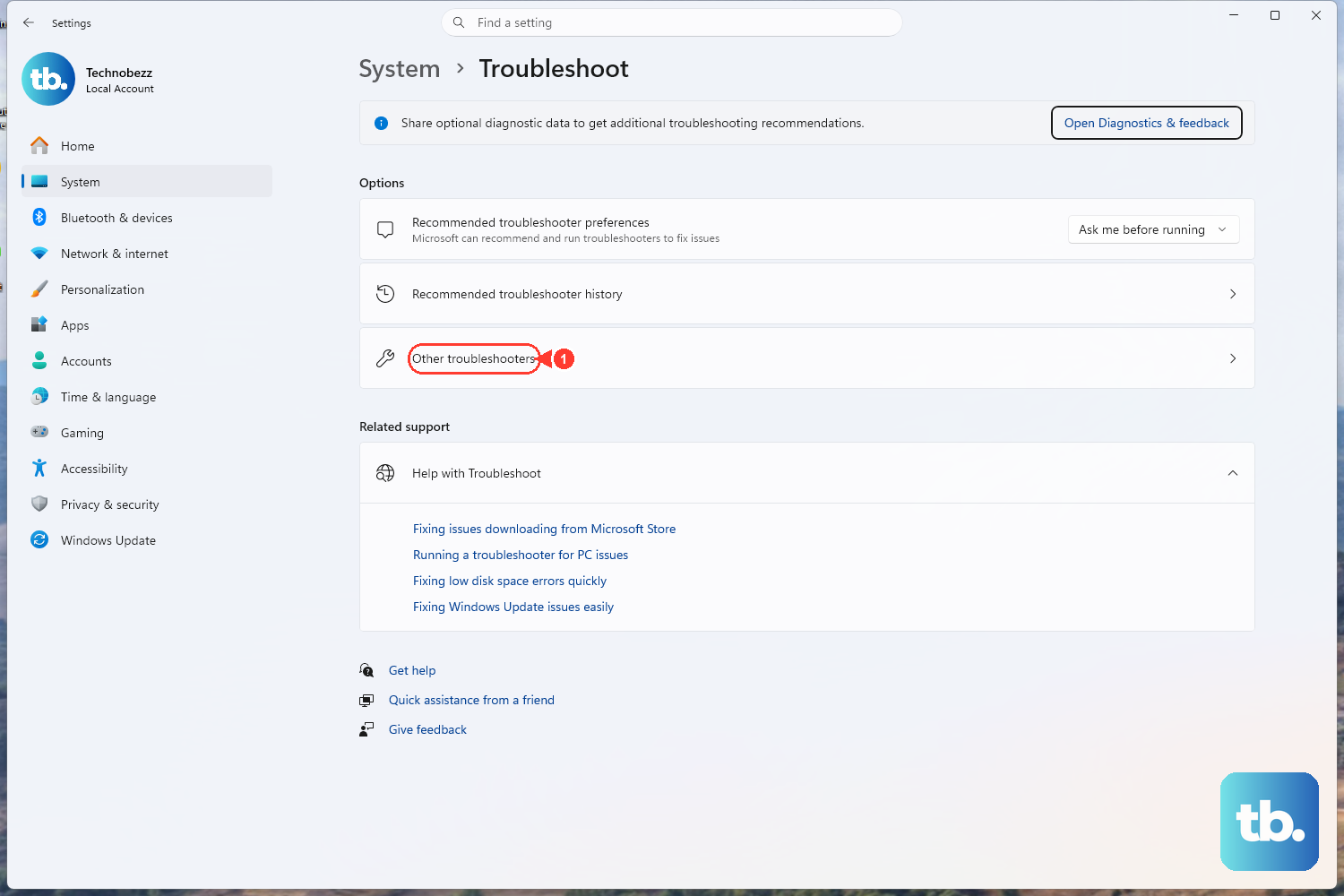
Before you touch any drivers or commands, run the built-in network troubleshooter. It scans for common problems automatically and attempts to fix most of them, which makes it a useful starting point.
On Windows 10, go to Start > Settings > Network and Internet > Status, scroll down, and select Network troubleshooter.
On Windows 11, open the Get Help app, type connect to network and internet in the Search bar, then select Run network diagnostics. It runs the diagnostics for you and tries to repair whatever it finds.
If the troubleshooter fixes the issue, you are done. If it reports a problem it cannot solve, or finds nothing at all, move on to the next fix.
Install Pending Windows Updates
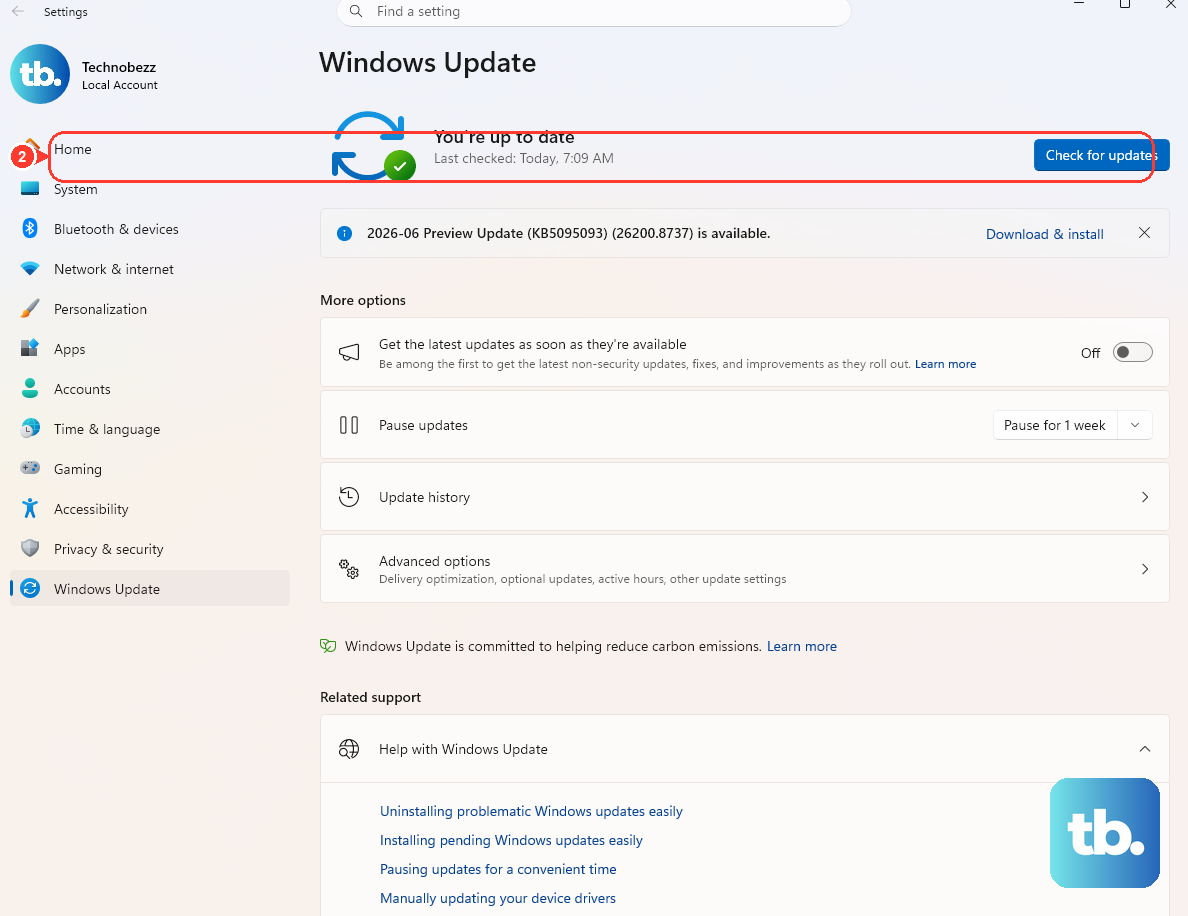
Windows Update does more than patch the operating system; it also delivers current drivers for hardware, including network adapters. A pending update can sometimes restore a missing adapter without any manual driver work on your part. Windows 10 support ended on October 14, 2025, so free software updates and security fixes are no longer provided.
On Windows 10, select Start > Settings > Update & Security > Windows Update. On Windows 11, select Start > Settings > Windows Update.
Select Check for updates.
Download and install any available updates, then restart if prompted.
After the restart, reopen your network settings and check whether the Wi-Fi adapter has reappeared.
Refresh the Wi-Fi Driver in Device Manager
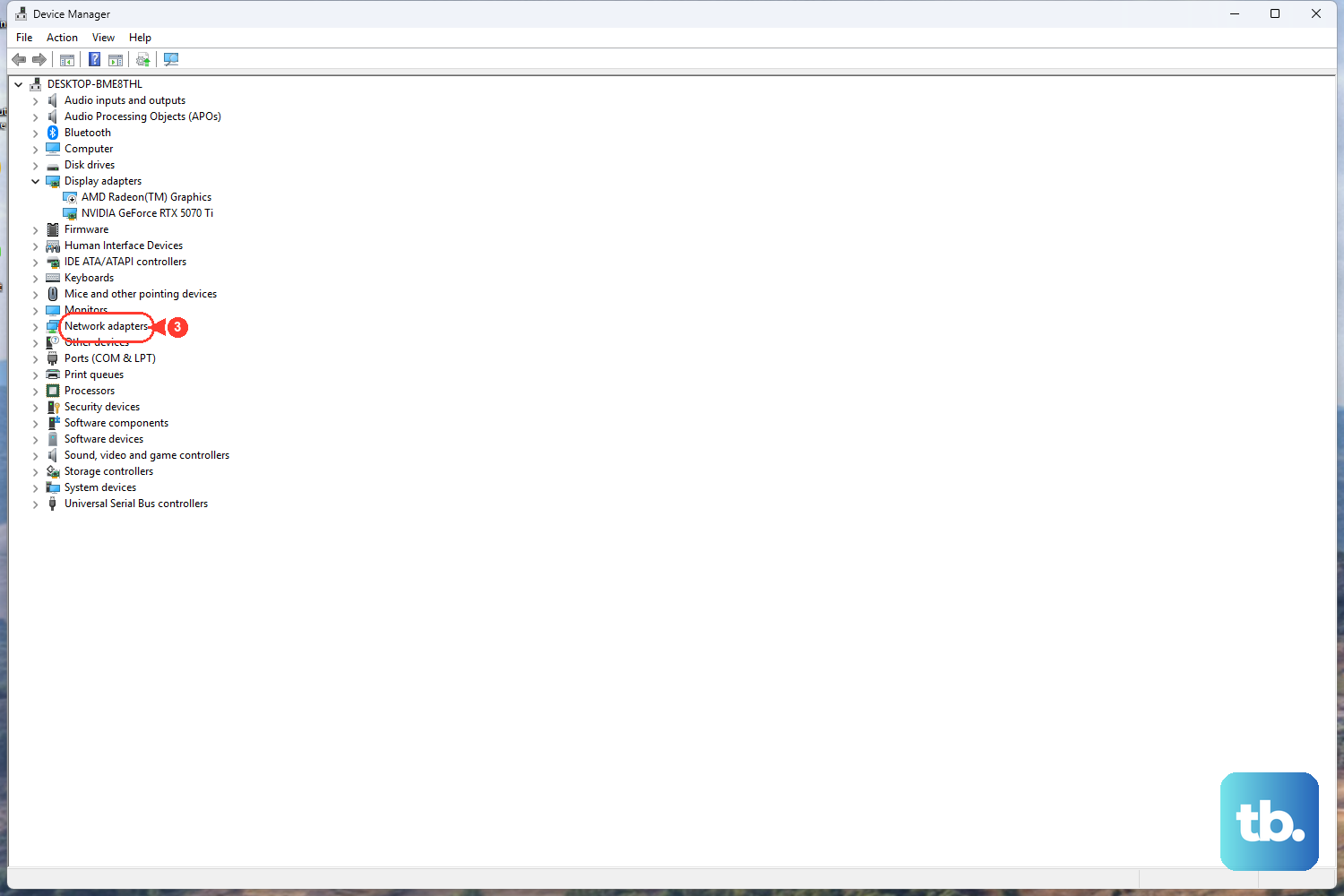
A stale or mismatched driver is one of the most common reasons an adapter goes missing. Asking Windows to fetch the latest one is straightforward and reversible.
Right-click Start and select Device Manager.
Then expand Network adapters.
Right-click your Wi-Fi adapter and select Update driver.
Choose Search automatically for updated driver software.
Select Close when it finishes.
If you already downloaded a driver from the PC maker or the adapter maker, you can instead choose Browse my computer for drivers, select Browse..., choose the folder containing the downloaded drivers, and select OK > Next.
Stop Windows From Powering Down the Adapter
To save energy, Windows can switch off a network adapter when it thinks it is idle. On some systems that power-saving behavior makes the adapter drop out and appear to vanish. Turning it off keeps the adapter awake.
Open Device Manager and expand Network adapters.
Next, right-click your Wi-Fi adapter and choose Properties.
Go to the Power Management tab.
Uncheck Allow the computer to turn off this device to save power.
Select OK.
With that box cleared, Windows will leave the adapter running so it cannot quietly disappear during normal use.
Reinstall the Driver by Uninstalling the Device
When a driver is corrupted, updating it may not be enough; you need a clean copy. Uninstalling the adapter and restarting prompts Windows to attempt to reinstall its driver.
In Device Manager, expand Network adapters and locate your network adapter.
After that, right-click it and select Uninstall device, then select Uninstall in the confirmation window.
Restart the PC.
After the restart, Windows attempts to reinstall the network adapter driver, which can clear a corrupted driver that was hiding the adapter in the first place. If it does not reinstall, use the automatic or manual driver update steps above.
Reset the Network Stack From the Command Line
If the adapter is present but networking still misbehaves, resetting the underlying TCP/IP stack and clearing the DNS cache often clears it up. These commands run from an elevated Command Prompt, so they need administrator rights.
To open one, select Search on the taskbar, type command prompt, and to the right select Run as administrator > Yes.
Then run the following commands in this exact order, pressing Enter after each:
- 1.
netsh winsock reset - 2.
netsh int ip reset - 3.
ipconfig /release - 4.
ipconfig /renew - 5.
ipconfig /flushdns
The first command resets the Winsock catalog and the second resets the TCP/IP stack; the three ipconfig commands release the current IP address, request a new one, and flush the DNS resolver cache. There is also a longer form, netsh int ip reset c:\resetlog.txt, that writes a reset log to that path; if you would rather not specify a directory, use netsh int ip reset resetlog.txt instead. Restart the PC afterward.
Forget the Network and Reconnect
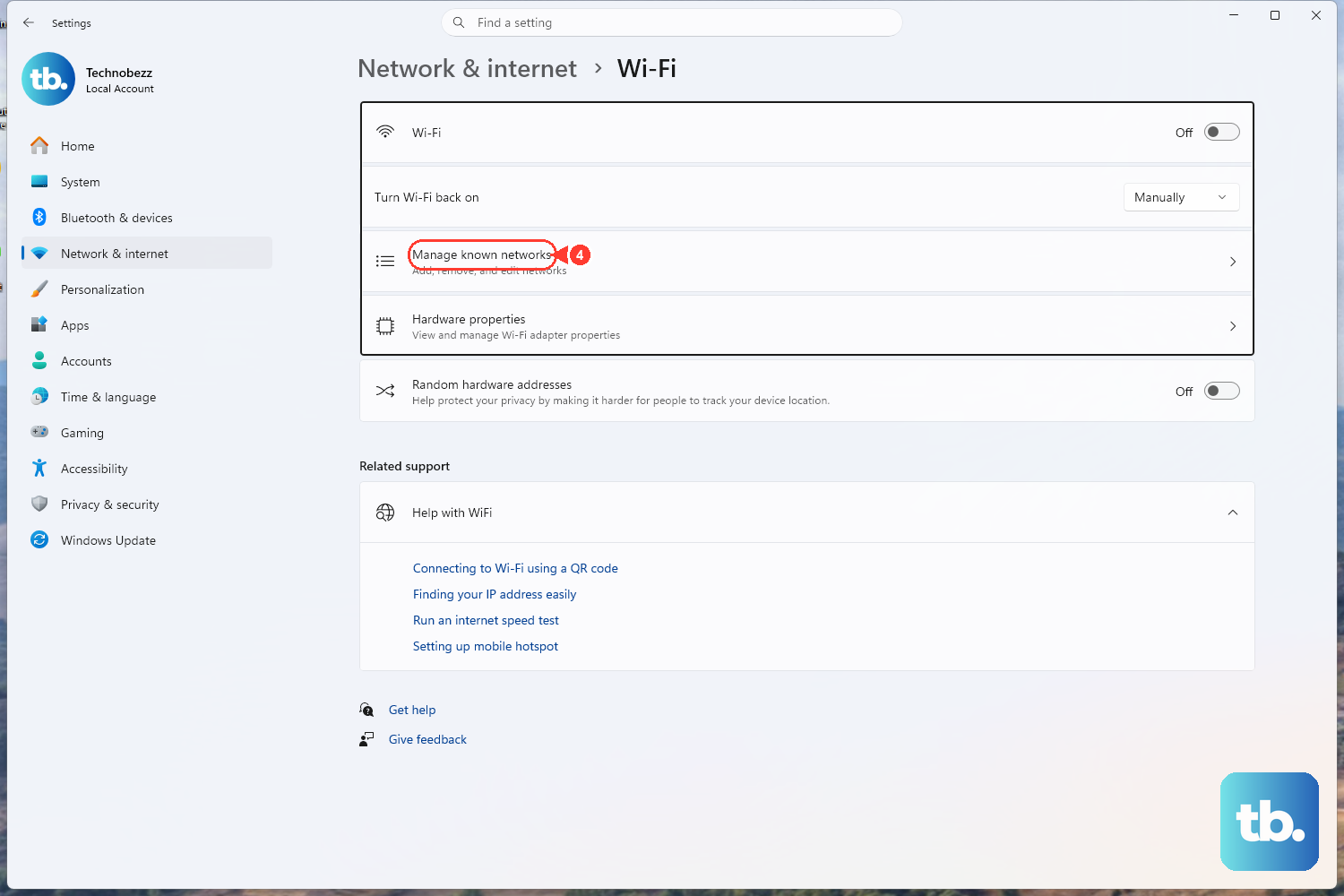
If you could connect before but suddenly cannot, the saved profile for that network may have become corrupted. Deleting it and re-entering the password rebuilds the profile from scratch.
Go to Settings > Network & internet > Wi-Fi > Manage known networks.
Select your network and choose Forget.
Select the network again from the available list.
Enter the password to reconnect.
A freshly built profile sidesteps whatever stale credentials or settings were tripping up the old one.
Switch the DNS Server Address
DNS problems can leave you connected to Wi-Fi yet unable to reach sites, which sometimes reads as a broken adapter. Setting the DNS server manually rules that out.
Go to Settings > Network & internet > Wi-Fi > Manage known networks and select your network.
Beside IP assignment, select Edit.
Choose Manual.
In the Preferred DNS and Alternate DNS boxes, type the DNS server addresses you want to use.
Select Save.
On Windows 11 you will also see a DNS over HTTPS encryption option here; that setting is not available on Windows 10, so do not look for it there.
Use Network Reset as the Last Resort
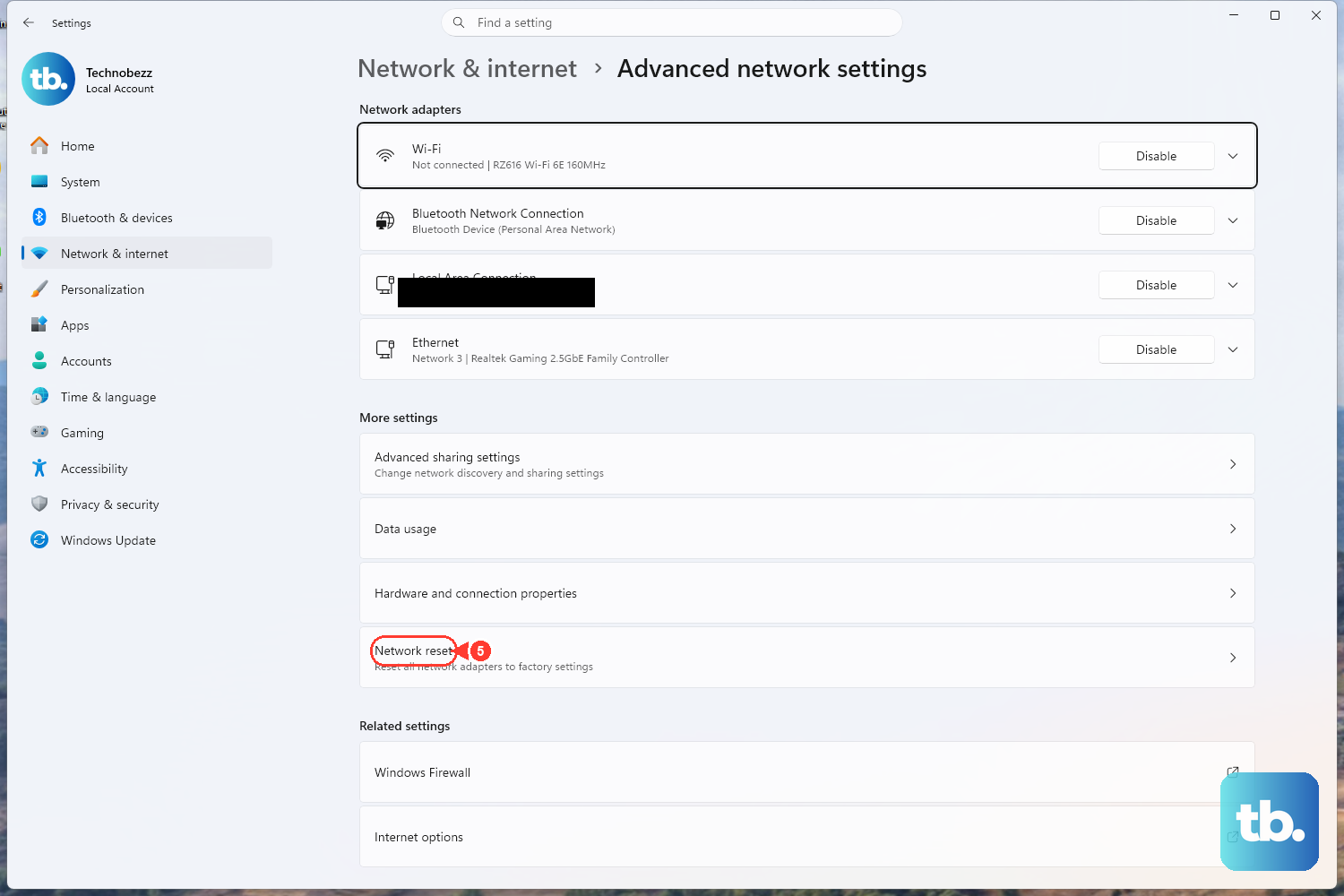
If nothing above works, Network reset wipes the slate clean. It removes all of your network adapters and their settings, then reinstalls the adapters with default settings after a restart. Because it undoes your custom networking configuration, save it for last.
Warning: after a Network reset you may need to reinstall and set up other networking software, such as a VPN client, before everything works as it did before.
On Windows 11, go to Start > Settings > Network & internet > Advanced network settings > Network reset, then select Reset now > Yes.
On Windows 10, go to Start > Settings > Network & internet > Status > Network reset, then select Reset now > Yes. The PC restarts and reinstalls the adapters with their default settings.
Frequently Asked Questions
Which fix should I try first?
Start with the built-in network troubleshooter. It is a useful starting point because it runs diagnostics automatically and tries to fix most problems. On Windows 10 it lives under Settings > Network and Internet > Status, and on Windows 11 you run it from the Get Help app.
Why does Windows keep turning my Wi-Fi adapter off?
Windows can switch off a network adapter to save power, which can make it drop out. To stop that, open Device Manager, go to your adapter's Power Management tab, and uncheck Allow the computer to turn off this device to save power.
Will uninstalling my network adapter leave me without a driver?
It can if automatic reinstallation fails. After you select Uninstall device in Device Manager, confirm with Uninstall, and restart the PC, Windows attempts to reinstall the network adapter driver. If it does not reinstall, use the automatic or manual driver update steps above to install a compatible driver.
Is Network reset safe to run?
It works, but treat it as a last resort. Network reset removes all your network adapters and their settings before reinstalling them with default settings, and afterward you might need to reinstall and set up other networking software such as a VPN client. Try the earlier fixes first.
What do the command-line resets actually do?
netsh winsock reset resets the Winsock catalog and netsh int ip reset resets the TCP/IP stack. The ipconfig commands then release the current IP address, renew it, and flush the DNS resolver cache. Run them from an elevated Command Prompt in the order shown, then restart.