Seeing No Service on your Android phone means it cannot reach your carrier's network, so calls, texts, and mobile data stop working. Below are 14 fixes in the order you should try them, starting with the quickest.
Most No Service problems come from a temporary network glitch, a SIM that has shifted out of place, or a setting that drifted after an update. A smaller share point to a carrier outage, an account issue, or hardware damage. Work down this list and you will clear the common causes before you ever need to call support.
Quick Diagnostic Table
The exact message on your status bar narrows down what is wrong. Match what you see to the most likely first fix below, then follow the numbered steps for the details.
| What you see | What it usually means | Try first |
|---|---|---|
| No Service | Phone cannot reach any usable network | Toggle airplane mode, restart (Fixes 1 to 2) |
| No SIM card / SIM not detected | The phone is not reading the SIM or eSIM | Reseat the SIM, check eSIM (Fixes 4 to 5) |
| Emergency calls only | A network is found but your line is not authorized on it | Manual carrier select, account check (Fixes 9, 13) |
| Not registered on network | The SIM cannot authenticate with your carrier | Reset network settings, carrier check (Fixes 8, 13) |
Toggle Airplane Mode
Airplane mode forces your phone to drop and rebuild every wireless connection, which clears a stuck network handshake in seconds. It is the fastest fix and resolves a large share of No Service messages on its own.
On a Pixel, open Settings > Network & internet and turn Airplane mode on. On a Samsung Galaxy, open Settings > Connections and turn Airplane mode on. Wait 15 to 30 seconds, then turn it back off and watch the signal bars return.
Restart Your Phone
A full restart reloads the phone's radio firmware and ends any background process that has hung on to the network. It is more thorough than airplane mode and worth doing if the toggle alone did not help.
Press and hold the power or side button, then tap Restart. If your model opens the assistant or a power menu instead, hold the side button together with the volume down button to reach the restart option.
Check for a Carrier Outage
Before changing any settings, confirm the problem is your phone and not your carrier. A tower outage in your area produces No Service on a perfectly healthy device, and no amount of resetting will fix it.
Open your carrier's network status page on Wi-Fi or another device and search by your address or ZIP code. Verizon offers a status page at verizon.com/support/check-network-status and AT&T at att.com/outages. If a nearby friend on the same carrier also has no signal, wait for the carrier to restore service.
Reseat and Inspect the SIM Card
A SIM that has shifted even slightly loses contact, and dust or corrosion on the gold pads breaks the connection. Reseating it restores a clean fit and often brings service straight back.
Power the phone off, use the ejector tool to open the SIM tray, and remove the SIM. Wipe the gold contacts gently with a dry, lint free cloth, check for cracks or scratches, then place it firmly back in the tray and power on. If you have a spare SIM, testing it in the same phone tells you whether the card or the phone is at fault.
Confirm Your eSIM Is Active
If your line lives on an eSIM rather than a plastic card, No Service often traces back to the eSIM being switched off, not set as the data line, or never fully activated. This is one of the most missed causes on newer phones.
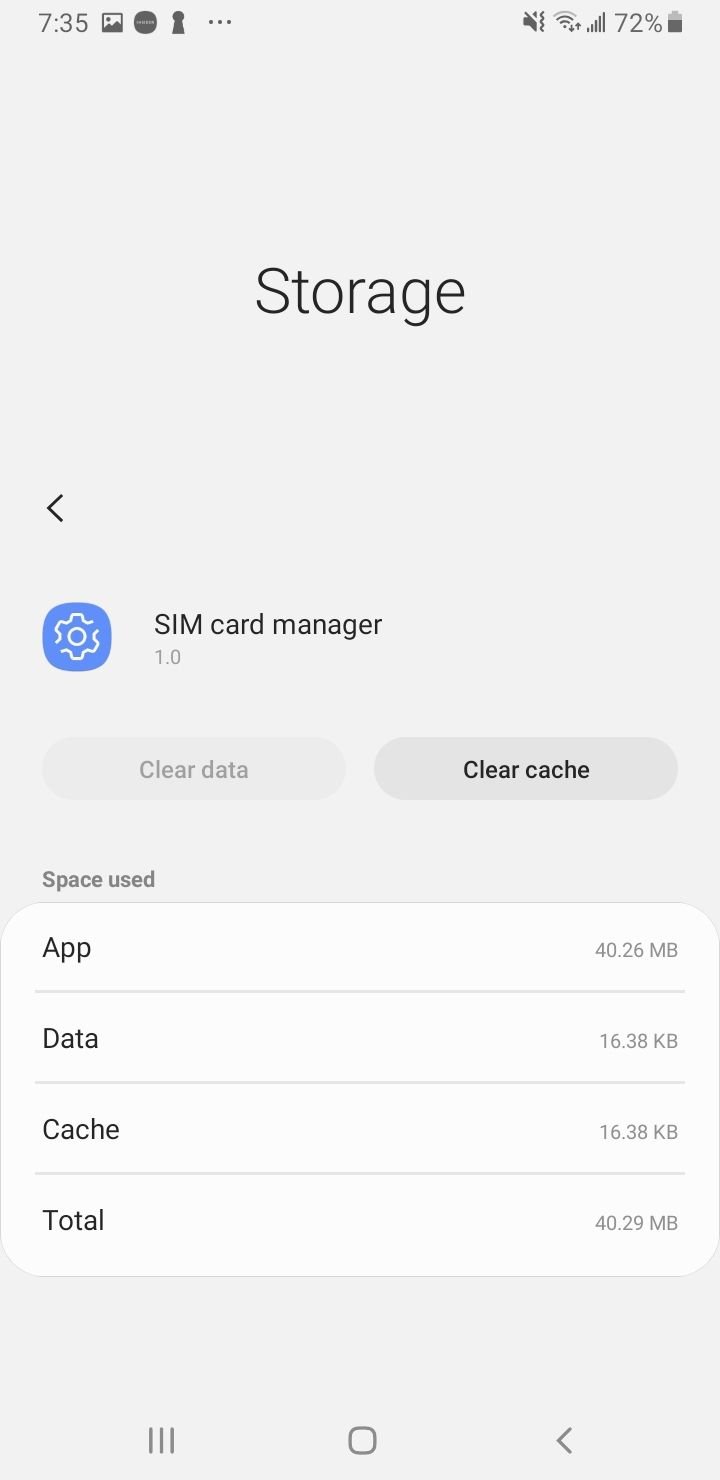
On a Samsung Galaxy, open Settings > Connections > SIM manager and confirm your eSIM line is listed and turned on. On a Pixel, open Settings > Network & internet > SIMs and select your eSIM. Make sure it is set as the line for calls and mobile data, and if you just switched phones, recheck that the carrier finished provisioning the profile.
Turn Mobile Data Off and On
Mobile data can get switched off by accident, and even when it is on, cycling it nudges the phone to reconnect to the data network. This is quick and safe to try anytime.
On a Pixel, open Settings > Network & internet > SIMs and turn Mobile data off, wait a few seconds, then turn it back on. On a Samsung Galaxy, open Settings > Connections > Data usage > Mobile data and do the same. Confirm the correct SIM is selected if you run two lines.
Set Network Mode to Auto
If your phone is locked to a single network type it cannot find, switching to the automatic mode lets it fall back to whatever signal is available. This helps in areas with patchy 5G coverage where LTE is stronger.
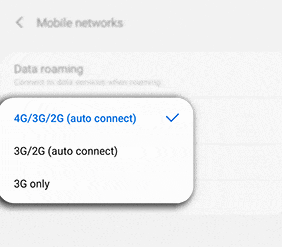
On a Samsung Galaxy, open Settings > Connections > Mobile networks > Network mode and choose the recommended automatic option, such as 5G/LTE/3G/2G (auto connect). On a Pixel, open Settings > Network & internet > SIMs, select your line, and set the Preferred network type to the automatic or 5G option. Give the phone a moment to lock onto a network after the change.
Select Your Carrier Manually
When the phone keeps grabbing the wrong network or fails to register automatically, choosing your carrier by hand forces a fresh registration. This is especially useful for an Emergency calls only message.
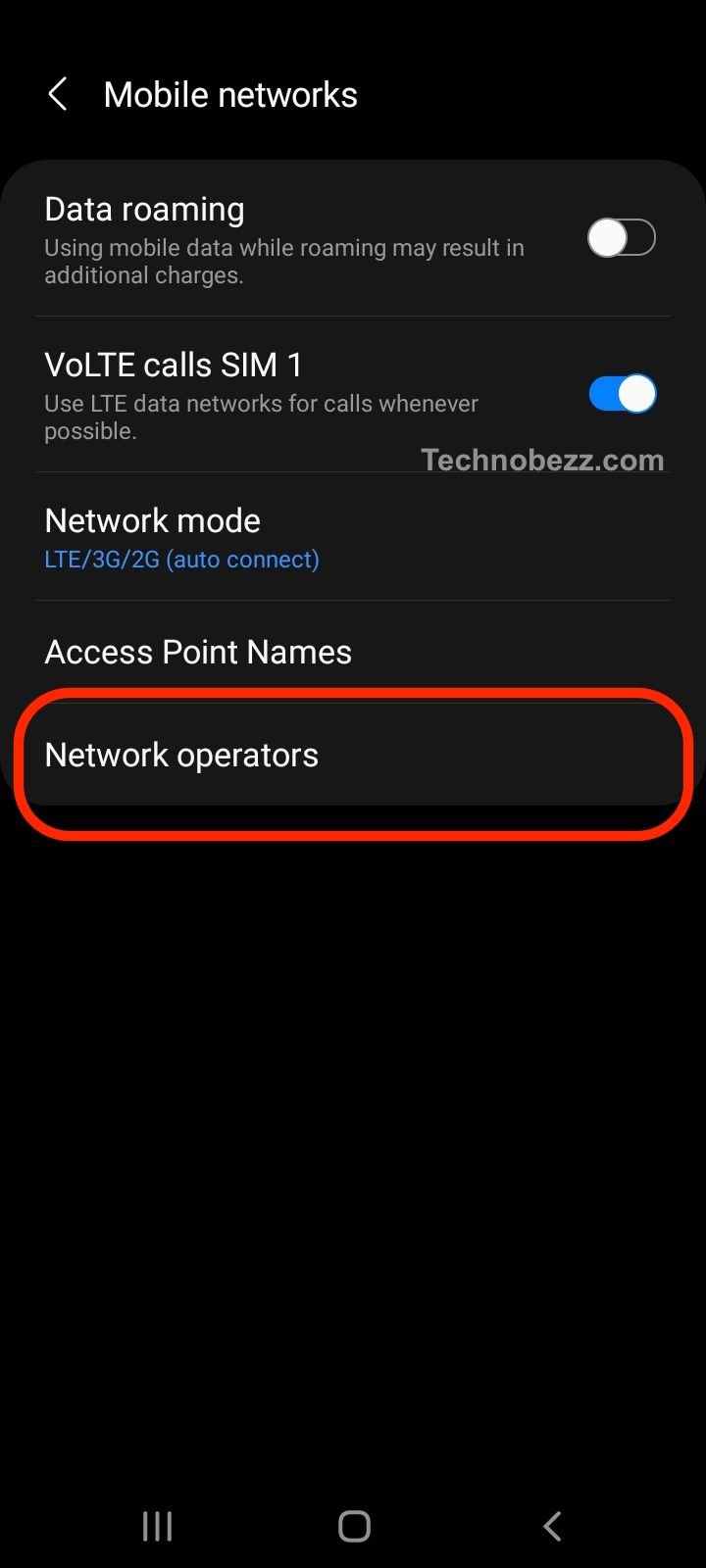
On a Samsung Galaxy, open Settings > Connections > Mobile networks > Network operators, turn off the automatic toggle, let the phone scan, and select your carrier from the list. On a Pixel, open Settings > Network & internet > SIMs > Network operators and pick your carrier. If the search returns nothing, switch back to automatic and move on to the next fix.
Reset the APN to Default
Access Point Name settings tell your phone how to reach your carrier's data network, and a wrong or corrupted APN can block service. Resetting it to the carrier default clears bad values without you typing anything.
On a Samsung Galaxy, open Settings > Connections > Mobile networks > Access Point Names, tap the three dot menu, and choose Reset to default. On a Pixel, open Settings > Network & internet > SIMs > Access Point Names and reset the same way. The phone reapplies the correct profile for your carrier automatically.
Reset Network Settings
This wipes every saved network configuration at once, which is the most reliable cure for a Not registered on network error or a stubborn No Service that survives the steps above. It does not touch your photos, apps, messages, or contacts.
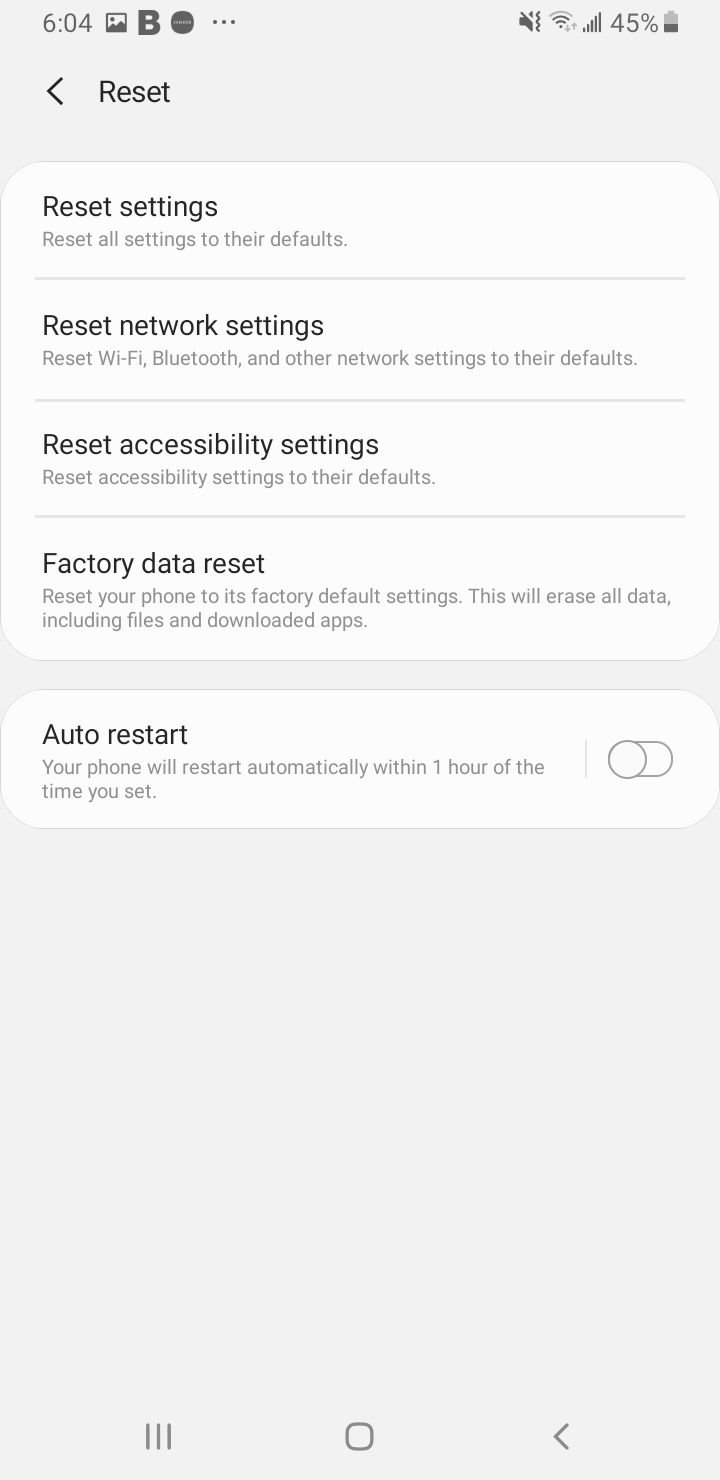
On recent Android versions there is a cellular only option at Settings > System > Reset options > Reset Mobile Network Settings, which is the least disruptive. For a full reset on a Samsung Galaxy, open Settings > General management > Reset > Reset network settings. Afterward you will need to re-enter Wi-Fi passwords and re-pair Bluetooth devices, since those are cleared.
Update Carrier Settings and Android
Carriers push small configuration updates that keep your phone registered correctly, and a missed OS update can leave a connectivity bug in place. Installing the latest software resolves problems that started right after a previous update.
On a Pixel, open Settings > System > Software updates > System update and tap Check for update. On a Samsung Galaxy, open Settings > Software update and tap Download and install. Restart the phone once the update finishes so the new radio and carrier settings take effect.
Boot Into Safe Mode
A misbehaving third party app, such as a VPN or a battery tool, can interfere with the network and cause No Service. Safe Mode starts the phone with only built in apps so you can rule that out.
Press and hold the power button, then touch and hold Power off until the Safe Mode prompt appears, and tap it to confirm. If service returns in Safe Mode, an app you installed is the culprit, so restart normally and uninstall recently added apps one at a time. The advanced testing dialer codes that older guides relied on are blocked on most Android 12 and later phones, so Safe Mode is the dependable way to test this now.
Contact Your Carrier
If service is still missing after the steps above, the issue is likely on the account or network side, where only your carrier can act. Have your phone number and IMEI ready, which you can find at Settings > About phone.
Ask them to confirm your account is active and in good standing, to check that your device and IMEI are registered on their network, and to look for a local outage. If you recently switched carriers or bought a used phone, the line may need to be provisioned or the device unlocked before it will register.
Factory Reset as a Last Resort
A factory reset returns the phone to its original software state and clears any deep software corruption that nothing else fixed. It erases everything on the device, so use it only after the other 13 fixes and a carrier call have failed.
Back up your photos, contacts, and files first, then open Settings > System > Reset options > Erase all data (factory reset) on a Pixel, or Settings > General management > Reset > Factory data reset on a Samsung Galaxy. If No Service persists even after a clean reset, the problem is almost certainly hardware, such as a damaged antenna, and the phone needs professional repair.
Frequently Asked Questions
Why does my Android say No Service
No Service means your phone cannot connect to your carrier's mobile network. The usual causes are a temporary network glitch, a loose or damaged SIM, a setting that changed after an update, a carrier outage in your area, or an account problem. Working through airplane mode, a restart, and a SIM reseat clears most cases.
What does Not Registered on Network mean
It means your SIM or eSIM cannot authenticate with your carrier, so the phone sees a network but is not allowed to use it. You may still see signal bars while calls, texts, and data fail. Resetting network settings, selecting your carrier manually, and confirming your account is active usually resolve it.
Will resetting network settings delete my data
No. Resetting network settings does not delete your photos, apps, messages, or contacts. It only clears saved Wi-Fi networks and passwords, Bluetooth pairings, and your mobile data and APN configuration, so you will need to reconnect to Wi-Fi and re-pair Bluetooth devices afterward.
How do I fix No Service on an eSIM
Open Settings > Connections > SIM manager on a Samsung Galaxy, or Settings > Network & internet > SIMs on a Pixel, and confirm the eSIM line is turned on and set as your line for calls and data. If you just switched phones, the eSIM profile may need to be reactivated by your carrier. A carrier locked phone may also refuse a third party eSIM.
What is the difference between No Service and Emergency Calls Only
No Service means the phone found no usable network at all. Emergency calls only means it found a network but your line is not authorized on it, which points to an account issue, the wrong carrier selection, or a roaming restriction rather than a missing signal.
How do I know if it is a carrier outage and not my phone
Check your carrier's network status page by your address, and see whether other people nearby on the same carrier also have no signal. If your phone gets full service in another location or on Wi-Fi calling but not on the cellular network at home, an outage or weak coverage is the likely cause.
First published October 4, 2025. Last updated June 4, 2026.