
A touchpad that suddenly stops working on your MSI Stealth 16 can feel like a major roadblock, turning a portable laptop into a desktop that needs a mouse. Whether the cursor is frozen, taps aren't registering, or multi-finger gestures have failed, the issue is usually solvable without a trip to the repair shop.
Toggle the Touchpad with the Function Key
First, check if you accidentally disabled the touchpad. On the MSI Stealth 16, you can quickly toggle it by pressing the Fn + F3 keys together. Look for the touchpad icon on the F3 key. A notification should pop up on screen confirming the change.
You can also verify the setting in Windows. Use your keyboard to navigate to Settings > Bluetooth & devices > Touchpad and make sure the touchpad is switched on. This is a common first step I'd take, as it's the quickest fix.
Perform a Full Restart
If the touchpad stopped responding after waking from sleep or a system update, a simple restart can force Windows to reload all the necessary drivers. Use your keyboard to tab through the Start menu: press the Windows key, use the arrow keys to highlight the power icon, press Enter, then select "Restart."
This is especially relevant for the Stealth 16, as some system changes related to the MUX switch or performance profiles in MSI Center can require a restart to take full effect.
Disconnect Any External Mice
Windows has a setting that can automatically disable the internal touchpad when an external mouse is connected. Unplug any USB mouse or disconnect your Bluetooth mouse, then test the touchpad again.
To stop this from happening in the future, go to Settings > Bluetooth & devices > Touchpad and look for a setting called "Leave touchpad on when a mouse is connected." Make sure this box is checked so both can work simultaneously.
Update Your Touchpad Driver
Outdated or corrupted drivers are a frequent culprit. Press Windows key + X and select "Device Manager" from the menu. Expand the "Mice and other pointing devices" section.
Right-click on the device listed (it might be called "HID-compliant mouse" or mention "Synaptics" or "Precision Touchpad") and select "Update driver." Choose "Search automatically for drivers." For the most reliable fix, I'd recommend going a step further and getting the driver directly from the MSI support page for your specific Stealth 16 model.
Clean the Touchpad Surface
Over time, oils from your fingers, dust, or minor moisture can interfere with the touchpad's capacitive sensors. Power off the laptop and gently wipe the touchpad surface with a dry, soft microfiber cloth.
If there's visible grime, you can slightly dampen a corner of the cloth with water, wipe the surface, and then immediately dry it with another part of the cloth. Never spray liquid directly onto the laptop.
Check the Touchpad Setting in BIOS
It's rare, but the touchpad can be disabled at a system level. To check, restart your Stealth 16 and immediately start pressing the Delete (Del) key repeatedly to enter the BIOS setup utility.
Once inside, use your keyboard's arrow keys to navigate. Look for a setting related to the "Internal Pointing Device" or "Touchpad" and ensure it is set to "Enabled." Save and exit (usually F10) to reboot.
Reinstall the Touchpad Driver Completely
If updating didn't work, a clean reinstall might. Go back to Device Manager, right-click on your touchpad device under "Mice and other pointing devices," and select "Uninstall device." Check the box that says "Attempt to remove the driver for this device" if it appears, then click Uninstall.
Restart your laptop. Windows will automatically install a basic driver upon reboot. For full functionality, including all MSI-specific gestures, you should then install the latest touchpad driver from the MSI website.
Run Windows System File Checker
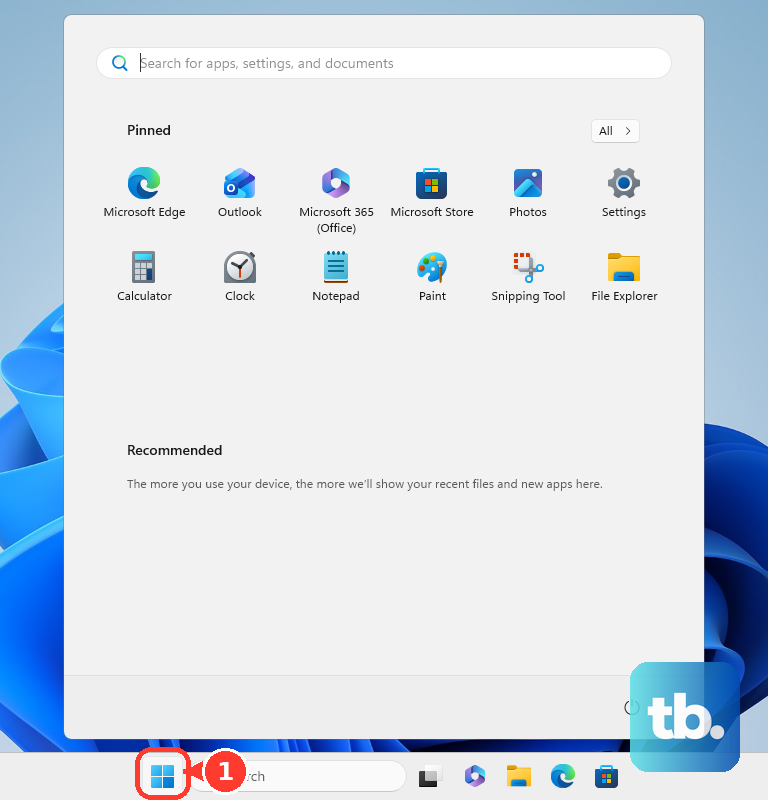
Corrupted Windows system files can sometimes affect hardware like the touchpad. Open the Start menu, type "cmd," right-click on "Command Prompt," and select "Run as administrator." In the black window, type the command sfc /scannow and press Enter.
The scan will check for and repair damaged system files. Let it complete, which can take 10-15 minutes, and then restart your computer when it's done to see if the touchpad is restored.
Update MSI Center and Check Scenarios
The MSI Center software is central to how your Stealth 16 manages its hardware. Open MSI Center and check for any available updates in the Support or Live Update section. Installing the latest version can resolve conflicts.
Also, try switching your "User Scenario" profile. Sometimes a bug in a specific mode like "Extreme Performance" can cause issues. Switch to "Balanced" or "Silent" mode, apply the change, and test the touchpad. A restart after changing profiles can help the setting take full effect.
If the touchpad remains completely dead even in the BIOS or Windows Safe Mode, there's a possibility of a hardware fault. This could be a loose internal ribbon cable connection or, less commonly, physical damage to the touchpad itself, which would require professional disassembly and repair.