
When your MSI Stealth 16 starts feeling sluggish, it can really kill your workflow. Games stutter, creative apps lag, and even simple tasks feel like a chore. I've found that with gaming laptops, the fix is almost always in the software or a setting that needs tweaking.
Restart Your Laptop
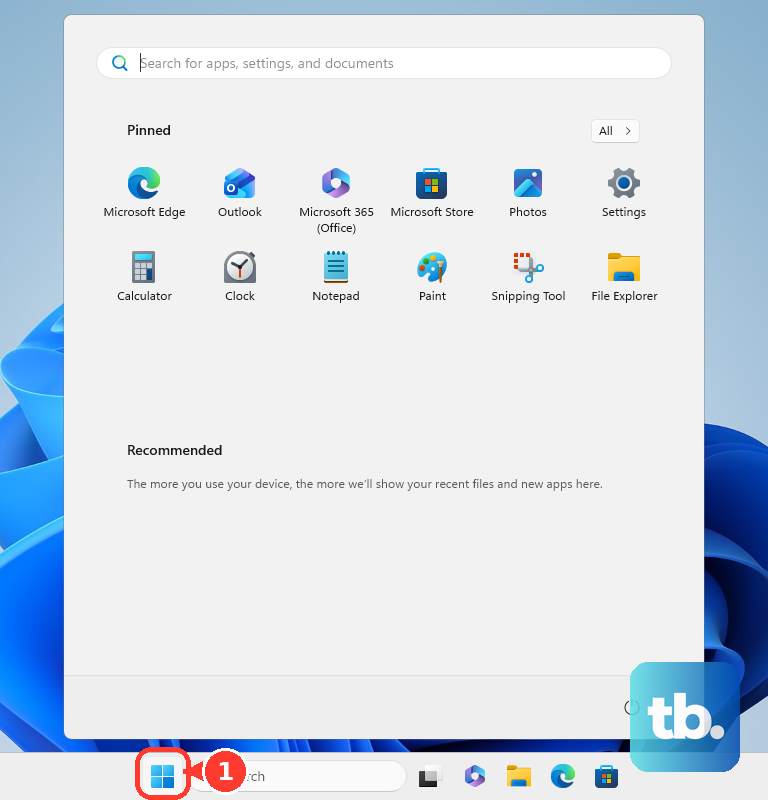
If you're just closing the lid and using sleep mode, your Stealth 16 never gets a fresh start. Background processes and memory from old gaming sessions can pile up. Click Start > Power > Restart to give it a clean slate. This is especially important after changing major settings in the MSI Center software.
Use MSI Center to Check Performance Mode
Open the MSI Center app and look at your current User Scenario. If it's set to Silent or Super Battery, your laptop is heavily throttling performance to reduce noise and heat. For gaming or demanding work, switch it to Extreme Performance or Balanced. This gives your CPU and GPU the power they need.
Manage Startup Programs in Task Manager
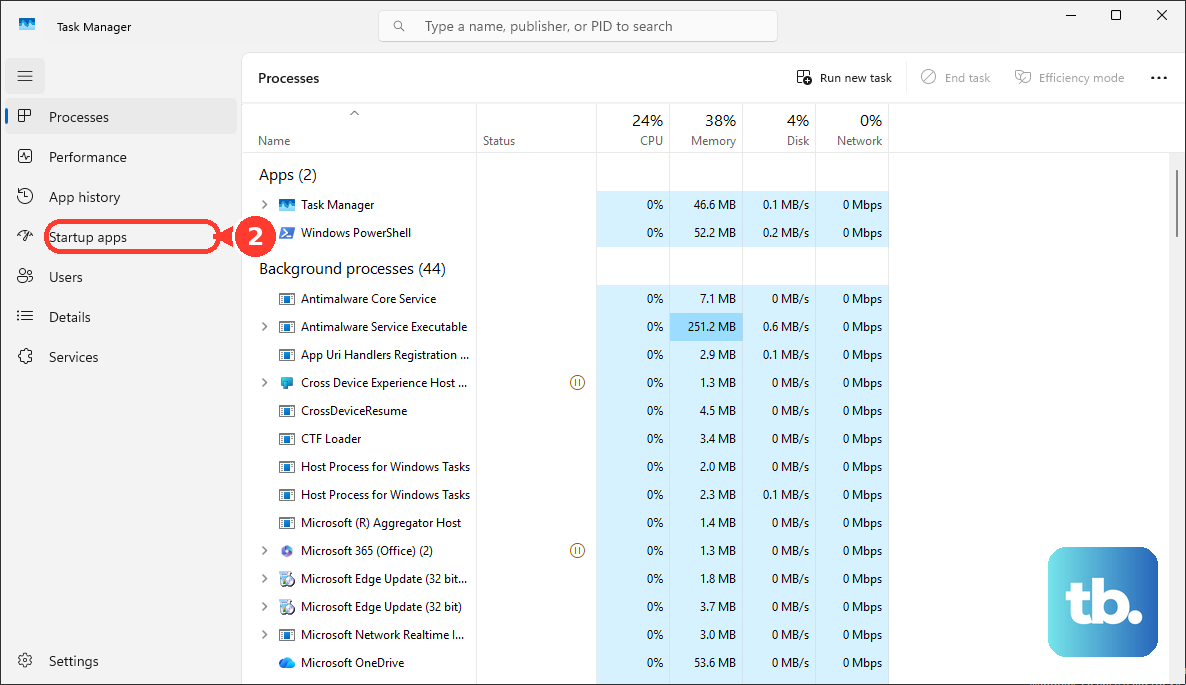
Press Ctrl + Shift + Esc to open Task Manager and go to the Startup apps tab. Gaming launchers like Steam, Epic, and Ubisoft Connect often set themselves to start with Windows, as do communication apps like Discord. Right-click and disable anything you don't need immediately upon booting up. This frees up RAM and gets you to your desktop faster.
Check for Resource Hogs
While in Task Manager, click the CPU, Memory, and GPU columns to sort by usage. Look for any single process using an unusually high percentage. A game or app that didn't close properly might still be running in the background. You can also see if your dedicated Nvidia GPU is being utilized or if everything is running on the integrated graphics, which is much slower.
Update Everything: Windows, Drivers, and MSI Center
First, go to Settings > Windows Update and install all available updates. Next, open the MSI Center and check the Support or Live Update section. Outdated chipset, GPU, and audio drivers are a common source of performance issues and bugs. The MSI Center software itself also needs frequent updates to work correctly with your hardware.
Ensure the MUX Switch is Set Correctly
The Stealth 16 has a MUX switch that lets you choose between hybrid graphics (for battery life) and discrete mode (for maximum performance). You change this in the MSI Center, but it requires a full system restart to take effect. If you're plugged in and gaming, make sure it's set to discrete mode and that you've actually restarted since changing the setting.
Free Up Space on Your SSD
Modern games are huge, and a drive that's over 80% full can slow down read/write speeds. Open Settings > System > Storage and see what's taking up space. Use the Temporary files cleaner to remove update leftovers. Consider moving large game libraries to a secondary drive if you have one installed.
Adjust Windows Power Plan for Performance
Even with MSI Center set correctly, Windows might be holding you back. Search for "Choose a power plan" in the Start menu and open the Control Panel option. Select the Ultimate Performance plan if available, or edit your current plan to set both plugged-in and battery modes to Maximum Performance for the processor state.
Clean the Fans and Vents
The Stealth 16 is a thin laptop, and it relies on good airflow to keep its powerful components cool. If the fans and heatsinks are clogged with dust, the CPU and GPU will thermally throttle, drastically cutting speed to avoid overheating. You can use a can of compressed air to blow out the vents on the sides and bottom. For a deeper clean, you may need to open the bottom panel.
Reset or Reinstall Windows
If you've tried everything and the slowness persists, a clean Windows install can work wonders. Go to Settings > System > Recovery and click Reset this PC. Choose Keep my files to remove all apps and settings but keep your personal data. This gives you a fresh start without any accumulated software conflicts or bloat.