
Seeing a blue screen crash on your MSI Stealth 16 is a jarring experience, especially when you're in the middle of something important. This is Windows hitting a critical error it can't recover from, forcing a shutdown to protect your hardware. On a gaming laptop like the Stealth 16, this is often tied to a driver conflict, an overheating component, or a system file that's gotten corrupted.
Write Down the Stop Code
When the blue screen flashes, look for the all-caps error code near the bottom. Common ones on gaming laptops include VIDEO_TDR_FAILURE (often GPU-related), SYSTEM_SERVICE_EXCEPTION, or IRQL_NOT_LESS_OR_EQUAL. Jot this code down on your phone or a piece of paper. It's your biggest clue for searching later, but the fixes here will tackle the root causes behind most codes.
Perform a Full Restart
First, just restart the laptop normally. A single, random blue screen can sometimes be a fluke caused by a temporary driver hiccup. If it boots back into Windows and runs normally for a while, you might be in the clear. If the blue screen comes back quickly, especially during startup or when launching a game, you've got a recurring issue that needs fixing.
Boot Into Windows Safe Mode
If the crashes are preventing you from reaching the desktop, you'll need to boot into Safe Mode. From the sign-in screen, hold the Shift key and click the power icon, then select Restart. After the reboot, navigate to Troubleshoot > Advanced options > Startup Settings > Restart. When your laptop restarts again, press the 4 key to enable Safe Mode. This loads Windows with only essential drivers, which can help you isolate software conflicts.
Uninstall Problematic Updates or Drivers
Think about when the crashes started. If it was right after a Windows Update, you can roll it back. Go to Settings > Windows Update > Update history > Uninstall updates. Look for the most recent quality update or feature update and remove it. Similarly, if you just updated your NVIDIA graphics driver or installed new peripheral software, uninstall those through the Control Panel.
Update Your Drivers Through MSI Center
Outdated or buggy drivers are the most common culprit for blue screens on gaming laptops. Don't just rely on Windows Update. Open the MSI Center application. Go to the Support or Live Update section. This tool is designed for your specific Stealth 16 model and will check for the latest chipset, audio, network, and GPU driver packages directly from MSI. I'd start with this one, as it ensures driver compatibility.
Run the System File Checker
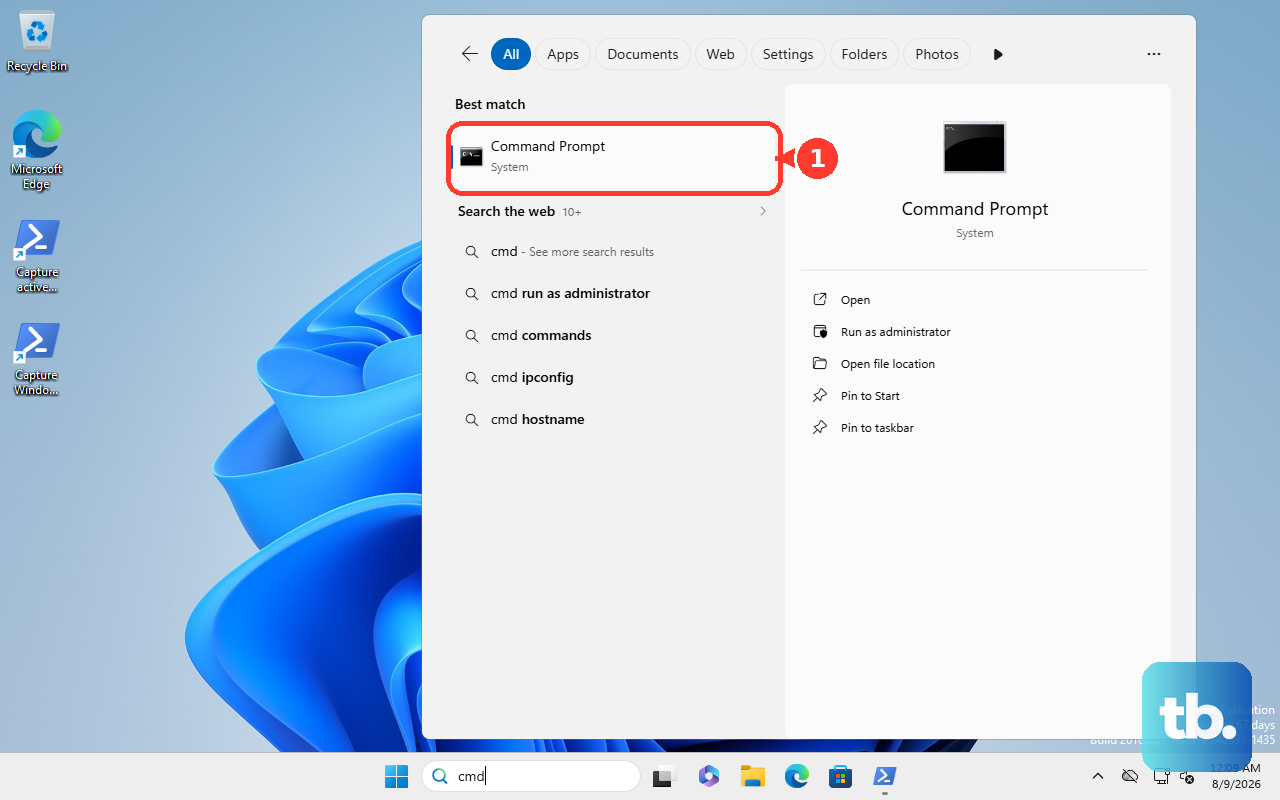
Corrupted Windows system files can definitely cause instability. Right-click the Start button and select Terminal (Admin) or Command Prompt (Admin). Type the command sfc /scannow and press Enter. Let it run through the scan; it will automatically attempt to repair any corrupted files it finds. If it finds problems it can't fix, run DISM /Online /Cleanup-Image /RestoreHealth first, then try sfc again.
Check Your RAM with Windows Memory Diagnostic
Faulty memory is a classic cause of random crashes. Type Windows Memory Diagnostic into the Start menu and run it. Choose Restart now and check for problems. Your Stealth 16 will reboot and run a comprehensive memory test before Windows loads. If it reports any errors, you may have a bad RAM stick. On some Stealth 16 models, the RAM is user-upgradeable, so you could try reseating the modules.
Scan Your Drive for Errors
To check the health of your SSD, open an admin Command Prompt again. Type chkdsk C: /f /r and press Enter. It will schedule the check for the next restart. Say yes, restart your laptop, and let it run. This scan looks for and attempts to repair file system errors or bad sectors on your drive. While modern SSDs are reliable, this is a good diagnostic step.
Address Potential Overheating
The Stealth 16 packs powerful components into a thin chassis, making thermal management key. Blue screens under heavy load, like gaming or rendering, often point to overheating. Open MSI Center and check your User Scenario. Make sure it's not stuck on a silent profile during intense tasks. Use a laptop cooling pad, ensure the rear and side vents are completely unobstructed, and consider cleaning the fans if the laptop is older and sounds strained.
Use a System Restore Point or Reset
If you created a system restore point before the problems began, you can use it to roll back system changes. Search for Create a restore point in the Start menu, go to the System Protection tab, and click System Restore. If that's not an option, a more thorough fix is to reset Windows. Go to Settings > System > Recovery > Reset this PC. Choose Keep my files to reinstall Windows while keeping your personal data, which often clears out deep-seated driver conflicts.