
Seeing that "Storage Full" warning on your Motorola Razr Plus (2024) can be a real headache, especially when you're trying to capture a moment with the cover screen or download a new app. The compact design means every gigabyte counts, but you can usually clear out a surprising amount of clutter without losing your important stuff. Let's walk through the best ways to free up space on your foldable.
See Exactly What's Filling Your Phone
Start by opening your Settings app and tapping Storage. This screen gives you a detailed breakdown of what's using space, from apps and photos to system files. Give it a moment to calculate the totals. You'll often find that photos, videos, and a few specific apps are the main culprits taking up room on your device.
Clear App Caches and Data
Social media and streaming apps like Instagram, TikTok, Spotify, and YouTube can accumulate huge caches. In your Settings > Storage menu, tap on an app to see its storage details. You'll see options for Clear cache and Clear data. Clearing the cache is safe and removes temporary files. Clearing data is more drastic, as it resets the app, so you'd need to log back in.
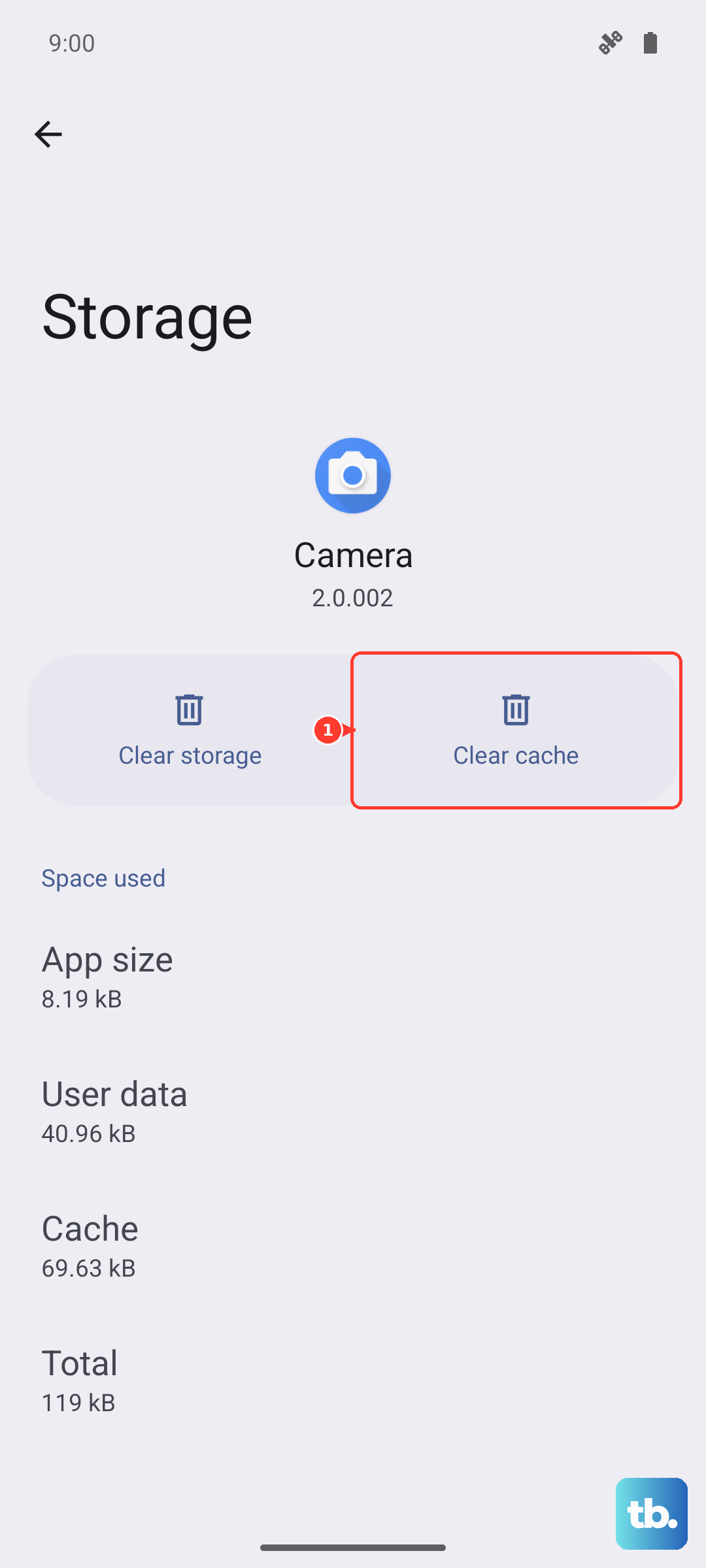
For a deeper clean, you can uninstall and reinstall the app entirely. This wipes all its local data and cache while keeping your account info in the cloud when you sign back in. I'd start with the cache clear for your biggest apps, as it's the quickest win.
Manage Your Photos and Videos
Media files are almost always the biggest storage hogs. Open your Google Photos app and tap your profile picture in the top right. Go to Photos settings > Backup & sync. Make sure backup is on, then tap Storage management. Here, you can use tools to Free up space, which removes photos already backed up, and Review and delete blurry photos or screenshots.
Don't forget to empty the trash in both Google Photos and your device's Gallery app. Deleted items sit there for 60 days by default, still taking up space. Also, consider recording videos at a slightly lower resolution if you don't always need 4K, as this can save a massive amount of room.
Remove Offline Downloads and Files
Streaming apps store content locally. Open apps like Spotify, Netflix, YouTube Music, or Amazon Prime Video and check your downloads library. Delete podcasts, albums, movies, or shows you've already finished. In Spotify, you can go to Settings > Storage and remove all downloads at once. Also, check your Files app or any file manager for old PDFs, APKs, or documents you may have saved and forgotten about.
Review Messages and Attachments
Messaging apps like Google Messages, WhatsApp, and Telegram can store years of photos and videos. In Google Messages, tap your profile picture, go to Messages storage. You can review large files and clean them up. For WhatsApp, open the app, go to Settings > Storage and data > Manage storage to see a breakdown and delete items by chat.
You can also set messages to auto-delete after a certain time. In Google Messages, go to Settings > Auto-delete OTPs after 24 hours. For more general cleanup, setting older messages to delete after 30 days can prevent slow buildup.
Leverage Cloud Storage Effectively
Your Razr Plus integrates tightly with Google services. Make sure Google Photos backup and Google Drive are active for your important documents. If you're constantly hitting the limit, upgrading your Google One storage plan is a straightforward solution. It automatically backs up your photos, messages, and app data, freeing up physical space on the phone itself.
You can manage this by going to Settings > Google > Manage your Google Account > Storage. This shows a clear overview of what's in your cloud and offers upgrade options if you need more than the free 15GB.
Check for System Updates and Bugs
Sometimes, a software bug can cause system files or cached data to balloon in size. Go to Settings > System > System updates to make sure you're running the latest available version of Android, as updates often include storage optimizations. If your storage seems unusually full with no clear cause, a simple restart can help clear temporary system caches.
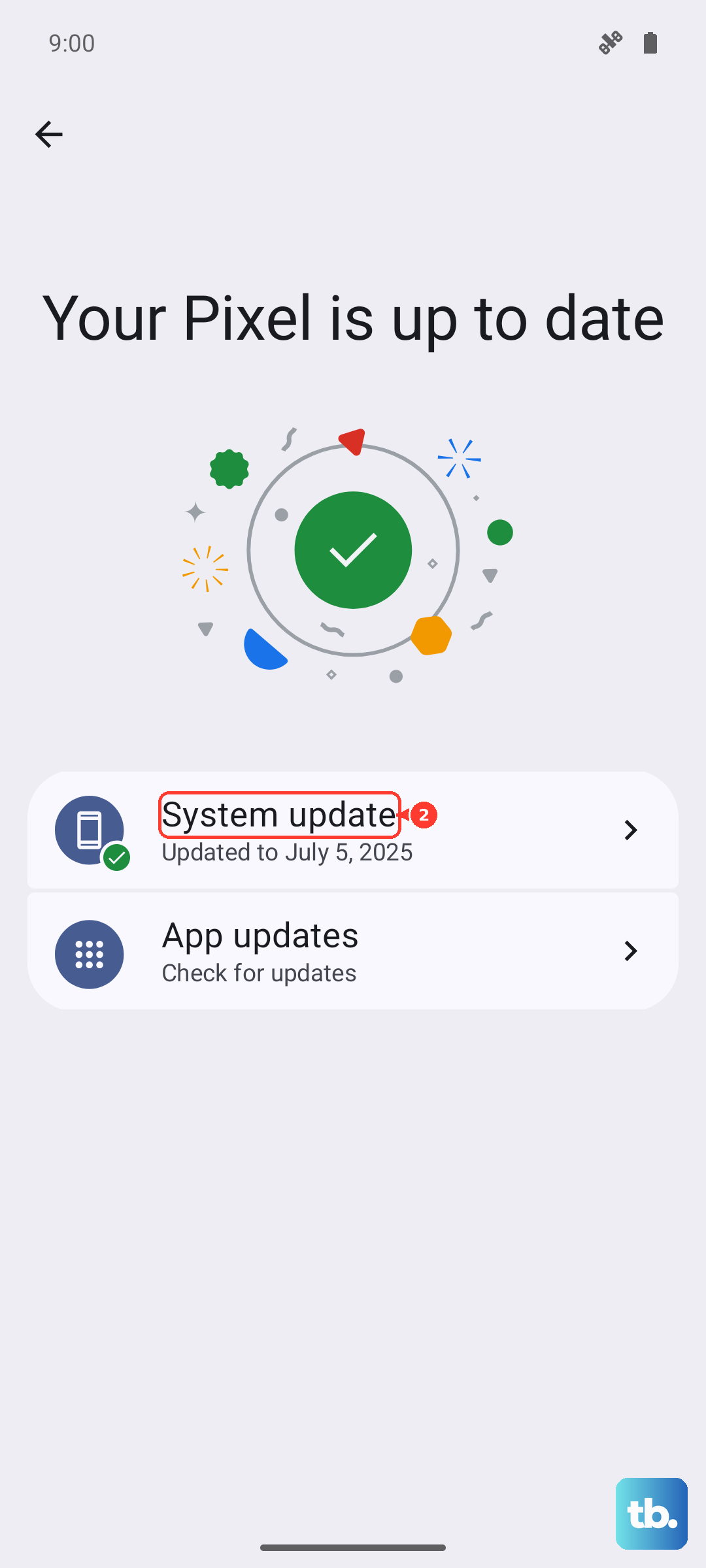
For more persistent issues, you can try clearing the cache partition. Turn off your phone, then press and hold the Power and Volume Down buttons until the bootloader screen appears. Use the volume keys to navigate to Recovery Mode and select it with the power button. When you see the Android robot, hold power and press volume up once. Select Wipe cache partition and confirm. This doesn't delete any personal data.