Why Your Razr+ Flashlight Goes Dark
You reach for your Motorola Razr+ (2024) in a dark closet, swipe down for the flashlight, and the LED stays off, the tile has vanished, or a flick of your wrist keeps launching the camera instead of the light. It is frustrating on a phone this capable, but the cause is rarely a broken part. This model definitely has a flashlight. Motorola lists a Single LED flash on the rear camera, with two official ways to control it, a Quick Settings tile and a Fast flashlight chop gesture.
Because that one LED is shared by both the camera and the flashlight, most problems trace back to a setting, a busy app, or heat rather than failed hardware. Work through the fixes below in order, starting with the quickest and safest, and leave the reset and repair steps for last.
Start With the Quick Settings Flashlight Tile
The fastest way to test the light is the tile that lives in Quick Settings, and it behaves the same whether the phone is folded shut or open. If a single tap turns the LED on and off here, the hardware is fine and any earlier failure was likely a stuck gesture or app.
- 1.Swipe down once from the top of the screen. This works on the external cover display when the phone is closed and on the home screen when it is open.
- 2.Tap an icon to toggle the setting on or off, then tap the flashlight icon.
- 3.Tap it a second time to switch the light back off and confirm it responds both ways.
Bring Back a Missing Flashlight Tile
If there is no flashlight icon in the panel at all, the tile has simply been removed from your layout rather than disabled at the hardware level. You can add it back in a few taps without changing anything else on the phone.
Swipe down once from the top of the screen to open Quick Settings.
Tap the edit (pencil) icon.
Swipe up to add new tiles, then move the flashlight tile back into your active panel.
Once the tile is back in place, give it a tap to make sure the LED lights up before moving on.
Free the Shared LED by Closing the Camera
The Razr+ (2024) uses a Single LED flash that the camera and the flashlight share, so the light may not turn on while the Camera app is open and using the flash. This can happen right after you have taken photos or video.
Close the Camera app completely from the recent-apps view, along with any other app that might be using the flash, then try the flashlight again. Clearing those apps frees up the shared LED so the light can come on.
Use the Chop Gesture and Confirm It Is Turned On
If you prefer to trigger the light by motion, the Fast flashlight gesture works even when the phone is closed, but the movement has to be exact. To turn the flashlight on or off, make a chopping motion. If the camera keeps opening instead of the light, you are twisting your wrist, so be sure to use a chop gesture, not a twist gesture.
When the gesture does nothing at all, the feature may simply be switched off. Check and enable it here.
Go to Settings > Gestures, or open the Moto app and go to Gestures.
Tap Fast flashlight.
Turn it on, then test the chop again away from the camera viewfinder.
Cool the Phone Down If It Feels Hot
Motorola states the phone will shut down if its temperature reaches a certain level, so excess heat can interrupt how it works. Heat builds up during long streaming or gaming sessions, when many apps are running at once, in direct sunlight, or while charging.
If the phone feels warm, stop the heavy use, take it off the charger, keep it out of direct sunlight, close apps you are not using, and let it cool before trying the flashlight again. It is worth noting that turbo charging can make the phone feel warm and is working as intended, so warmth during a fast charge is normal rather than a fault.
Restart, Then Force a Reboot
A simple restart clears the temporary glitches that can block the flashlight, and if the phone has become unresponsive you can force the reboot from the hardware button. Your data will not be deleted by this step.
Press and hold the Power button until the phone restarts. Motorola's general instruction is to press and hold the Power key for 10 to 20 seconds, while the Razr+ (2024) guidance indicates it can take about 30 seconds, so keep holding until the screen cycles.
If it does not restart, charge the phone for several minutes, then try again while it is still connected to the charger.
Do not attempt to remove the battery on this folding model. If the screen comes back, test the flashlight from the Quick Settings tile once more.
Install the Latest Software Update
A system update can correct camera and flash bugs that no setting change will fix, so it is worth checking before you consider anything drastic. The Razr+ (2024) ships on Android 14 and is eligible for the official Android 15 update.
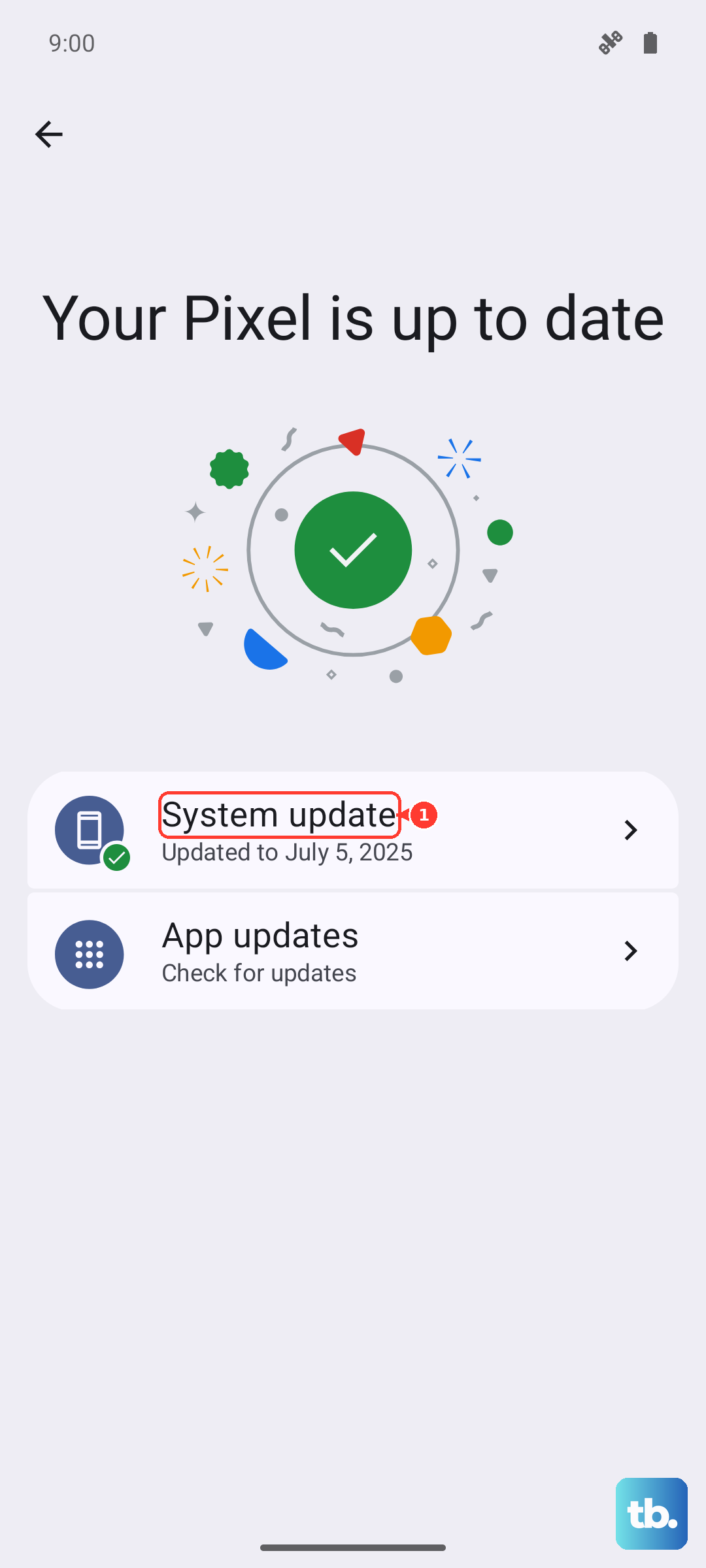
Go to Settings > System updates > Check for updates.
Follow the on-screen instructions, using Wi-Fi to download the update.
To confirm which version you are on, open Settings > About phone > Device details > Android version. Installing the newest available build is the safest software fix because it keeps all of your data in place.
Erase Everything With a Factory Reset
If the flashlight still will not work after every step above, a factory reset returns the phone to its out-of-the-box state and clears any deeper software fault. This erases all of your data, so back up your photos, accounts, and files first.
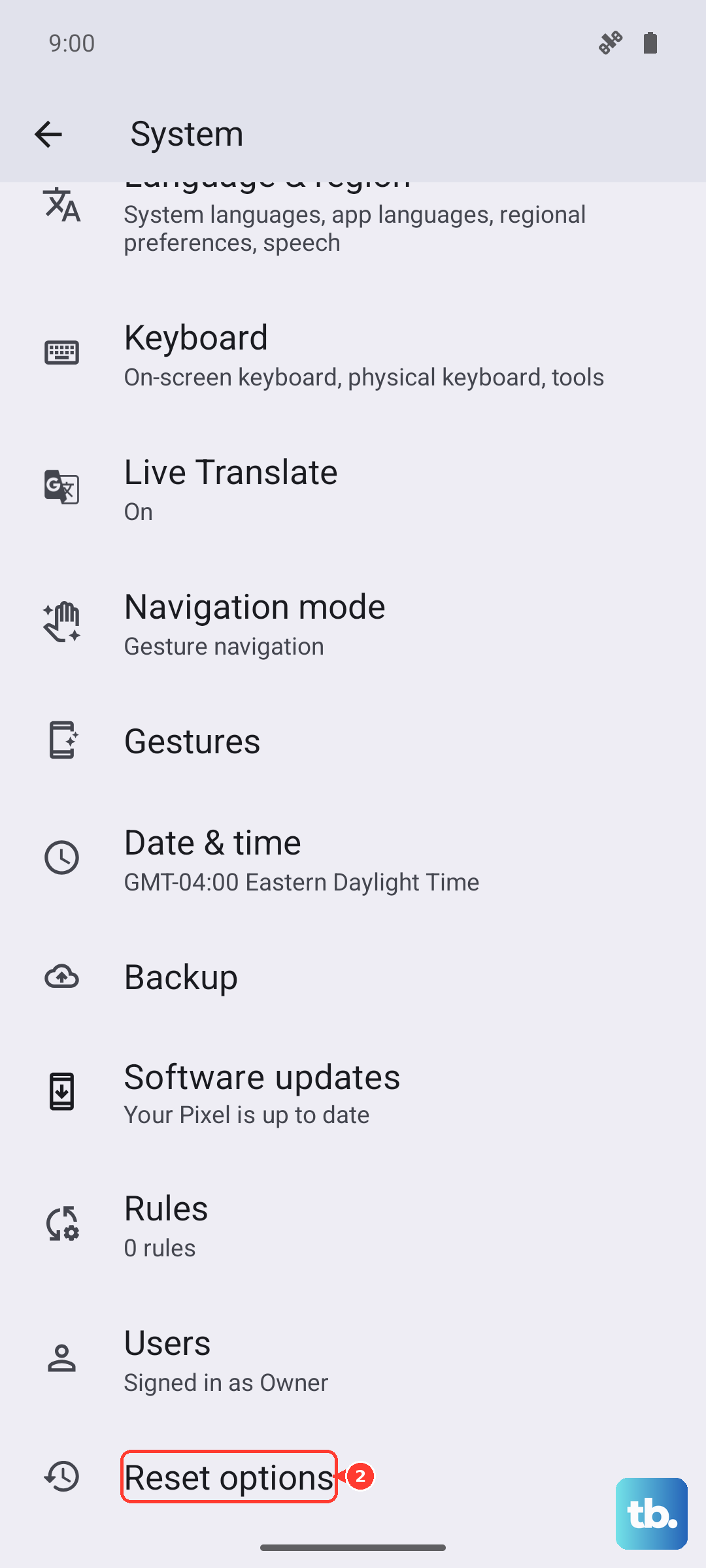
Go to Settings > System > Reset options > Erase all data (factory reset).
Confirm the reset and let the phone restore itself to out-of-the-box condition.
If you cannot reach Settings, you can run an external reset from recovery mode instead. Charge the phone to at least 30 percent and power it off, then press and hold Volume Down plus Power until it turns on. Use the Volume buttons to reach Recovery mode and press Power, then at the Android robot screen hold Power and press Volume Up to open the menu, scroll to Wipe data/factory reset, and press Power to select it.
When to Reach Out to Motorola for a Repair
If the LED stays dark even after a factory reset, the flash hardware itself may be faulty, and that is the point to involve Motorola directly. Contact Motorola through its official support channels by chat or phone, or start a service request through its repair options.
Through the repair channel you can check your warranty status and track an existing repair using your IMEI or service order number. Having that information ready before you reach out will make the conversation faster.
Frequently Asked Questions
Does the Motorola Razr+ (2024) actually have a flashlight?
Yes. Motorola's official specifications list a Single LED flash on the rear camera, and the phone offers two ways to control it, a Quick Settings flashlight tile and a Fast flashlight chop gesture.
Why does the camera open instead of the flashlight when I use the gesture?
That happens when you twist your wrist rather than chop. The Fast flashlight gesture only responds to a chopping motion, so use a chop, not a twist, and the light should fire even when the phone is closed.
Why is the flashlight unavailable right after I take photos?
The camera and the flashlight share the same Single LED flash, so the light can be tied up while the Camera app is open and using the flash. Close the Camera app completely from the recent-apps view and try the flashlight again.
Will a force restart delete my data?
No. Holding the Power button to force a restart reboots the phone without removing anything. Only a factory reset erases your data, which is why you should back up before using that step.
How do I know if my phone is up to date?
Check your build at Settings > About phone > Device details > Android version, then look for new software at Settings > System updates > Check for updates. The Razr+ (2024) ships on Android 14 and is eligible for the Android 15 update.