
If your Motorola Razr Plus (2024) camera app is crashing, freezing, or just showing a black screen, the first thing to try is a simple restart. Press and hold the Power button for 10-15 seconds until the phone vibrates and the Motorola logo appears. I've found this clears up most temporary software glitches that can cause the camera to fail.
Start with a free webcam test to rule out a hardware fault. If a live preview appears there but not in your app, the camera is fine and the app is the problem.
Key Points
- Restart the Camera App: Force stop the app to clear any temporary data causing it to hang.
- Clear the Camera App's Cache: This removes temporary files that might be corrupted without deleting your photos.
- Check for Software Updates: Motorola frequently releases updates that fix camera performance and bugs.
- Inspect the Camera Lenses: Smudges on the cover screen or main camera lenses can cause blurry or black images.
- Boot Into Safe Mode: This helps determine if a recently installed third-party app is interfering with the camera.
- Reset App Preferences: This reverts all app permissions and defaults without deleting your data.
Give the phone a moment to fully restart, then open the camera again from the cover screen or by unfolding the device. If the camera still won't work, don't worry, there are several other steps to try.
Restart the Camera App
Sometimes the camera app itself gets stuck. You can force it to close and restart fresh. Swipe up from the bottom of the screen and hold to enter the recent apps view, then swipe the Camera app up and off the screen to close it completely.
For a more thorough reset, go to Settings > Apps > See all apps. Find and tap on "Camera" in the list. On the app info screen, tap Force stop and then confirm. Wait a few seconds, then tap the Open button to launch the camera again.
Clear the Camera App's Cache
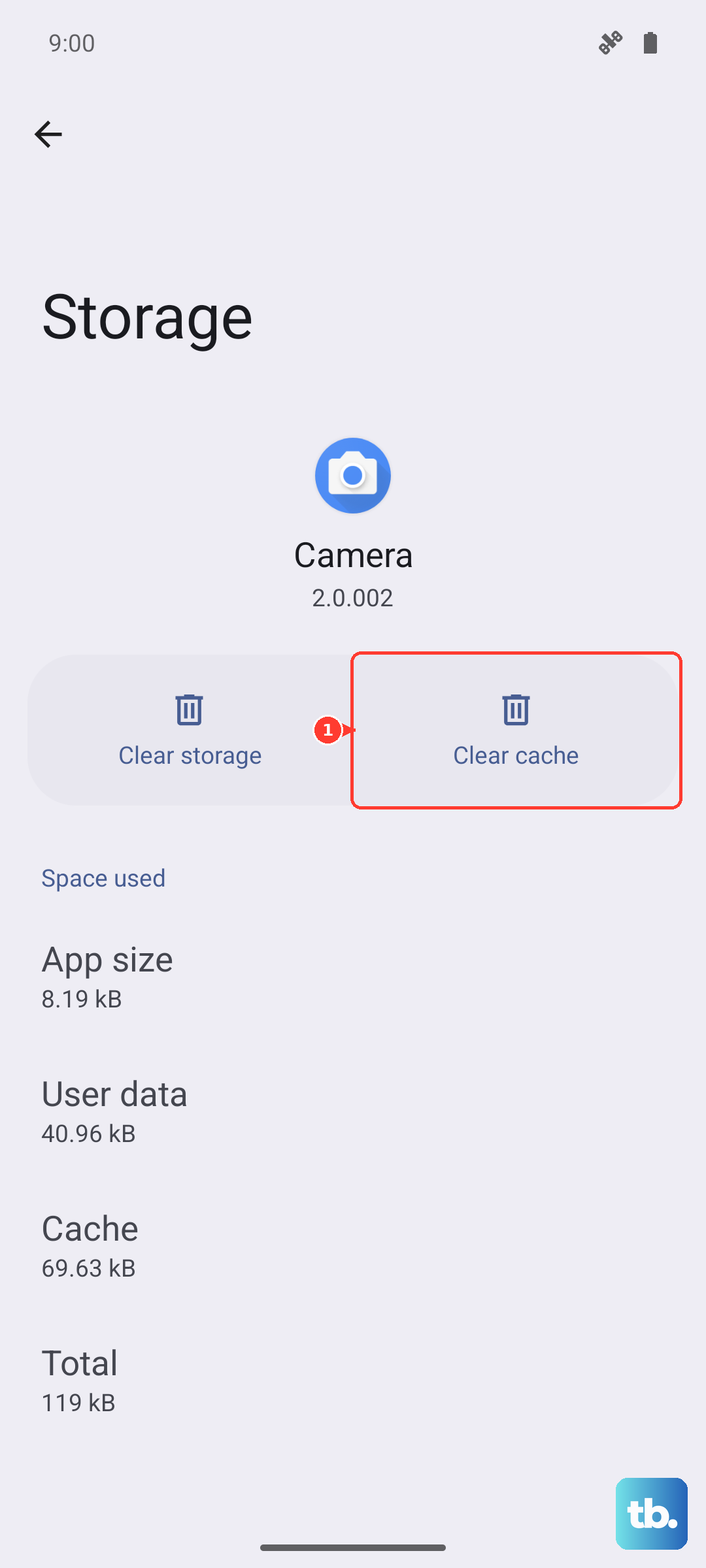
If a simple restart doesn't help, the app's cache might be corrupted. This cache stores temporary data to help the app load faster, but it can sometimes cause problems. You can clear it safely without losing any of your photos or videos.
Go back to Settings > Apps > See all apps > Camera. Tap on Storage & cache. Here, tap the Clear cache button. After it's done, open the camera app to see if it's working properly now.
Check for Software Updates
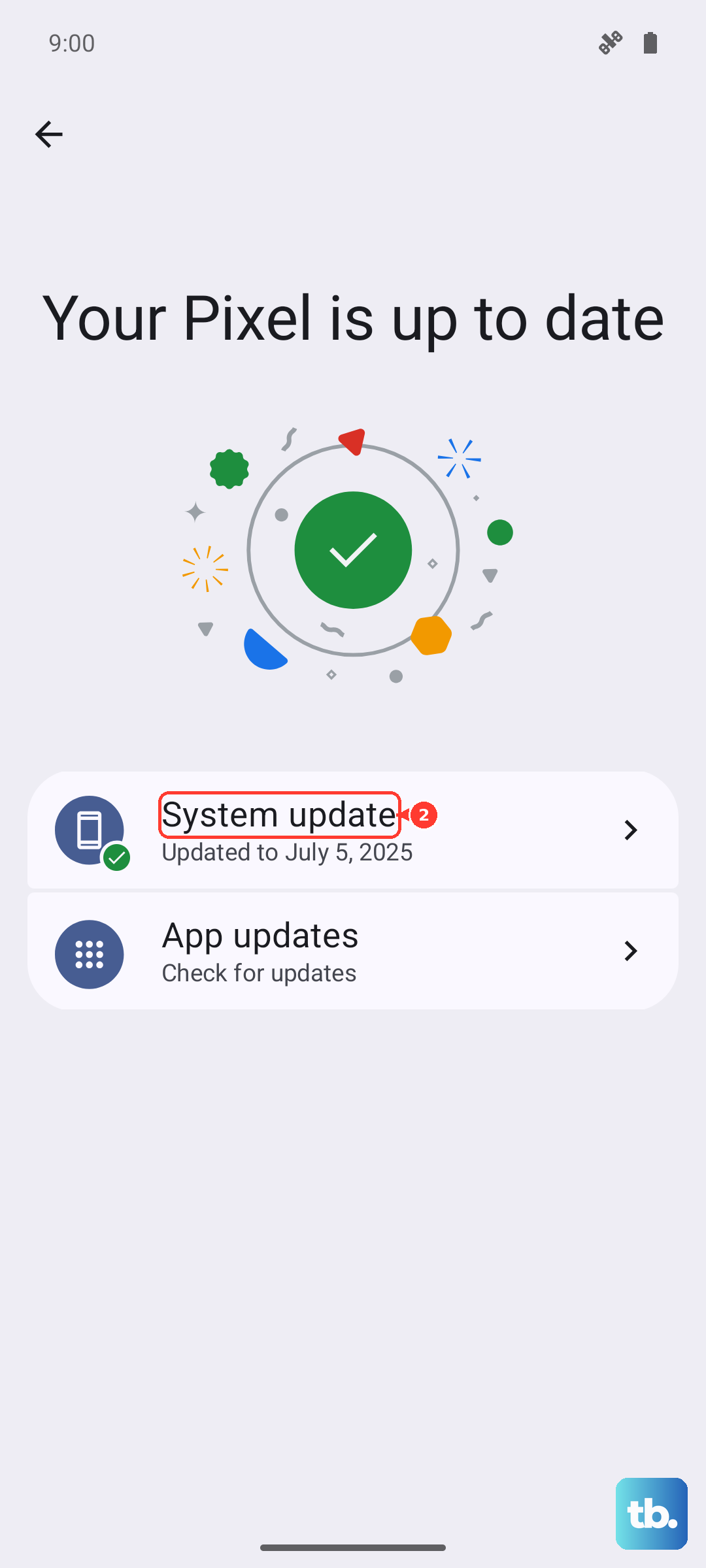
Motorola releases software updates that often include fixes for camera performance and stability. It's a good idea to make sure your phone is running the latest version of Android and Motorola's software.
Open Settings > System > System updates. Tap "Check for update." If an update is available, connect to Wi-Fi and install it. I'd recommend doing this while your phone is charging, as the update process can take a few minutes. After the update installs, your phone will restart automatically.
Inspect the Camera Lenses
This might seem obvious, but it's easy to overlook. The Razr Plus has lenses on both the cover screen and the main internal display. Gently wipe all camera lenses with a clean, dry microfiber cloth. Fingerprints and smudges can make pictures look blurry or even cause the camera viewfinder to appear dark or hazy.
Pay special attention to the cover screen camera, as it's more exposed to pocket lint and fingerprints. Also, check that no protective film or case is accidentally covering any of the lenses.
Boot Into Safe Mode
If the camera works fine in Safe Mode, then a third-party app you installed is likely causing the conflict. To boot into Safe Mode, press and hold the Power button until the power off menu appears. Then, press and hold the "Power off" option on your screen. A prompt will ask if you want to reboot to Safe Mode, tap OK.
In Safe Mode, you'll see "Safe mode" in the bottom corner of the screen. Try opening the camera app here. If it works normally, restart your phone to exit Safe Mode and start uninstalling recently downloaded apps one by one, testing the camera after each removal.
Reset App Preferences
This is a useful step that resets all your app permissions, default apps, and background restrictions back to their factory settings. It won't delete any of your personal data like photos or messages. It can fix issues where the camera app lost necessary permissions after an update.
Go to Settings > Apps > See all apps. Tap the three-dot menu in the top right and select Reset app preferences. Confirm your choice. Afterward, you'll need to re-grant permissions the first time you use certain apps, including the camera.
Check for Physical Damage or Obstructions
Take a close look at the phone's hinge and the area around the cameras. The folding mechanism is robust, but if the phone was dropped or impacted, it's possible something inside could be misaligned. Gently open and close the phone a few times while listening for any unusual sounds near the camera module.
Also, ensure nothing is physically blocking the lenses. The phone's unique design means the main cameras are exposed when closed, so check for any debris in the crevices around them.
Perform a Factory Reset
This should be your last resort before seeking service, as it will erase all data from your phone. Before you begin, make sure all your important photos, files, and data are backed up to your Google account or transferred to a computer.
To back up, go to Settings > System > Backup. Once backed up, you can proceed. Go to Settings > System > Reset options > Erase all data (factory reset). Follow the on-screen instructions to complete the process. After the reset, set up the phone as new and test the camera immediately before restoring your apps.
Update Google Play Services and Camera App
Beyond the main system software, the Camera app and core Google services receive updates through the Play Store. An outdated version could be the culprit. Open the Google Play Store app and tap your profile icon in the top right.
Go to Manage apps & device > Manage. Tap "Updates available" to see everything that needs an update. Look for "Camera" and "Google Play Services" in the list and update them. After updating, restart your phone once more to ensure all the new software components are loaded correctly.