
A blurry camera on your Motorola Razr Plus (2024) can ruin the whole point of having a great folding phone. The blur might be constant, only happen in certain lighting, or make your cover screen selfies look soft. Before you worry about a hardware issue with the foldable mechanism, work through these steps.
Clean the Camera Lenses
This is almost always the culprit. You have two lenses to check: the main camera on the back and the selfie camera inside the fold. Use a soft microfiber cloth to gently wipe each lens in a circular motion. Fingerprints and dust are the most common cause of that hazy, out-of-focus look, especially since the phone spends time in your pocket or bag.
Pay extra attention to the main camera bump. Its position makes it prone to picking up smudges every time you set the phone down. Avoid using your shirt or any rough material that could scratch the lens coating.
Remove Your Case and Check Alignment
Take your case off completely. Some cases, particularly third-party ones not designed for the Razr Plus's unique hinge and camera bar, can sit just a fraction of a millimeter off. This misalignment can cause the case's lip to partially cover the lens or create a reflective surface that fogs your photos.
Also, make sure you haven't applied any aftermarket camera lens protectors. These thin films can drastically reduce image clarity and introduce blur, so it's best to remove them for a test shot.
Tap to Focus on Your Subject
Open the Camera app and tap directly on the main subject in your viewfinder. You'll see a focus box appear. The camera's autofocus is smart, but it can get confused, especially with busy backgrounds or in low light.
For close-up shots, this is essential. The camera might be focusing on the wall behind your subject. A simple tap tells it exactly where to sharpen the image. You can also press and hold on the screen to lock focus and exposure if your subject isn't moving.
Switch Between Camera Lenses
Your Razr Plus has multiple lenses. In the Camera app, tap the tree icon to switch between them, try the standard, wide, and telephoto options. If only one lens produces blurry photos while the others are sharp, you've isolated the problem.
This tells you the issue is likely with that specific lens module, which could need a more thorough cleaning or, in rare cases, professional attention. It's a quick way to rule out a universal software glitch.
Force Close and Reopen the Camera App
Swipe up from the bottom of your screen and hold to enter the recent apps view. Find the Camera app and swipe it all the way up to close it. Then, reopen it from your home screen or app drawer.
This clears the app from memory and restarts it fresh. Sometimes, the camera software gets stuck in a state where the image signal processor isn't working correctly, leading to soft or blurry image output.
Restart Your Razr Plus
If closing the app didn't help, a full restart is the next logical step. Press and hold the Power button for about 10-15 seconds until you feel a vibration and see the Motorola logo. This force restart clears out any system-level processes that might be interfering with the camera hardware.
It's a more thorough reset than just closing the app and can resolve deeper software conflicts that cause autofocus to fail or image stabilization to act up.
Check for Lens Condensation
The folding design means the interior of your phone is more sealed, but condensation can still be an issue. If you've moved from a cold environment to a warm, humid one, moisture can fog the interior of the camera lenses.
This creates a uniform blur or haze across all your photos. The fix is simple: let the phone sit and acclimate to room temperature for 15-20 minutes with the screen unfolded. Don't try to speed it up by using a hair dryer or blowing into the hinge.
Update Your Phone's Software
Go to Settings > System > System updates. Motorola regularly releases updates that include camera performance improvements, bug fixes for the image processing algorithms, and autofocus refinements.
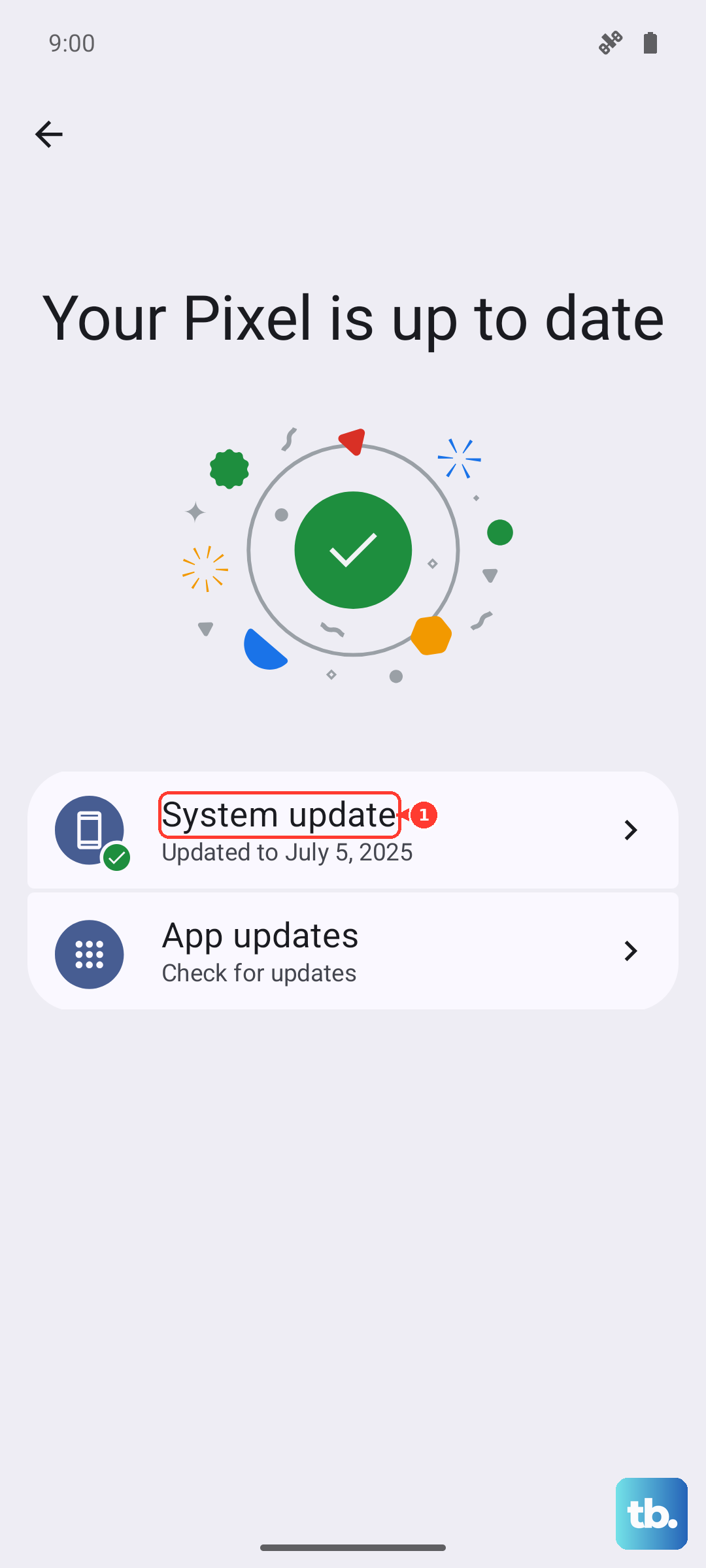
A blurry camera issue you're experiencing might be a known bug that already has a patch waiting for you. I always recommend keeping your phone updated, as camera tuning is a common focus for these updates.
Reset the Camera App Settings
If you've changed a lot of settings, one of them might be causing trouble. Open the Camera app, swipe in from the left edge to open the menu, and tap the settings gear icon. Look for an option to reset settings or restore defaults.
This will wipe any custom scene modes, filters, or shooting preferences back to factory default. It's a good way to eliminate any configuration error that's leading to poor image quality without affecting the rest of your phone.
Boot into Safe Mode
This tests if a third-party app is causing the problem. Press and hold the Power button until you see the power off menu. Then, press and hold the "Power off" text on your screen. A prompt will ask if you want to reboot to Safe Mode.
In Safe Mode, all downloaded apps are disabled. Try the camera again. If it's perfectly clear, you know an app you installed is interfering. You'll need to uninstall recent apps one by one to find the culprit.