
Seeing a "Call Failed" or "Call Ended" message on your Motorola Razr Plus (2024) is a real headache, especially when you need to connect. This usually means your phone is having trouble communicating with your carrier's network. A weak signal, a software hiccup, or a simple setting is often the culprit.
Let's start with the quickest fixes you can try right now to get your calls working again.
Toggle Airplane Mode
The fastest way to refresh your cellular connection is to use Airplane Mode. This forces your phone to disconnect from and then reconnect to the network, clearing up temporary glitches.
You can swipe down from the top of your main screen to open the Quick Settings panel. Tap the Airplane Mode icon to turn it on, wait about 15 seconds, and then tap it again to turn it off. You'll see the signal bars disappear and then come back.
Check Your Signal Strength
Weak signal is the most common reason for call failures. Look at the signal bars in the top-right corner of your main screen or cover screen. If you only have one or two bars, try moving to a different room or near a window.
Sometimes, the unique folding design can affect signal if you're holding it a certain way. I'd try unfolding the phone completely and making your call while it's open to see if that improves the connection.
Restart Your Razr Plus
A simple restart can clear out minor software bugs that might be interfering with the phone app or cellular modem. Just press and hold the power button on the right side of the phone until you see the power menu on the screen, then tap "Restart."
If the screen is unresponsive, you can perform a force restart. Press and hold the power button for 10 to 15 seconds until the screen goes black and the Motorola logo appears. This doesn't erase any data.
Check for Do Not Disturb and Focus Modes
Your phone's Do Not Disturb or other Focus modes might be silently blocking outgoing calls. Swipe down from the top to check your Quick Settings. If you see a moon icon or a Focus icon like "Work" is active, tap it to turn it off.
You can also go into Settings > Sound & vibration > Do Not Disturb to make sure all schedules are turned off while you're troubleshooting.
Verify Your SIM Card
A loose, dirty, or faulty SIM card is a classic cause of call problems. The SIM tray on the Razr Plus is on the bottom edge. Use the ejector tool that came in the box (or a small paperclip) to pop the tray out.
Carefully remove the SIM card, blow gently on the tray to dislodge any dust, and re-seat the SIM. Make sure it's lying completely flat in the tray before you slide it back in. If you have another phone handy, testing your SIM card in it can tell you if the card itself is the problem.
Update Your Carrier Settings
Carrier updates are small files that improve how your phone connects to your specific network. These often install automatically, but it's good to check.
Go to Settings > System > Advanced > Carrier settings. If an update is available, you'll usually see a prompt here to download it. Make sure you're connected to Wi-Fi first.
Check Your Network Mode
Sometimes, forcing the phone to use an older network type like 3G can bypass call issues on a congested 5G or 4G LTE network. This is a great temporary test.
Go to Settings > Network & internet > Mobile network > Preferred network type. Try selecting "3G" or "2G" instead of "5G/LTE." Make a test call, and if it works, you know it's a network-side issue. Remember to switch it back to "5G/LTE" later for faster data.
Reset Your Network Settings
This is a more thorough step that clears all your saved Wi-Fi networks, Bluetooth pairings, and cellular configurations. It won't delete your photos or apps, but you will have to re-enter Wi-Fi passwords.
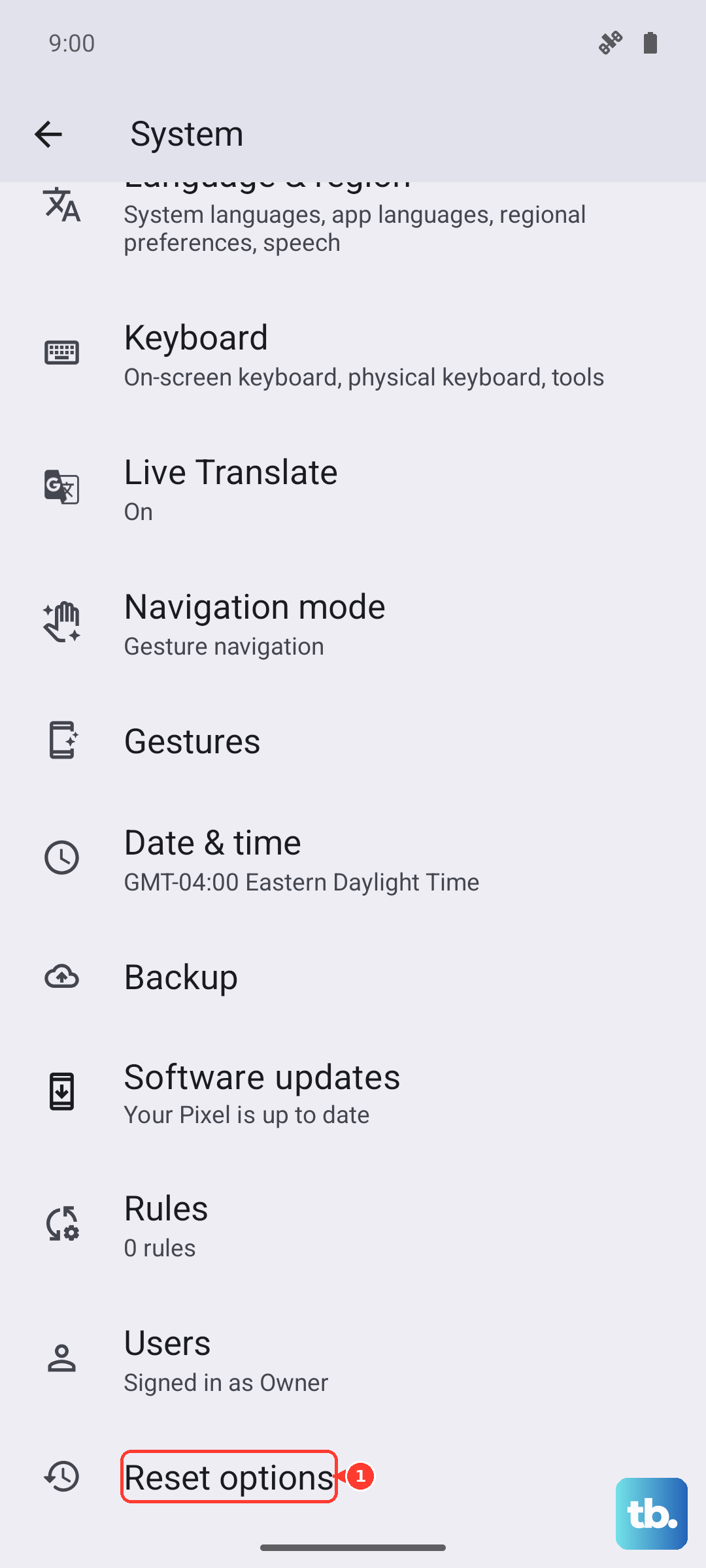
To do this, navigate to Settings > System > Reset options > Reset Wi-Fi, mobile & Bluetooth. Tap it and confirm. Your phone will reboot, and you can then try making a call again.
Update Your Phone's Software
Software updates from Motorola frequently include patches for connectivity and calling bugs. It's always worth making sure you're on the latest version of Android.
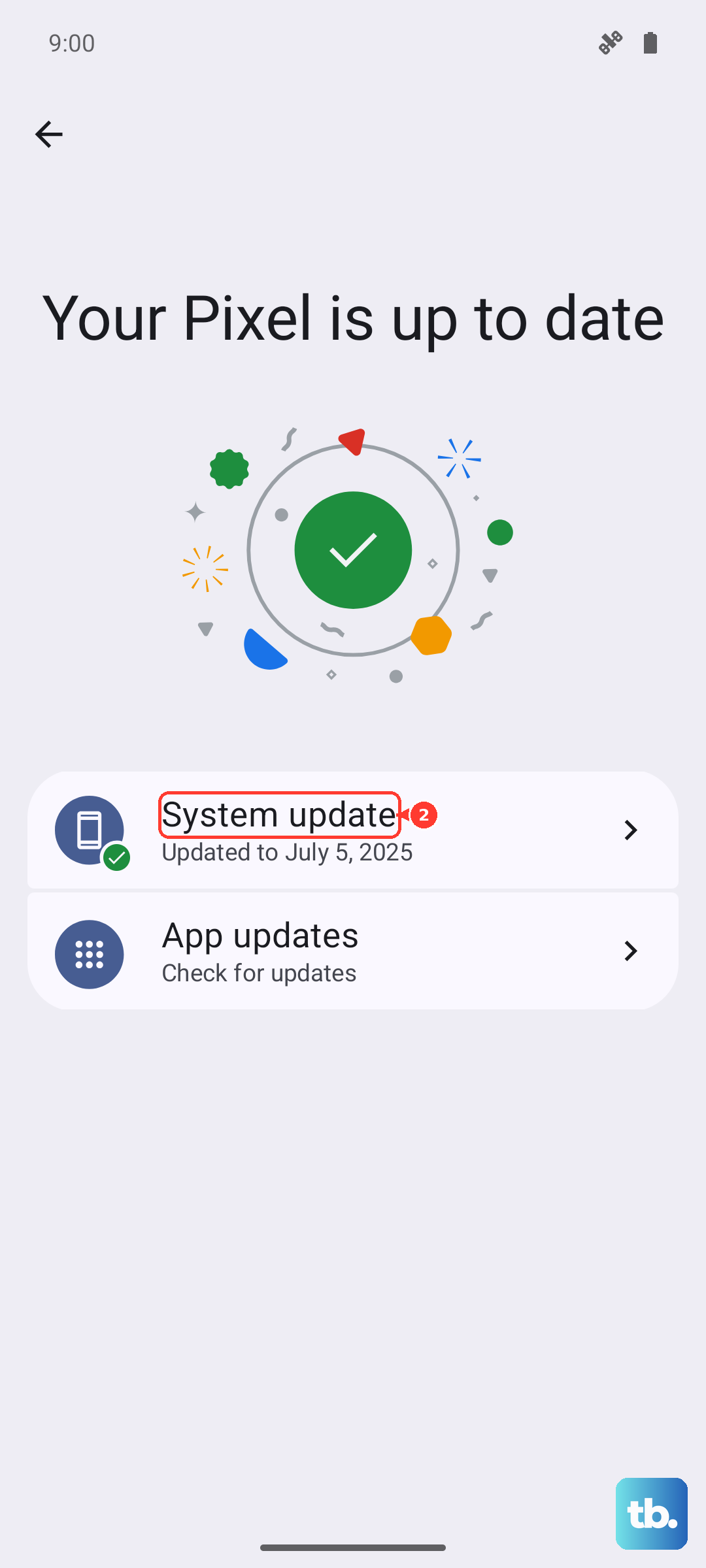
Go to Settings > System > System updates. Tap "Check for update." If one is available, download and install it. I'd recommend doing this while your phone is plugged into its 45W TurboPower charger and unfolded to ensure a smooth update.
Contact Your Carrier
If you've tried everything here and calls still fail, the problem is likely on your carrier's end. There could be a temporary network outage in your area, or there might be an issue with your account.
Call your carrier's customer support from another phone if possible. Ask them to check for outages and to verify that your line and SIM are provisioned correctly for voice calls. They can also run a diagnostic on their end and may issue you a new SIM card, which often solves persistent issues.