
You're staring at your Motorola Moto G Stylus 5G, and that Wi-Fi icon just won't light up. It's a frustrating roadblock, especially on a phone designed for productivity. The good news is this is almost always a software quirk you can fix yourself in a few minutes.
Toggle Wi-Fi and Restart Your Phone
Let's start with the simplest fix. Swipe down from the top of your screen to open the Quick Settings panel. Tap the Wi-Fi icon to turn it off, wait a few seconds, then tap it again to turn it back on. This forces your phone to drop the connection and search for networks fresh.
If that doesn't do it, a full restart is your next best bet. On your Moto G Stylus, just press and hold the power button until the power menu appears, then tap "Restart." This clears out any temporary glitches in Android 15 that might be interfering with the wireless radio.
Use Airplane Mode to Reset All Radios
This trick works because it resets every wireless connection at once. Pull down the Quick Settings shade again and tap the Airplane Mode icon. Leave it enabled for about 15 to 20 seconds.
After that short wait, tap the icon again to turn Airplane Mode off. Your phone will then re-enable cellular, Wi-Fi, and Bluetooth from scratch. I've seen this resolve stubborn connection issues more times than I can count.
Forget Your Wi-Fi Network and Rejoin
Sometimes your phone holds onto old or corrupted login information for a network. To clear it out, go to Settings > Network & internet > Internet.
Tap the gear icon next to your home network's name. At the bottom of the screen, tap Forget. Now, go back to the list of available networks, select yours again, and carefully re-enter the password. This is crucial if you've recently changed your Wi-Fi password.
Check for Router Issues
Before you spend more time on your phone, make sure the problem isn't with your internet source. Unplug your Wi-Fi router from the power outlet and wait a full 60 seconds before plugging it back in.
This gives the router time to clear its memory and start fresh. If other devices in your home also can't connect, you've found the source of the problem right there.
Disable Moto's Adaptive Connectivity
Motorola includes a feature called Adaptive Connectivity that's designed to save battery. It can sometimes be a bit too aggressive, switching you to mobile data when your Wi-Fi signal dips slightly.
To turn it off, go to Settings > Network & internet > Adaptive connectivity. Toggle the switch off. This tells your phone to stay firmly on Wi-Fi as long as it's connected.
Turn Off Battery Saver and Extreme Battery Saver
Battery saving modes are great for longevity, but they often limit background network activity to conserve power. If you have Battery Saver enabled, it could be blocking your Wi-Fi.
Open Settings and go to Battery. Make sure both "Battery saver" and "Extreme battery saver" are switched off. Try connecting to Wi-Fi again immediately after disabling them.
Update Your Phone's Software
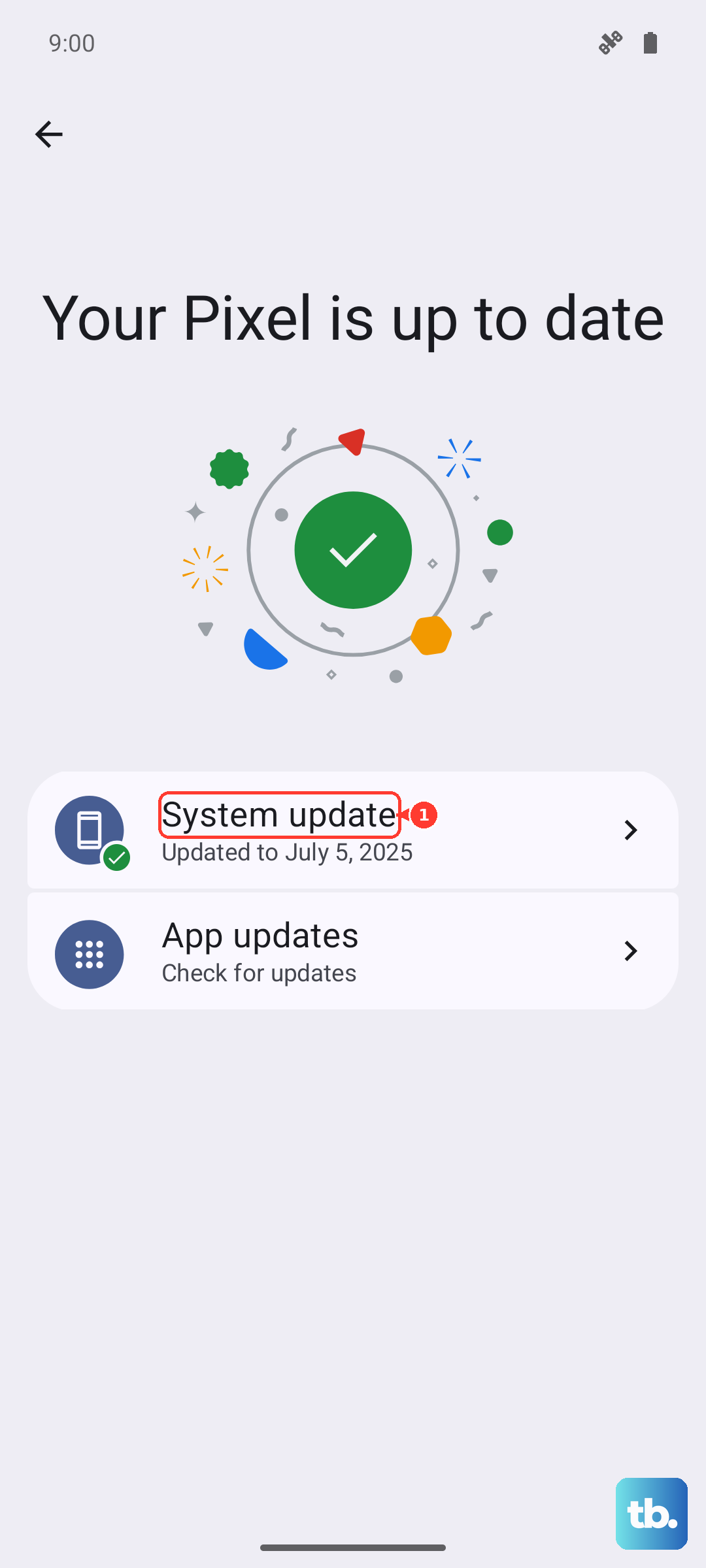
Running an outdated version of Android 15 can lead to bugs, including Wi-Fi instability. Motorola regularly releases updates with fixes.
Check for one by going to Settings > System > System update. Tap "Check for update" and install anything that's available. It's a good habit to keep your 2025 model updated for both security and performance.
Verify Your Date and Time Settings
This seems unrelated, but it's important. An incorrect date or time can break the security certificates needed to connect to a modern Wi-Fi network.
Go to Settings > System > Date & time. Ensure that "Use network-provided time" and "Use network-provided time zone" are both enabled. This lets your phone automatically sync the correct time.
Reset Your Network Settings
If you're still stuck, resetting all network settings can be the solution. This will erase all saved Wi-Fi networks, Bluetooth pairings, and mobile data preferences, so you'll have to set them up again.
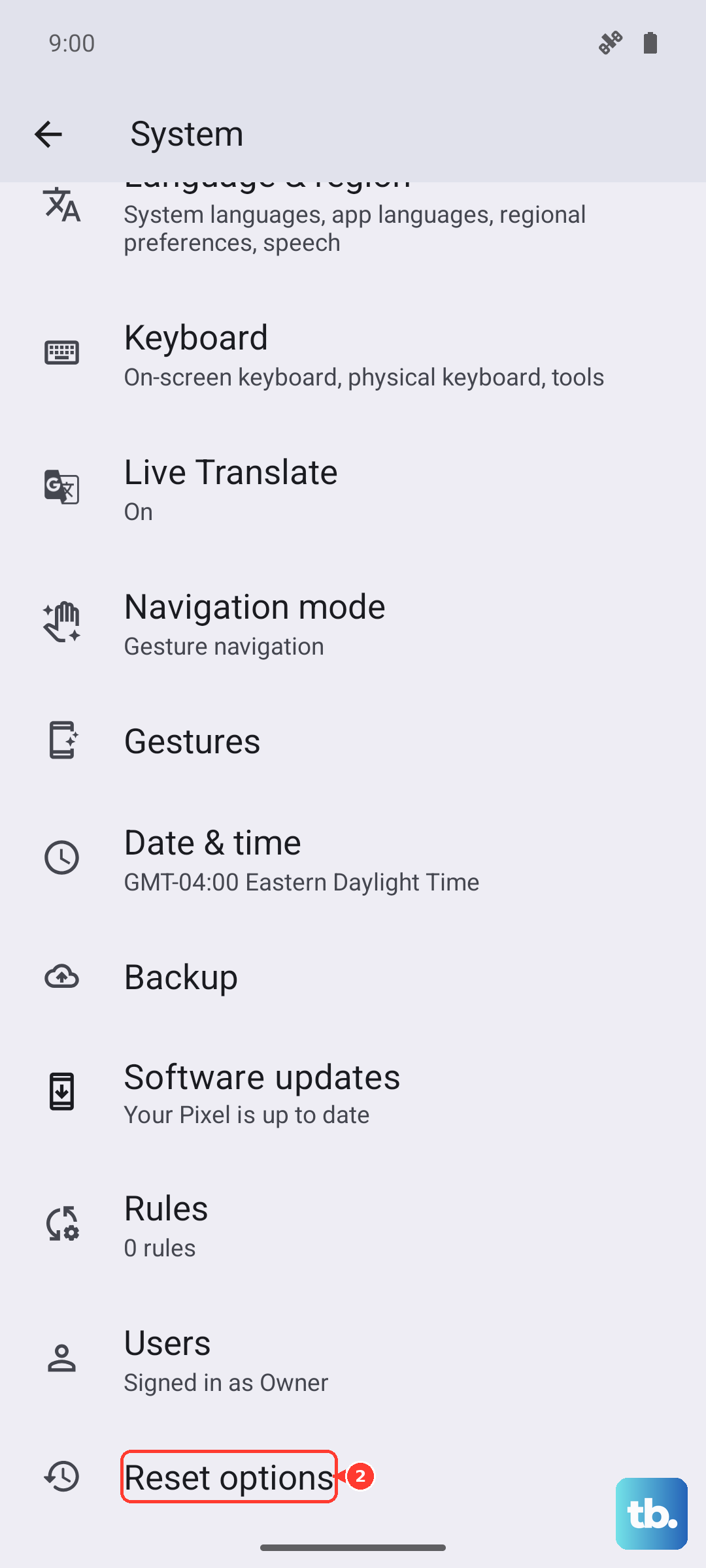
To do this, navigate to Settings > System > Reset options. Tap Reset Wi-Fi, mobile & Bluetooth and confirm. After the phone reboots, try connecting to your Wi-Fi from scratch.
Boot Into Safe Mode to Check for App Conflicts
A third-party app you installed could be causing the interference. Apps like VPNs, ad blockers, or certain "cleaner" utilities are common culprits. Booting into Safe Mode temporarily disables all downloaded apps.
To enter Safe Mode, press and hold the power button until the power menu appears. Then, tap and hold the "Power off" option on your screen. A prompt will appear asking if you want to reboot to Safe Mode. Tap "OK."
If your Wi-Fi works perfectly in Safe Mode, you know a downloaded app is the problem. Start by uninstalling any recent apps, or apps that manage network connections, to find the offender.
Consider a Factory Reset
This is your last resort before considering a hardware issue. A factory reset will wipe your Moto G Stylus 5G back to its original out-of-the-box state. You must back up everything important first, like photos, documents, and app data.
Once you've secured your data, go to Settings > System > Reset options > Erase all data (factory reset). Follow the prompts to complete the reset. If Wi-Fi still doesn't function after this, there may be a physical problem with the phone's antenna or Wi-Fi module.